
To create AI animation from a 3D viewport, record the camera or object movement, prepare images that define the intended appearance, and combine both in VizMaker. Keep the opening viewpoint aligned with the first reference and explain how later references relate to the sequence. This creates a guided video after generation; it is not a continuously rendered live viewport.
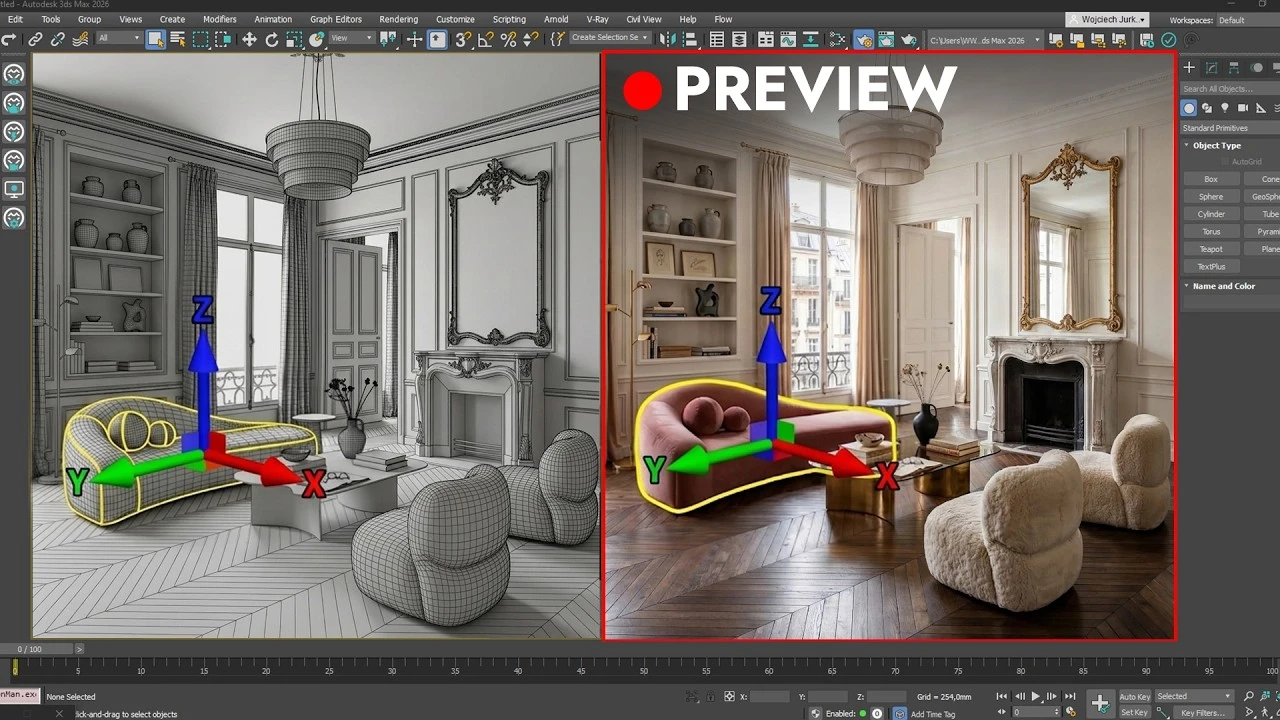
A motion prompt alone may not describe the shot you need
A request such as “move through the apartment” leaves many decisions to the video generator: the route, camera timing, room transitions, and how the design changes between views. When those decisions are already available in a 3D scene, capturing them provides a more concrete motion guide.
The workflow separates two inputs. The viewport recording describes movement and spatial relationships, while rendered or generated reference images describe the intended appearance. Bringing them together supports architectural walkthroughs as well as character and product studies.
1. Record a deliberate viewport movement
Start with a clean capture whose opening view can also be used for the visual reference.
In the supported integration, select the screen area occupied by the 3D viewport. Capture the starting view as an image before moving the camera. The demonstration then switches to a perspective view for free movement and uses a clay display so that the capture emphasizes form and motion.
Start recording, move through the scene, and stop when the intended action is complete. Open the captured clip in the editor to remove idle sections and adjust its length or speed. Preserve the correct opening frame while trimming: it needs to remain compatible with the image used to define the final appearance.
- Choose the viewport region before recording.
- Save the intended opening view as an image.
- Trim idle time without losing the aligned first frame.
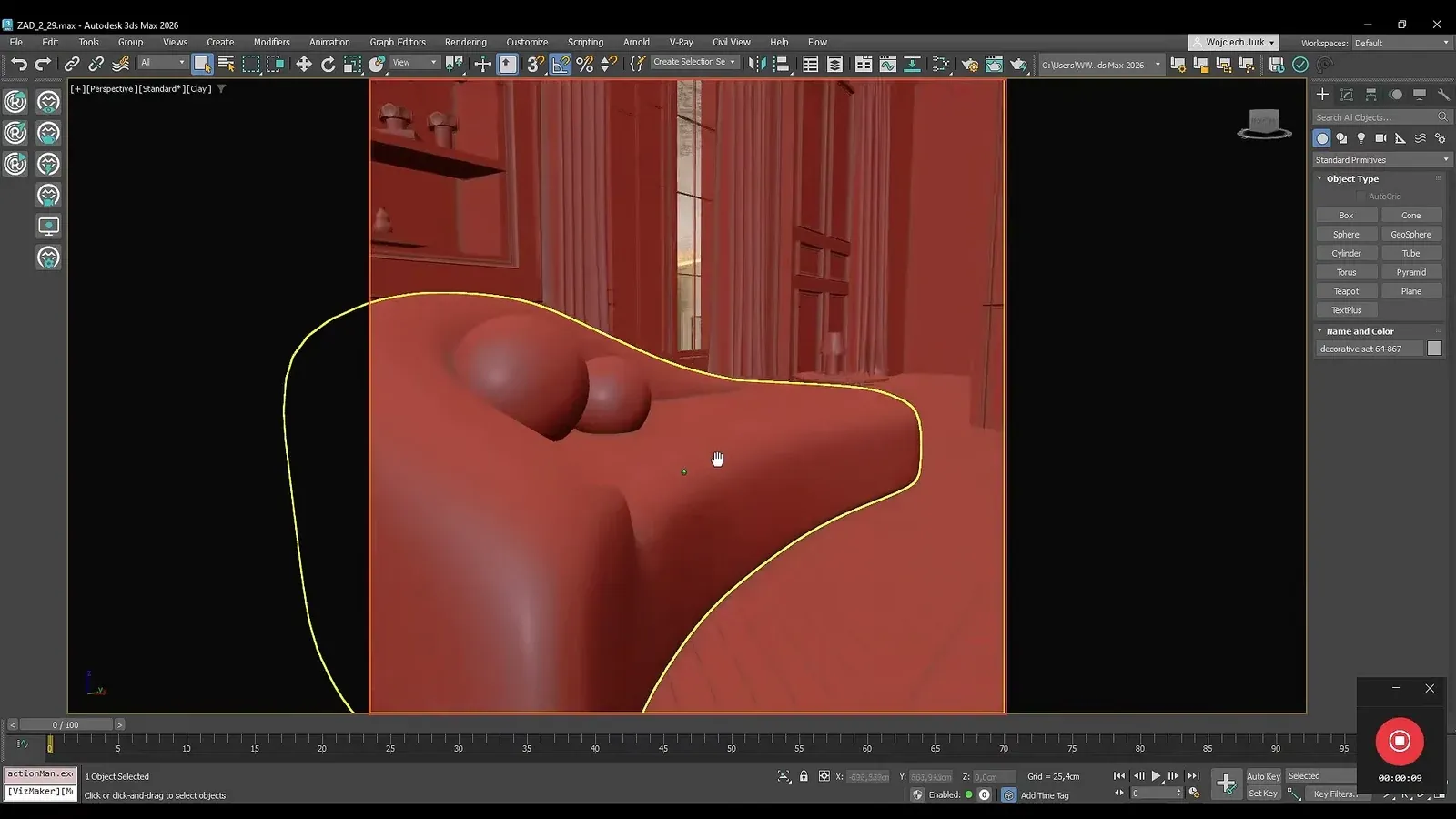
2. Match the opening image to the first video frame
Appearance and motion references need a common starting viewpoint.
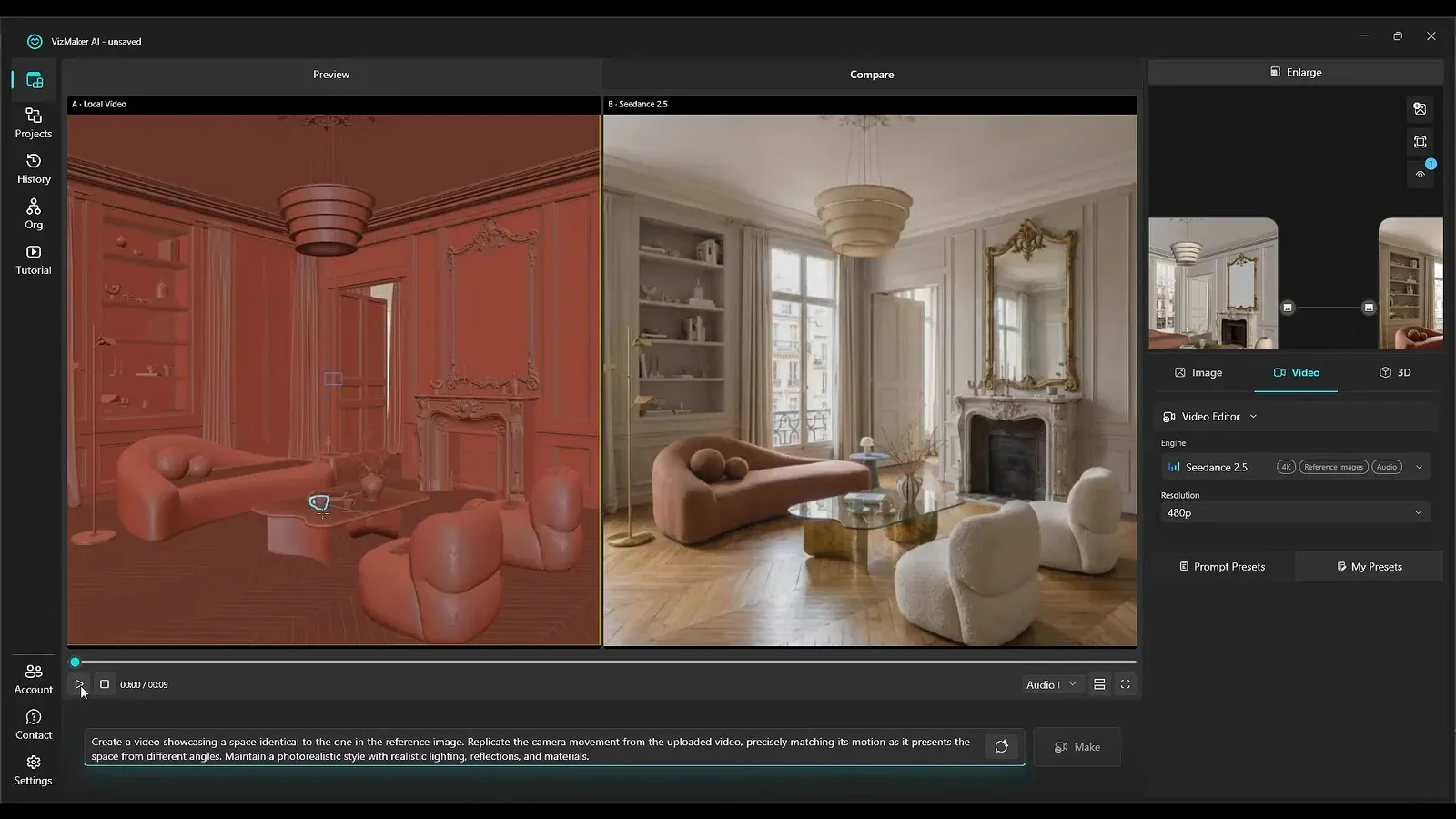
Develop the saved starting image with the View to render workflow. The example uses Nano Banana for the presentation image and Seedance for the video-editing stage. Connect the resulting image and captured clip, then describe how the final scene should use the supplied appearance while following the recorded motion.
The first-frame match is the central alignment rule in this workflow. If the opening image has a different perspective from the capture, the generated clip may have to reconcile incompatible views. Compare the completed result with the recording, checking camera behavior, object placement, and continuity. The same sequence is demonstrated with 3ds Max, Revit, and SketchUp inputs.
3. Use simple geometry to guide movement
A captured model can describe more than the camera path.
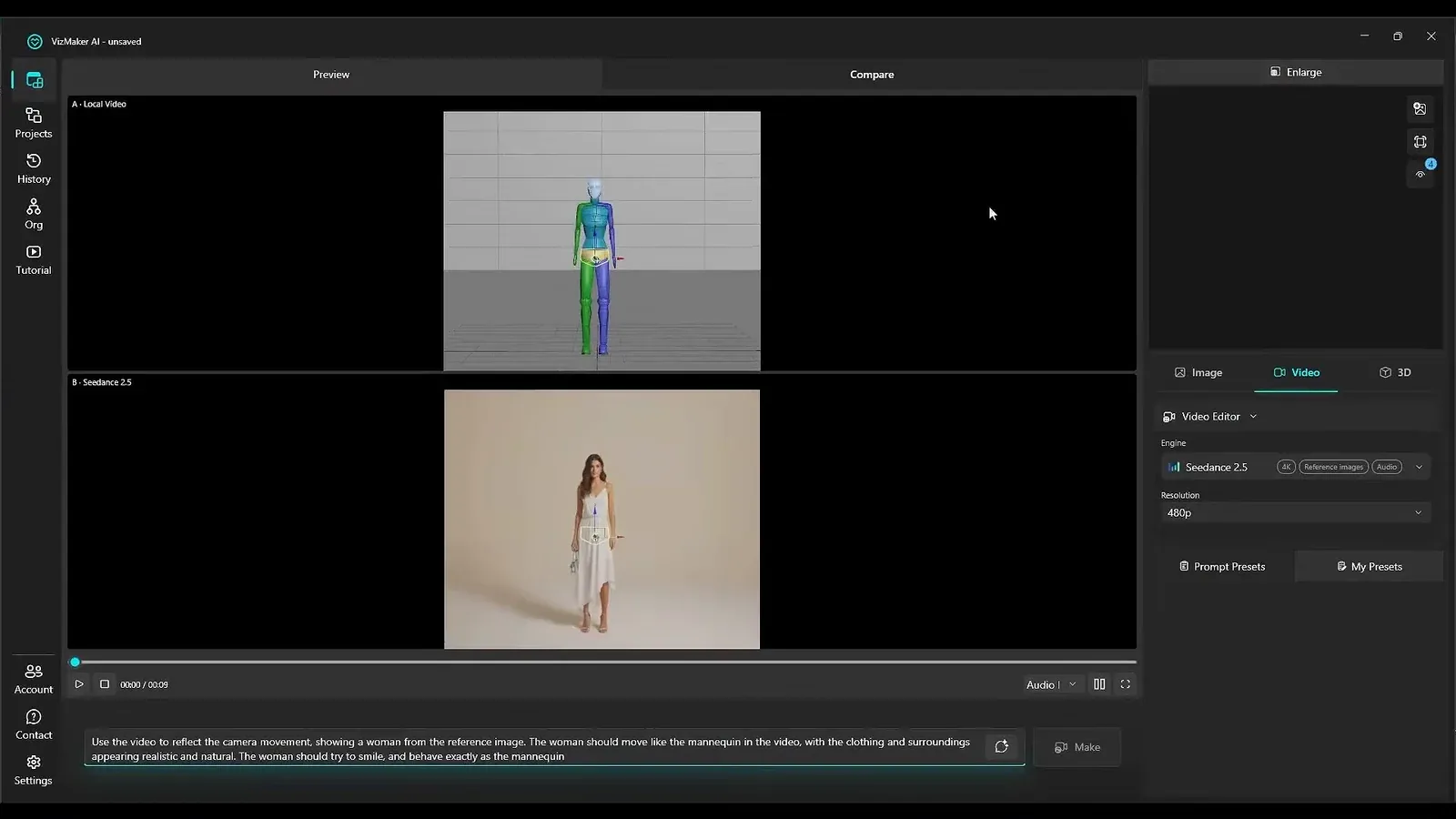
Moving an object during capture gives the generator another kind of motion reference. Describe the intended behavior in the prompt, especially when the visible shape should change with the action. The demonstration also uses a simple animated figure as the movement guide for a generated person.
Connect the character image and the mannequin capture, then explain that the person should follow the guide’s movement. Review pose, timing, clothing, and hair in the result. The geometry supplies the action to follow; the image and prompt supply the appearance and context. It is still necessary to inspect how well the two agree over the full clip.
4. Use several appearance references for a multi-room route
One attractive image may not describe every space the camera will enter.
For a planned walkthrough, draw a camera path in 3ds Max and attach the camera with a Path Constraint. Prepare a clean viewport and capture the movement along that route. Adjust the timing so the sequence gives the important spaces enough attention instead of rushing through them.
Create reference images for the key rooms or views. The example’s earlier attempts produced unwanted colors when the scene appearance was not described sufficiently. Capture relevant textured views, develop their render direction, and check that the references are consistent with each other.
Connect those references to the video workflow in a clear order. Explain approximately when each should guide the result, matching the connected image order to the written brief. Review transitions between rooms as well as individual frames: continuity problems often appear at the point where one reference must give way to another.
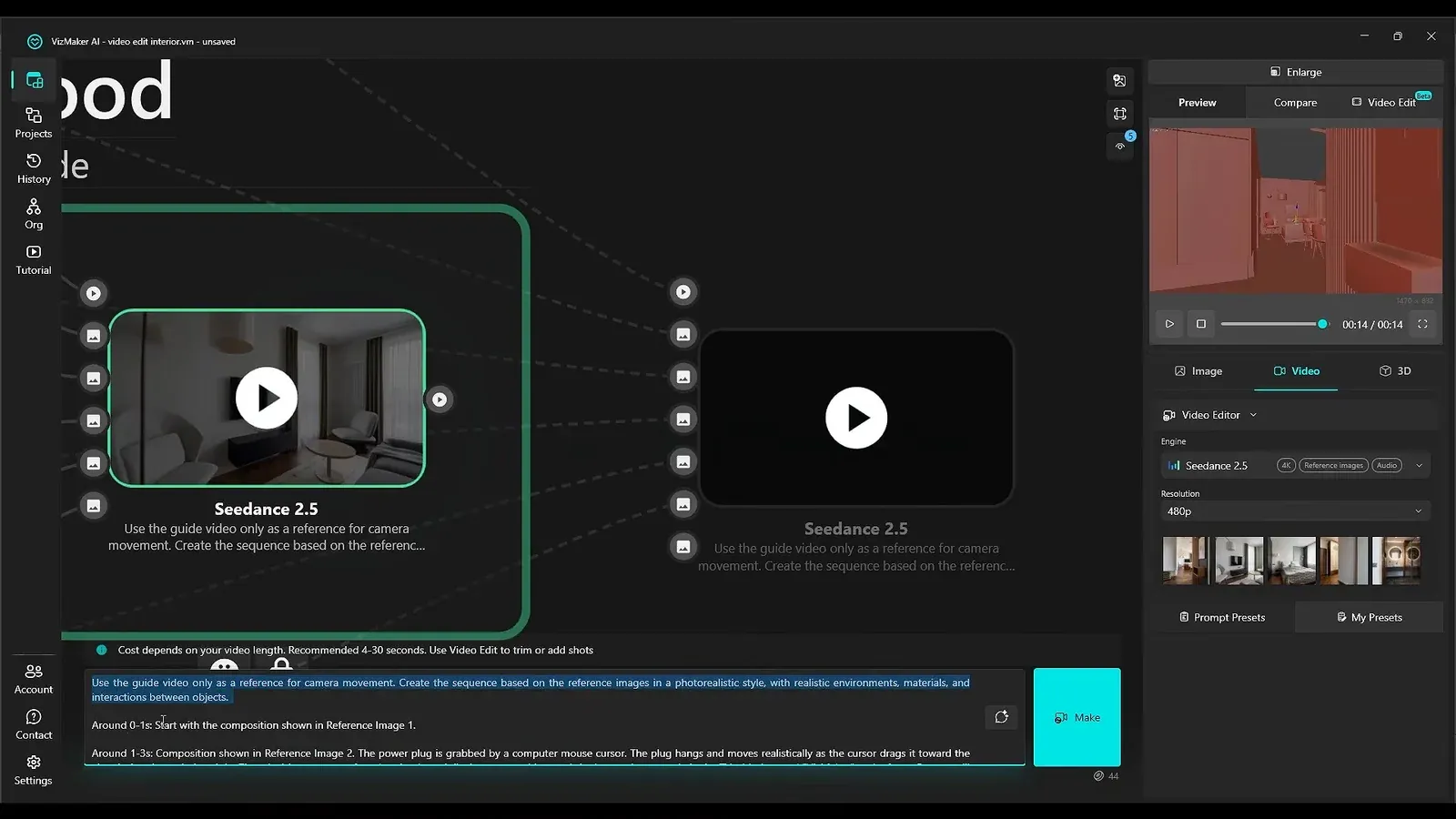
5. Apply the same reference logic to recorded footage
The motion guide can also come from a video recorded outside a 3D application.
Load the footage and develop a revised version of its opening frame. In the car example, the first image is edited to replace the vehicle, then combined with the original video. The recording supplies movement while the revised image describes the intended visual change.
Keep the change explicit and check that it remains stable over time. The same general process can explore weather or atmosphere variations. Review the whole sequence, including moments when the subject turns, becomes partly hidden, or changes size in the frame; the first still alone cannot show whether the edit holds together.
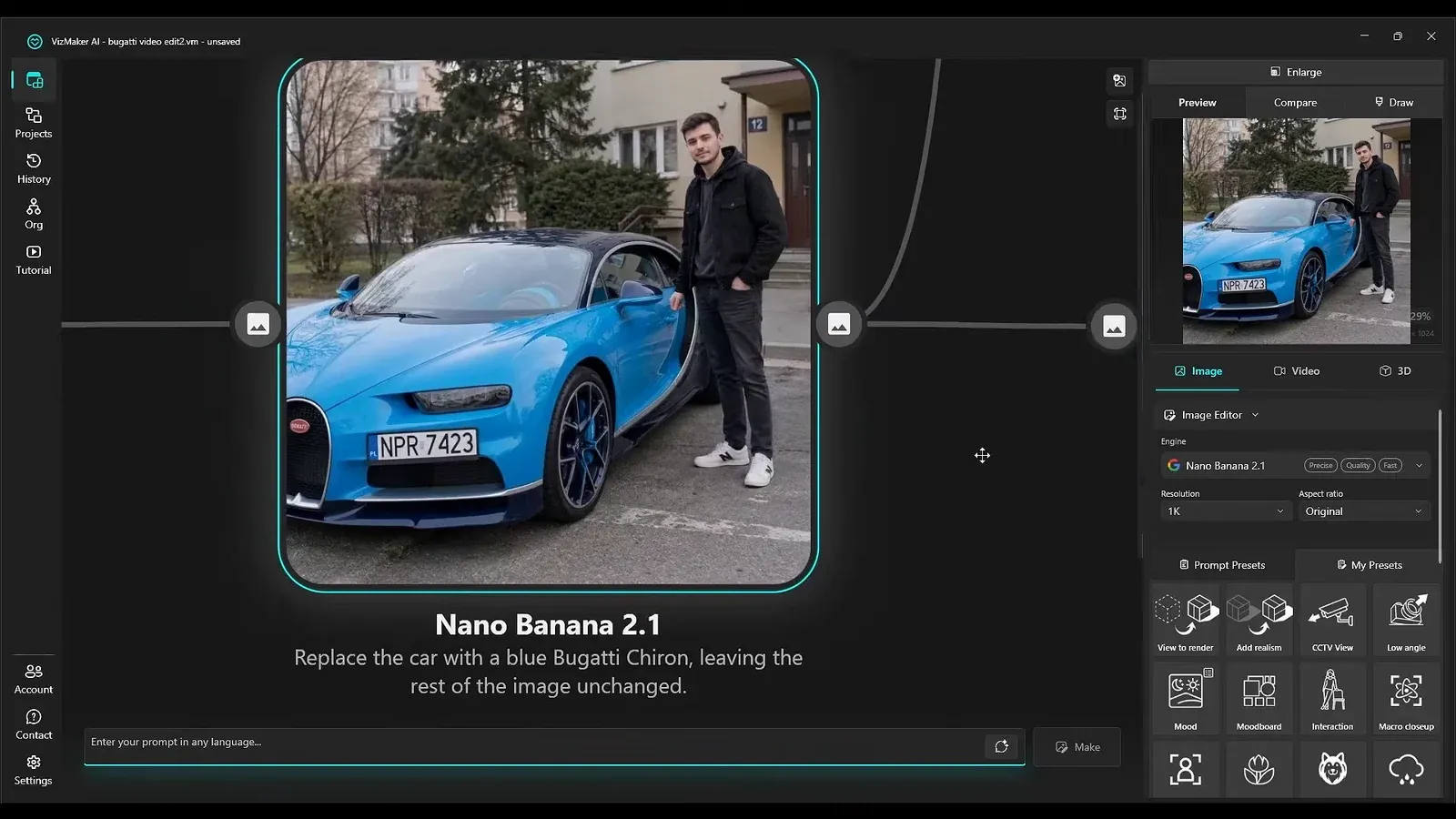
6. Preview a design with a simple proxy model
Use basic geometry to explore viewpoints before building a detailed object.
Start with a concept image that defines the design, then create a simple proxy with the main form in your 3D application. The chair example uses a basic model to capture a rotating view. Edit that clip and combine it with the selected chair image in the same guided video workflow.
This is useful for exploring how the concept may read from another angle or in a closer view. Keep the purpose clear: the generated video is a visual study. It does not turn the proxy into a verified detailed mesh or establish material properties. Use the result to identify what deserves further modeling and review.
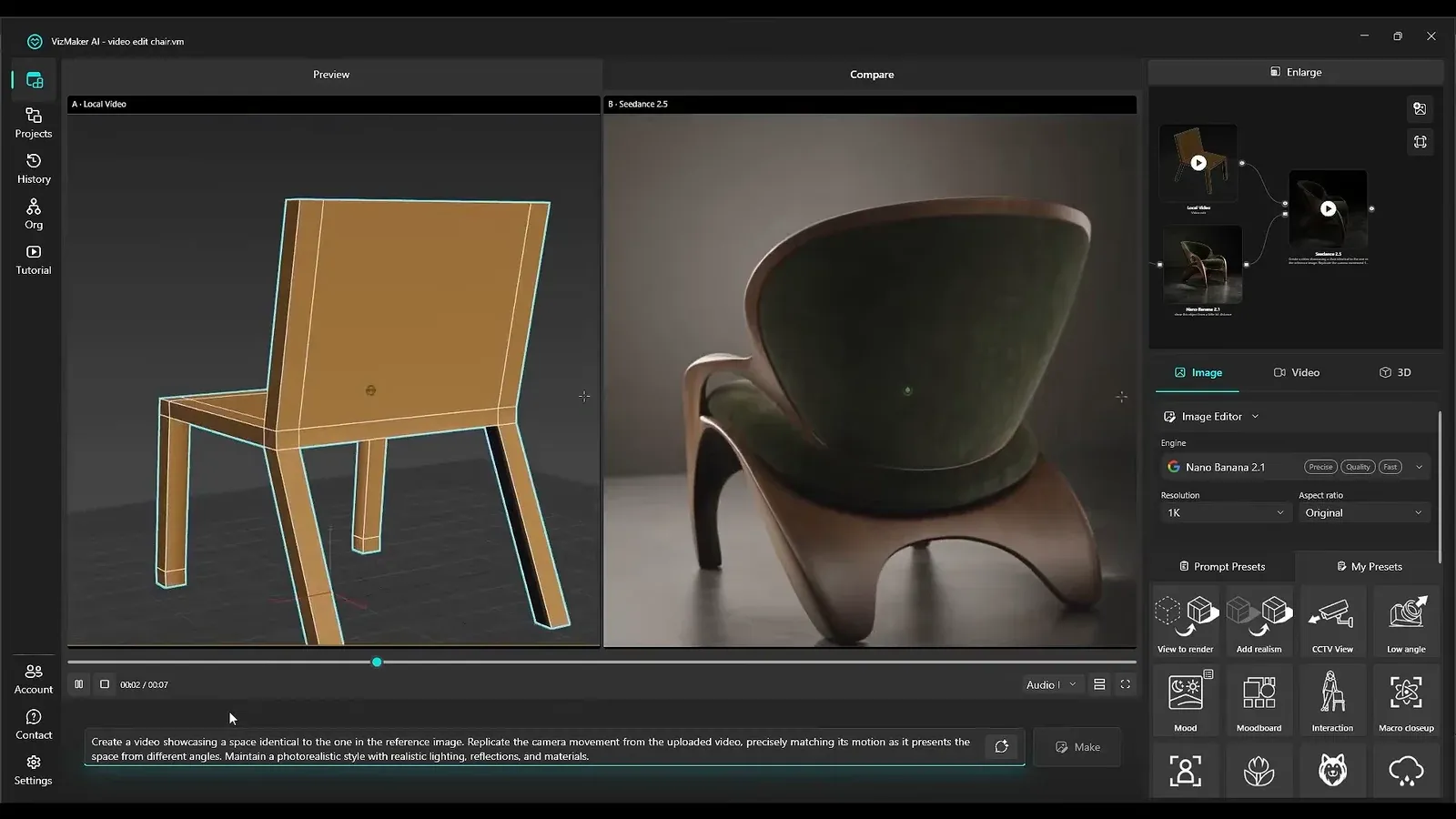
7. Build complex sequences from a clear motion plan
A detailed appearance can be developed over a deliberately simple action.
The final example starts with simplified vehicles, a trailer, a figure, and a staged movement of timber. The proxy scene establishes the timing and relationships before detailed imagery is introduced. Prepare the key appearance frames, then correct individual image regions with Draw and masks where objects do not fit the intended arrangement.
Capture the camera sequence at the intended aspect ratio and combine the clip with the prepared references. Describe where the important elements belong and approximately when each reference should influence the result. Ask for the intended pace and style, but keep motion, layout, and appearance instructions concrete.
Compare the final sequence with the action planned in the proxy scene. Check the order of events, object continuity, and whether the shot communicates the intended story. A complex example benefits from the same discipline as a simple room orbit: a clear guide, compatible references, and a complete review after generation.
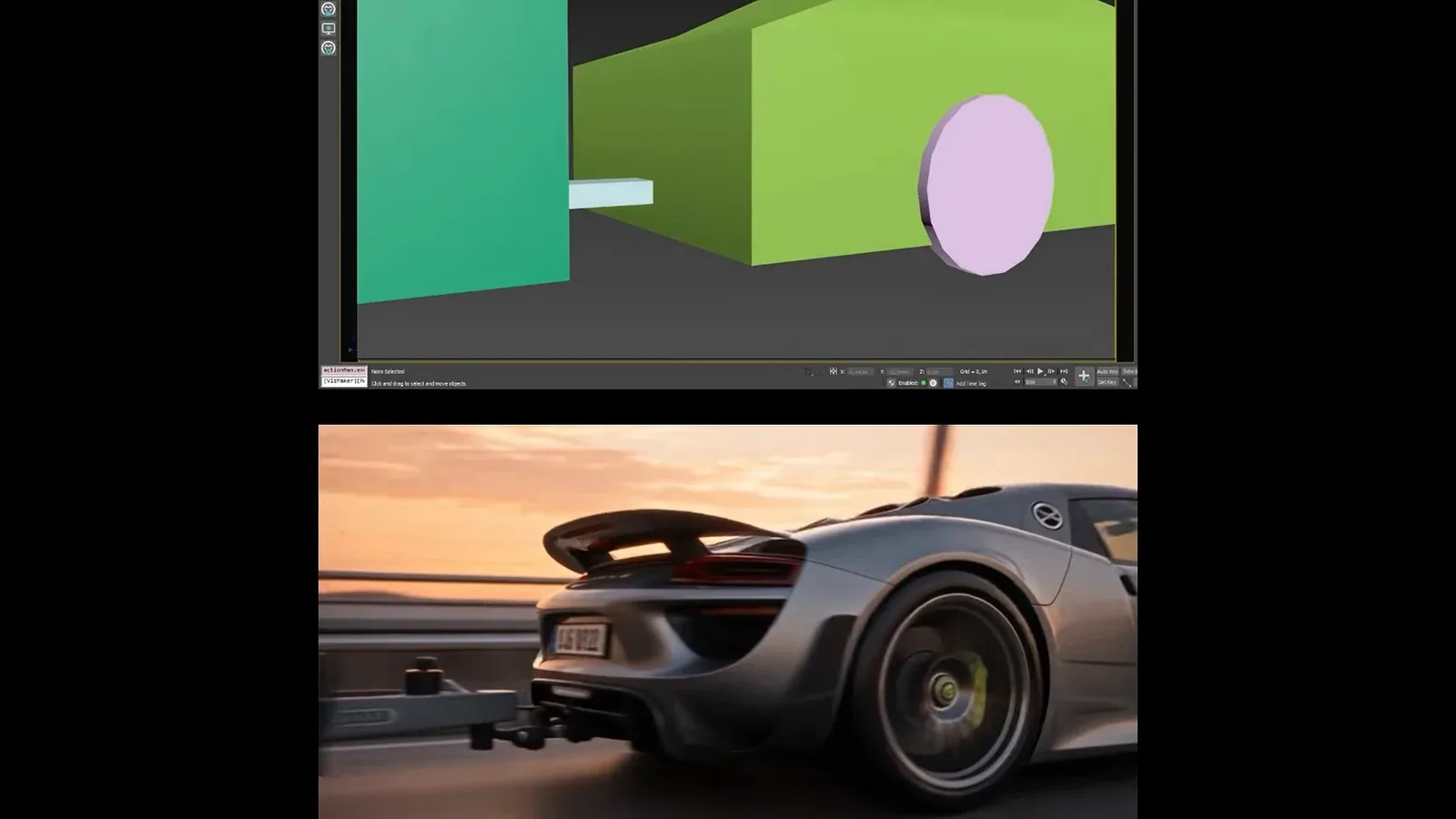
Conclusion: separate the motion plan from the appearance brief
Viewport capture gives an AI video workflow a specific movement to follow. Reference images provide the design direction. Align the first frame, supply enough references for the route, and inspect the generated sequence against the intended action. This makes the workflow useful for presentation studies without confusing the video with verified geometry or continuous live rendering.
- Capture the intended motion before generating the final appearance.
- Align the first video frame with the opening reference image.
- Use several consistent references for multi-room sequences.
- Review timing, geometry continuity, and transitions across the entire clip.
Questions and answers
Is the live-preview effect a real-time renderer?
In this workflow, movement is captured first and the final video is generated afterward. The result can resemble interaction with a finished scene, but it is not a continuously rendered live viewport.
Why must the first frame match the reference image?
The motion recording and appearance image need a compatible starting view. A mismatch gives the generator conflicting perspectives to reconcile.
How do I keep several rooms consistent in one walkthrough?
Prepare appearance references for the important rooms, check their consistency, and explain approximately when each connected reference should apply during the captured route.
Can a basic model guide a detailed product animation?
Yes. The chair example uses a simple proxy to record movement and combines it with a detailed design image. Treat the result as a visual study rather than a validated detailed model.
Follow the viewport, character, multi-room, furniture, and vehicle examples to see how recorded movement and visual references work together.
Watch the tutorial on YouTubeSource: This AI Plugin Turns ANY 3D Scene into Live Preview Effect - Incredibly Realistic! · VizAcademy UK ·