
An AI floor-plan-to-3D workflow can help create the base of a 3ds Max scene from construction drawings, but it needs supervision. Supply the documentation, review the generated layout, correct detailed geometry, and then develop cameras and draft renders. The useful outcome is an editable starting scene that has been checked, not an automatically verified finished project.
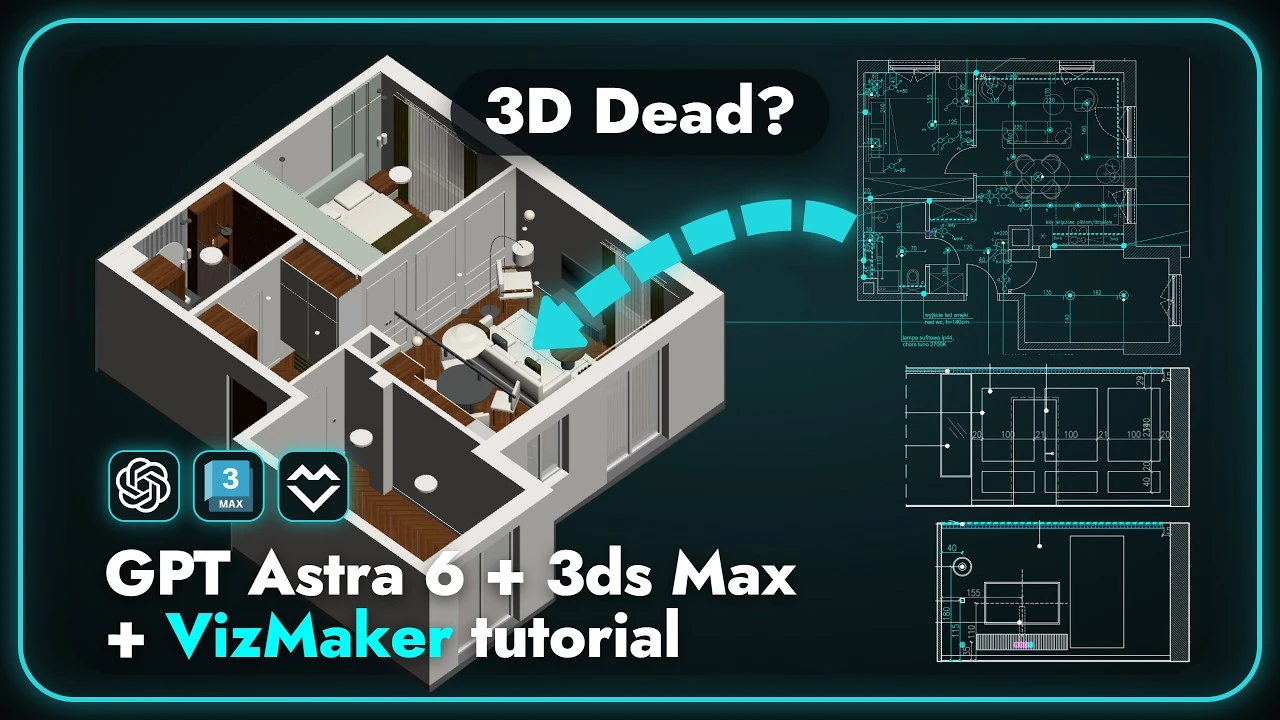
Scene setup is repetitive, but the drawings still need interpretation
Preparing a visualization from construction documents involves more than tracing outer walls. The furniture plan, ceiling details, recesses, finishes, and room-specific conditions all influence the scene. Those tasks combine repetitive modeling with interpretation that can be easy to miss in a fast automated pass.
The apartment example uses a full drawing set for a roughly 55-square-meter project. It illustrates where an AI assistant can help build the scene and where the designer must check and correct its work. The process is a conversation with an editable model, not a single instruction followed by an untouched final result.
1. Start with a clear documentation set and task
Give the assistant the project information it needs before asking it to construct geometry.
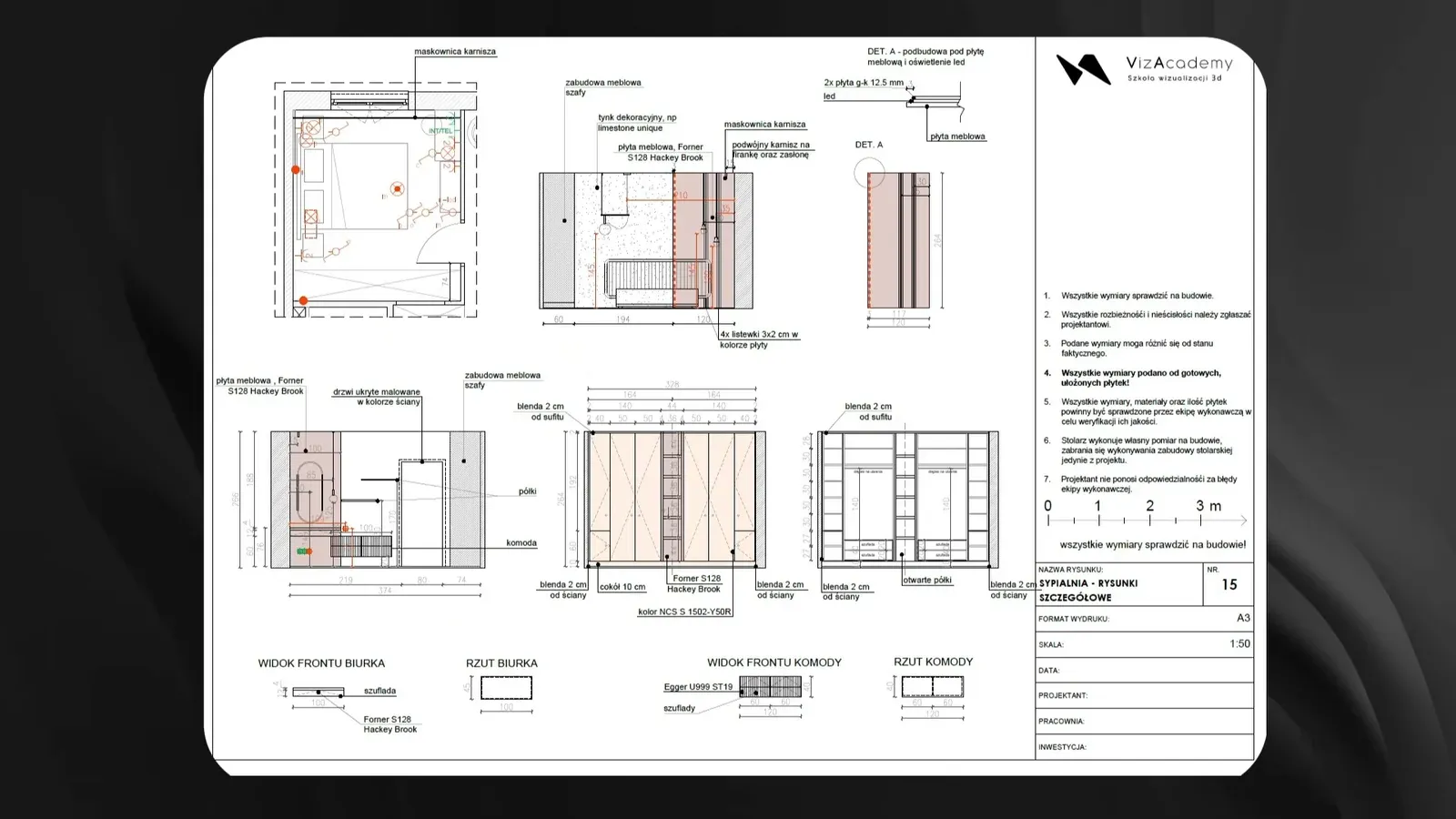
Organize the drawing set so that the apartment layout and relevant details are available together. The demonstration uses a PDF containing real construction information rather than a simplified diagram. The initial request is to model the apartment from the plans while respecting the dimensions.
The assistant operates through an MCP connection to 3ds Max. MCP, or Model Context Protocol, provides a way for the assistant to access tools; here, the connected workflow can create and run code that changes the scene. The important distinction is that the task produces editable scene geometry, not only written modeling instructions.
Define a concrete first milestone: a recognizable, organized base scene. That gives you something to inspect before investing effort in presentation detail. Keep the drawings available throughout the process so each correction can refer back to the project information.
2. Build the base scene through short review cycles
Treat generation as an iterative modeling session.
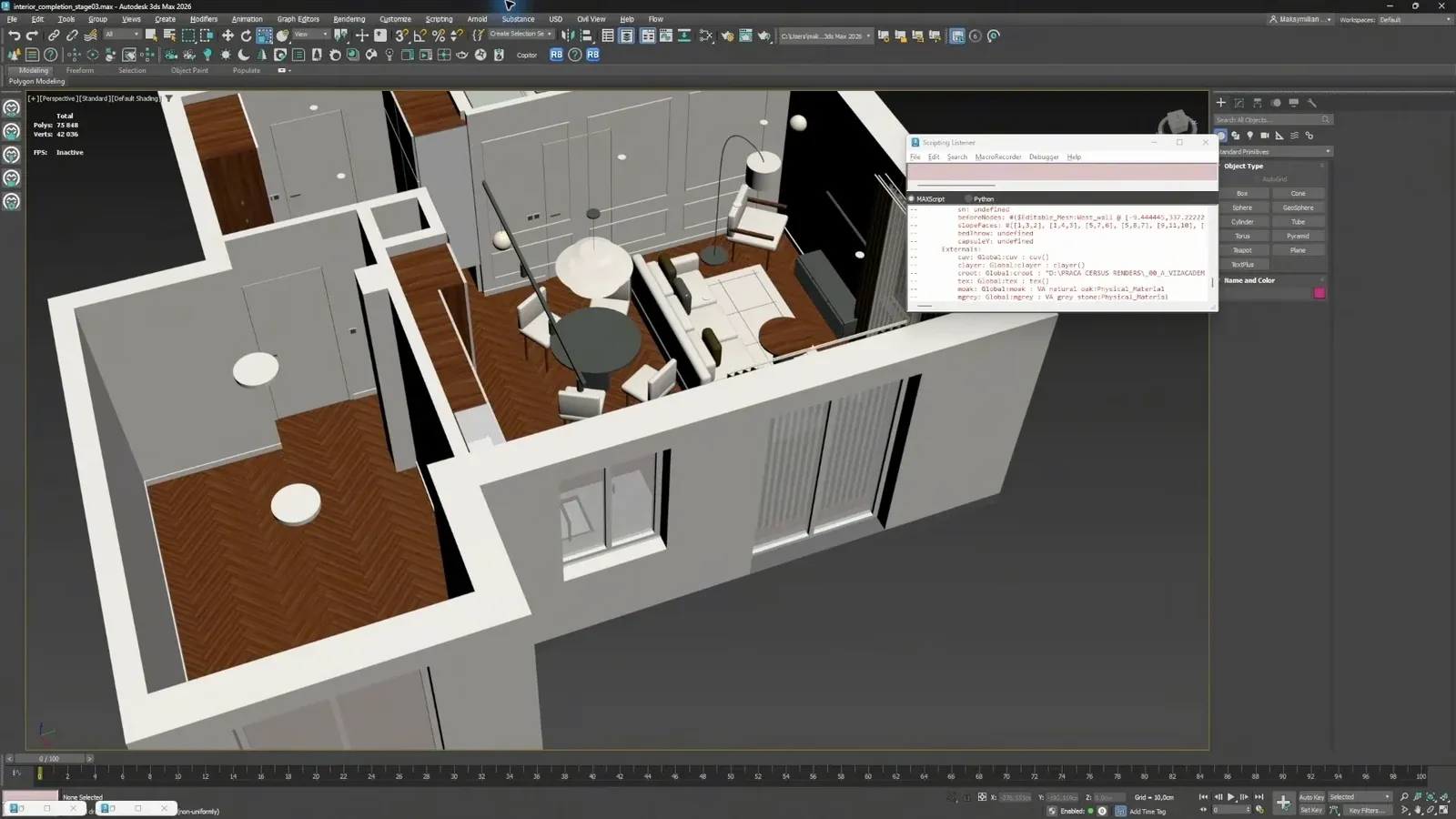
The initial geometry establishes walls and spaces, then develops further as the assistant receives corrections. Furniture placeholders help communicate the layout before every object is fully detailed. This is the blockout stage: the scene is sufficiently developed to understand its organization, while important details may still be unresolved.
Inspect the viewport as the work progresses. In the example, the assistant can stall or make errors, and the operator sometimes corrects the scene manually. Give specific feedback about the affected element, then check the change. A series of small, reviewable corrections is more useful than repeatedly asking for the entire apartment to be finished.
Review scene organization alongside appearance. Named or grouped elements and usable layers make later corrections easier. Preserve a version you can return to before a substantial change so that an unsuccessful iteration does not become the only available scene.
- Review the overall layout before detailed finishing.
- Use furniture placeholders to judge the organization of the space.
- Correct mistakes as they become visible.
3. Check the details that a convincing overview can hide
A good overall layout does not establish that every construction condition is correct.
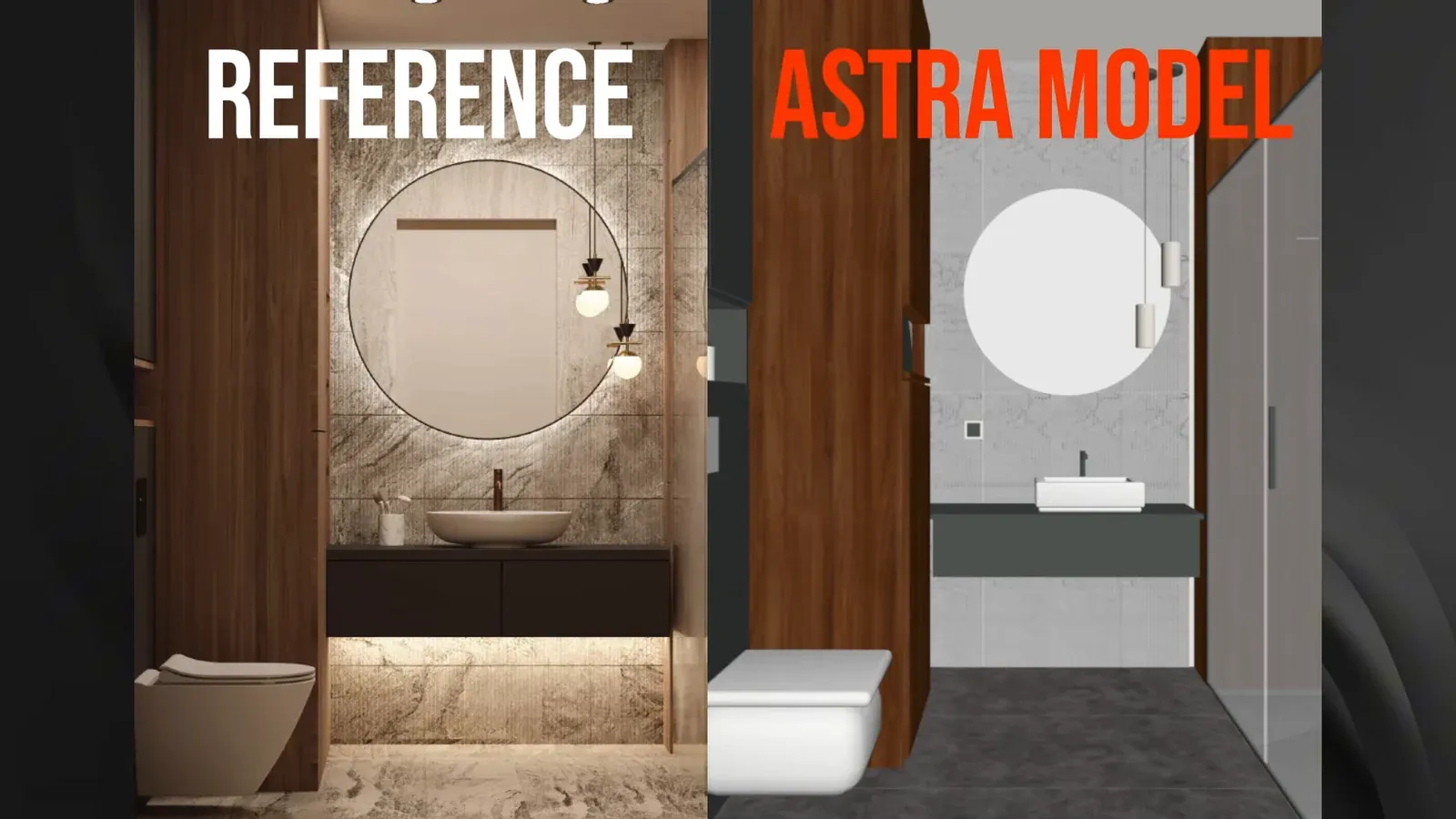
Compare the model with the drawing information at the level required by the intended visualization. The example identifies difficulties with suspended ceilings, curtain recesses, and bathroom detailing. These features can be simplified even when the main room arrangement looks convincing.
Check dimensions and relationships directly in the model rather than relying on a rendered impression. Inspect thicknesses, openings, offsets, and transitions between elements that affect the camera views you plan to produce. Where the automatic interpretation is insufficient, correct the geometry manually or provide a more precise instruction.
Decide what is acceptable for the next stage. A rough blockout may be enough for discussing a camera angle, while a close-up of a bathroom needs more reliable local geometry. Matching the review effort to the intended output makes the limitations explicit instead of hiding them under materials and lighting.
4. Develop camera views after the base is corrected
Use the scene to answer presentation questions before committing to final rendering.
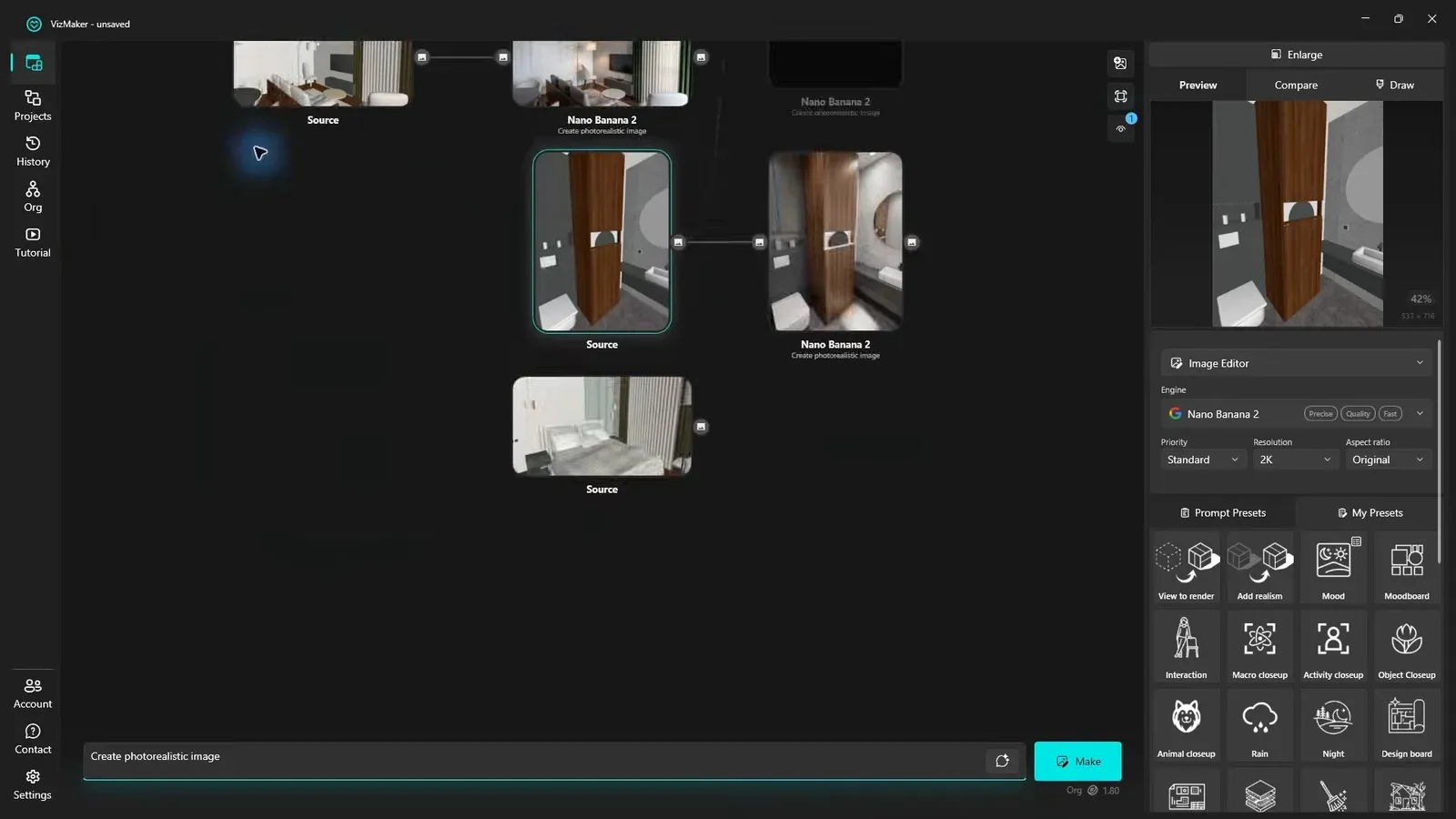
Once the base is ready, describe the views you want to explore, such as a wide living-room shot or a kitchen close-up. The demonstrated workflow creates cameras in 3ds Max, saves the relevant outputs, and passes views into VizMaker to develop draft renders.
Review the resulting images against both the scene and the presentation brief. A draft helps judge framing, atmosphere, and the direction of the project; it should not be used to conceal a modeling issue that still needs attention. Return to the model for geometric corrections and to the image workflow for deliberate presentation changes.
The value of this process is the shorter path between a drawing, an editable scene, and a visual discussion. The amount of correction will depend on the project. Plan for review time and available generation resources rather than treating one demonstration as a fixed production schedule.
Conclusion: automate setup while keeping the review process
AI assistance can move a drawing set toward an editable scene and useful camera studies. Its contribution is strongest when the task is divided into clear stages and the operator checks each one. Use the generated model to accelerate the next design decision, then apply the level of manual verification that the final visualization requires.
- Provide the complete drawing information relevant to the scene.
- Treat the first model as a blockout to inspect.
- Check fine architectural details separately from the overall layout.
- Generate draft views after correcting the geometry they depend on.
Questions and answers
Can AI turn construction drawings into a finished 3ds Max project in one prompt?
The demonstrated workflow does not support that expectation. It requires corrections, viewport inspection, and occasional manual modeling before the scene is ready for further work.
Which details need closer checking?
The example highlights suspended ceilings, curtain recesses, and bathroom geometry. Check the dimensions and detailed conditions that matter to your own project and intended camera views.
What is MCP doing in this workflow?
It connects the AI assistant with tools that can operate on the 3ds Max scene. In the demonstration, the workflow creates and runs code to build and modify geometry.
Where does VizMaker fit into the process?
Prepared scene views are sent into VizMaker to explore draft renders after the base modeling work has been reviewed.
See the drawing set, the evolving 3ds Max model, the detail comparisons, and the handoff to VizMaker draft renders in the original demonstration.
Watch the demonstration on YouTubeSource: We gave GPT Astra 6 Real Construction Drawings. Here's What It Built in 3ds Max · VizAcademy UK ·