
To turn a photo into an interactive 3D world, load it into VizMaker and choose 3D World Creator. A single image provides a quick starting point, while a panorama supplies information around the viewpoint. Generate the environment, inspect it from different positions, and use the available sharing or capture tools to present the result.
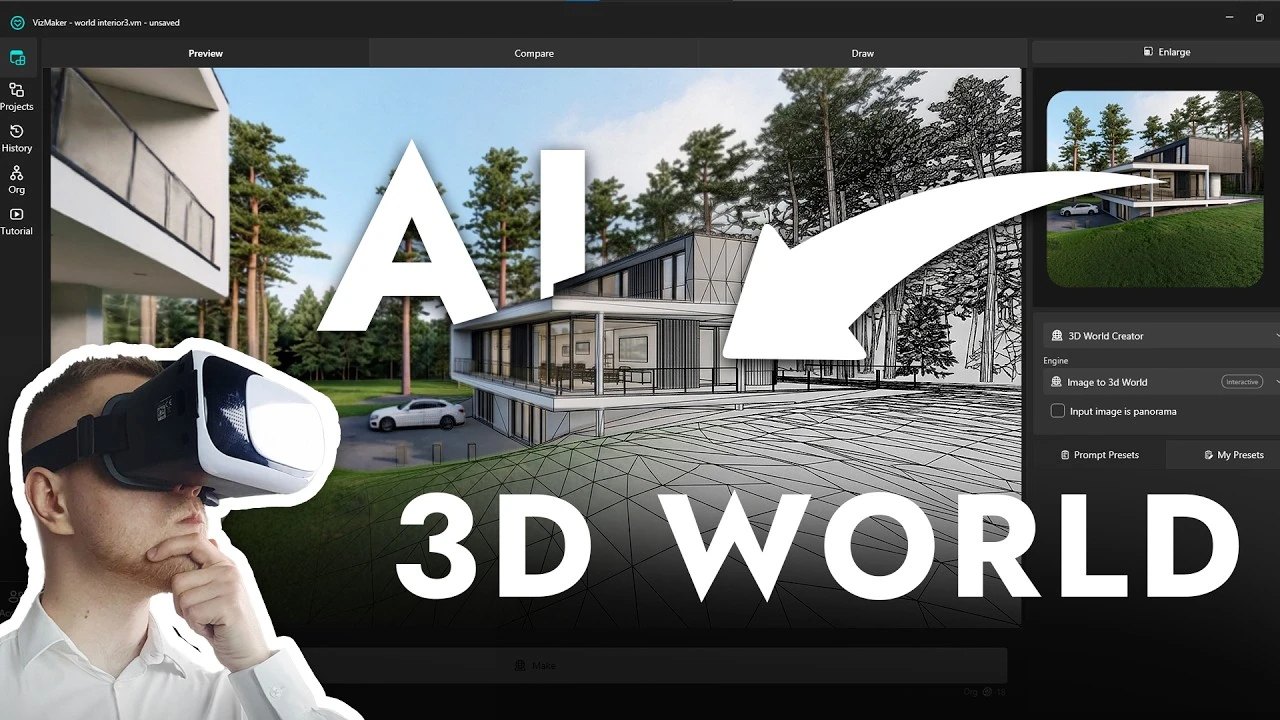
A single image cannot show the whole room
A still visualization fixes the viewer to one composition. An interactive environment makes it possible to look around and explore other positions, which can help communicate the atmosphere and organization of an interior. The missing information matters, however: a normal photograph shows only part of the surroundings.
This workflow offers two starting points. Use a photo when exploration is the priority, or prepare a panorama when you want to give the generator more visual context. In either case, inspect the result as a generated presentation rather than assuming it is a measured reconstruction.
1. Start with one image and inspect the inferred surroundings
A perspective image gives the generator a starting view, not a complete description of the space.
Load the image, select 3D World Creator, and choose the image-to-world engine. Leave the panorama option off when the source is a conventional photo or render. Start generation, then open the resulting environment in the preview and enlarge it for inspection.
Move beyond the original view. The system must infer areas that were outside the camera frame, so a wall or doorway behind the starting position can differ from the real or modeled room. That inference may be useful for exploration, but compare it with the intended design before presenting it as a specific project.
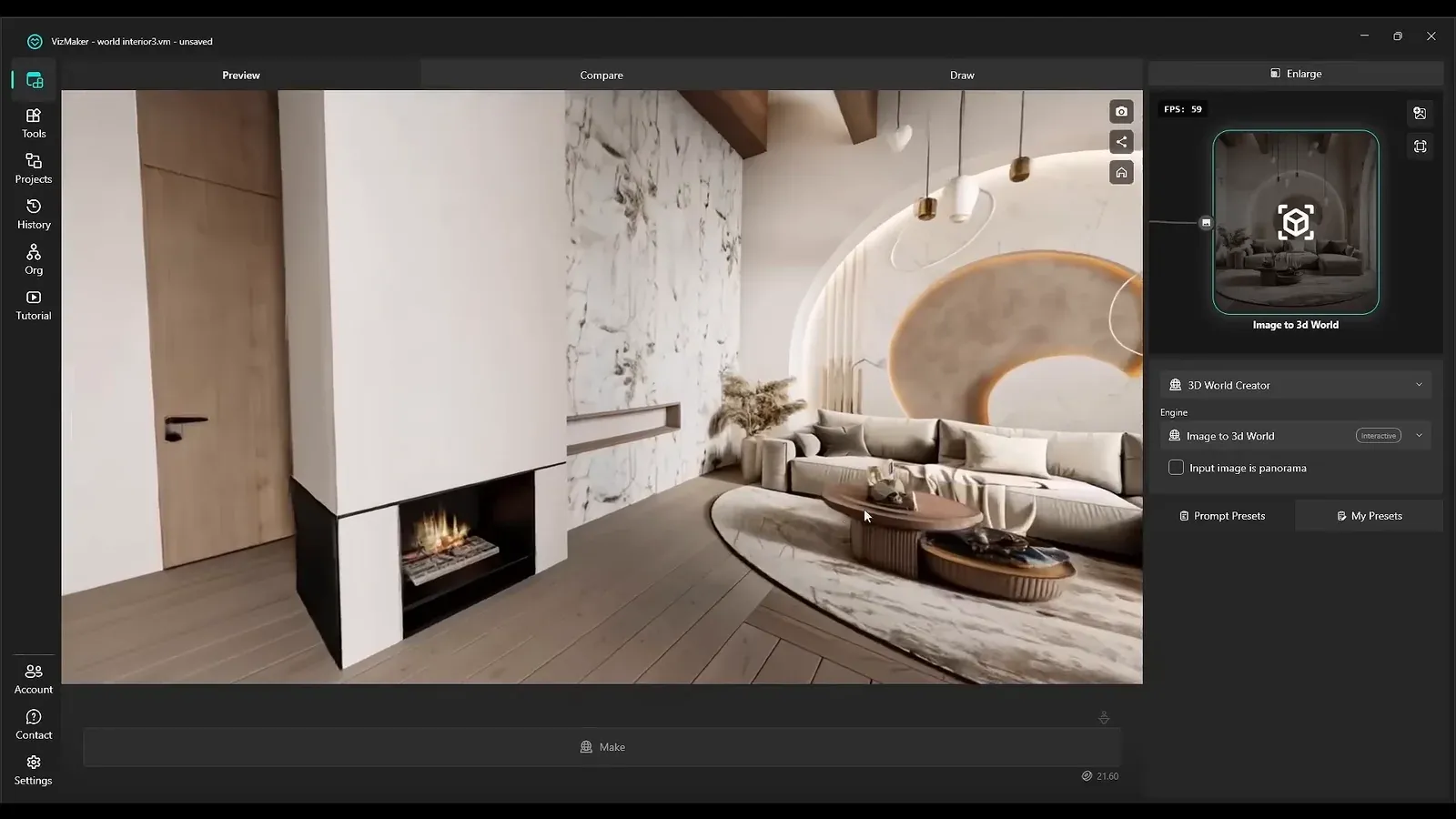
2. Explore the result and share a viewing link
The environment can be reviewed beyond the main generation workspace.
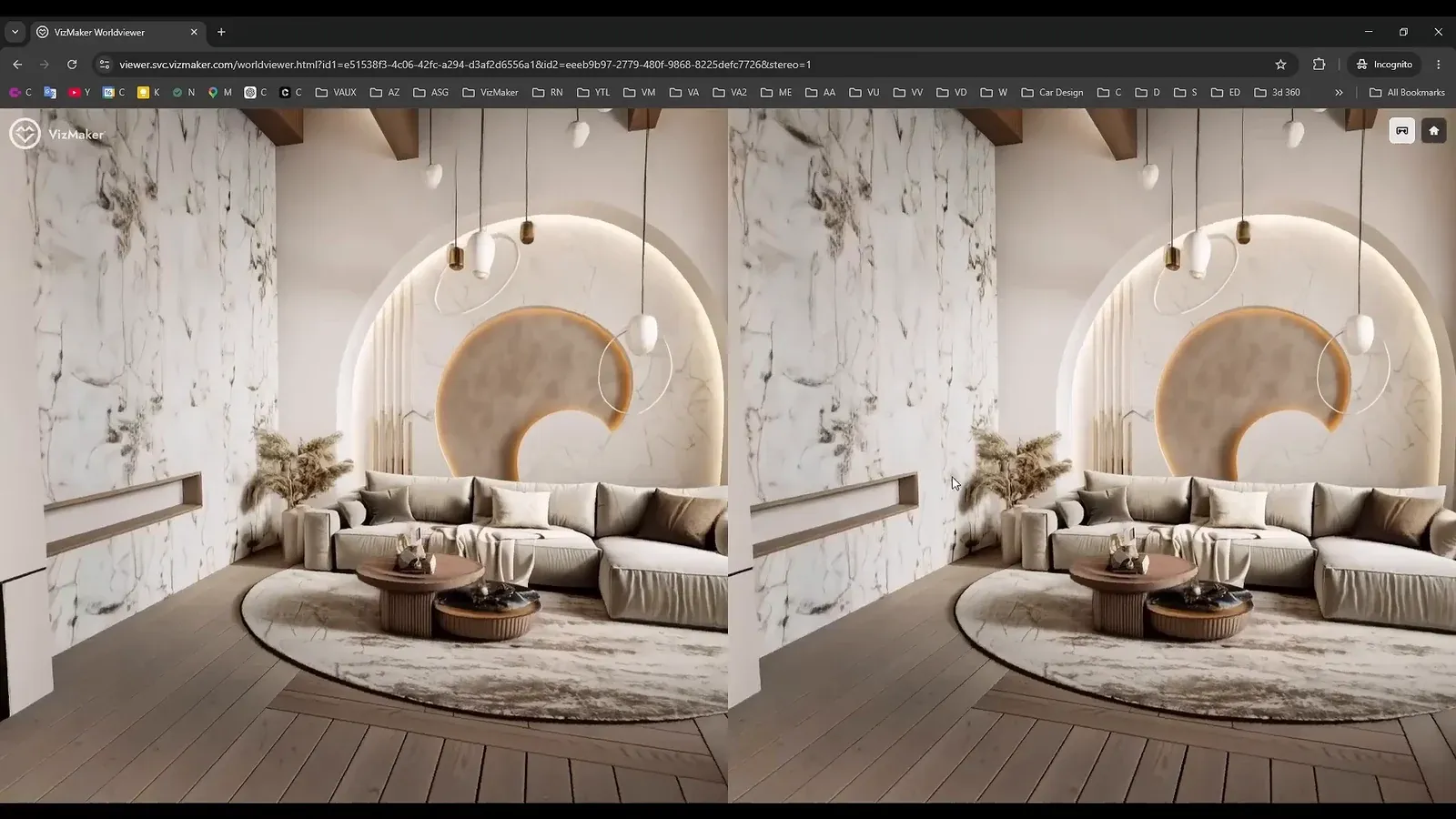
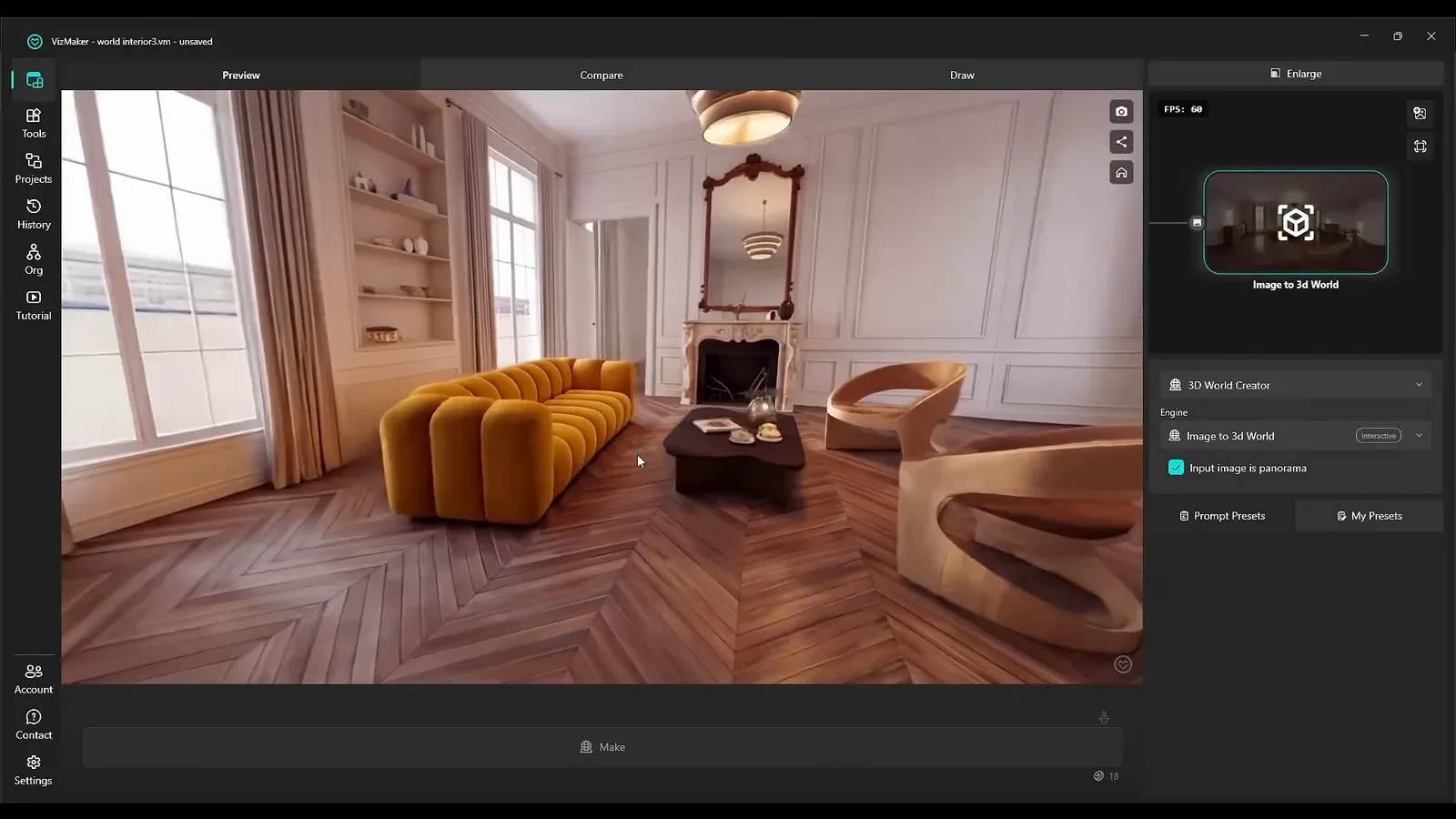
Use the sharing control to copy a link and open the environment in a browser. The demonstration also shows viewing on a phone. In the desktop viewer, WASD or arrow keys move through the space, while Q and E adjust the viewing height. Use the mouse to look around.
The available VR mode splits the view for a compatible viewing setup. Explore the room first in the ordinary viewer, then choose the presentation mode that suits the conversation. An interactive view can communicate an impression of the space, but it does not establish reliable measurements.
3. Use an existing 3D scene as the visual starting point
A scene view can become a rendered image and then an explorable environment.
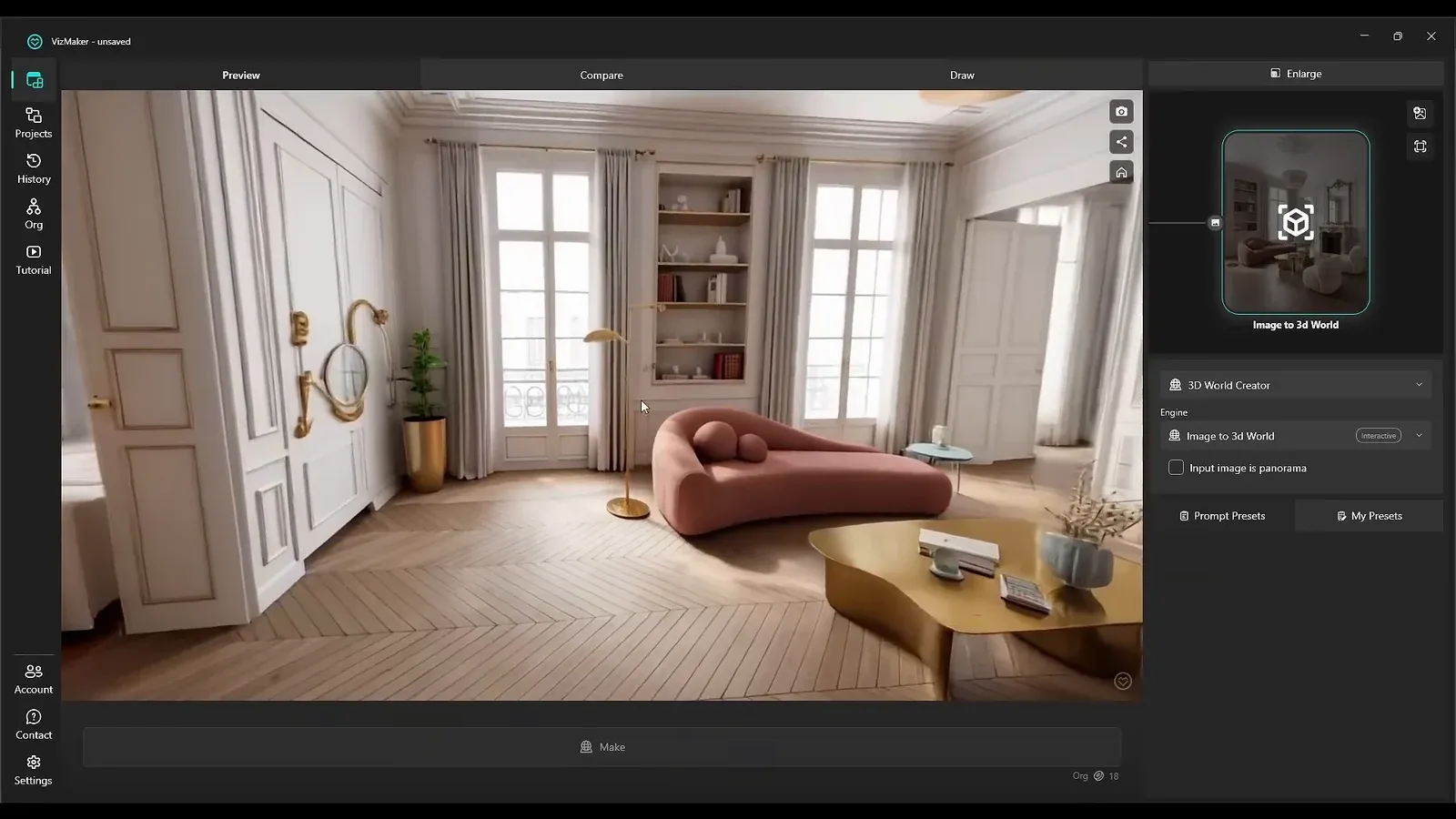
Send a prepared view from 3ds Max or SketchUp into VizMaker. Use the image workflow and a View to render prompt to develop a presentation image, then pass the selected result into 3D World Creator. This connects an existing design model with the same image-to-world process used for a photograph.
Inspect the generated surroundings against the original model. In the example, part of the room behind the camera differs from the 3ds Max design. If that mismatch matters to the presentation, the next step is to provide a panorama with more complete visual context, rather than relying on the unseen area to be guessed.
4. Prepare a panorama when the surrounding design matters
Give the generator visual information around the camera instead of only in front of it.
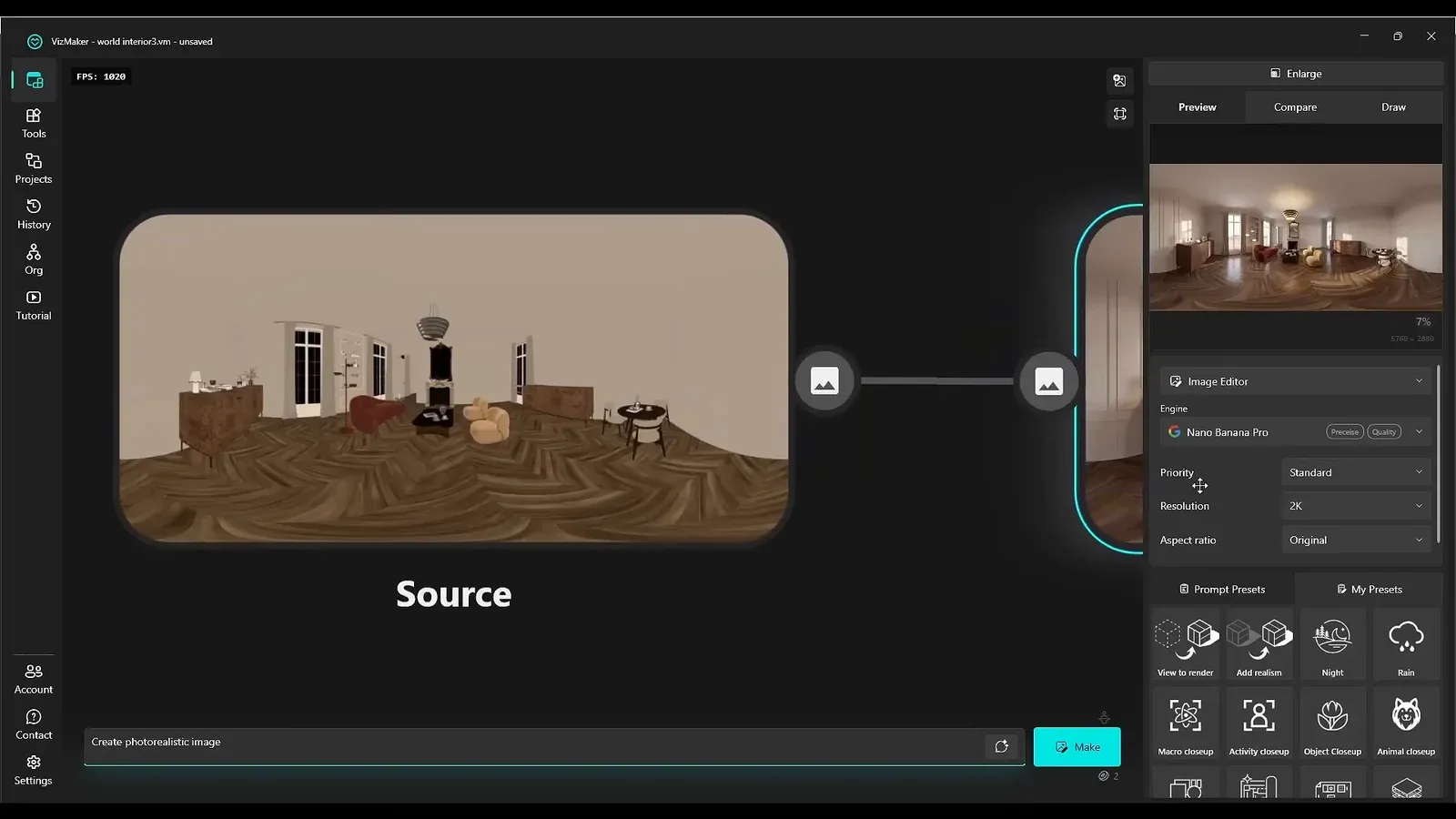
In the 3ds Max example, the Corona camera is switched from perspective to Spherical 360 and positioned within the room. Render a panorama from that camera. If the scene already has the intended materials and lighting, that rendered image provides the visual basis for the world.
For a less finished scene, the demonstration uses a SourceColor render element as input for an image-rendering step in VizMaker. Keep the panoramic composition while developing the image, then send it to 3D World Creator and enable the panorama option. Review the resulting environment for the room features that were missing from the single-view input.
5. Change furniture in the panorama and regenerate the world
Edit the visual design first, then build the environment from that revised input.
Load a furniture reference and combine it with the panorama in the image editor. Describe the replacement and specify that it must fit the 360-degree panorama. Review the edited image before passing it into the world generator again.
The sofa-and-chair example develops the room in stages: replace the sofa, inspect the result, then introduce a different chair. Enable the panorama option for each new world generated from those panoramic images. Compare the finished environment with the revised panorama, checking furniture placement and how the room reads as you move through it.
6. Capture a new viewpoint and refine it for presentation
Use exploration to find a composition, then develop the resulting still image.
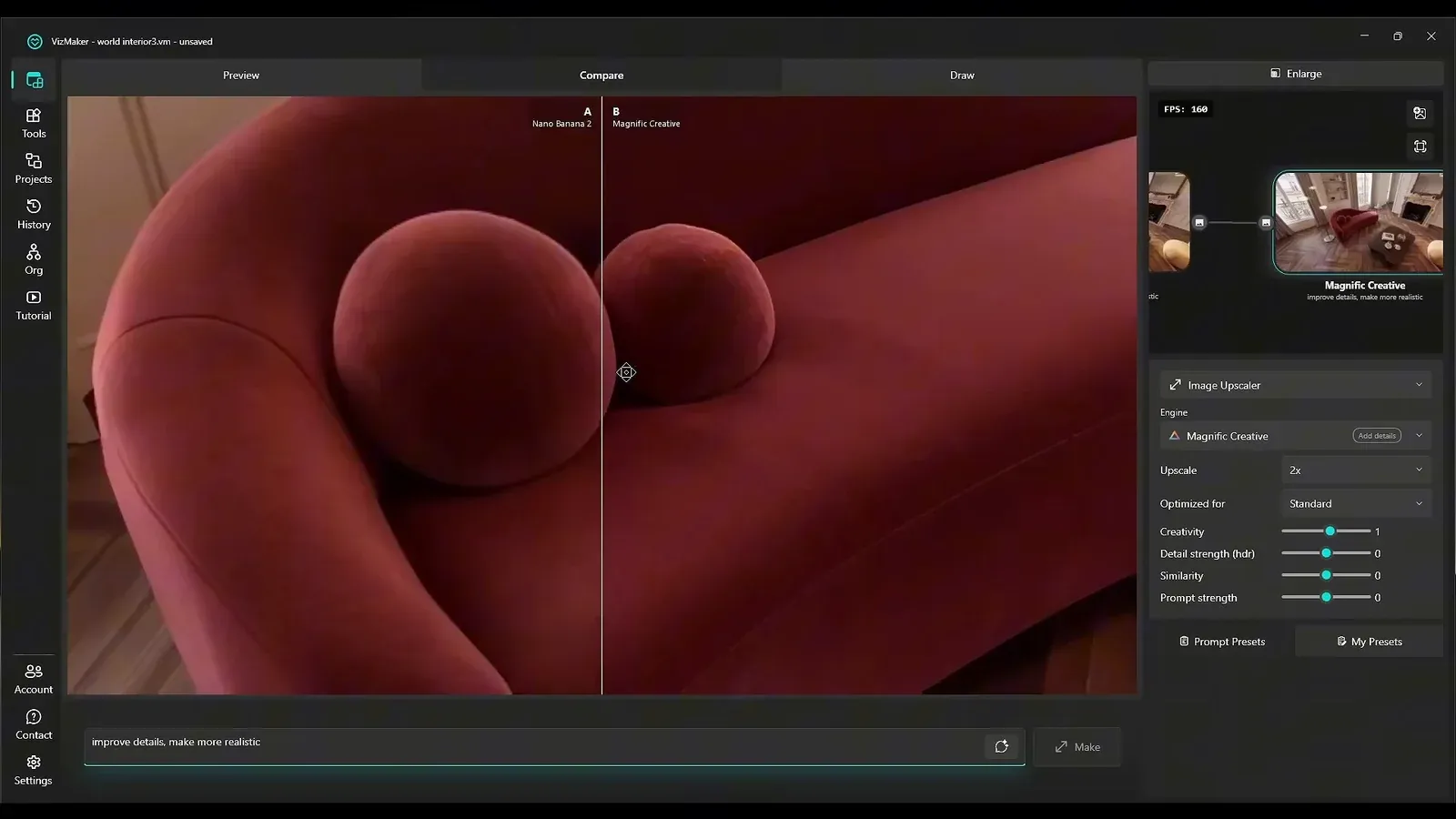
Navigate to a useful perspective and use the capture control to send that view back into VizMaker. The resulting still can be refined with an image-editing prompt that asks for clearer details or a more realistic treatment. Compare it with the captured view so the desired composition remains recognizable.
For an additional detail pass, use Magnific Creative and inspect the before-and-after comparison. The sofa example reveals changes more clearly in a close-up than in the full image. This finishes a useful loop: generate an environment, explore it, select a viewpoint, and refine that image for a presentation. The same starting principle can also be applied to an exterior image.
Conclusion: choose the input for the level of context you need
A single image is a convenient entry point for an explorable concept. A panorama is more informative when the design around the camera matters. Review both kinds of output, then use sharing, furniture variations, or captured views to support the presentation you actually need.
- Leave the panorama option off for an ordinary perspective image.
- Use a true panorama when supplying a surrounding view of the room.
- Inspect inferred areas and compare them with the design.
- Capture useful viewpoints and refine the stills separately.
Questions and answers
Can I create a 3D world from one photograph?
Yes. The workflow generates an environment from a single image, but unseen parts of the space are inferred. Review those areas rather than assuming they match the real room.
When should I enable the panorama option?
Enable it when the source image is a panorama. Leave it off for a normal perspective photograph or render.
Can I replace furniture in the interactive world?
In this workflow, edit the furniture in the panorama using reference images, then generate a new world from the revised panorama.
Can I get a new still image from the environment?
Yes. Navigate to the viewpoint you want, capture it into VizMaker, and use the image-editing or upscaling workflow to refine the resulting still.
Watch the tutorial to compare single-image and panoramic inputs, see browser and VR viewing, replace furniture, and refine captured viewpoints.
Watch the tutorial on YouTubeSource: Convert Images into interactive 3d Worlds - 3D Endgame? · VizAcademy UK ·