
Use AI image masking in VizMaker to change a selected area, keep the result on a layer, and control where it appears. The Draw workflow combines region selection with brush masks, margin and feather controls, reference images, and local upscaling. Generate the change first, then refine its boundary and compare it with the original image.
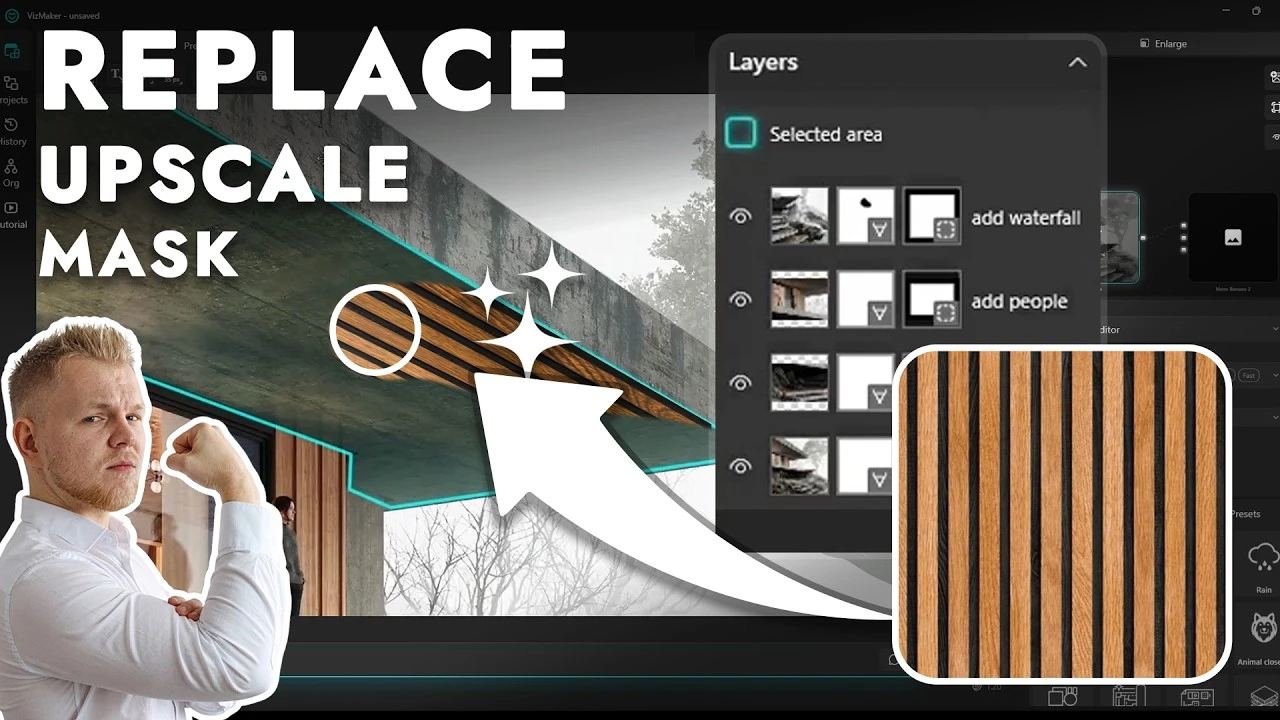
A whole-image edit is often more than the brief needs
A visualization may already have the right composition, lighting, and camera angle while still needing a different chair, a new surface material, or sharper planting. Asking for a new version of the entire image can introduce changes to parts that were already approved.
A local workflow separates the requested change from the rest of the picture. The generated content and its visible boundary can be adjusted independently, making it easier to judge whether the new object or detail belongs in the existing composition.
1. Generate changes on editable layers
Start with a selection that identifies the part of the image you want to change.
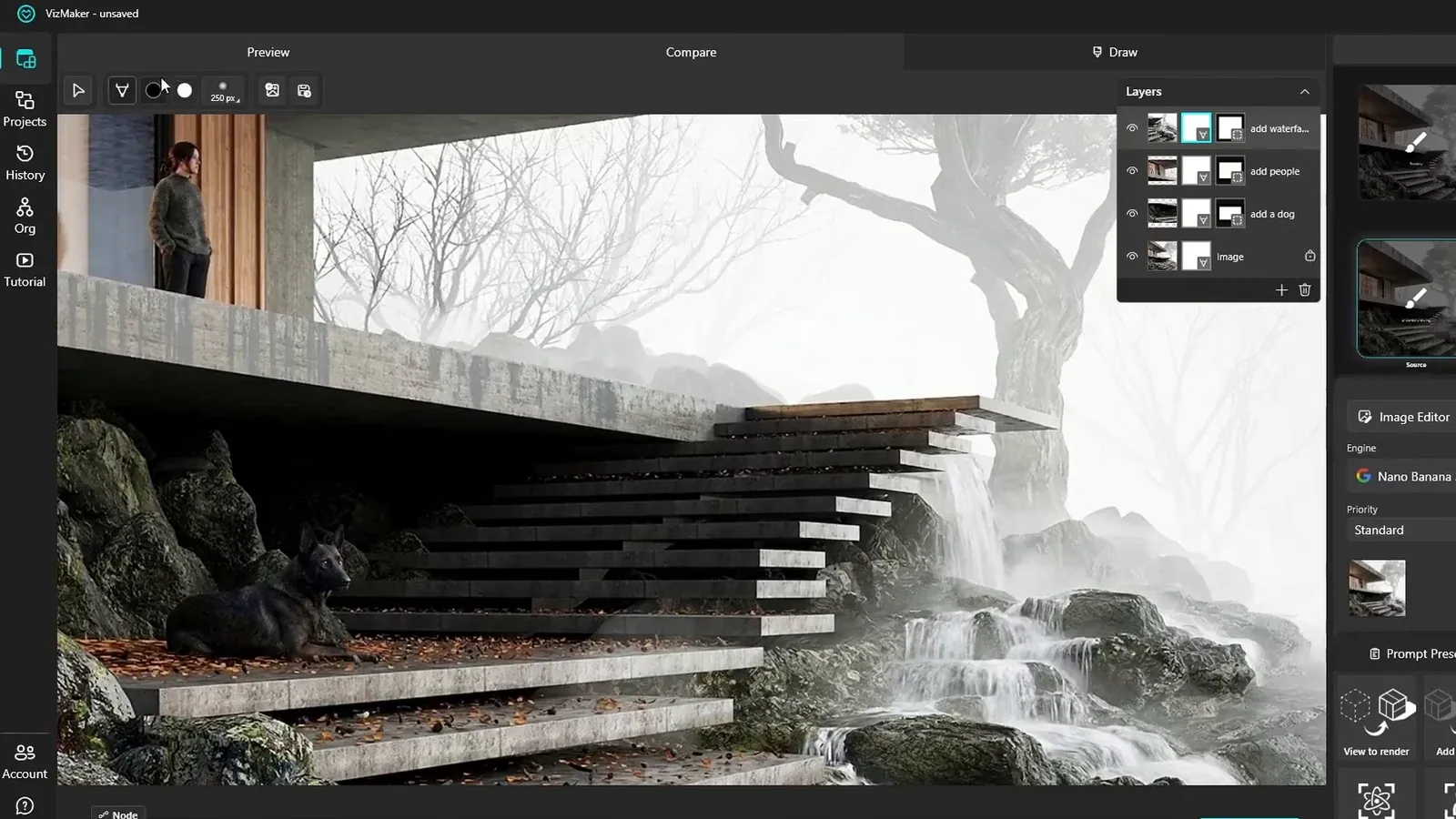
Load the image and open Draw. Select a rectangular or freeform area, then describe the addition or replacement. The exterior example adds a dog, a person, and a waterfall through separate local operations. Each generation becomes a layer, so the results can be reviewed and adjusted independently.
Open the layer mask to control visibility. Paint black to hide part of the generated result and white to reveal it again. The demonstrated shortcuts include X to switch the mask colors and Alt with the right mouse button to adjust the brush. Refine the affected edge instead of discarding an otherwise useful result.
- Select the region and describe one clear change.
- Inspect the generated layer in the full composition.
- Use the mask to hide spillover and restore useful detail.
2. Match the mask boundary to the subject
The selected shape and the softness of its edge solve different problems.
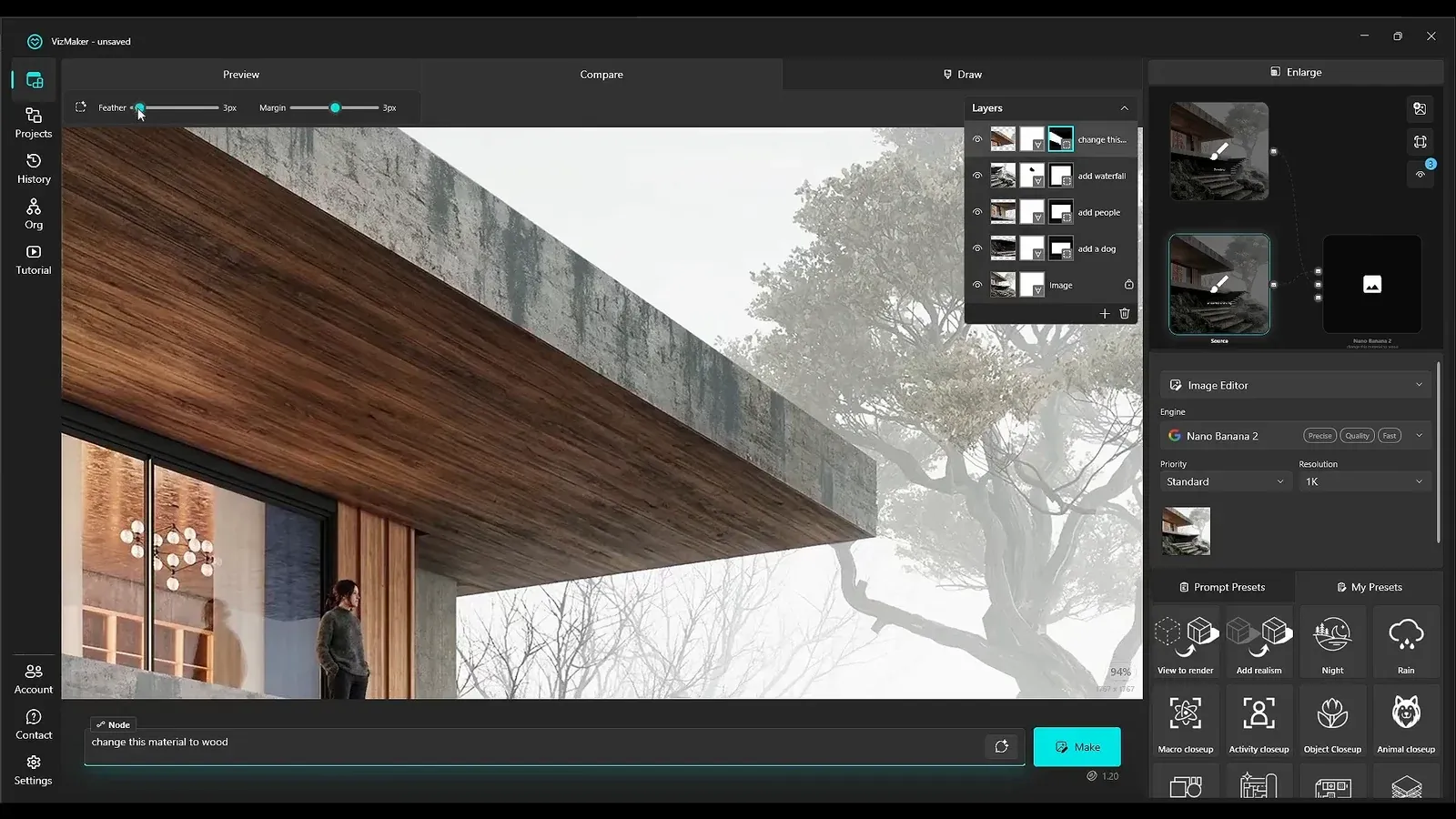
For a defined surface such as a ceiling, draw a polygonal selection around the intended region and close the shape. Generate the requested material change, then use the shape-mask controls to adjust the boundary. The wooden-ceiling example makes the difference between the material result and its visible mask easy to see.
Use margin and feather deliberately. Margin changes how far the effect extends around the selection, while feather softens the transition. A soft edge can blend foliage or texture, but an architectural corner may need a more precise boundary. Combine shape controls with brush edits where one setting cannot fit the entire perimeter.
3. Upscale only the regions that need more detail
Local upscaling makes the area of refinement an explicit choice.
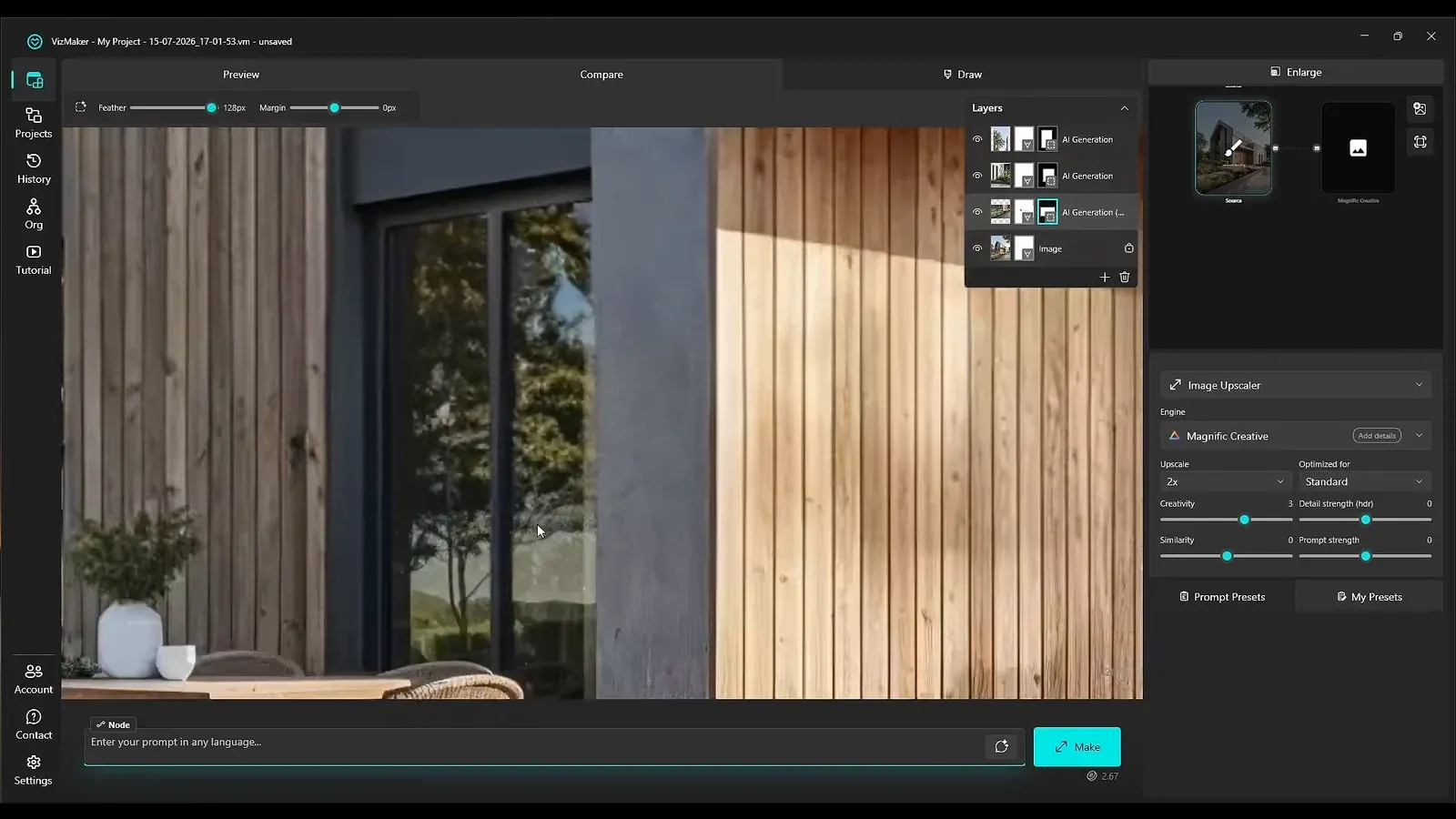
Select the part of the image that needs a detail pass and choose Image Upscaler → Magnific Creative. Adjust the settings for that region, generate the result, and compare it with the source. The example processes several fragments independently instead of treating the entire visualization as one uniform problem.
Refine the upscale layer’s mask after generation. Hide the effect over details you want to keep, and feather the boundary where a visible seam appears. This is useful when sharpening one surface would otherwise alter a neighboring face, material, or object. Judge the local detail and the full image together.
4. Guide replacements with a reference image
A supplied material or object gives the request a more concrete target.
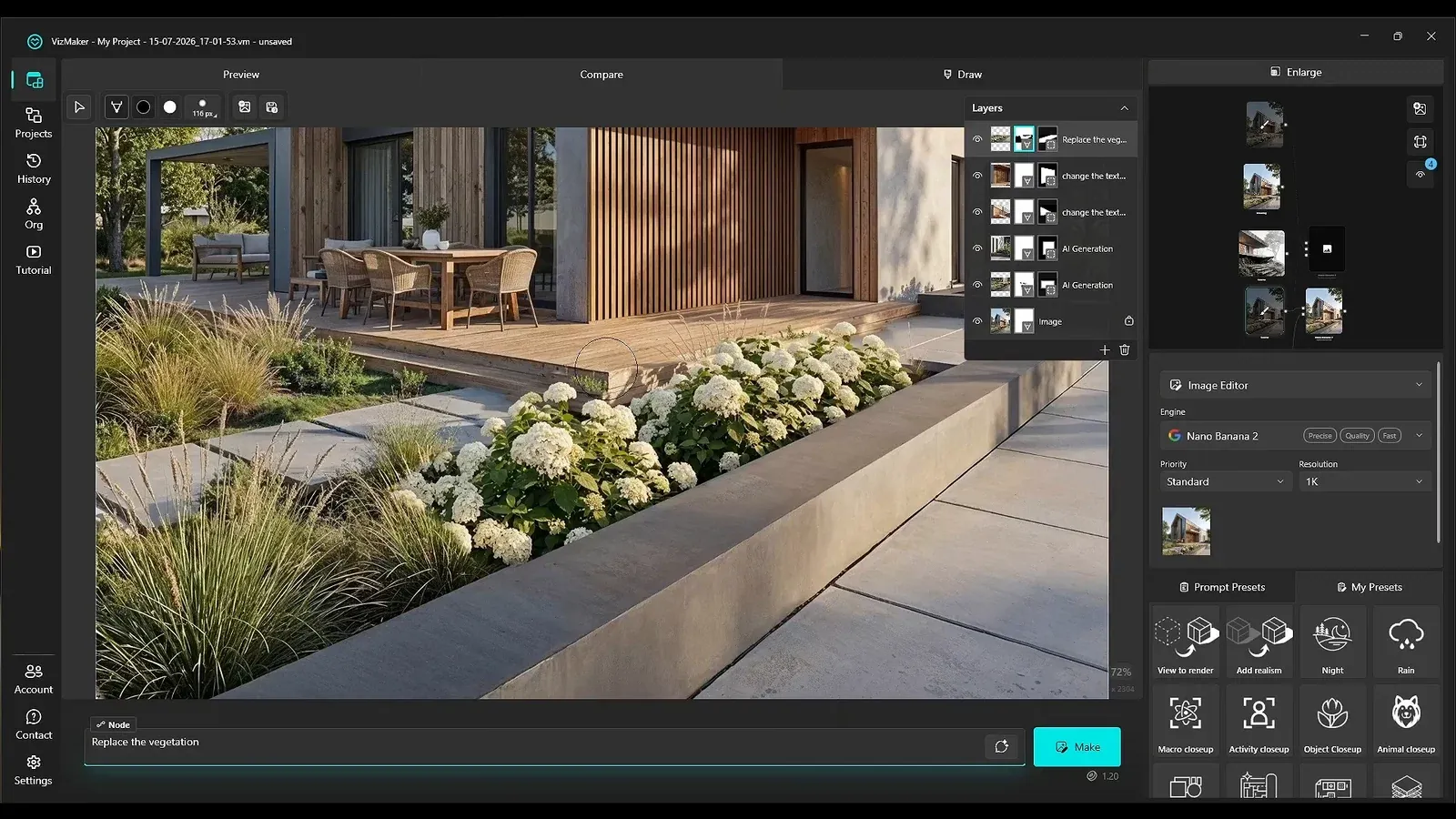
Select the region, attach a reference image, and explain the intended replacement. The texture examples use brick and wood references. For landscape editing, a generated white hydrangea reference is applied to a planting area, then its edges are adjusted so that the result fits the bed.
Inspect both the reference match and the integration. A texture may have the desired appearance yet still need a scale, position, or boundary adjustment. Use the layer’s move and scale tools where appropriate, then refine the mask to avoid covering the wrong surface or leaving a sharp cutout edge.
5. Explain several furniture changes with arrows
Visual annotations make the relationship between a reference and its target explicit.
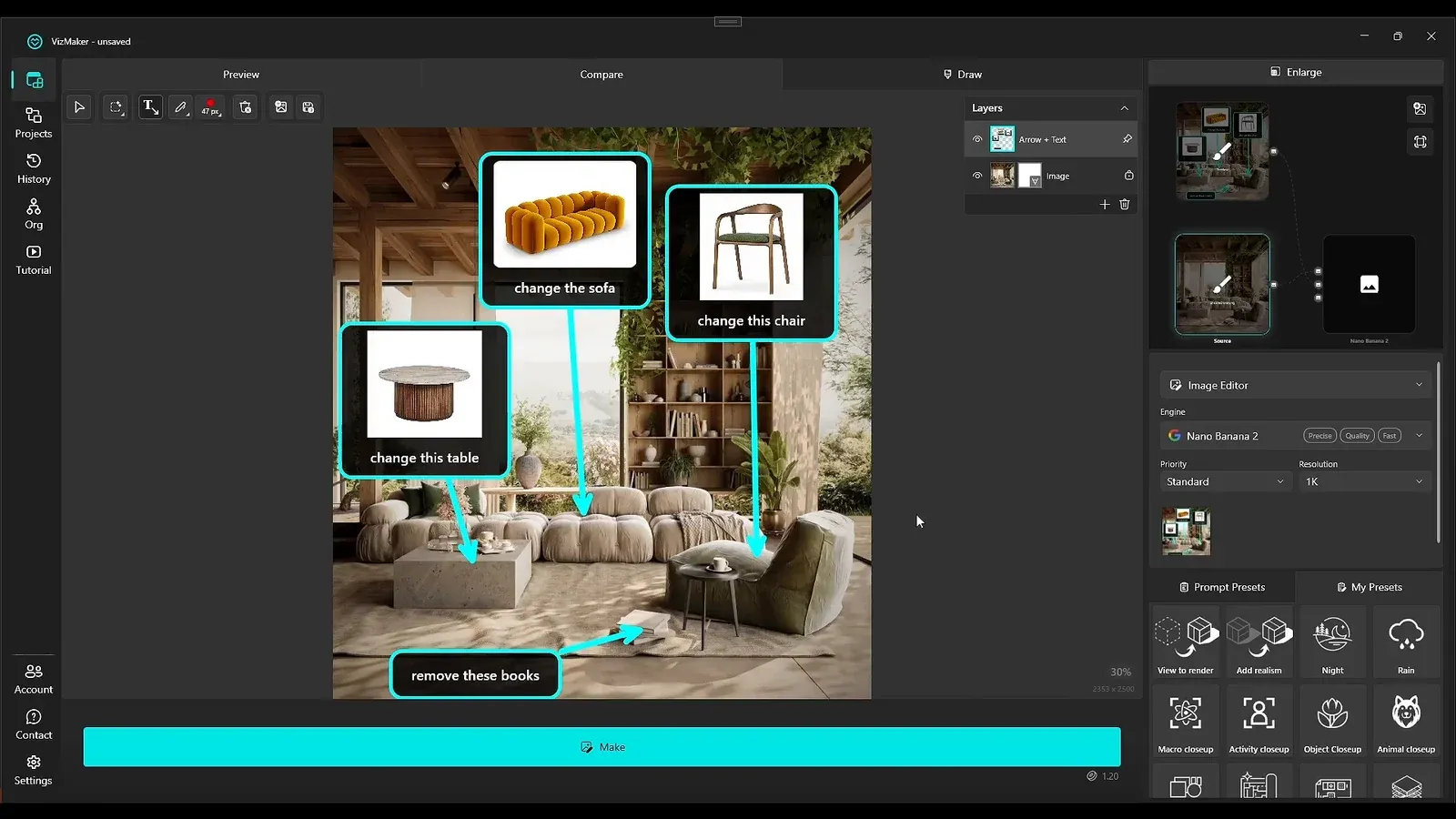
Use the arrow-and-text tools to point a reference image at the object it should replace. The room example identifies a new sofa, chair, and table, and adds a separate instruction to remove books. These marked changes form one visual brief for the next generation.
Keep each annotation short and unambiguous. The arrow tells the model where the instruction belongs; the attached image explains the desired object. After generation, review every requested change rather than approving the image because one replacement looks right. Return to a local edit if an individual area still needs refinement.
6. Make color and mood requests more explicit
Use structured choices to reduce ambiguity in repeated design variations.
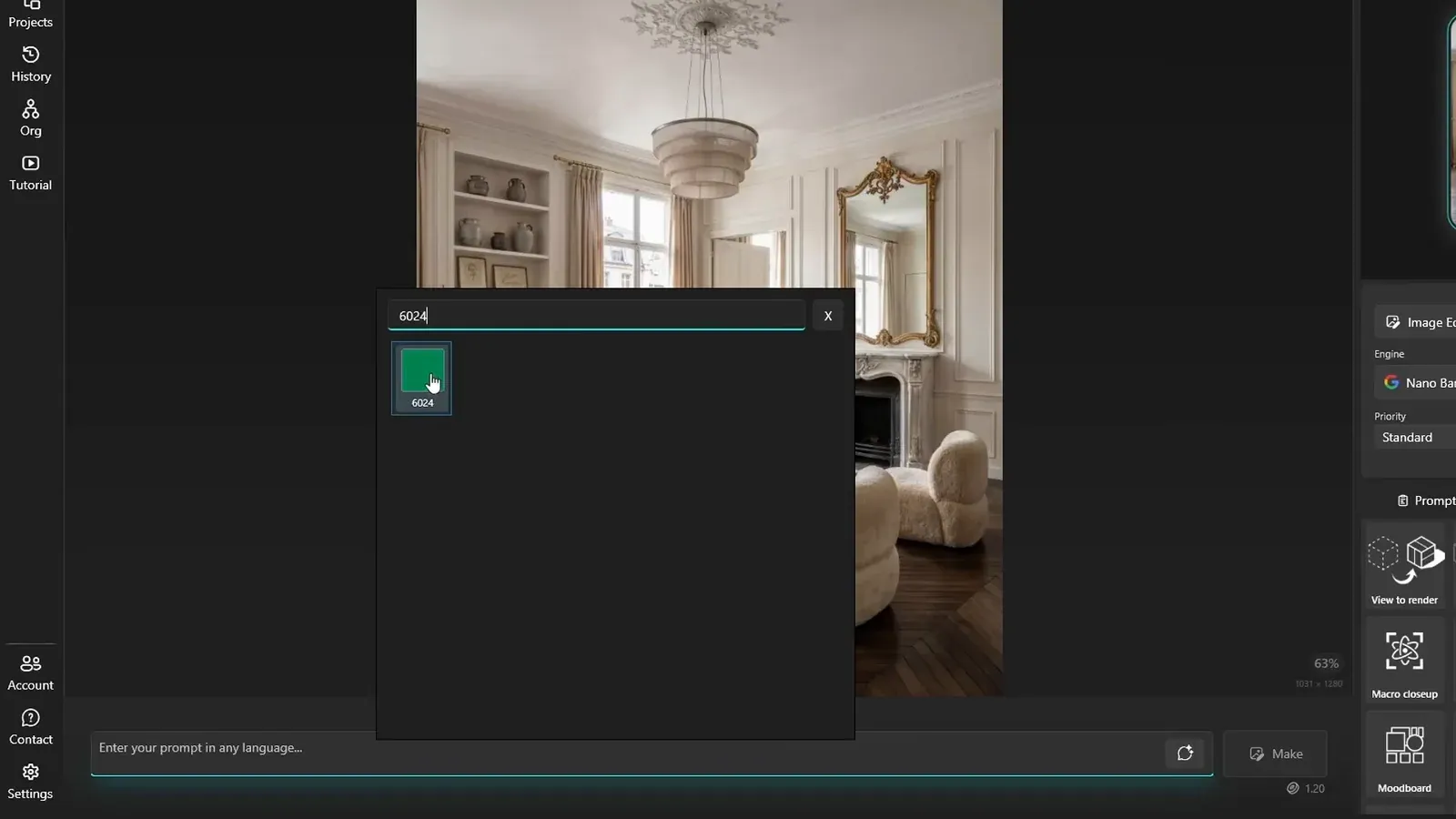
Choose a color from the built-in RAL palette and state which object should receive it. The examples apply selected colors to a sofa and to walls. A named swatch makes the intended color direction clearer, while the generated appearance still needs review within the image’s lighting and materials.
Parameterized prompt presets offer a similar starting point for weather, time of day, or character choices. Select the values, insert the prompt, and review it before generation. These controls help organize a brief; they do not remove the need to decide whether the resulting atmosphere and details suit the project.
7. Connect the image workflow with 3D and rendered views
The same workspace can support additional modeling and image-input tasks.
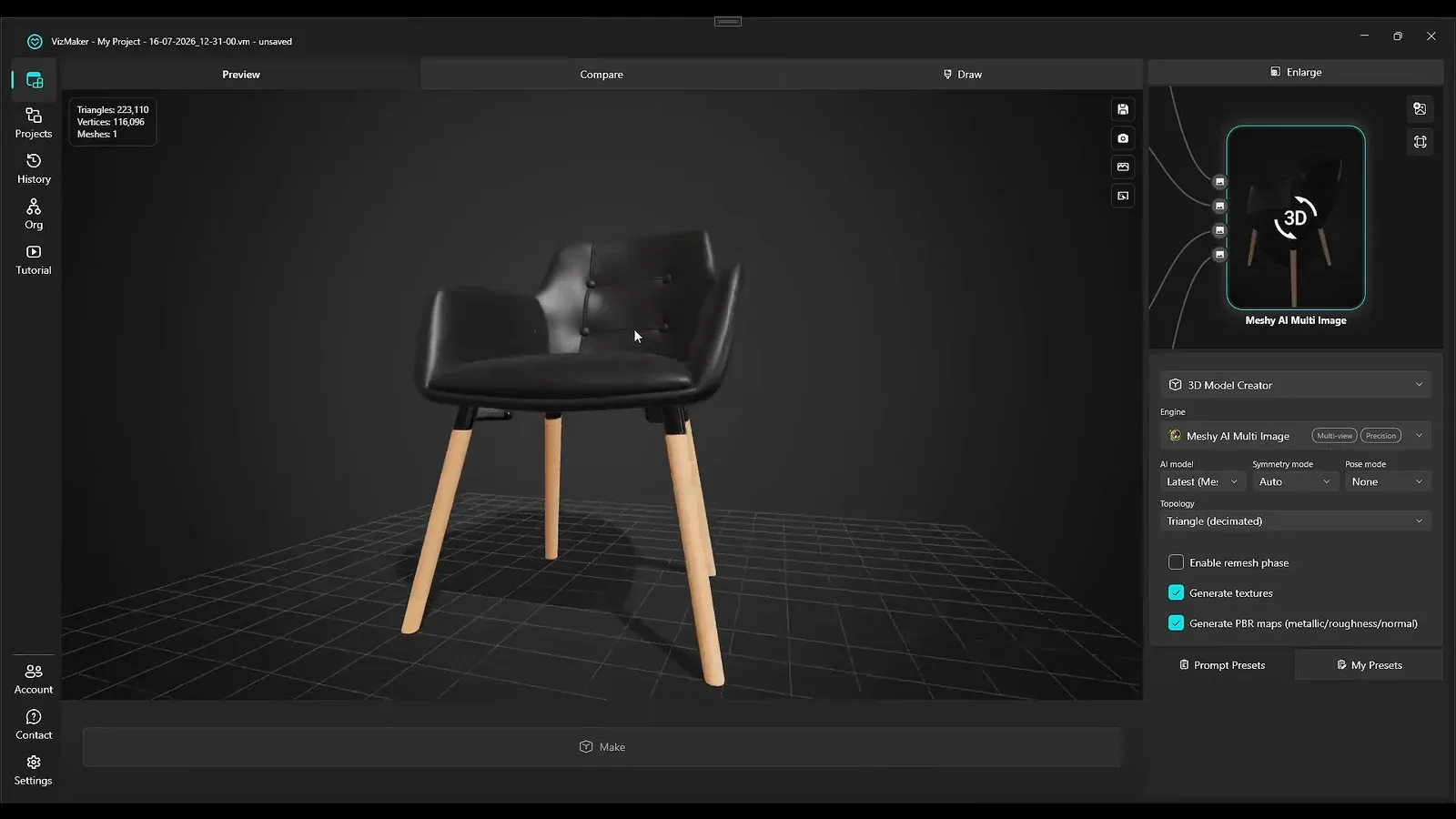
For object generation, Meshy AI Multi Image accepts several reference views. The chair example connects multiple images, generates a textured model, and reviews it in the 3D preview. More views provide additional input information, but the result still needs inspection for shape and unwanted details.
The 3ds Max integration also demonstrates using the rendered frame buffer, or VFB, as the image source instead of the viewport. This allows an existing visualization to enter an enhancement workflow. Keep the distinction clear: the chair workflow generates geometry, while editing or enhancing a rendered frame changes an image.
Conclusion: separate generation from boundary refinement
A useful local edit has two parts: the generated content must answer the brief, and its mask must fit the surrounding image. Select a clear region, provide a reference where it helps, and refine the boundary after generation. Apply the same approach to replacements and local upscaling so that detail changes remain deliberate.
- Keep each local generation on an editable layer.
- Use margin for extent and feather for edge transition.
- Attach references when the required texture or object is specific.
- Check every annotated change and compare the final image with its source.
Questions and answers
What do black and white do in a layer mask?
Black hides the generated layer in the painted area; white reveals it again. This lets you refine a result without deleting the whole generation.
Can I upscale only part of an architectural image?
Yes. Select a region, run the image upscaler, and refine the resulting layer mask so the detail pass appears only where it is useful.
How do I replace several objects in one request?
Use arrows, short instructions, and reference images to identify each target. Generate the combined brief, then inspect every replacement separately.
Does a RAL prompt replace checking the result?
No. The palette makes the intended color explicit, but you should still review its appearance in the generated image and its lighting.
Follow the complete examples for local generation, mask refinement, upscaling, reference textures, furniture annotations, and color-based editing.
Watch the tutorial on YouTubeSource: The ArchViz Tool We’ve Been Waiting For - Replace, Upscale & Mask Any Area · VizAcademy UK ·