
For Archicad AI rendering in VizMaker, install the matching plugin, prepare your camera views, and send them to the image workflow. Compare generated alternatives against the original design, then refine selected images with people, lighting, material references, and upscaling. Use the approved images as the basis for additional views or animation.
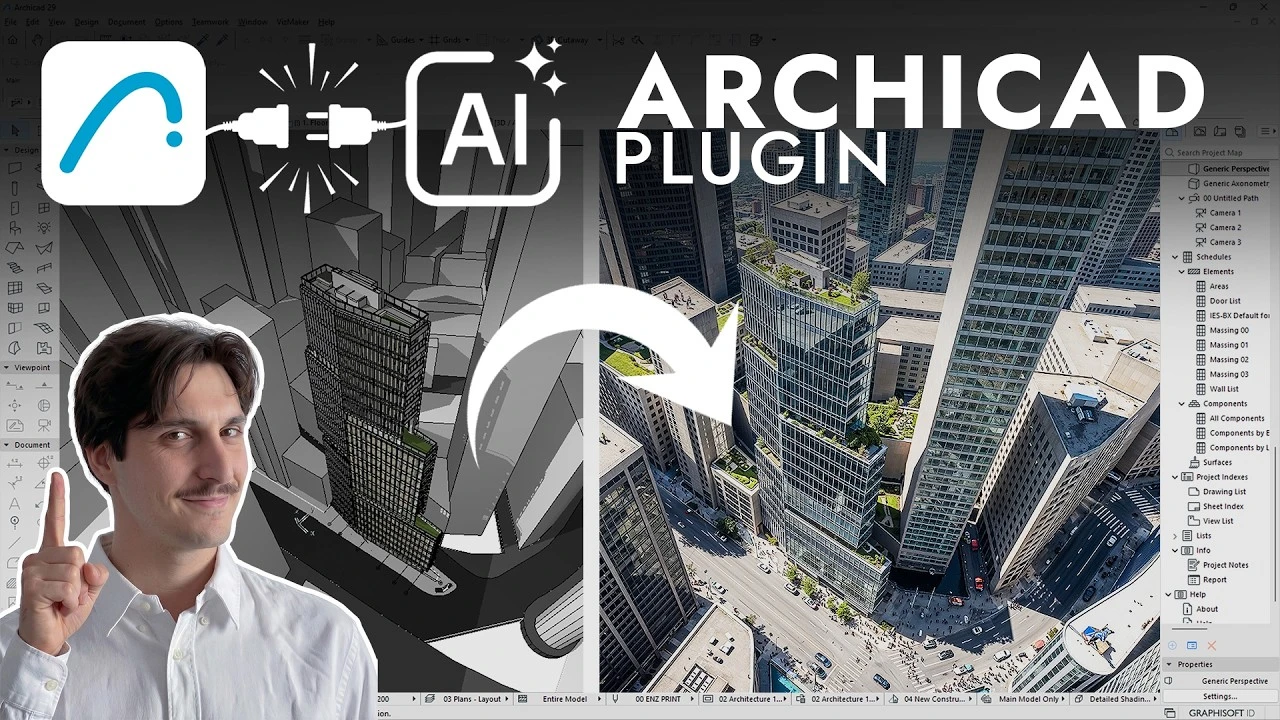
Move beyond a model view without losing sight of the design
A model view communicates geometry, but a presentation often also needs atmosphere, activity, close-up detail, and motion. Rebuilding every image for each lighting or seasonal option can interrupt the design process. AI image workflows provide another way to explore those presentation choices.
The challenge is selection. A more polished image is not automatically a more faithful representation of the project. The examples include a removed building, an overly warm interior, and animation that moves too quickly. Keep the source design visible throughout the workflow so that visual appeal and accuracy can be judged separately.
1. Connect Archicad and prepare the views
The quality of the starting view shapes every later image.
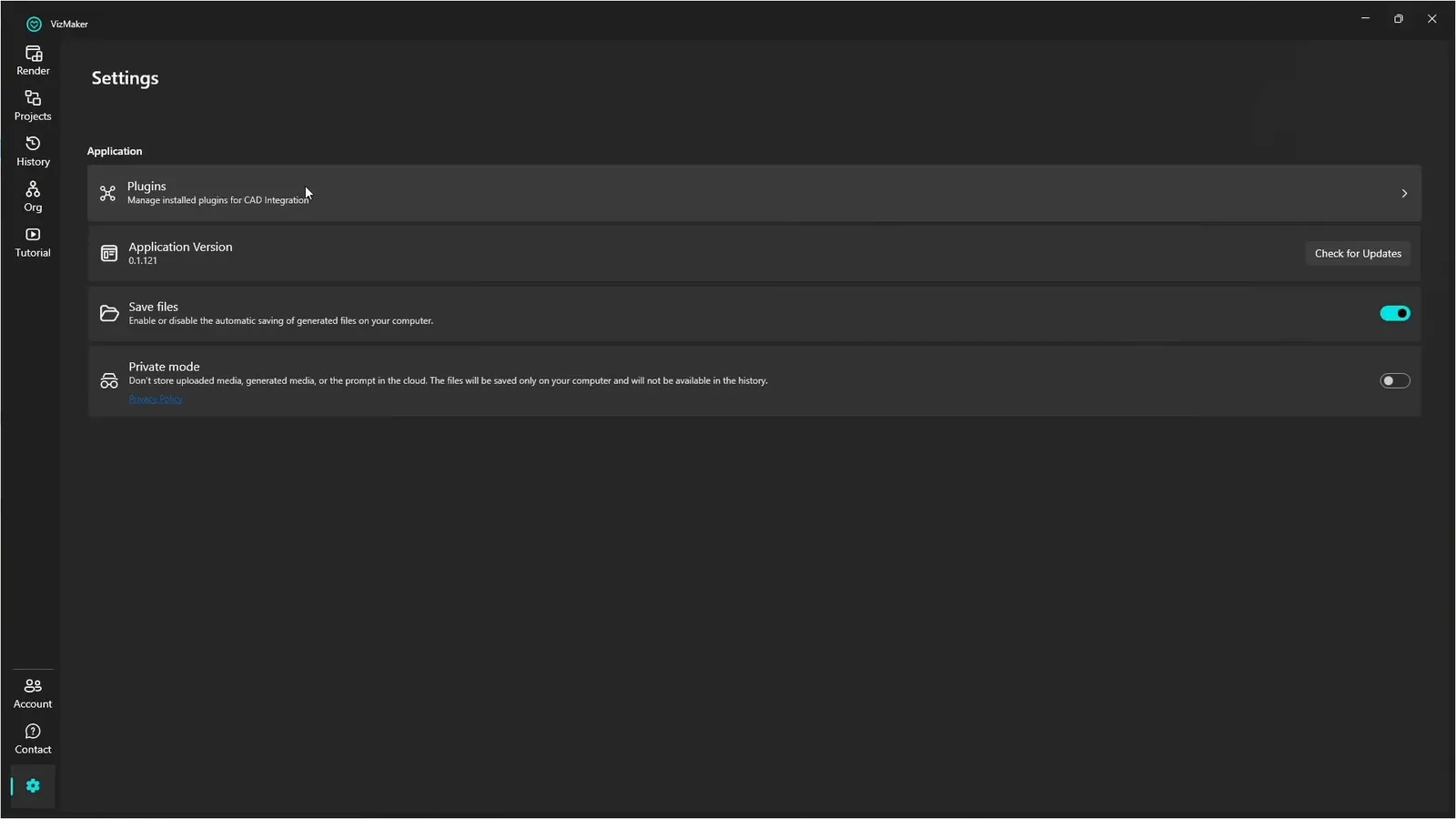
Install VizMaker, then open Settings → Plugins and select the Archicad version you are using. In the demonstrated setup, Archicad is restarted if it was open during installation. Prepare the exterior or interior cameras in the project and send the selected views through the plugin.
Choose an image engine, resolution, and aspect ratio before making the first variations. The example uses Nano Banana with a landscape format and generates two outputs per camera angle. That gives you a comparison without turning the first result into the default choice. Frame the important architecture clearly before asking AI to develop its appearance.
2. Develop exterior atmosphere and activity
Choose an exterior result by both appearance and fidelity to the project.
Compare the initial alternatives for each camera angle. Review the building silhouette, surrounding structures, and landscape before judging the lighting. One example loses a skyscraper in the generated image, illustrating why source-to-result comparison matters even when the output looks convincing.
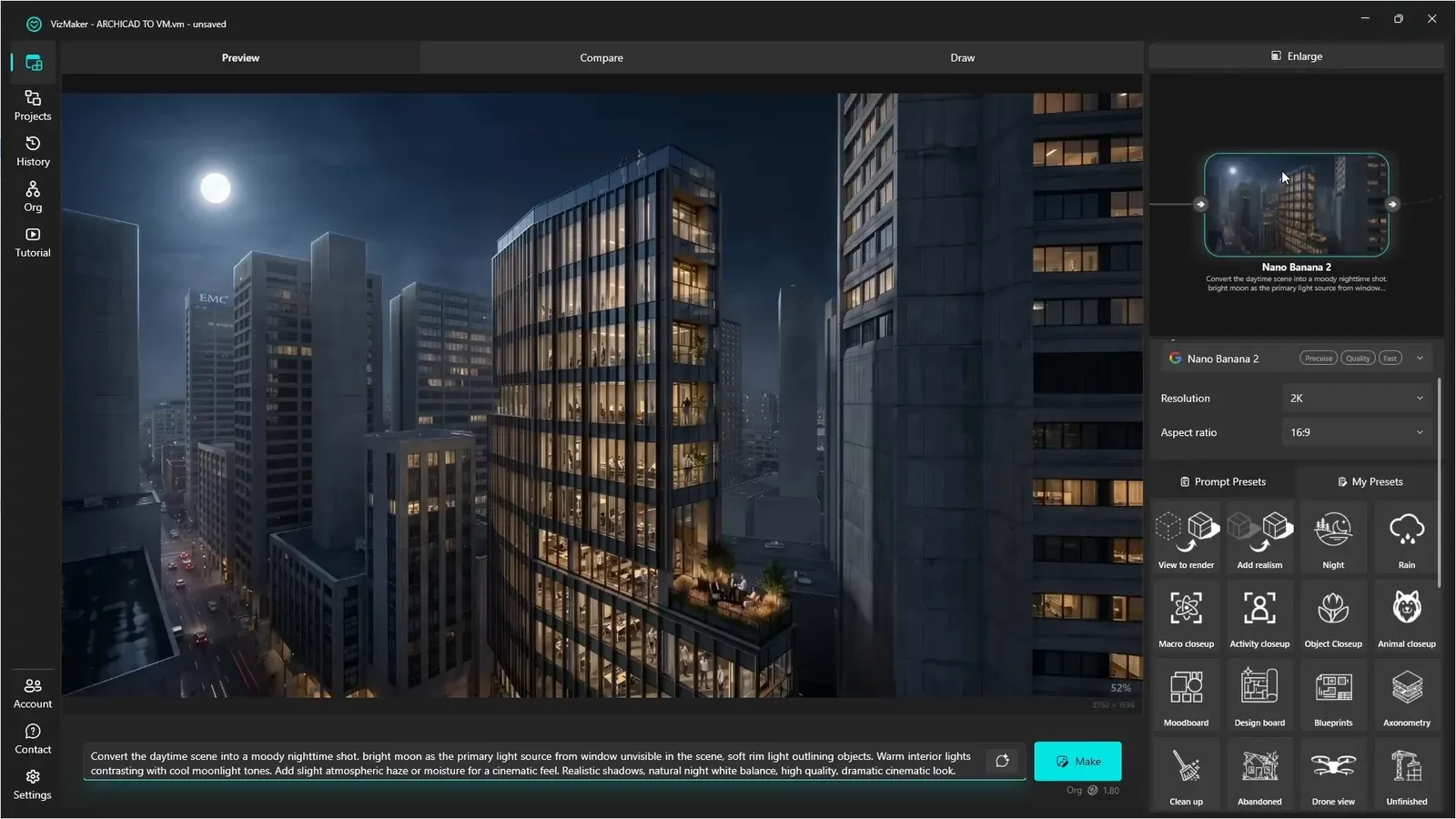
Once the base is selected, explore people, a car placed with a drawn region, seasonal presets, or night lighting. Make the request specific enough to explain the intended location or atmosphere. A blueprint-style image can be useful as a presentation variation, but inspect generated lines and labels instead of treating it as construction documentation.
- Check that the intended buildings remain present.
- Use a marked area when object placement matters.
- Select the lighting or season that supports the presentation brief.
3. Upscale the images that already work
Improve the selected composition instead of polishing a result with unresolved design errors.
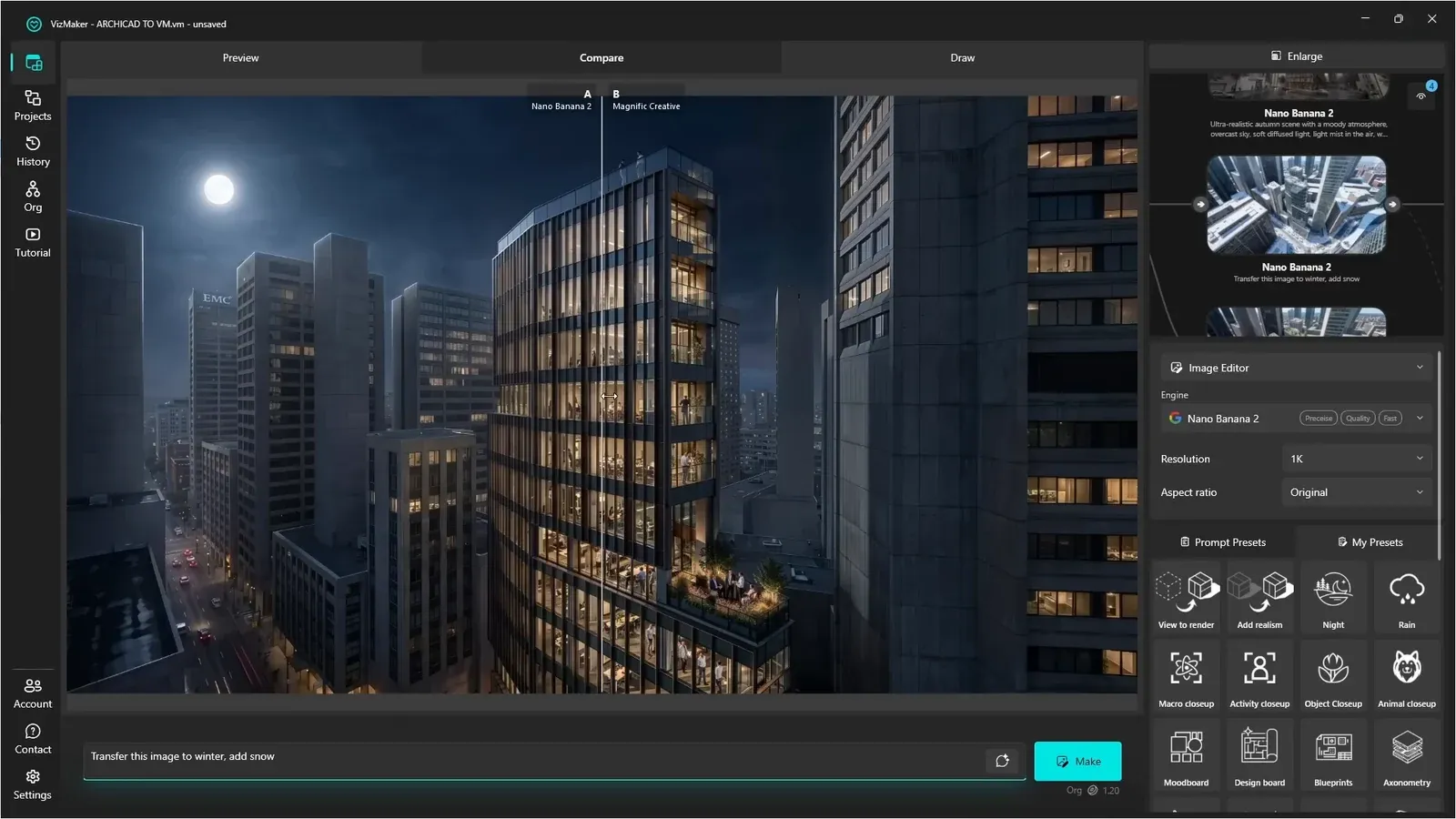
Send an approved image to Magnific Creative and compare the enlarged result with the source. The example uses a creativity setting of two, then inspects materials and reflections. Treat that value as a starting point from the demonstration, not a universal setting for every render.
Look at the areas that carry architectural meaning: facade texture, glazing, paving, planting, and people. Added detail may make the picture more persuasive, but it also needs to fit the design. If an object changes in an unwanted way, choose a different result or refine the affected area before including it in the final presentation.
4. Give the exterior animation a simple camera brief
Use a selected still as the visual foundation for a short motion study.
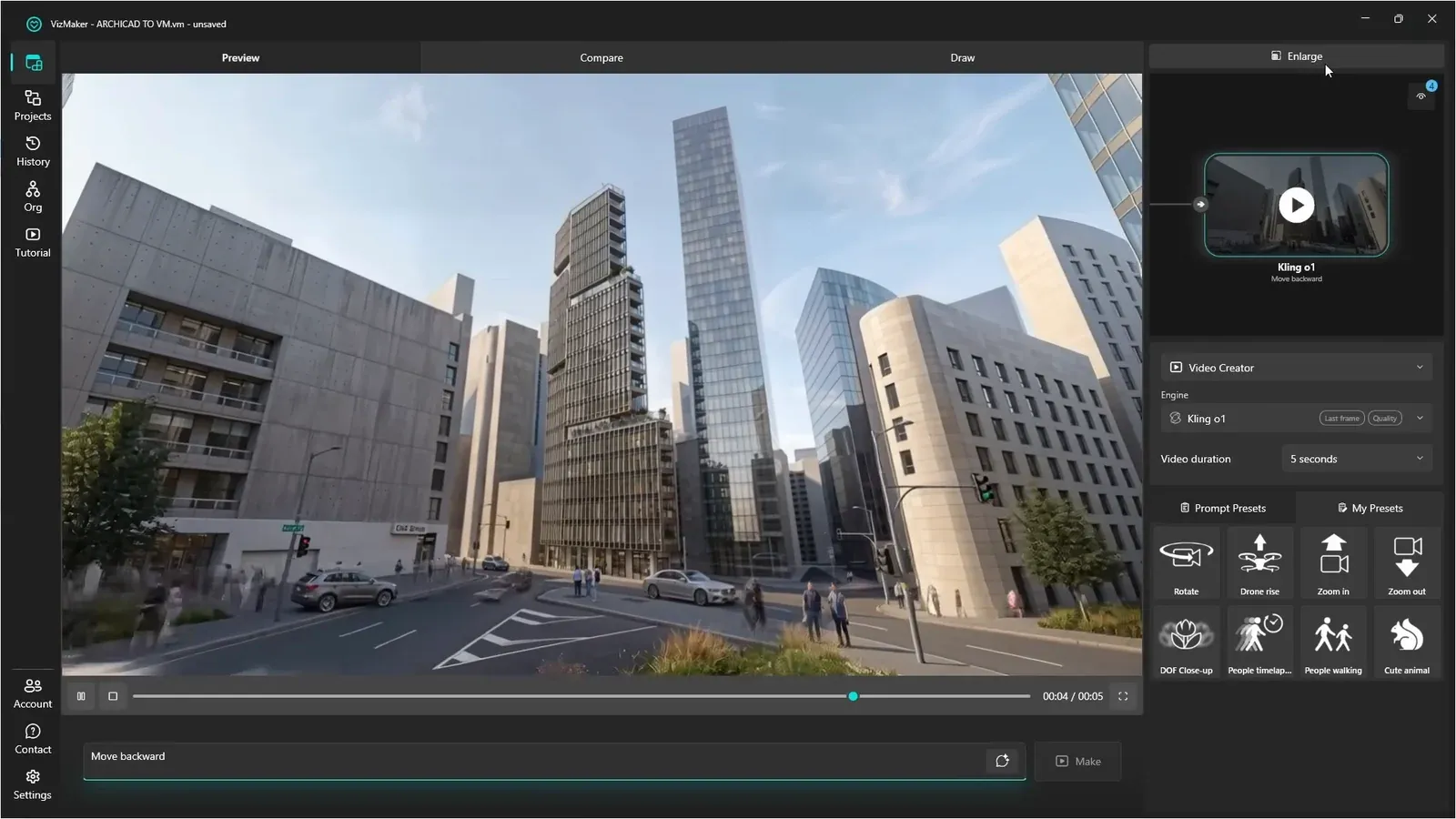
The exterior examples explore a backward camera move, a transition between start and end images, and a rising drone view. Each brief emphasizes something different: the approach to the building, a change in viewpoint, or the relationship between the building and its surroundings.
Review the pace and continuity of each clip. A movement can follow the general idea yet still feel too fast for the intended presentation. Watch the building edges and surrounding objects as the camera changes position, then choose the clip that communicates the project clearly.
5. Populate and relight interior views
People and atmosphere should reinforce the way the space is intended to be used.
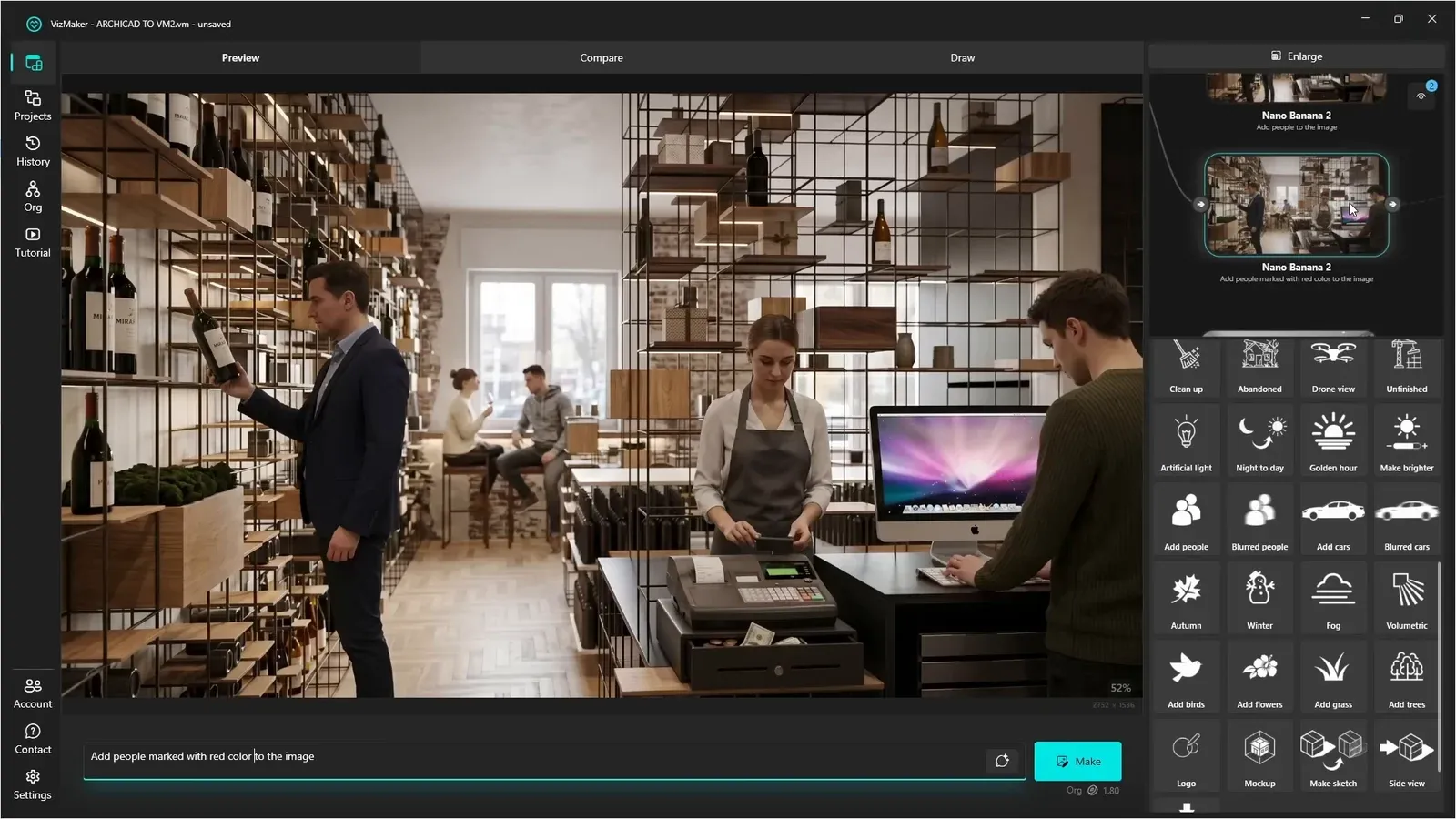
Follow the same comparison process for interiors: generate alternatives, inspect the composition, and choose the base image. Add sharp or motion-blurred figures depending on the desired sense of activity. Where position matters, draw rough figures in the image and describe the intended actions.
The retail interior example places seated figures, a cashier, and a customer reaching for a bottle. Inspect how each person fits the furniture and circulation. Then explore artificial light, golden-hour lighting, or volumetric effects. A coherent scene matters more than a stronger effect: an excessively warm result may be less useful than a restrained one. Upscale after choosing the preferred direction.
6. Build a presentation set from the approved interior
Reference-led styling, special views, and clips offer different ways to explain one space.
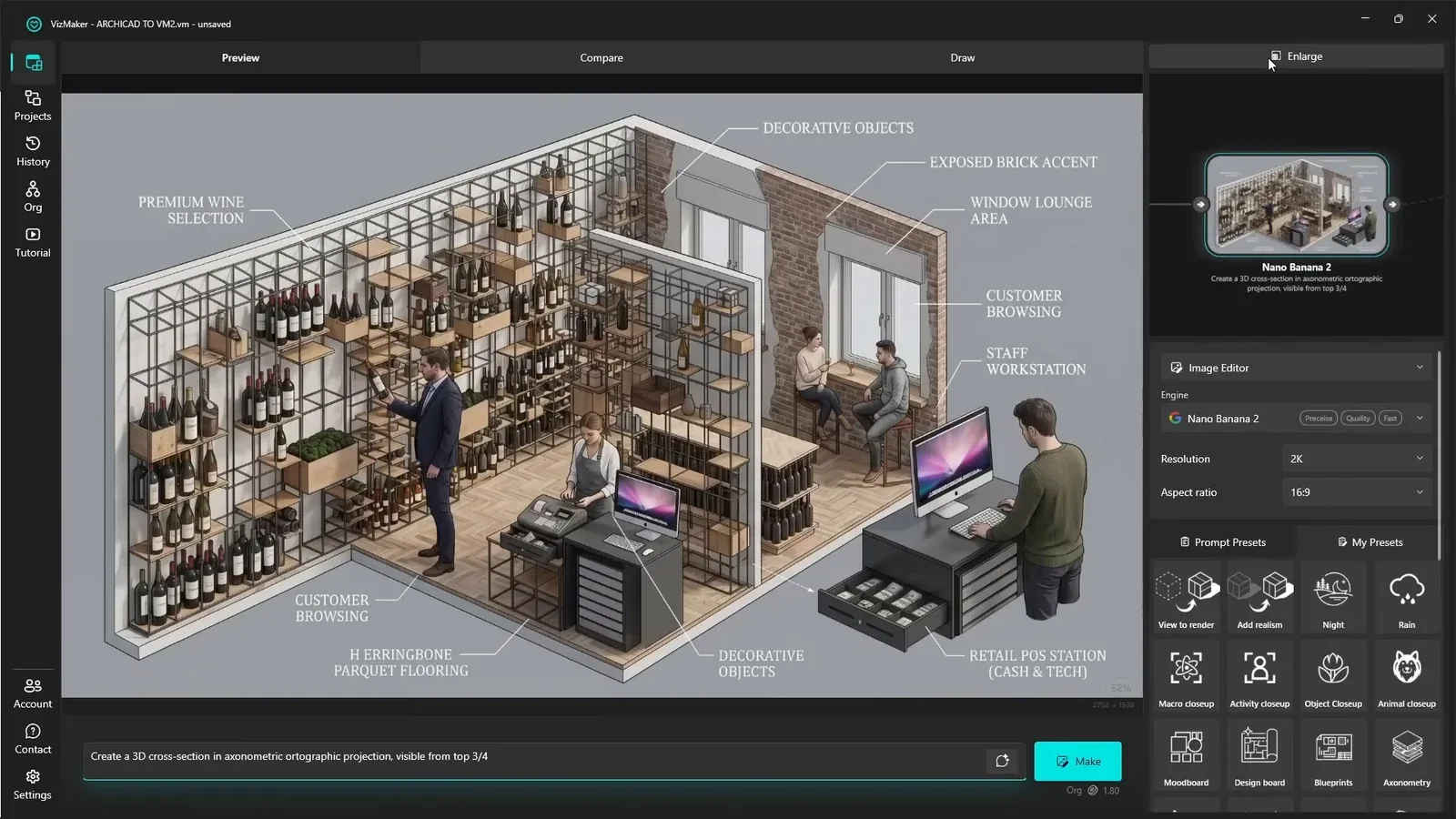
Connect a styling reference as an additional input and describe the change you want to explore. Compare the new version with the base image before extending that direction. You can also generate an activity close-up, a mock-up, or an axonometric-style presentation from the selected interior.
Check these derived views carefully: a generated axonometric image is a communication asset, not a verified projection of the BIM model. For interior videos, choose a clear brief such as people walking, a time-lapse effect, or a depth-of-field close-up. Select the outputs that work together as a consistent presentation set.
Conclusion: use the plugin as a connected review workflow
The Archicad-to-VizMaker process is most effective when each stage has a purpose: prepare the view, compare alternatives, make targeted edits, inspect detail, and only then develop animation or additional presentation formats. Keep returning to the original model so that the resulting images remain useful to the design conversation.
- Prepare deliberate camera views before generation.
- Check missing or altered geometry before selecting an output.
- Upscale approved compositions and inspect the added detail.
- Review generated clips for pace and continuity.
Questions and answers
How do I connect Archicad to VizMaker?
In the demonstrated setup, open VizMaker Settings, choose Plugins, and select your Archicad version. Restart Archicad if it was open during installation, then use the plugin to send a prepared view.
Can I decide where a person or car appears?
Use the drawing tools to mark the intended region or sketch the figure, then describe the object or action. Inspect the result for placement, scale, and interaction with the scene.
Does an AI render preserve every part of the Archicad model?
Do not assume it does. One exterior alternative in the example removes a building. Compare generated images with the source model before using them in a presentation.
Watch the exterior and interior examples from plugin setup through people placement, lighting variations, upscaling, special views, and animated clips.
Watch the tutorial on YouTubeSource: This ArchiCAD AI Plugin changes everything · VizAcademy UK ·