
A controlled AI design workflow combines clear source images, deliberate variations, and organized outputs. In VizMaker, Private Mode changes how generation content is retained and accessed, while presets, reference images, AI chat, and organization tools help manage the creative work around it. Decide how you will save the results before generating them.
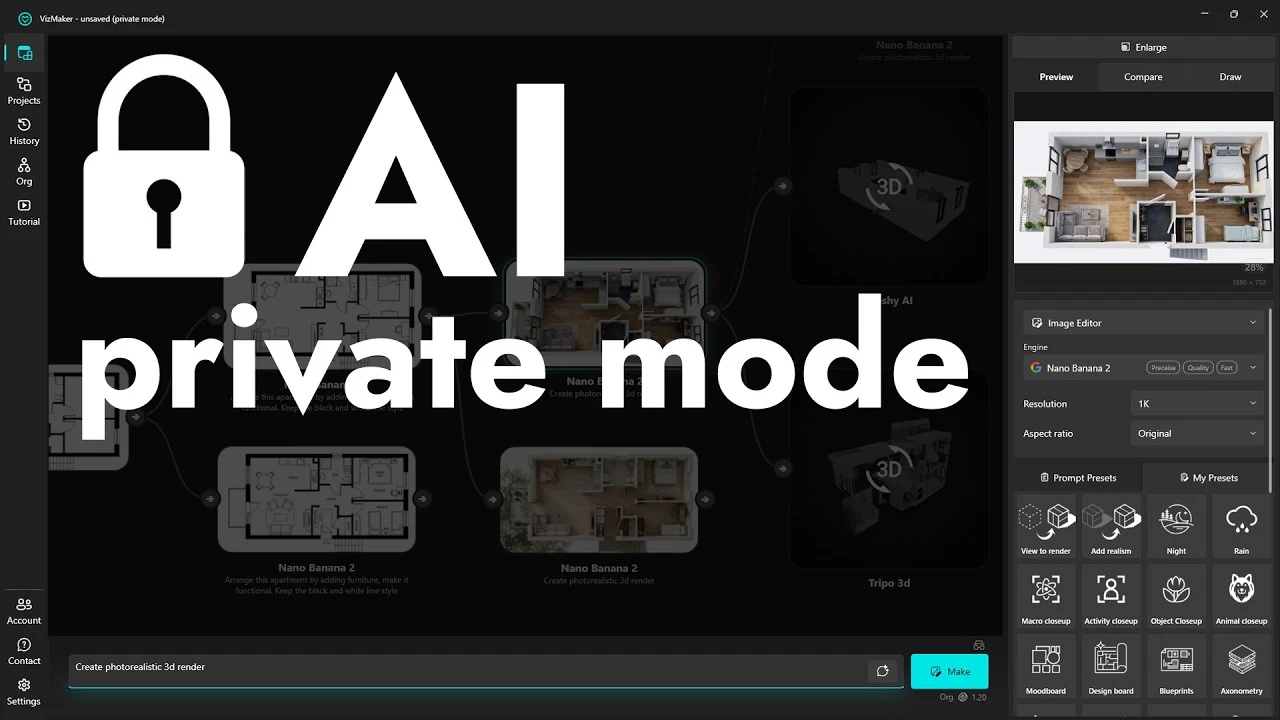
More variations are useful only when you can manage them
A design presentation can grow quickly: one plan becomes several layouts, a render becomes a night view, and a furniture reference becomes a new interior concept. Without a deliberate process, it becomes difficult to identify the useful versions, recover the right files, or understand how a team is using its credits.
The workflow below connects those tasks. Start with storage settings, develop alternatives from a clear visual source, and then extend the selected direction into models, animations, and populated scenes. Each output should answer a design question rather than simply add another file.
1. Understand Private Mode before generating
Choose the storage workflow before you create assets that you need to keep.
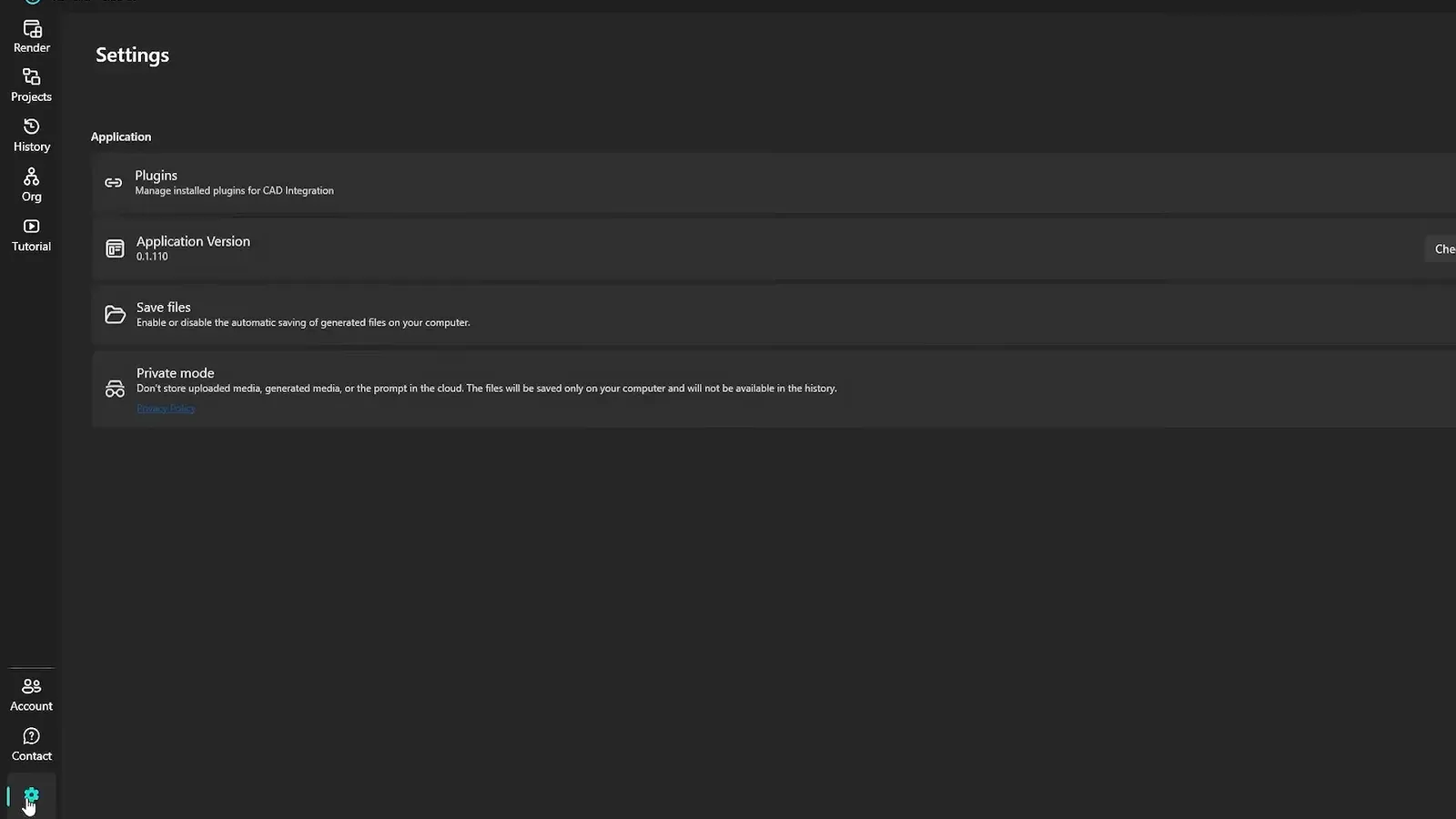
Private Mode is available in VizMaker settings. According to VizMaker’s Privacy Policy, generation still uses temporary server processing; this is not an offline mode. Generation content is delivered to the requesting computer and is not retained as cloud project history. External providers have their own applicable retention arrangements.
For practical file management, save or export important outputs separately. Copying a project file to another computer does not also copy its local cache. Read the Private Mode section of the Privacy Policy linked below for the complete terms and recovery limitations.
2. Use presets to explore one design question at a time
A single interior or exterior image can support several presentation directions.
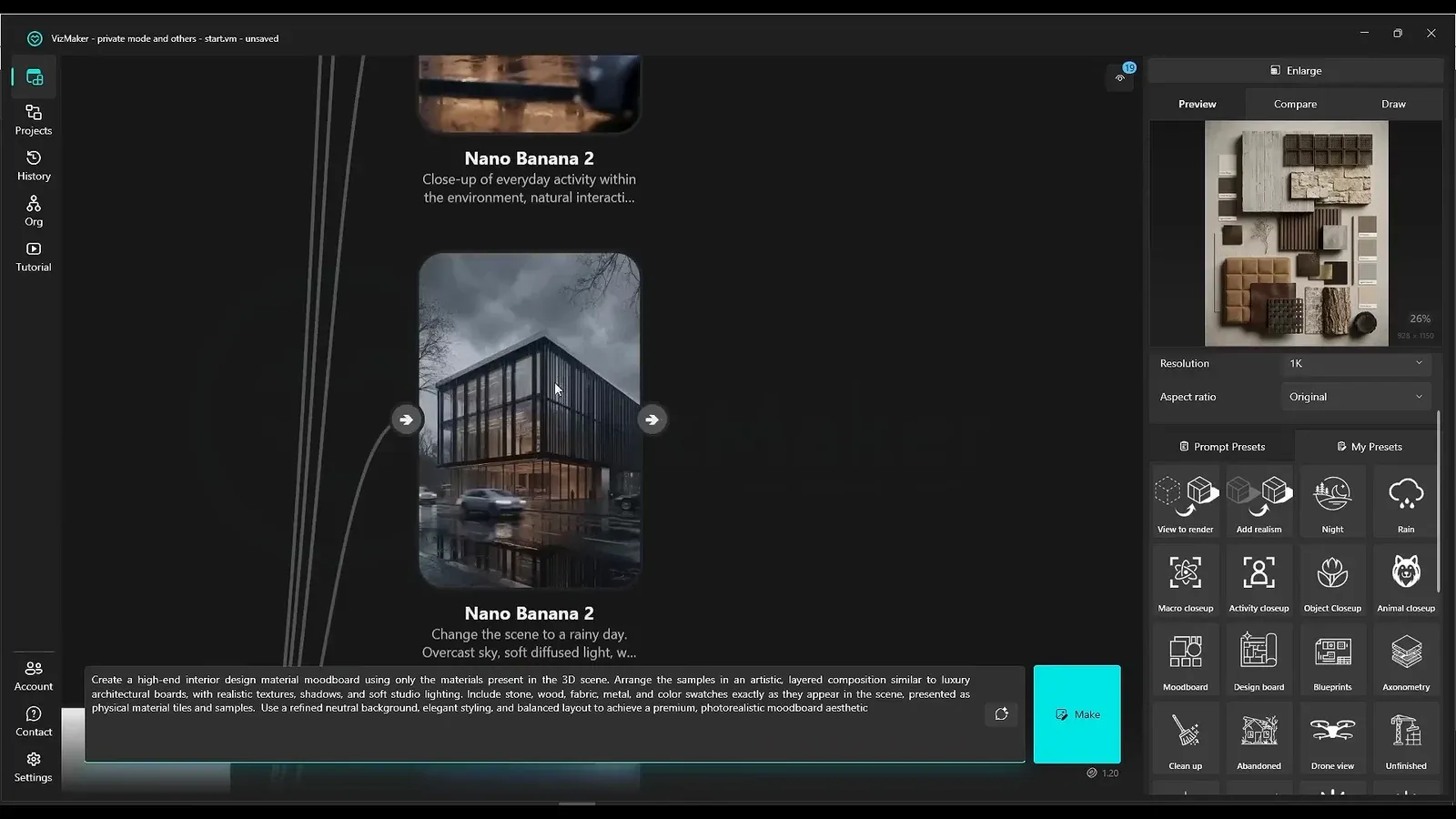
Start with a source image whose composition already communicates the project. In the prompt presets, choose a specific transformation: night lighting, rain, a macro close-up, a mood board, or an unfinished version. The same preset can be applied to an interior and a building, but the useful result will depend on the subject.
Keep the source as your comparison point. A night view should help assess atmosphere; a close-up should reveal a detail worth presenting. An abandoned or unfinished version may suit a concept exercise, but it should not be confused with the proposed finished design. Select the variations that serve the presentation.
3. Turn a plan or furniture reference into a concept
Clipboard input makes it straightforward to connect reference gathering with generation.
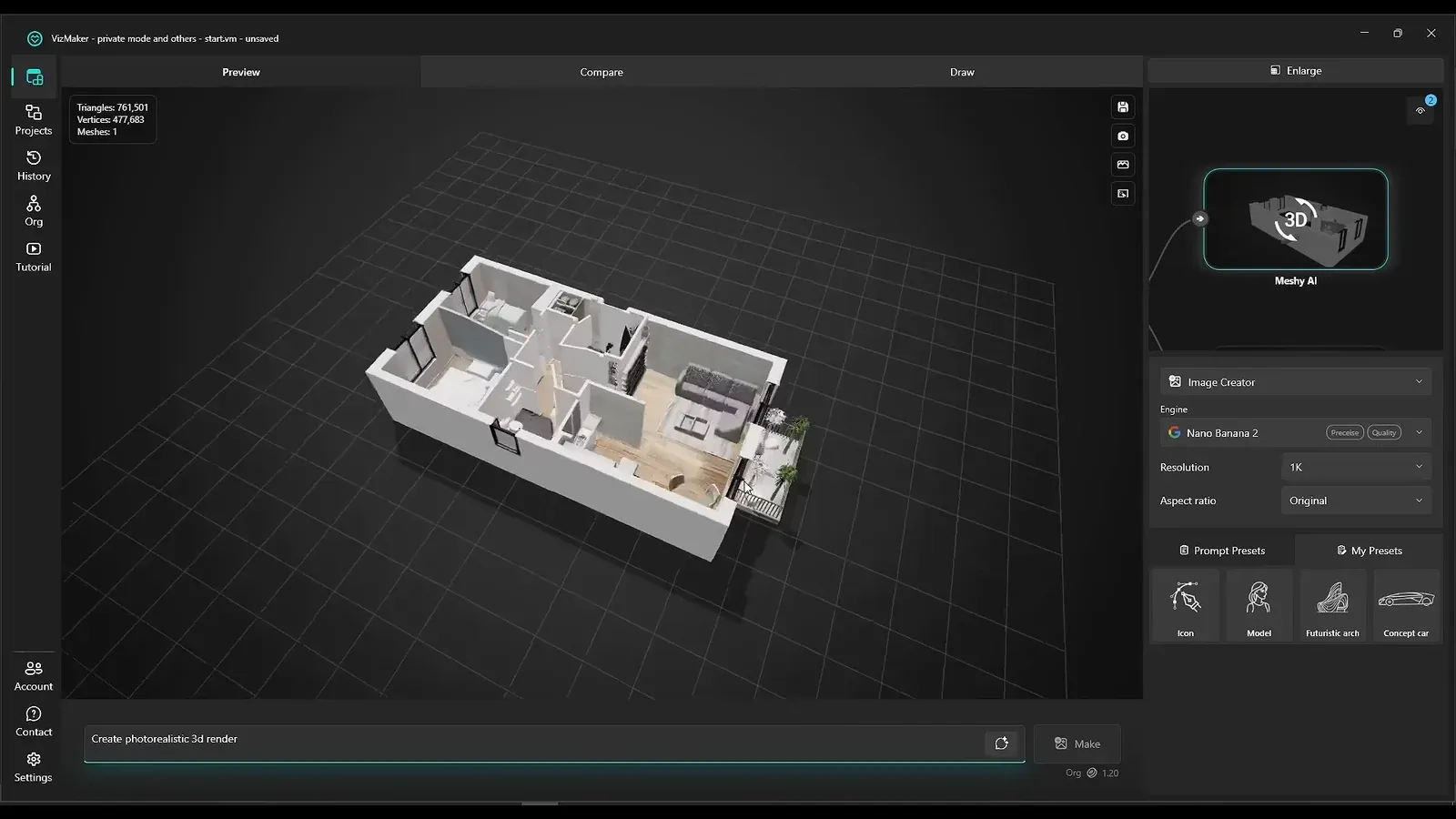
Copy an image and paste it into VizMaker, then combine it with the image you want to edit. For a furniture change, identify the replacement object in the prompt. The same input method works with a screenshot of an AutoCAD plan: paste the plan, generate furnished layout alternatives, and select one before asking for a rendered view.
A rendered concept can then become input for Tripo or Meshy AI. The apartment example produces a more useful starting model with Meshy, but that is an observation about one input. Inspect the layout and refine the geometry in your modeling software. A generated model is a starting point for visualization, not evidence that every dimension in the drawing has been preserved.
- Choose the layout before developing its presentation.
- Compare the generated render with the original plan.
- Review the 3D model before using it as a scene base.
4. Use AI chat to clarify the transformation
A useful prompt explains what should change and what the source needs to retain.
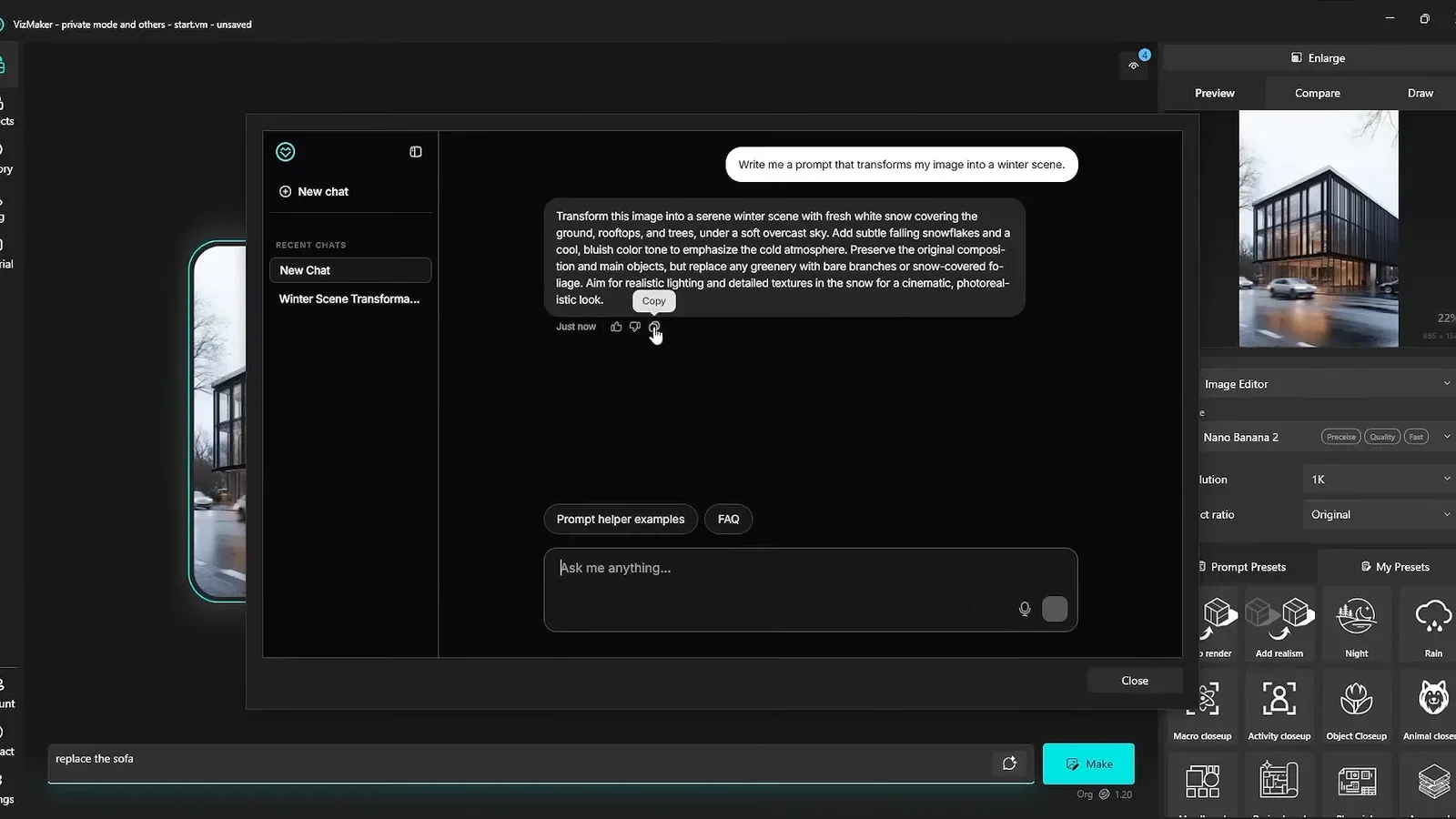
Open the chat assistant and describe the visual result you need. In the winter-scene example, the conversation produces a prompt that can be copied into the image workflow. Refine that prompt in conversation before generating the next version, especially when a short request leaves the lighting, weather, or treatment of the building unclear.
Treat the chat response as a draft instruction. Read it before using it, remove changes that are outside the brief, and inspect the generated image afterward. The assistant can help organize a complex request, but the designer still decides which changes belong in the project.
5. Compare animation by movement and continuity
An attractive still image needs a clear motion brief before it becomes a useful clip.
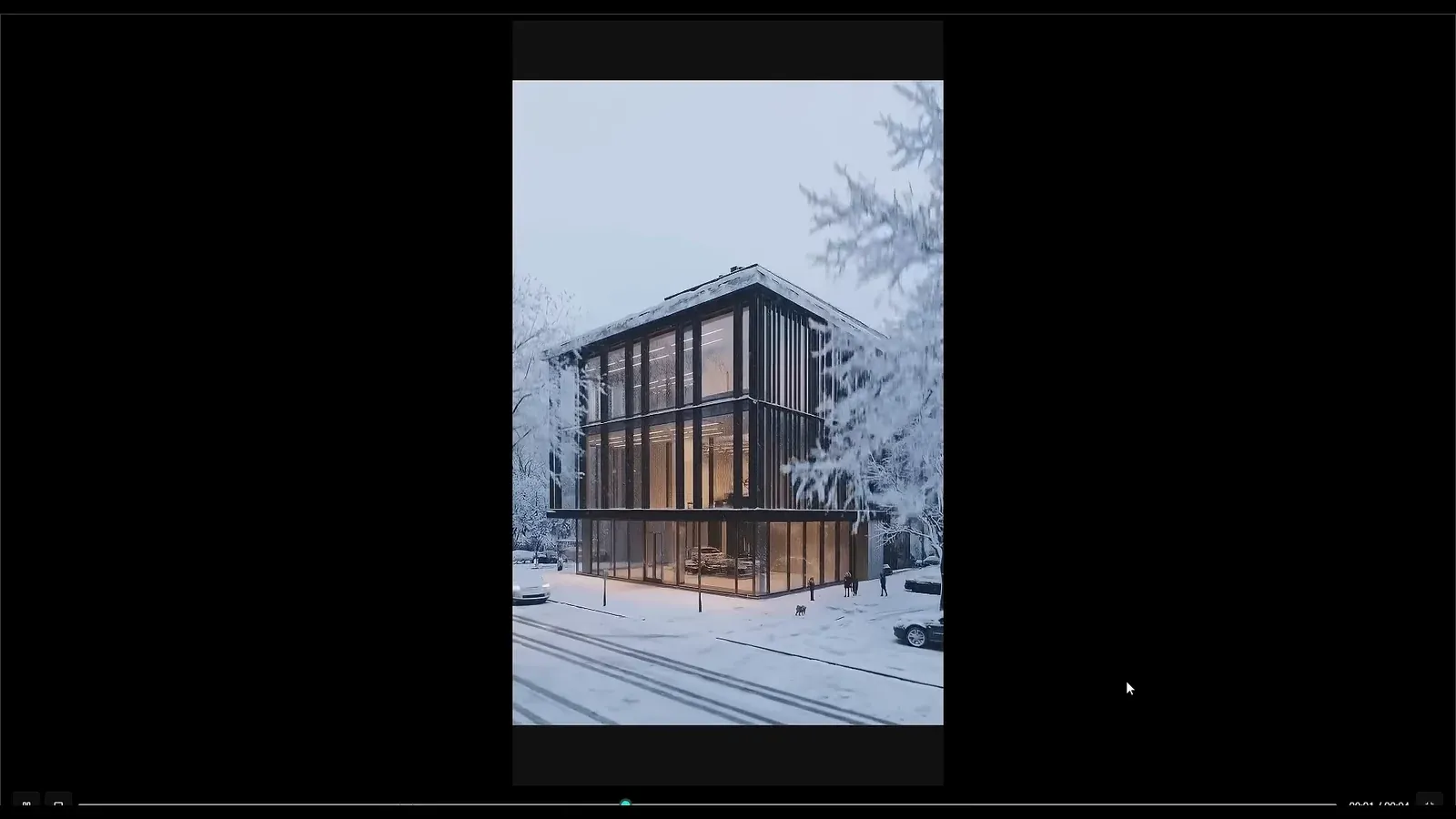
Use a selected exterior image as the input for Video Creator and describe a simple camera move, such as a rising drone view. The example compares Wan, Kling, and Veo results from a winter scene. The meaningful comparison is how each clip moves, keeps the building recognizable, and handles the environment.
Watch the full clip rather than judging its opening frame. Look for unwanted changes to the facade, distracting motion, or an unsuitable pace. Where the selected engine supports audio or multiple shots, configure those deliberately; they are additional creative choices, not a substitute for a clear visual brief.
6. Make team usage visible
An organization gives a studio a shared view of members and credit consumption.
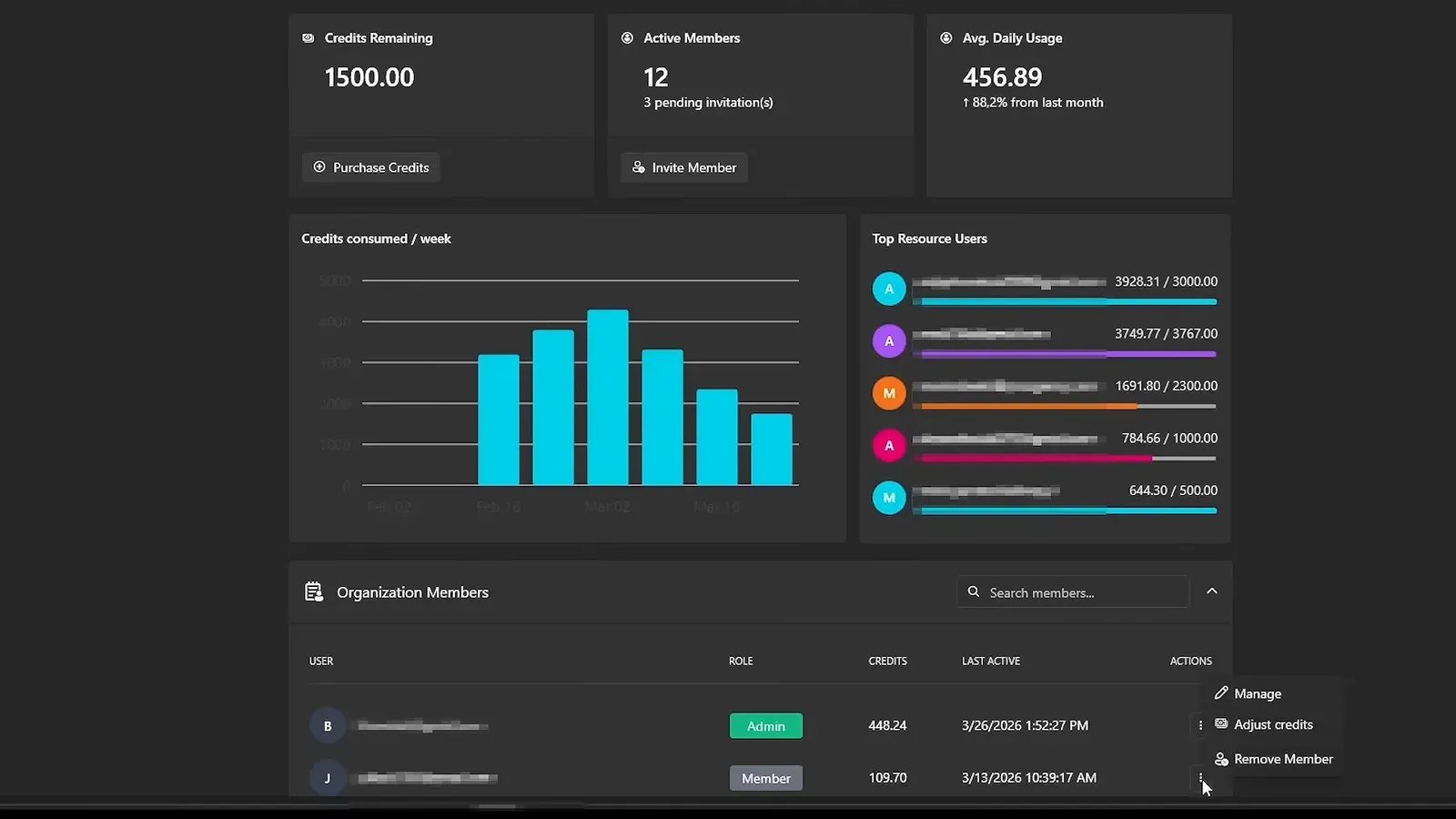
The organization dashboard brings together member management and usage information. A team administrator can invite users, review consumption, and assign credits to an individual member. This makes it easier to connect experimentation with the people carrying out the work.
Use per-user credit visibility when planning a round of exploration. Review which direction deserves further generations, then allocate the next round accordingly. Keep that resource decision separate from judging image quality: a useful result is one that answers the project brief, not merely one that used more credits.
7. Reuse a character reference across presentation images
A shared person reference can connect separate rooms in a presentation.
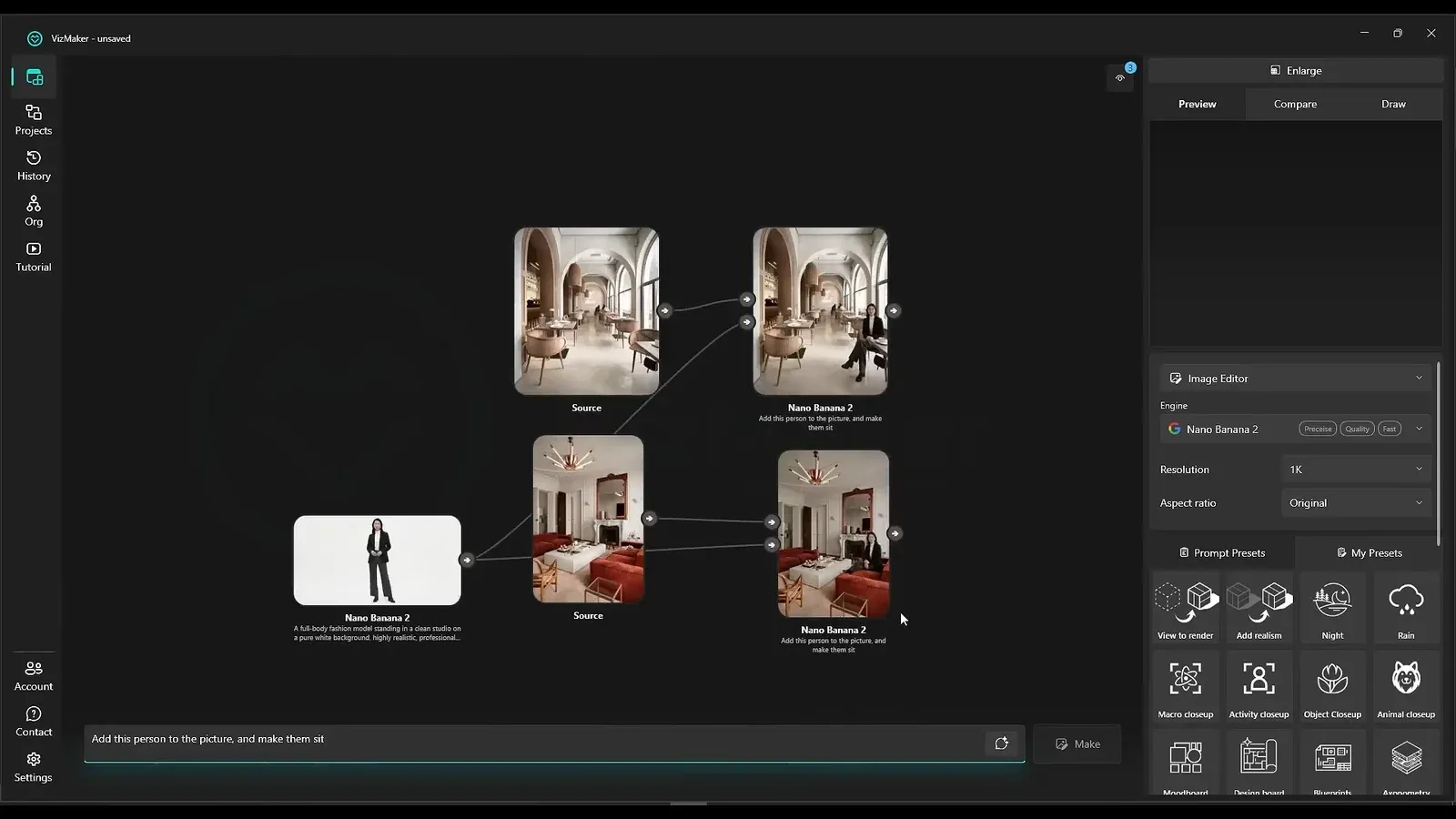
Generate a person with Image Creator, then connect that image to the interior you want to populate. Describe the action and placement, such as sitting in the room. Reuse the same person reference with another interior to develop a connected set of images or a guided home-tour concept.
Check identity, pose, scale, and placement across the results. Reusing a reference provides a common visual starting point, but each generated scene still needs inspection. Select the versions that fit the room and the story before turning them into animation.
Conclusion: control the inputs, outputs, and next decision
A useful VizMaker workflow has a clear order: decide how files will be retained, choose a visual source, develop alternatives, and review the selected result before extending it. Presets and chat help with exploration; organization tools help manage a team’s resources. The quality of the final presentation still depends on the choices made between generations.
- Plan file saving before working in Private Mode.
- Keep the original plan or image available for comparison.
- Review generated geometry and animation instead of assuming fidelity.
- Use shared references and team usage information to organize the next iteration.
Questions and answers
Does Private Mode mean AI generation happens offline?
No. VizMaker’s Privacy Policy describes temporary server processing and local delivery, with separate terms for external providers. Read the linked policy for details.
Can an AutoCAD plan become a 3D concept?
A screenshot of the plan can be developed into a furnished image, then a render and an initial model through Tripo or Meshy. Check dimensions and refine the result before further use.
Can I reuse one person in several interiors?
Yes. Connect the same person image to each interior-editing workflow and describe the required action. Review the resulting identity, scale, and placement in every scene.
Watch the original tutorial to follow the settings, compare the generated variations, and see the organization and reference-image tools in use. Refer to the linked Privacy Policy for current data-handling terms.
Watch the tutorial on YouTubeSource: Keep Your Projects Private When Using AI · VizAcademy UK ·