
To create a 3D model from a photo in VizMaker, import your image, choose 3D Model Creator, and run Tripo 3D or Meshy AI. Inspect the result from several angles, export it as GLB or OBJ, then adjust its scale and materials in your scene. In these examples, Tripo produced the first result faster, while Meshy handled the person and building more successfully.
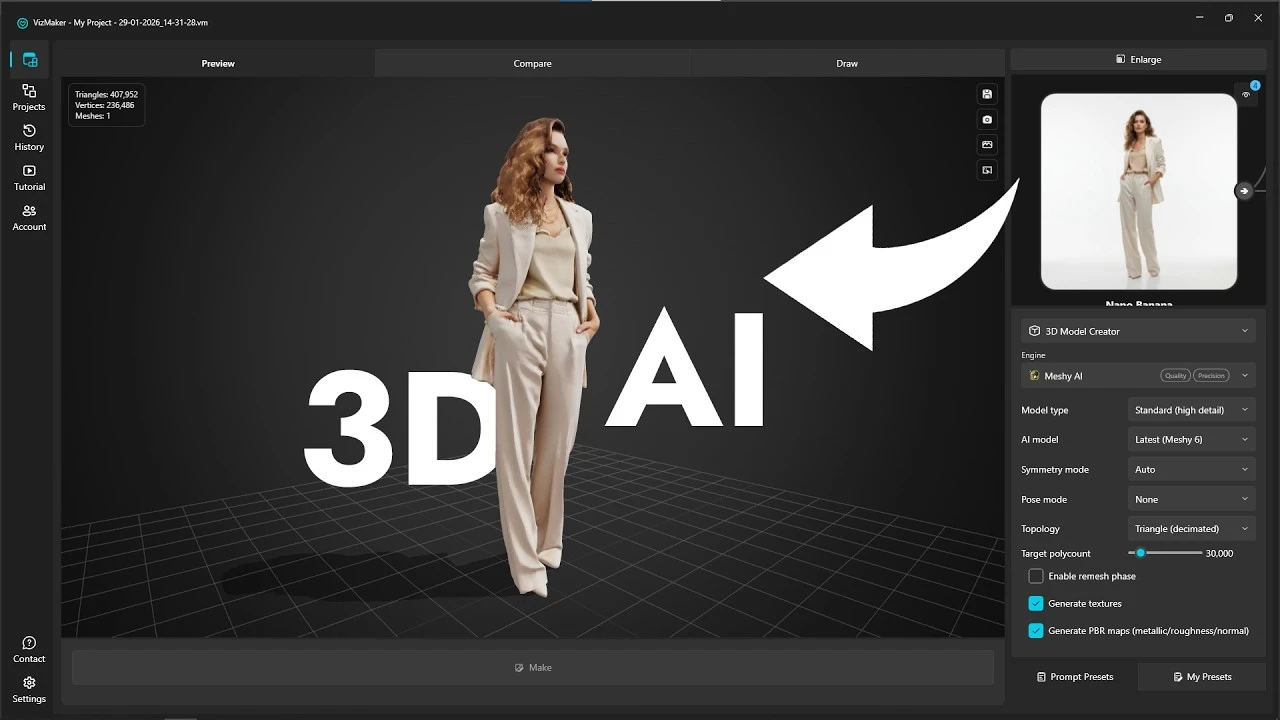
Have a photo of an object, but no 3D model for your scene?
An interior concept often starts with an image: a sofa photograph, a distinctive coffee table, or a sketch of your own design. The challenge comes when that same object needs to appear in a 3D scene. Searching a library for a similar asset or modeling it from scratch adds another task to the design process.
VizMaker lets you move from an image to a 3D object in one environment. You can prepare the input, generate geometry with a texture, and use the result in your visualization software. This workflow is useful for developing concepts and adding objects that are missing from your asset library.
Three decisions shape the result: which image to provide, which engine to use, and what to adjust after import. The following seven chapters cover the process and its applications, from an individual piece of furniture to an architectural model.
1. From a furniture photo to a 3D model
Start with a clear image of the object and compare both engines using the same input.
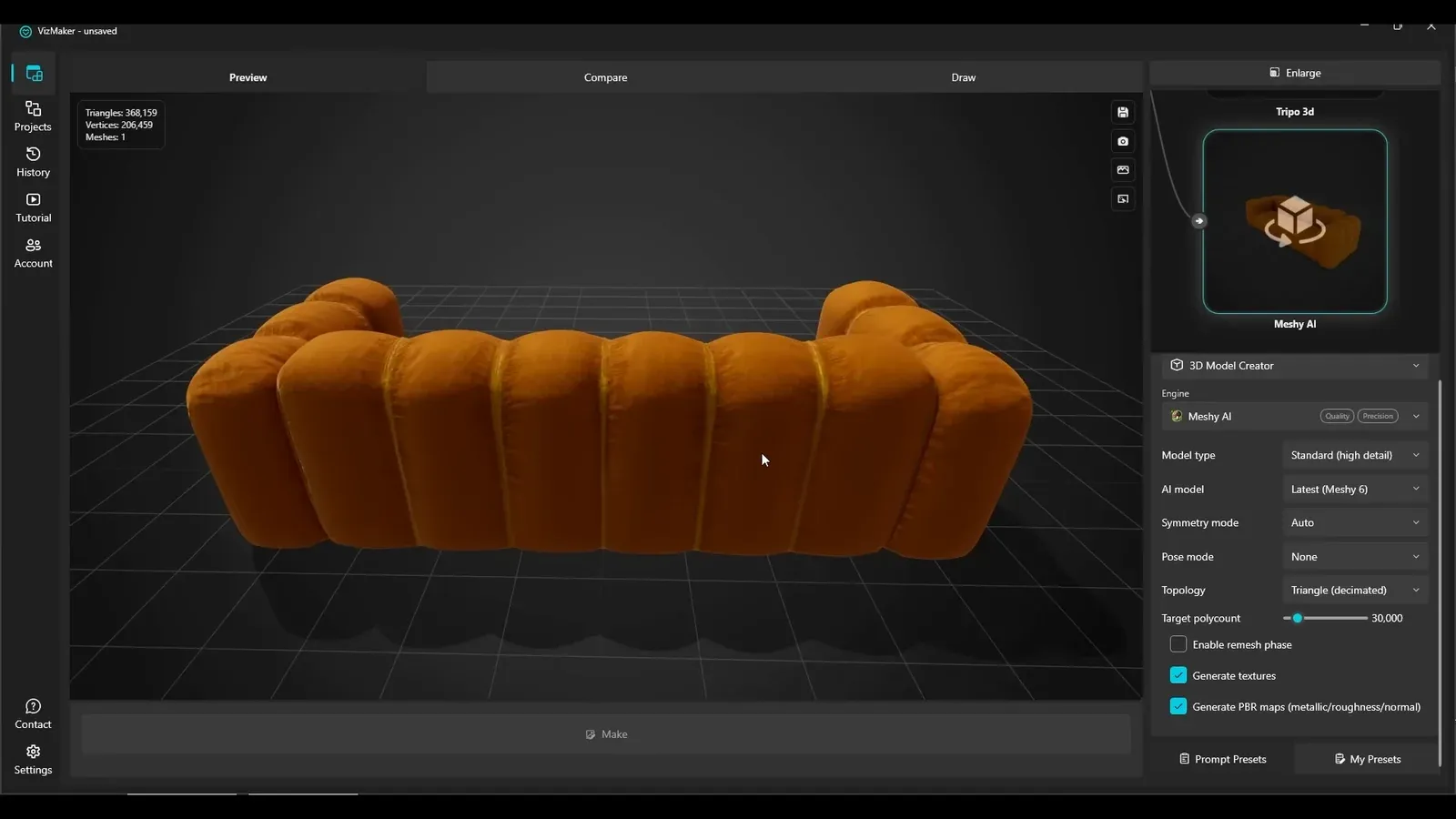
Drag your photo into the VizMaker workspace, select it, and choose 3D Model Creator. Tripo 3D and Meshy AI are available here. For a first attempt, you can keep the default settings and start generation with Make. The Meshy settings also include a remesh option for rebuilding the mesh.
The orange sofa example illustrates why comparing engines can be useful: both produced a recognizable piece of furniture that could be inspected in 3D. Tripo took approximately one minute, while Meshy took around five to six minutes. These timings describe this particular demonstration; they are not guaranteed turnaround times for future generations.
Rotate the result before deciding whether to use it. A view that resembles the input photo is not enough to judge an asset for a scene. Check the sides, back, and proportions as well. How the furniture will appear in your final shot should determine whether the result is ready.
- Import a photo and select 3D Model Creator.
- Generate a Tripo 3D and a Meshy AI version if you want to compare the results.
- Inspect the object from several angles before exporting.
2. Exporting to a scene: format, scale, and material
Generating geometry is the first step. The object's scale and material also shape its final appearance in a render.
You can save the model as GLB or OBJ. This workflow uses GLB in SketchUp and OBJ in 3ds Max. Import availability depends on the formats supported by your installation and its configuration, so choose the import method that fits your setup.
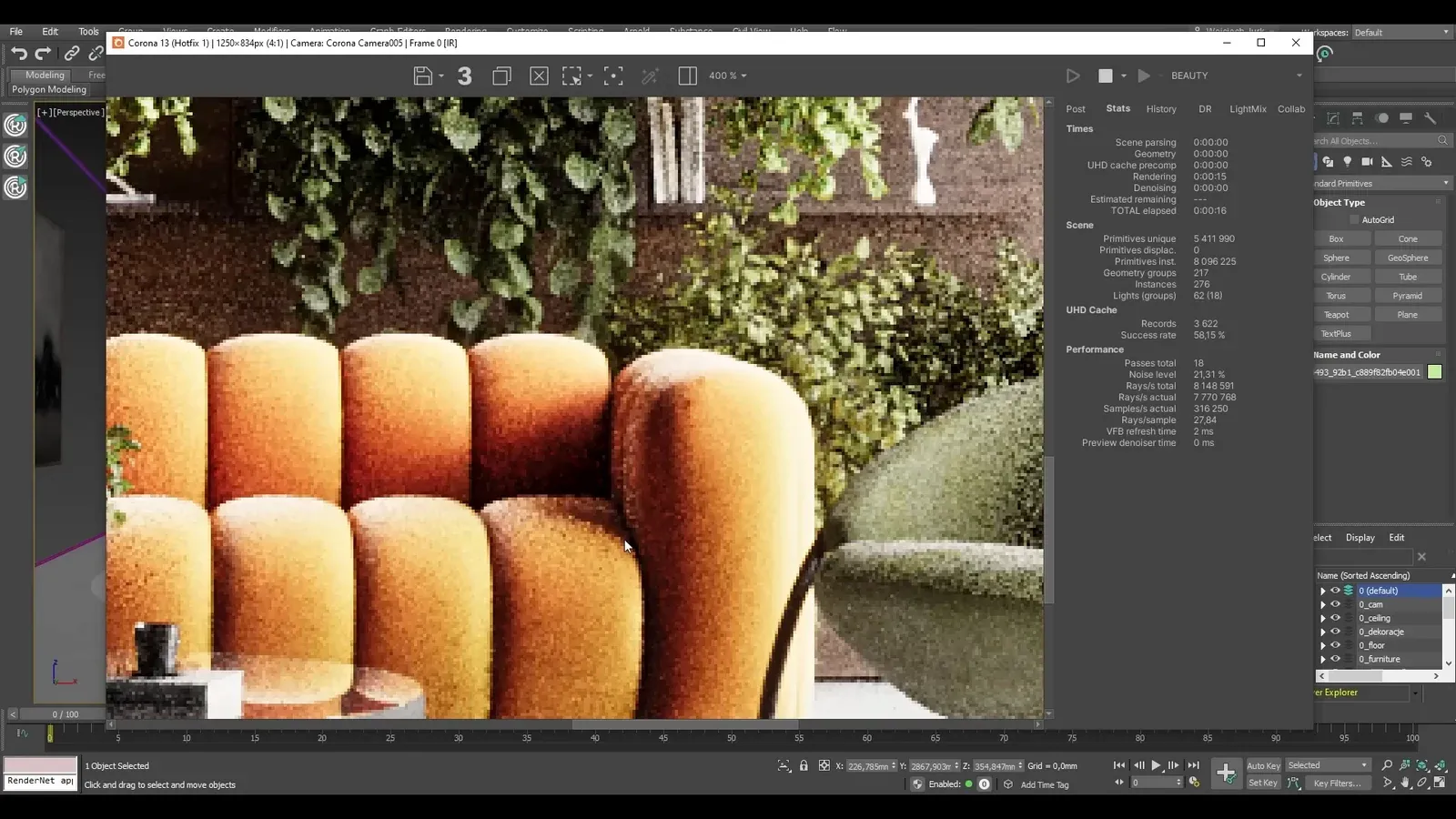
After placing the sofa in the scene, adjust its scale and prepare the material. The 3ds Max example uses the texture generated with the model. In Corona MTL, the sheen layer is set to 0.5 with a bright orange color. Treat this as a starting point for this sofa material, rather than a universal setting for every fabric.
Run an interactive preview after positioning the furniture in its surroundings. This lets you assess the model together with the lighting, camera, and other scene elements. It also makes it easier to see whether the object needs further scaling or material adjustments.
- Choose a format supported by your target software.
- Adjust the object's size to fit the scene.
- Check the material and texture in an interactive render.
3. Using the model in an interior visualization
A view of your model can become the input for image editing and another version of an interior design.
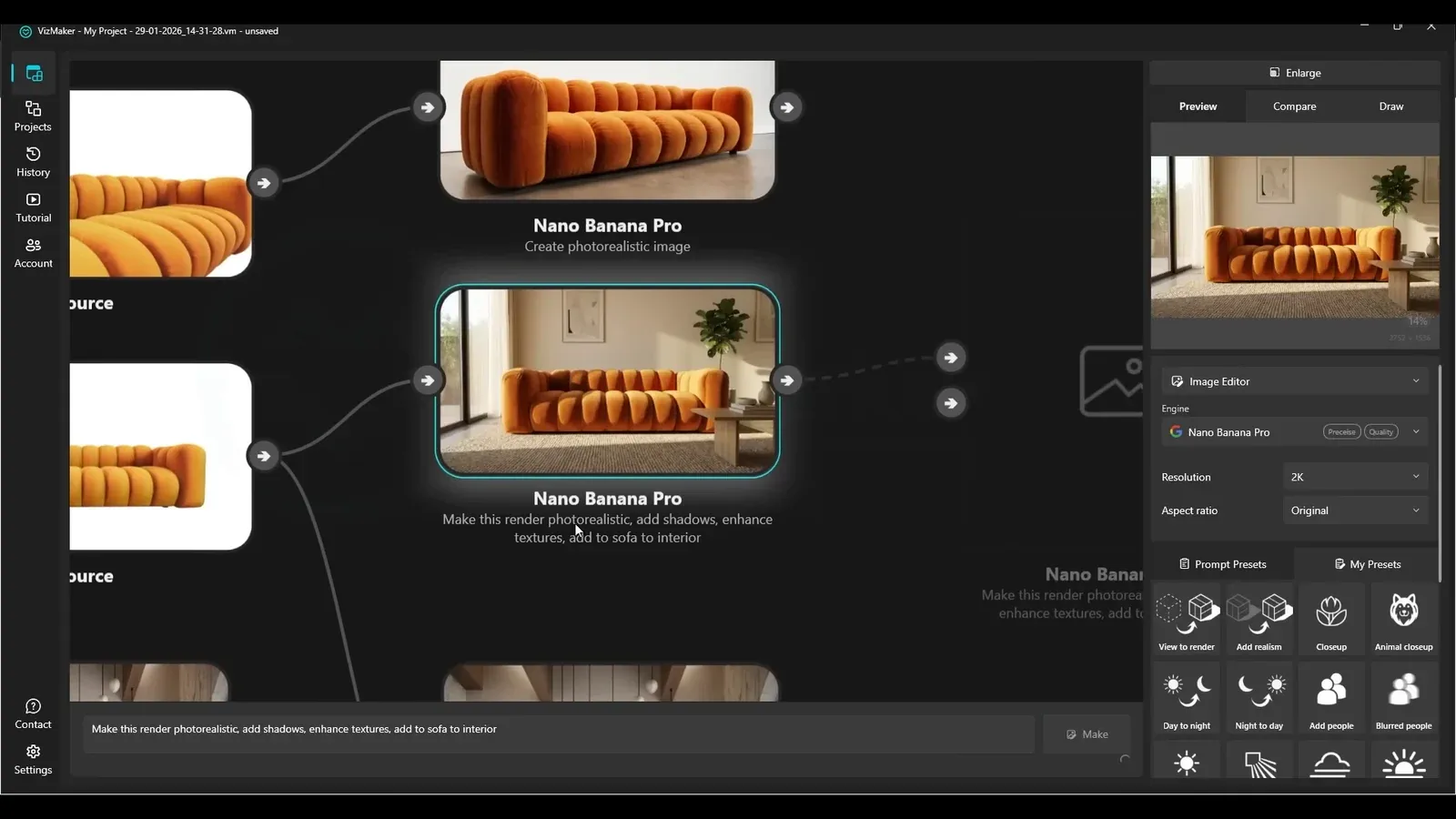
The finished object can also support an image editing workflow. In VizMaker, you can save a chosen view of the model and send it to the image editor. This gives you control over the viewpoint used as the starting point for the next edit.
The Nano Banana Pro example uses both a simple instruction to create a photorealistic image and a more detailed prompt to place the sofa in an interior. Another approach combines the furniture image with an existing visualization or room photograph. The result is a new image of the arrangement that you can compare with the original view.
Keep the purpose of each output clear: use the 3D model in a spatial scene and the edited image to present a visual variation. When reviewing the composition, check the furniture's shape, placement, and consistency with your intended framing.
4. Creating a 3D person from an AI-generated image
You can generate an image of a person first, then use it to create a 3D model.
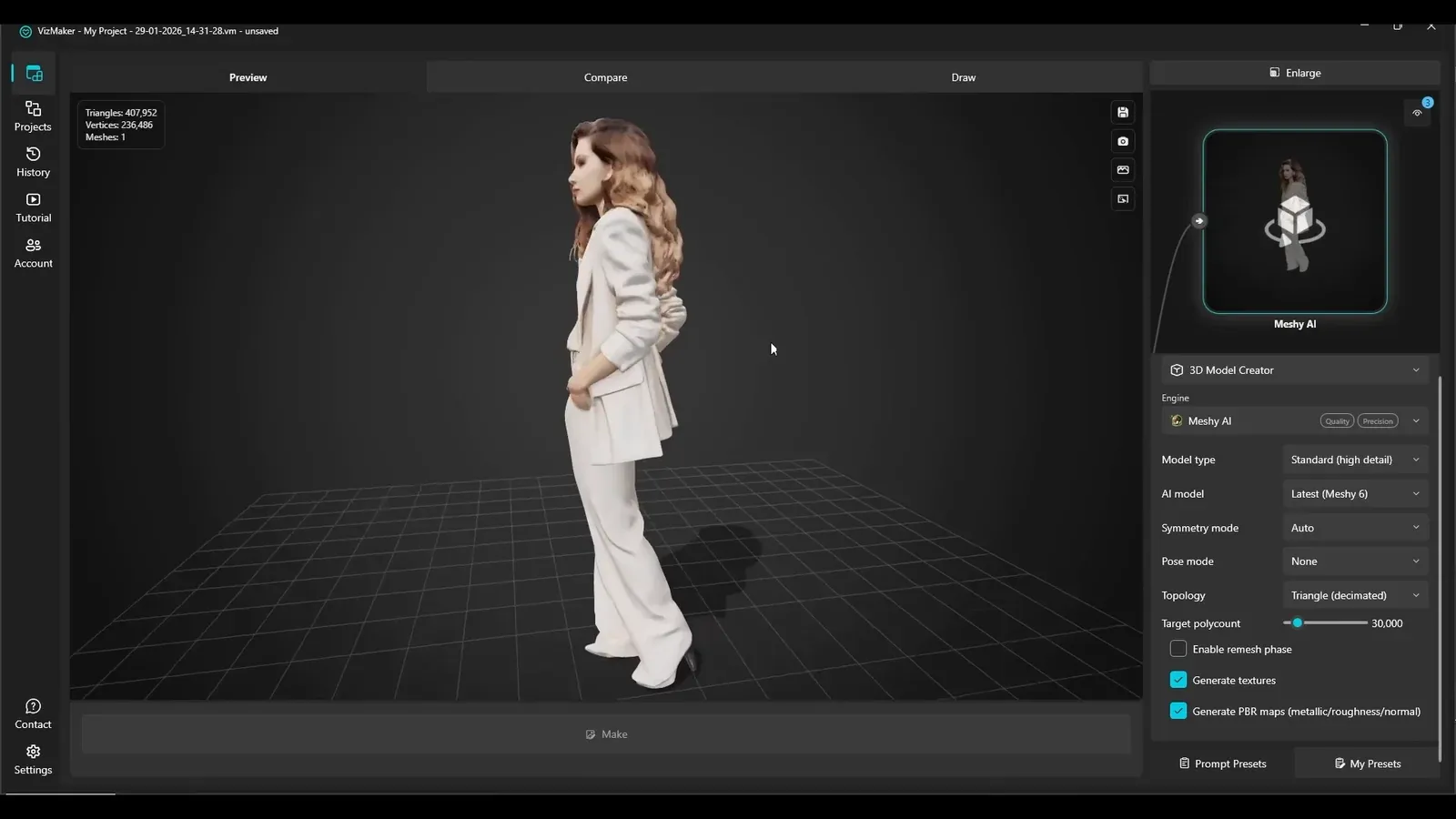
Image Creator in VizMaker lets you create an image from scratch. In this example, Nano Banana generates a person against a white background. Producing several variations gives you a choice of inputs before moving on to 3D generation.
The selected image is then sent to the 3D generator. Tripo and Meshy create models from the same input, with textures and triangular topology retained in the Meshy settings. The results differ in quality: in this example, the Meshy person is more successful than the Tripo version.
Viewing the model without textures helps you assess the geometry itself. This is useful before placing a person in a visualization, because convincing color and surface detail can distract from problems with the shape. The example supports comparing both engines for people, without establishing which will perform better on every new image.
- Create several variations of the person against a simple background.
- Choose the image before generating geometry.
- Inspect the result with and without textures.
5. Isolating furniture from an interior photo
If the object you need is part of a busy interior image, first create a separate view of it against a simple background.
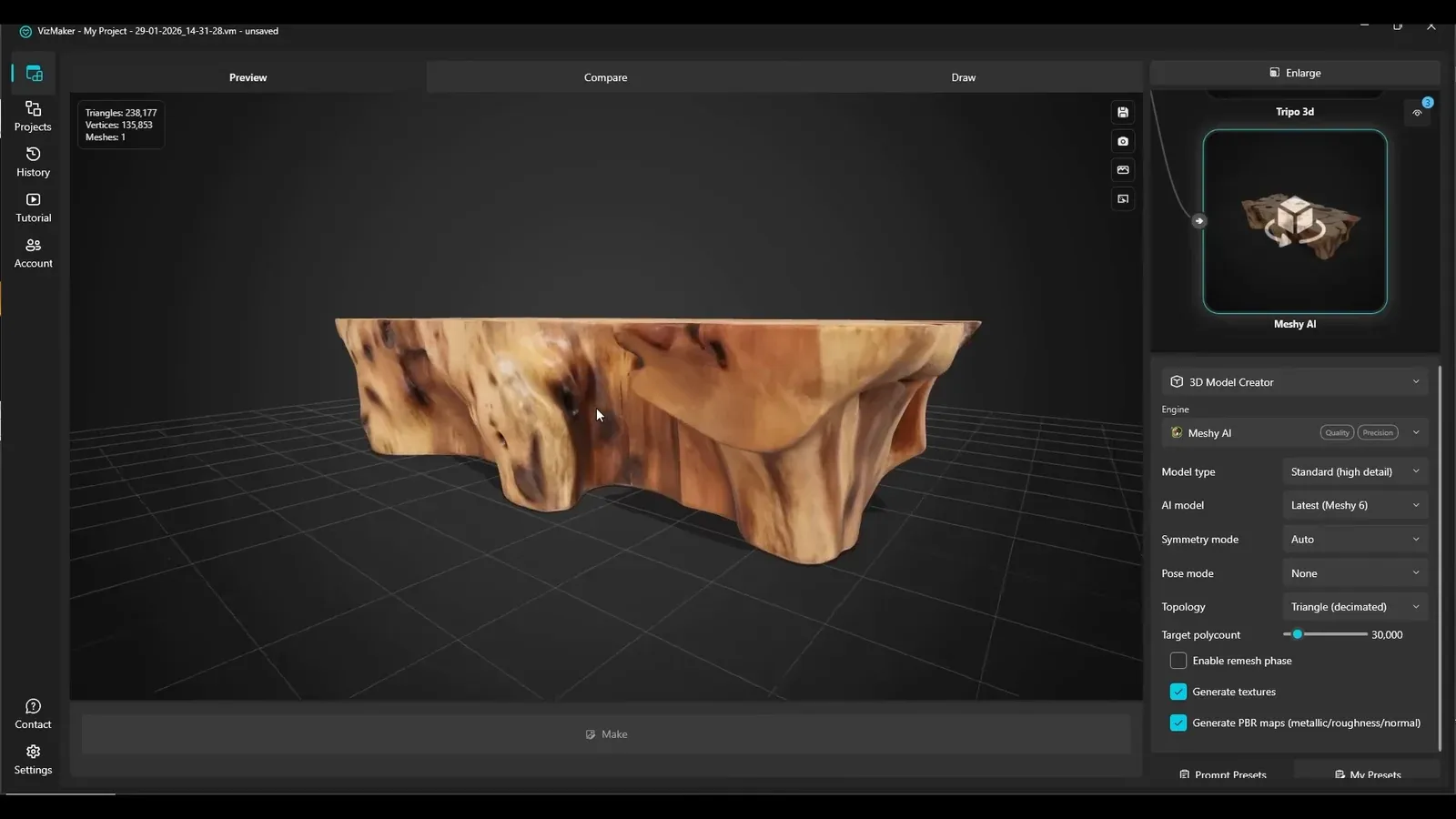
A photograph of an entire room contains many elements that are unnecessary when creating a single model. The distinctive wooden table example adds a preparation step: edit the image in Nano Banana Pro with a prompt asking for the selected table on a white background. The demonstration uses 2K resolution.
The prepared image becomes the input for Tripo and Meshy. Both engines produce visually useful results in this example, although choosing between them still requires inspecting the shape and textures. The Tripo result is also examined without textures.
After export, the model can be placed in a scene in 3ds Max or SketchUp. As with the sofa, its material still needs attention. This process lets you use a specific detail from an interior as the starting point for a scene, instead of relying solely on a similar asset from a library.
6. From a design sketch to a spatial concept
Turn a sketch into a rendered image, then use that image to generate a 3D model.
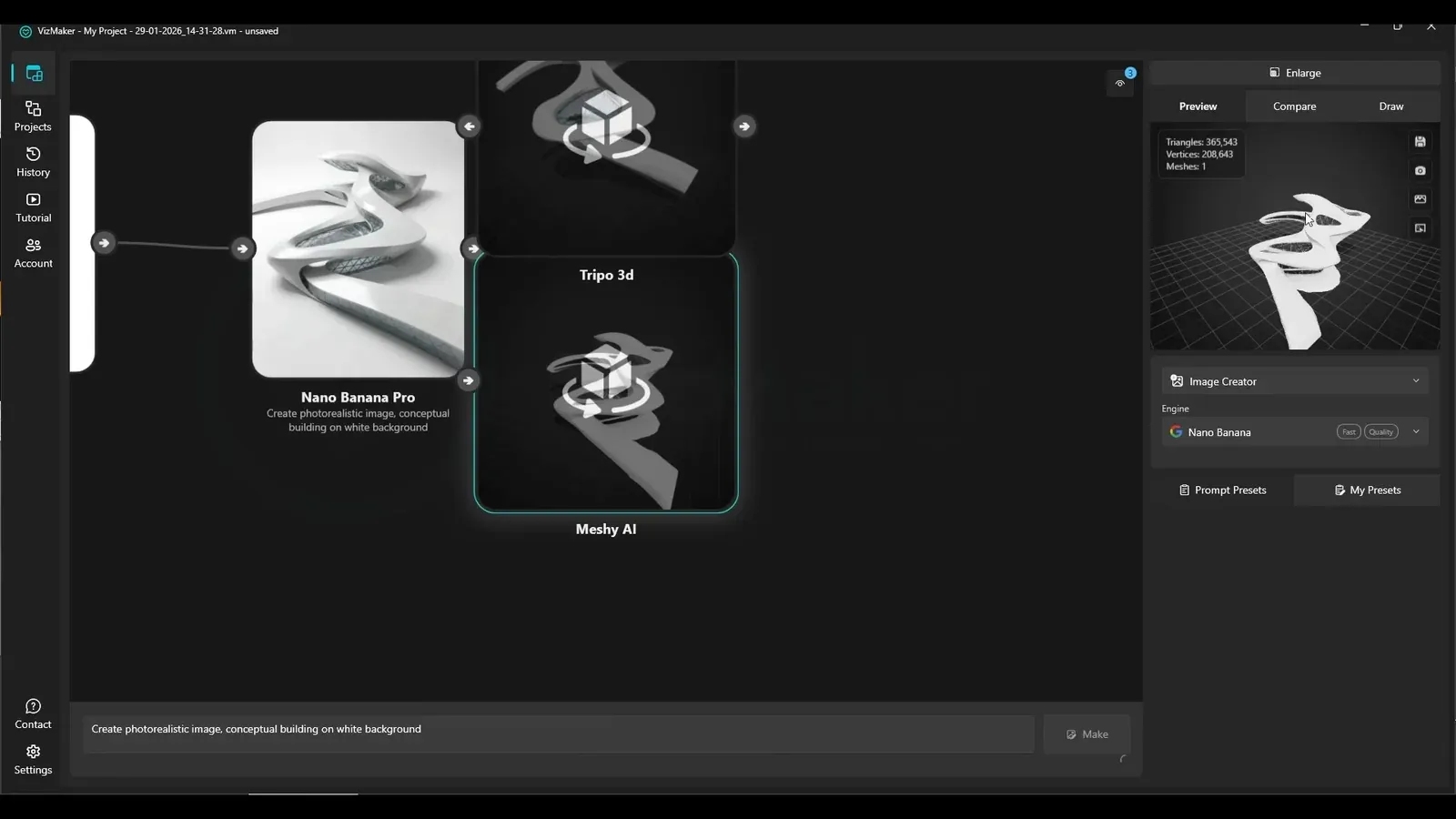
A drawing can be the starting point for your own design. This workflow has two stages: Nano Banana Pro creates a realistic interpretation of the sketch, and that result is passed to the model generator. The generator receives an image with a more clearly expressed form and surface appearance.
The example design is generated in both Tripo and Meshy. Both results can serve as a basis for further work, although the Tripo version needs an orientation adjustment. A useful result can still require some changes before it is ready to place in a scene.
This geometry helps you move from a flat concept to evaluating a form in space. It does not establish the design's dimensions or provide technical documentation. If you plan to develop the model further, check its proportions and consistency with your design intent in your own software.
7. Architecture from a photo and choosing the right engine
The building example shows why you should inspect the whole model and choose an engine for the type of object you need.
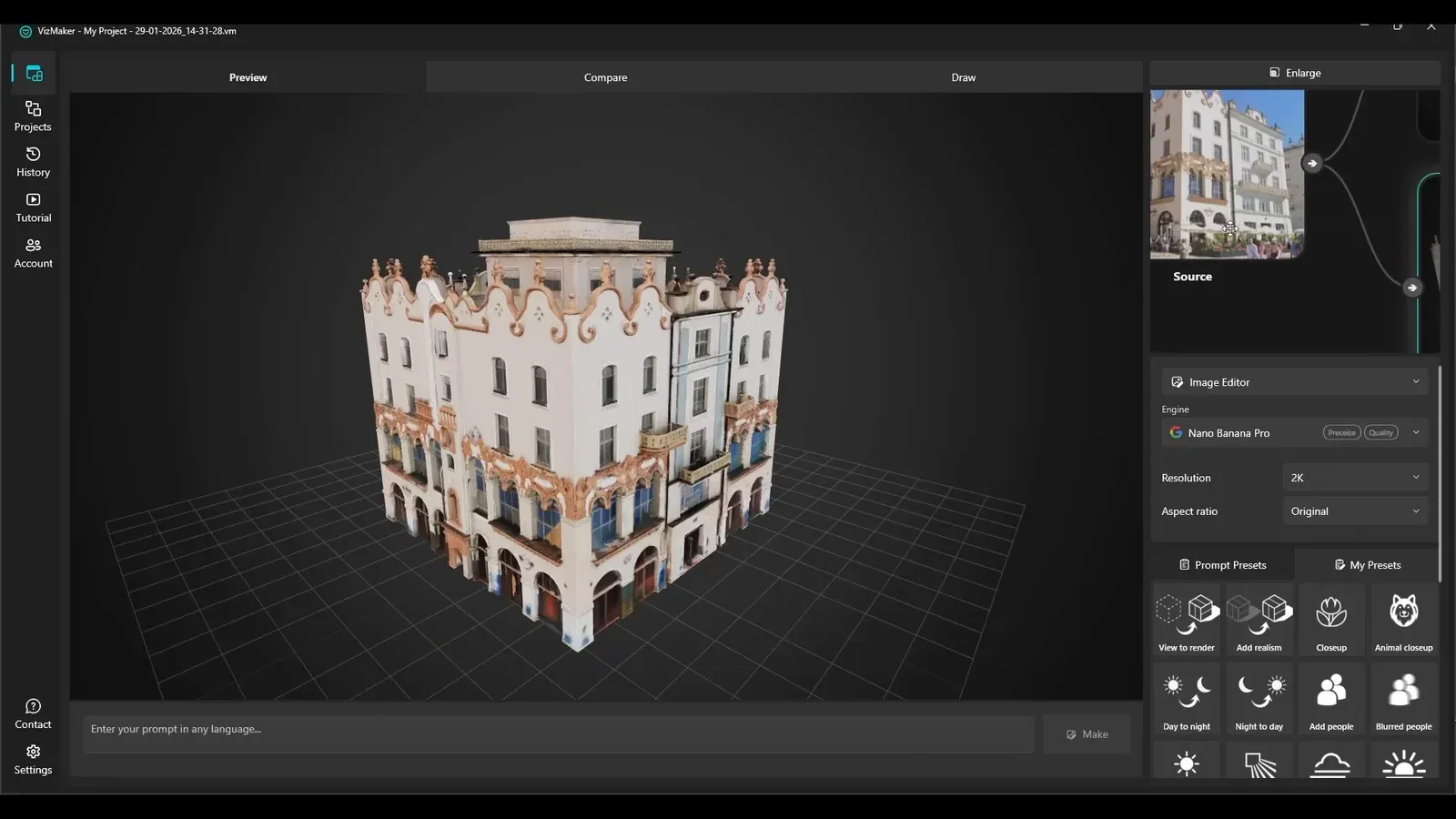
Another application starts with a screenshot of a building in a street view of Krakow. The same image is sent to Tripo and Meshy. The Tripo result retains unwanted parts of the surroundings and has problems with sections of the facade and the top of the building. Meshy produces a more consistent model when viewed from different angles in this demonstration.
Consider that comparison alongside the input image. People and other surrounding elements can make it harder to obtain a clean shape. Preparing a simpler, clearer input is another possible improvement to the workflow, although this example does not measure how much that edit would change the result.
A practical starting point from these examples is to consider Tripo when you need a quick first version, and Meshy when you can allow more generation time for a person or a complex object. Make the final choice using your own subject and intended view. A model generated from one image is not a measured reconstruction of a building.
- Inspect the facades, top, and underside of the model.
- Check for unwanted objects incorporated from the surroundings.
- Compare results generated from the same input image.
Conclusion: a good model starts before generation
The most useful workflow combines image preparation, model generation, geometry review, and adjustments in the target scene. VizMaker connects these stages around one input, whether you begin with a furniture photo, an idea for a person, or a sketch.
Tripo and Meshy can play different roles in different projects. Generation time mattered in these examples, while the person and building results favored Meshy on visual quality. The most useful model is the one that meets the needs of your visualization after its shape, scale, and materials have been checked.
- Prepare a clear input image and isolate the object from its background when needed.
- Inspect the geometry from several angles and without textures.
- After export, check scale, orientation, and materials in the scene.
- Choose the engine for the task instead of applying one example's result to every model.
Questions and answers
Can VizMaker create a 3D model from a single photo?
Yes. In 3D Model Creator, an image can be used as input for Tripo 3D or Meshy AI. Inspect the result from several angles, since a single photo does not fully define an object's geometry.
Should I choose Tripo 3D or Meshy AI?
In these examples, Tripo generated the first model faster. Meshy handled the person and building more successfully, while both engines produced useful results for the sofa and table. Compare them using your own input before choosing.
How do I export a model to 3ds Max or SketchUp?
VizMaker offers GLB and OBJ export. This workflow uses GLB in SketchUp and OBJ in 3ds Max. After import, check the scale and prepare the material. Format support depends on the configuration of your target software.
Can I generate a 3D model from a sketch?
Yes. This workflow starts by turning the sketch into a realistic image in Nano Banana Pro. The image is then sent to Tripo or Meshy, and the generated geometry becomes a starting point for further work.
Watch the complete recording to compare the models from different angles, follow the generator settings, and see how the results move into a scene. The tutorial runs for 8 minutes and 50 seconds.
Watch the tutorial on YouTubeSource: 3d model generator. Incredibly good · Wojciech Jurkowski / VizAcademy UK ·