
To create an AI avatar for a product campaign, generate the character first, define its face and body with reference images, and reuse that visual identity in each shot. In VizMaker, the workflow continues through product photography, local image edits, video generation, and posters. Consistency comes from the reference system and review process, not from repeating a name in a prompt.
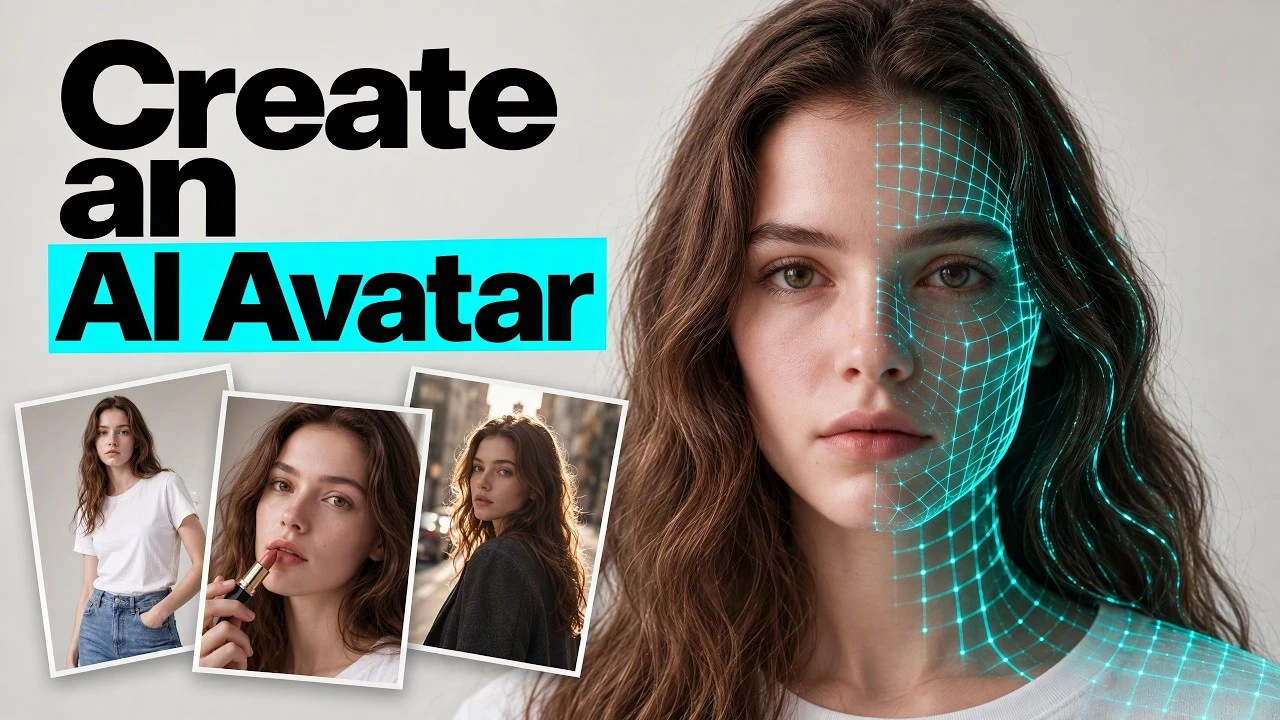
One attractive portrait is not a complete campaign
A campaign needs a recognizable character across different framings, poses, outfits, and formats. A portrait that works on its own may not provide enough information for a close-up product shot or a full-body video. If every image starts independently, the face, clothing, and visual style can drift.
Build a reusable foundation before producing the final assets. The process below uses a lipstick campaign and a streetwear campaign to show how one character system can support a coordinated series of images and clips.
1. Choose the character before choosing the campaign
Start by comparing character directions under the same brief.
Open Image Creator, choose an image model, and set the output format for your intended use. A vertical image is a practical starting point for a portrait. Use the character builder to define the appearance, then edit the resulting prompt to specify clothing and other details that matter to the concept.
Generate a few alternatives with the same prompt and settings before selecting the character. The example compares Nano Banana, GPT Image, and Seedream, which produce different visual treatments. Choose the result that suits the campaign rather than assuming that one engine is best for every face or style. The Mix option is useful for exploring a direction when the brief is still open.
2. Build references for the face and body
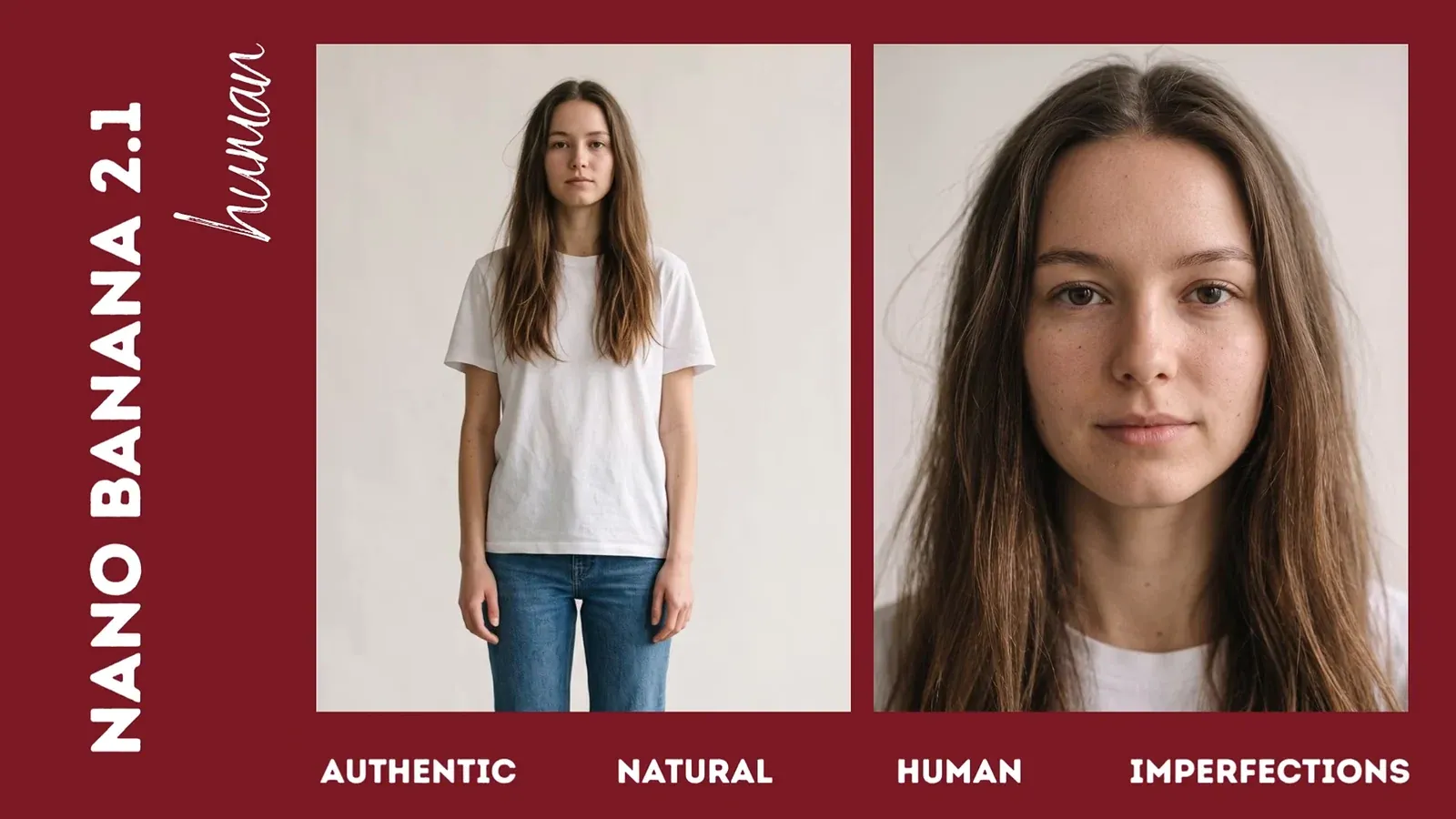
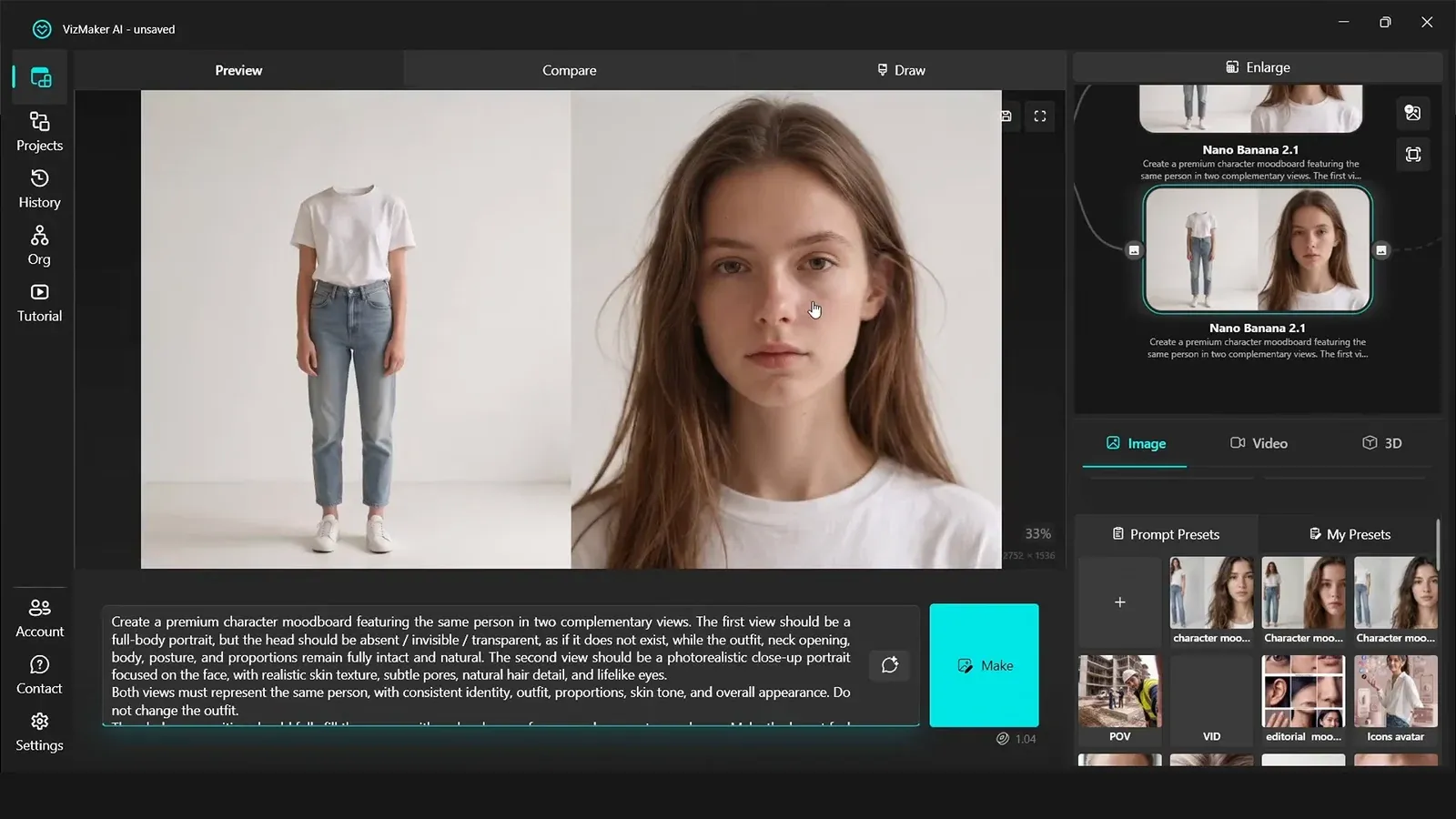
A character mood board gives later generations a more explicit identity to work from.
Use the selected character to generate a board with a detailed face view and a body reference. The example also creates a body view without a visible face, so facial information comes from the larger close-up instead of a tiny face in a distant shot. This makes the reference hierarchy clearer.
Keep the approved character mood board connected to later image-editing steps. Save useful prompts in My Presets with a descriptive title and cover. Reusing the board and prompt helps maintain direction, but still compare each new result with the original face, body proportions, and outfit.
3. Assign a role to every reference image
Define character, product, location, and mood before directing individual shots.
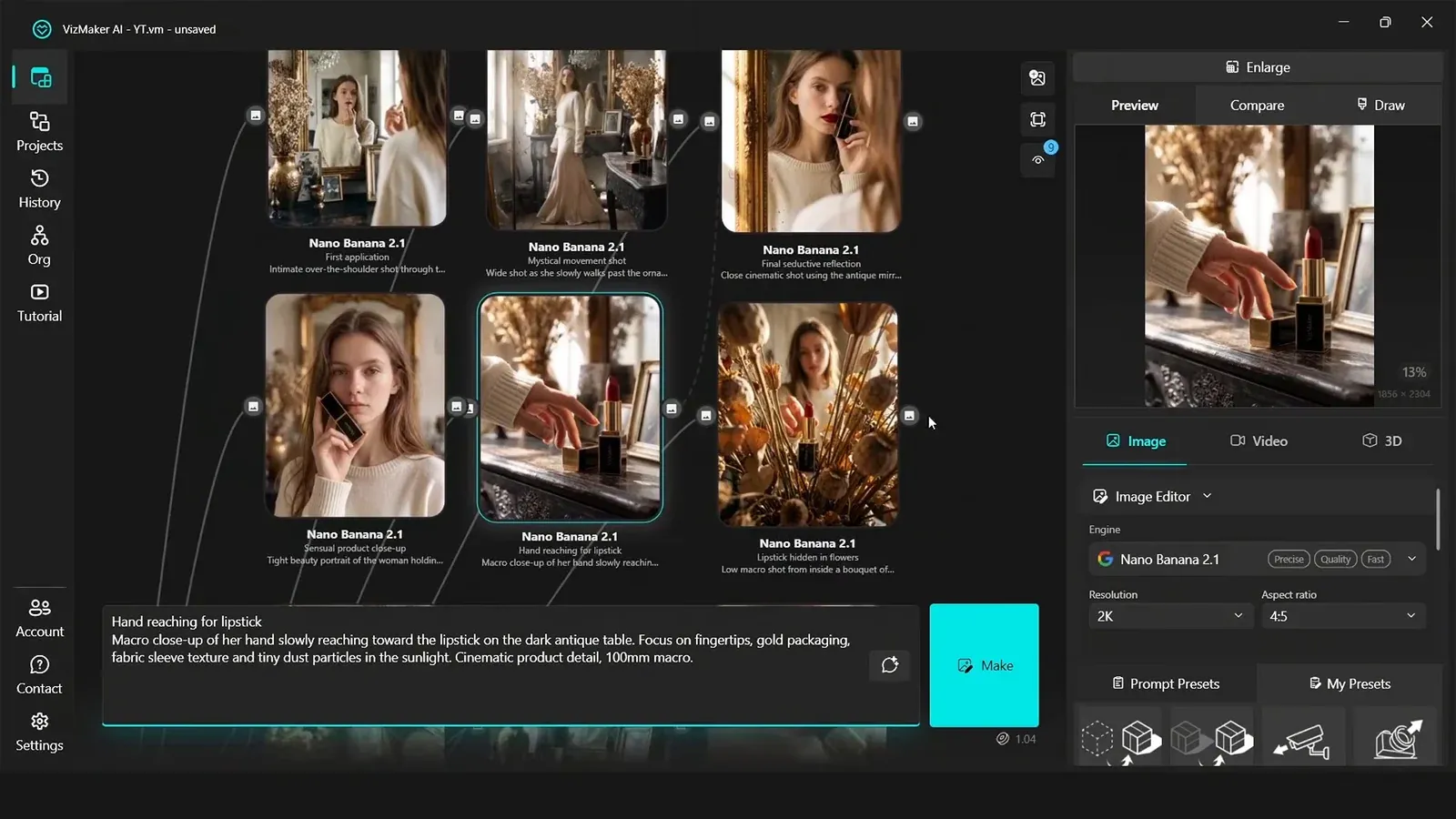
Load the product and location references alongside the character board. In the prompt, identify what each image represents. For the lipstick campaign, the desired style is soft, romantic, and slightly vintage. A combined campaign mood board becomes the visual base for the subsequent photographs.
Then write a brief for each shot: framing, pose, lighting, product emphasis, and emotion. A hand reaching for the lipstick needs different direction from a portrait holding it. Multiple shots can be generated while other results are processing, but choose the final series together so that product and character consistency can be assessed across the set.
- State which reference defines the character.
- Identify the product and setting separately.
- Give each shot a purpose within the campaign.
4. Refine the selected image with local edits
Keep a strong composition and change only the details that need attention.
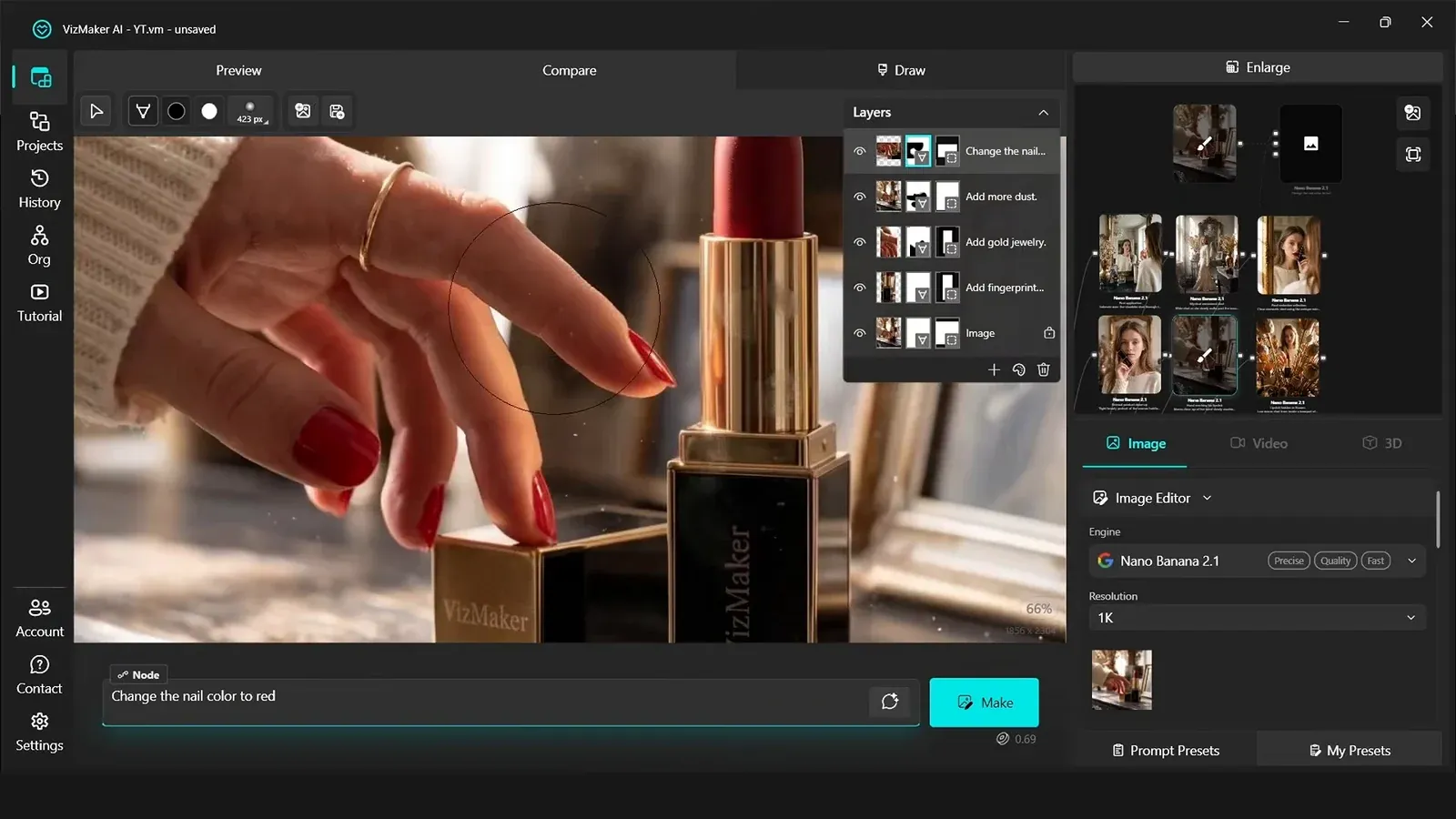
Open Draw, select an area, and describe the change. The product example adds fingerprints, jewelry, and atmospheric detail before changing the nail color. These are targeted edits to an existing shot, so the approved image remains the starting point instead of being rebuilt from scratch.
Each generated layer can be refined with a layer mask. Remove unwanted parts with the brush and adjust its size and softness. After a color change, inspect nearby reflections as well as the edited object: in the example, the nail color is also reflected on the lipstick. Export the edited image back to the workspace when the composition is ready.
5. Use references and presets to vary the visual direction
Change the shot or campaign mood while keeping the identity brief explicit.
Combine an inspiration image with the character board and describe which aspects to borrow, such as pose, framing, or atmosphere. The reference-led examples use different compositions while retaining the intended character. Presets can also help explore night lighting or a macro close-up without starting each instruction from an empty prompt.
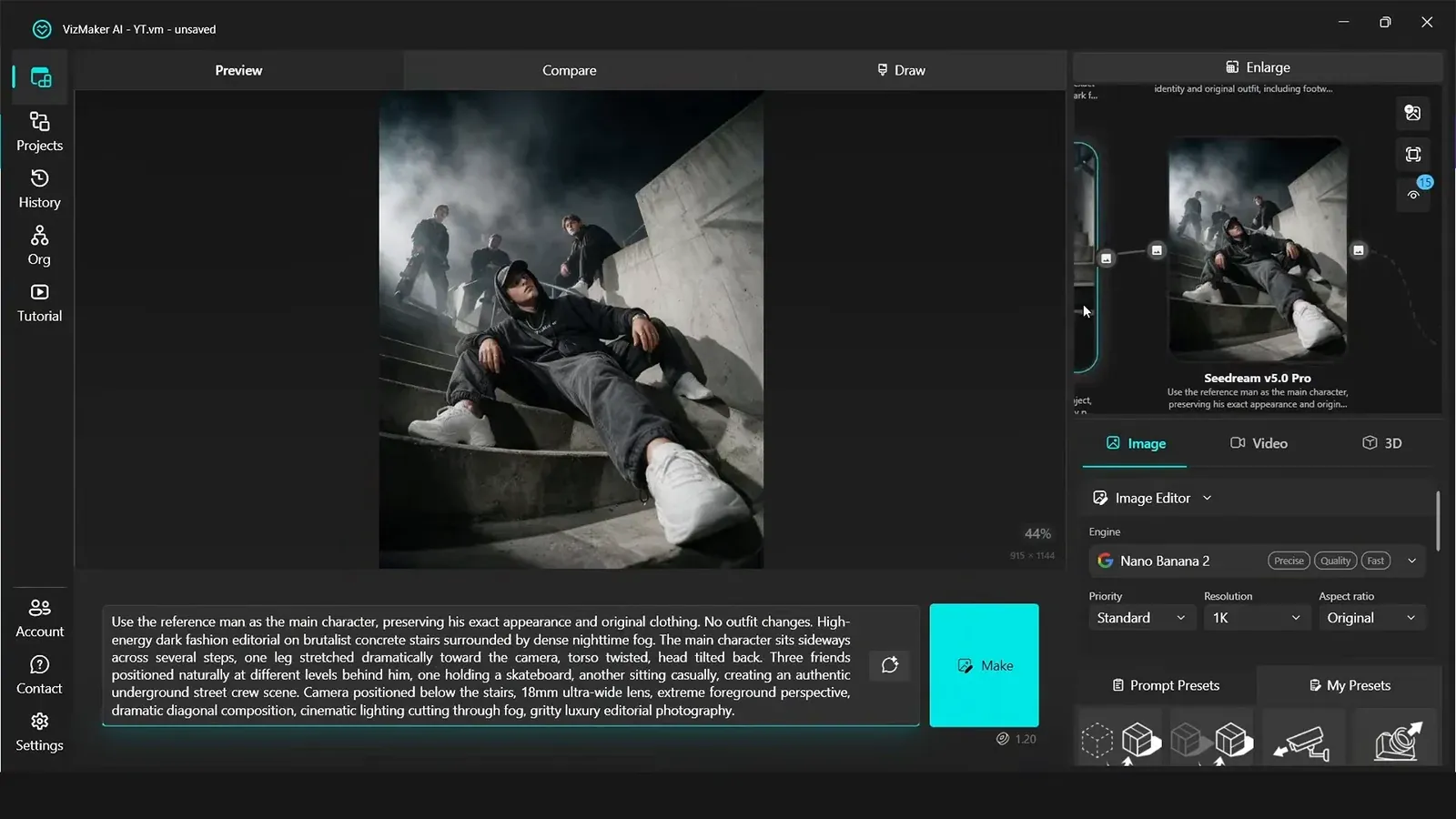
For a streetwear campaign, create a new character and clothing reference, then describe a darker urban setting. Here the location can be specified in words instead of a supplied image. Compare the resulting set against the same visual brief: the outfit, environment, and treatment of the character should feel like parts of one campaign.
6. Animate, edit, and review the campaign clip
A reference image establishes appearance; the video prompt must also direct movement and sound.
In Video Creator, connect the character reference and describe the action, camera behavior, and any sound you want. Think in shots: a wide view establishes the setting, a close-up presents the product, and a change in angle adds emphasis. Make the requested motion clear enough that the character and the advertised object remain readable.
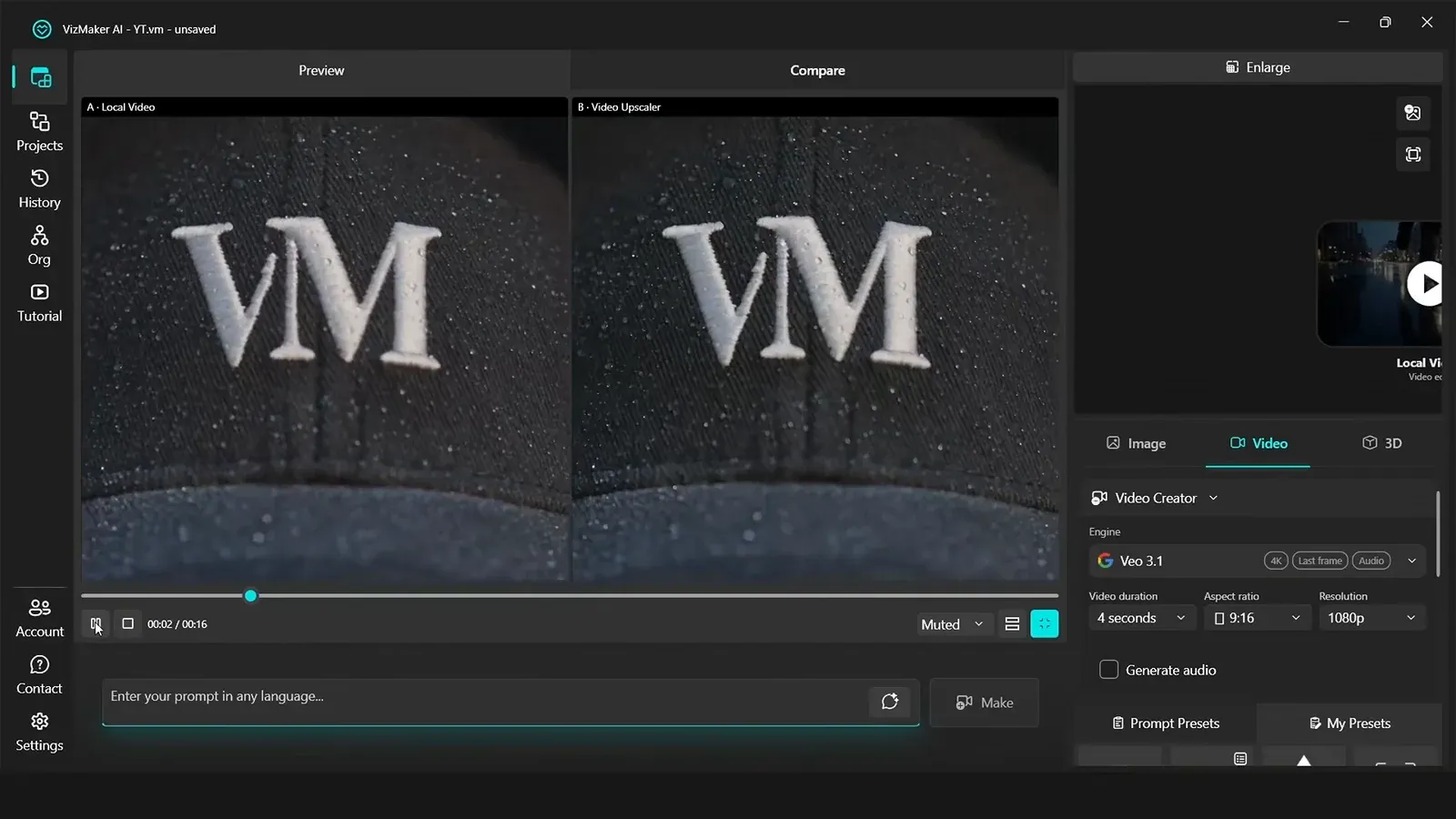
Review the generated clip before exporting it. Use Video Edit to remove an unwanted opening reference frame, adjust timing, and add an ending element. If you upscale, compare the original with the enlarged result in motion. Sharper resolution is useful only if the details remain convincing: faces, textures, lettering, and temporal stability deserve a closer look.
- Describe both the visible action and the intended audio.
- Trim unwanted opening material before final export.
- Inspect upscaled video for distortion and flickering.
7. Adapt the selected assets into posters
Use the approved photography as the starting point for additional campaign formats.
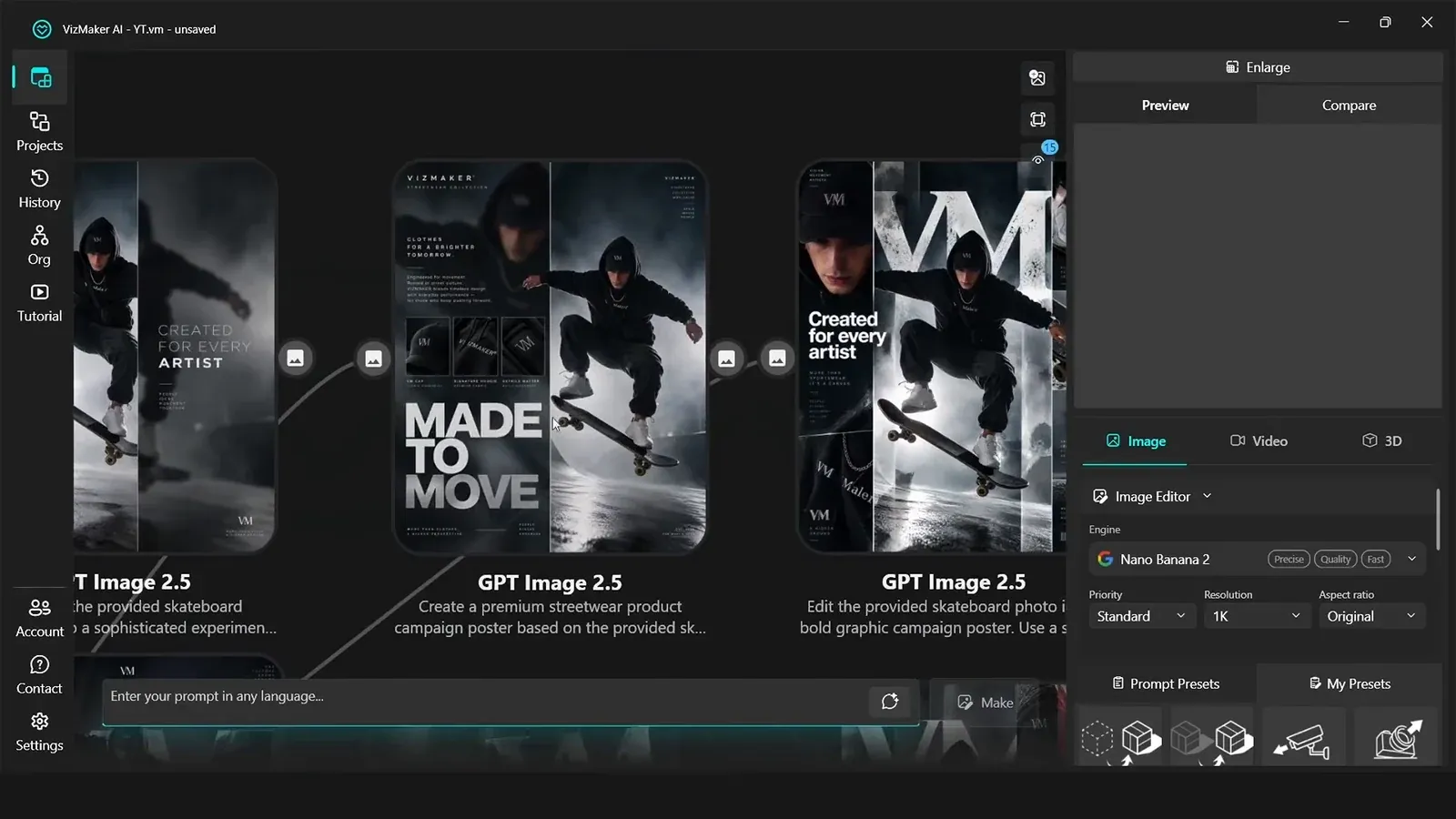
Choose a campaign image and describe the poster layout, aspect ratio, text treatment, and overall mood. The example uses GPT Image to explore several poster directions from the same streetwear photograph. This lets the campaign develop beyond a set of individual pictures while retaining a shared visual identity.
Review generated typography and branding before treating a poster as finished. Check the exact wording, product details, and alignment with the approved campaign. Logo presets can also provide concepts to develop further; select and refine a direction instead of treating the first generated mark as a complete brand system.
Conclusion: build a reusable character system
The strongest foundation for an AI avatar campaign is a clear set of references: face, body, clothing, product, and visual style. Use that foundation to direct individual shots, refine selected images, and create motion and poster assets. Review the campaign as a whole so that small inconsistencies do not accumulate between formats.
- Approve the character before generating the campaign.
- Separate facial detail from full-body reference information.
- Identify the role of each input image in the prompt.
- Review identity, product details, typography, and motion before export.
Questions and answers
How do I keep an AI avatar consistent across images?
Reuse an approved character mood board with a detailed face reference and a body reference. Clearly identify that character in each prompt, then compare every result with the approved identity.
Can I change a small detail without regenerating the whole image?
Use Draw to select the area, generate the change on a layer, and refine its mask. Export the edited image back to the workspace when the result is ready.
Should I always upscale an AI video to 4K?
No. Compare the original and enlarged clip. Upscaling can invent details, distort faces or textures, and introduce flickering. Choose the result that looks better in motion.
Follow the complete lipstick and streetwear examples, including character boards, product images, detailed edits, video production, and poster variations.
Watch the tutorial on YouTubeSource: Create Your AI Avatar and Full Ad Campaign for FREE · VizMaker - AI Renderer ·