
The Unreal Engine AI rendering plugin connects a captured scene view to VizMaker for architectural image exploration, enhancement and generated clips. It adds an AI presentation workflow around the scene: compare material or atmosphere directions, upscale a selected image and explore a short cinematic idea. Keep scene interaction and exact camera work in the workflow that defines the Unreal project.
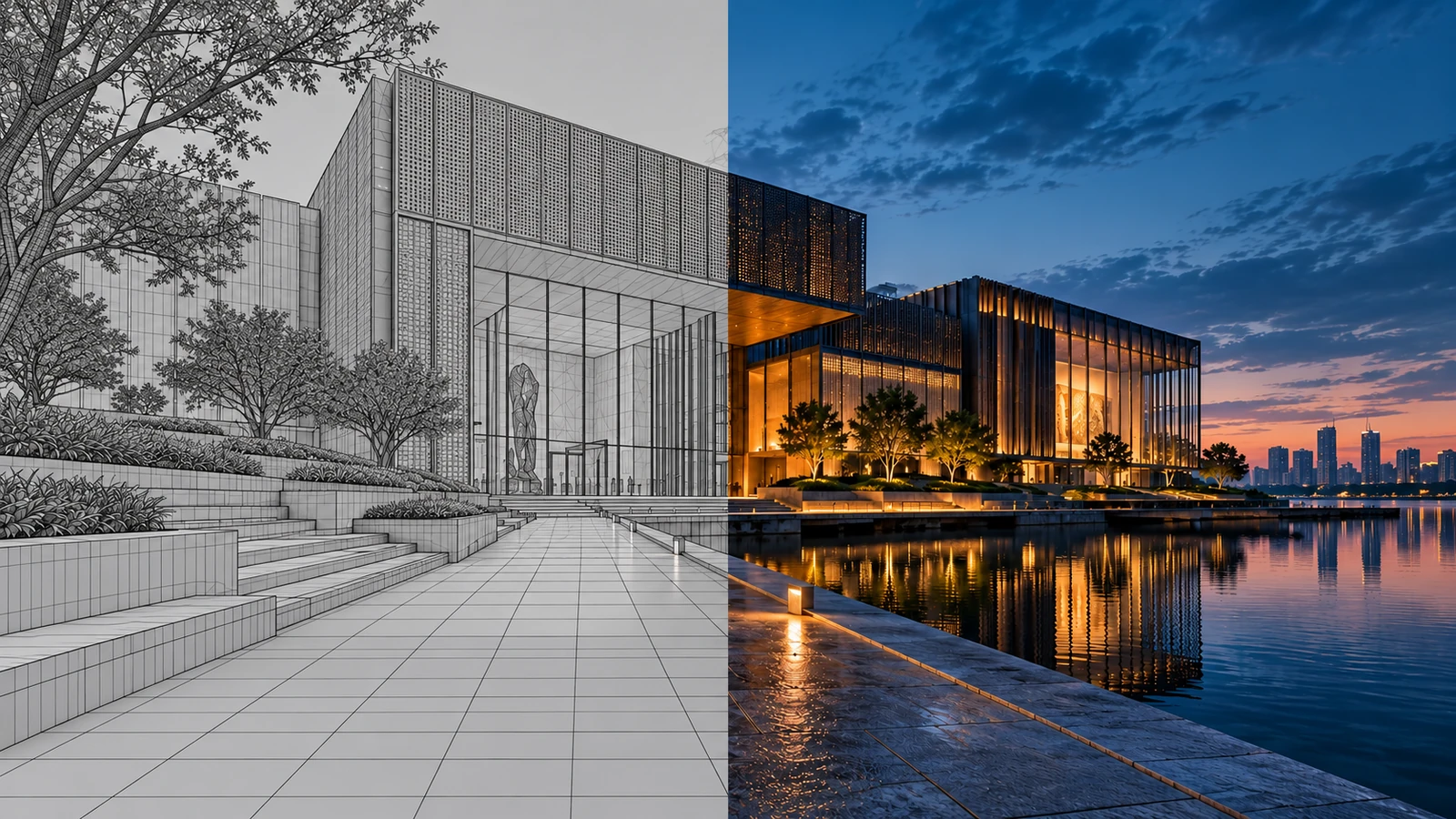
AI-generated editorial cover. Workflow screenshots below are taken from the credited sources.
Explore a presentation direction around an existing environment
A designed environment can support several presentation goals: a client review, a cinematic establishing shot, an interior detail or a marketing image. The useful question is which parts should come directly from the scene and which visual directions can be explored as image-based concepts.
VizMaker adds tools for the second task. The ebook documents the Unreal Engine integration, while the linked video demonstrates shared VizMaker rendering, upscaling and motion tools using Archicad images. This distinction keeps the workflow clear for architectural artists working with an existing Unreal scene.
Enable the plugin and capture the intended view
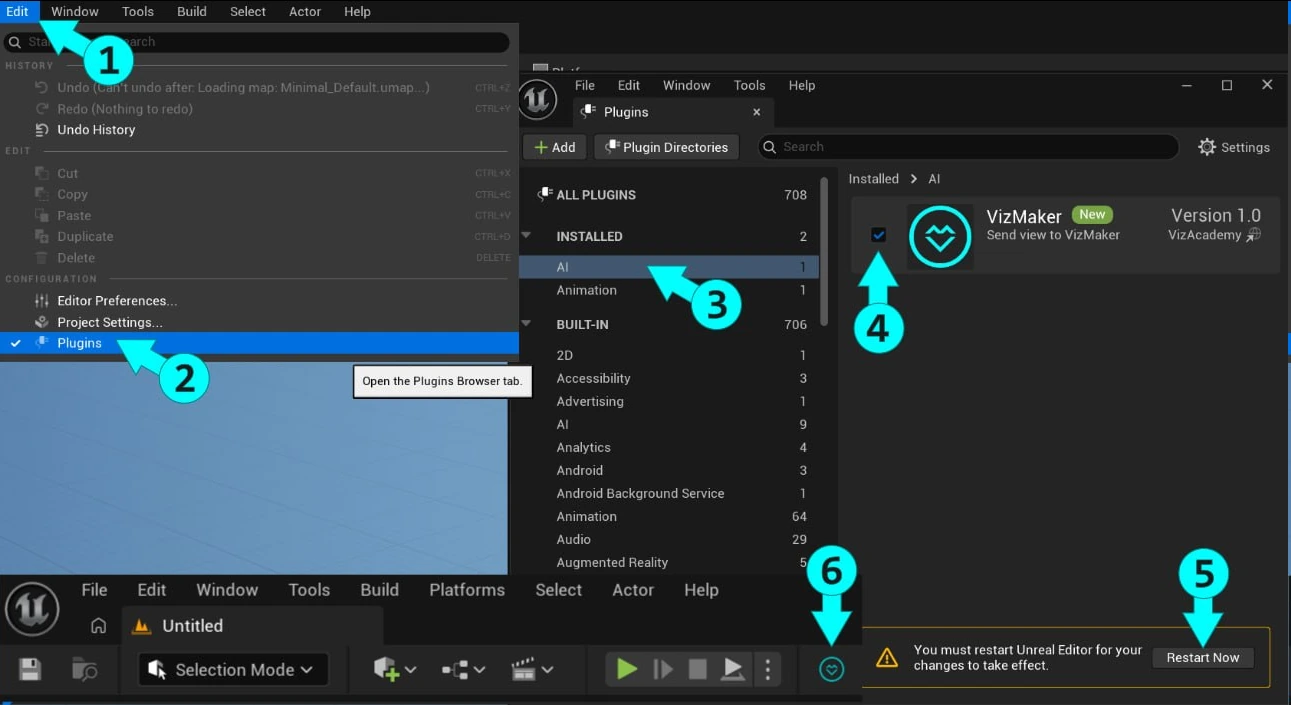
The ebook illustrates enabling VizMaker in Unreal Engine's Plugins interface and then using its toolbar control.
Start with the relevant Unreal Engine integration in VizMaker Settings. In the documented host workflow, open Edit and Plugins, find VizMaker in the AI category, enable it and restart the editor. The source screenshot then identifies the toolbar entry used for the capture workflow.
Choose a view with a clear architectural purpose before sending it. An exterior arrival shot, a central interior space and a close material detail call for different compositions. Keep the source scene view available so an AI treatment can be evaluated against the intended arrangement.
- Enable the plugin for the project and restart when required.
- Capture a view that explains a specific aspect of the design.
Explore an architectural shot direction
AI architectural presentation can help compare image treatments around a prepared environment.
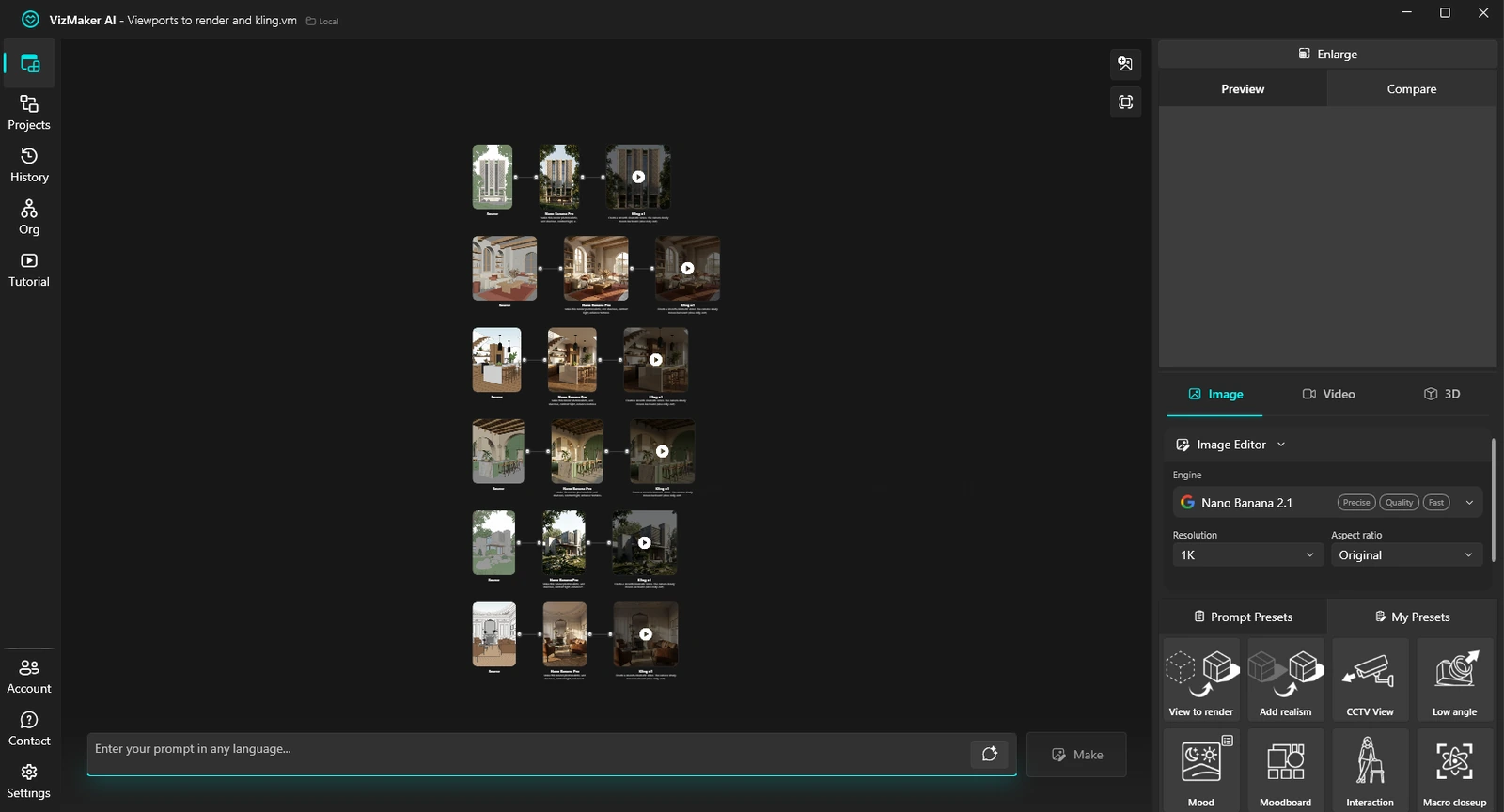
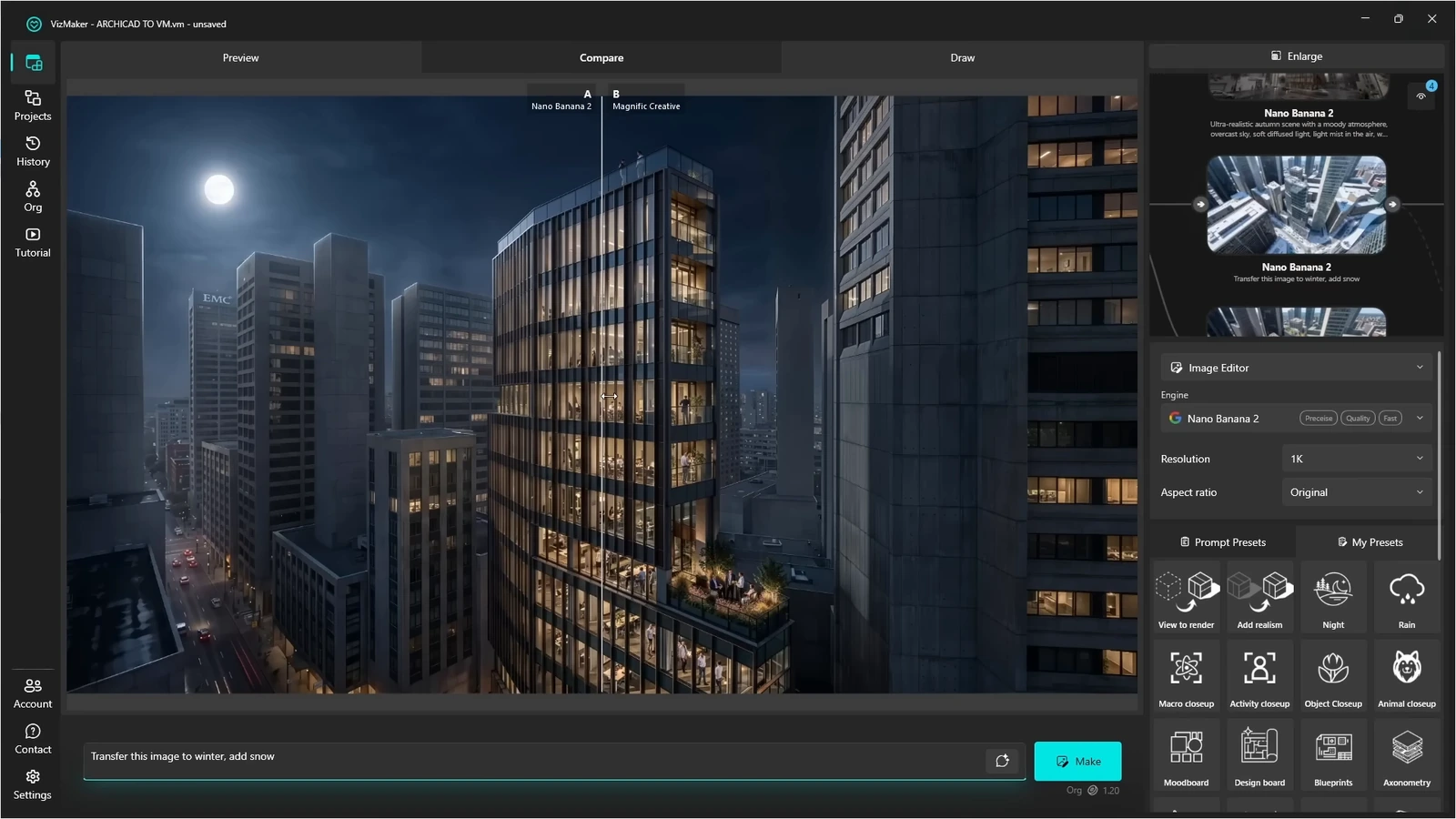
Select the captured view in VizMaker and use Image Editor with the rendering preset. Describe the intended materials, light and atmosphere, then compare a focused set of results. For an arrival sequence, you might explore a calm daylight image and a separate evening direction while preserving the same design reference.
Use the resulting images to choose a visual brief. The capture integration is not evidence that the Unreal project, lighting setup or material assets have been changed. When the team accepts a scene-level change, implement it in the environment and generate a new reference view.
- Use stable source views for comparable atmosphere options.
- Translate accepted scene changes back into the Unreal project.
Refine the presentation still
AI image upscaling can improve a chosen still before it becomes part of a board or presentation.
The shared VizMaker workflow applies enhancement to selected images and compares the results with their sources. Use Image Upscaler after choosing the composition and atmosphere, then inspect the image at a size relevant to the final deliverable.
For architectural environments, check repeated facade details, fine railings, signage-like features and material boundaries. More texture is useful only when it supports the intended appearance. An upscaled still is a presentation output; its apparent detail is not evidence of equivalent geometry or performance in the interactive scene.
- Inspect fine architectural features before accepting enhancement.
- Retain the original still and the selected processed result.
Use generated clips for a defined cinematic purpose
Cinematic concept clips can explore a mood or reveal from a selected still image.
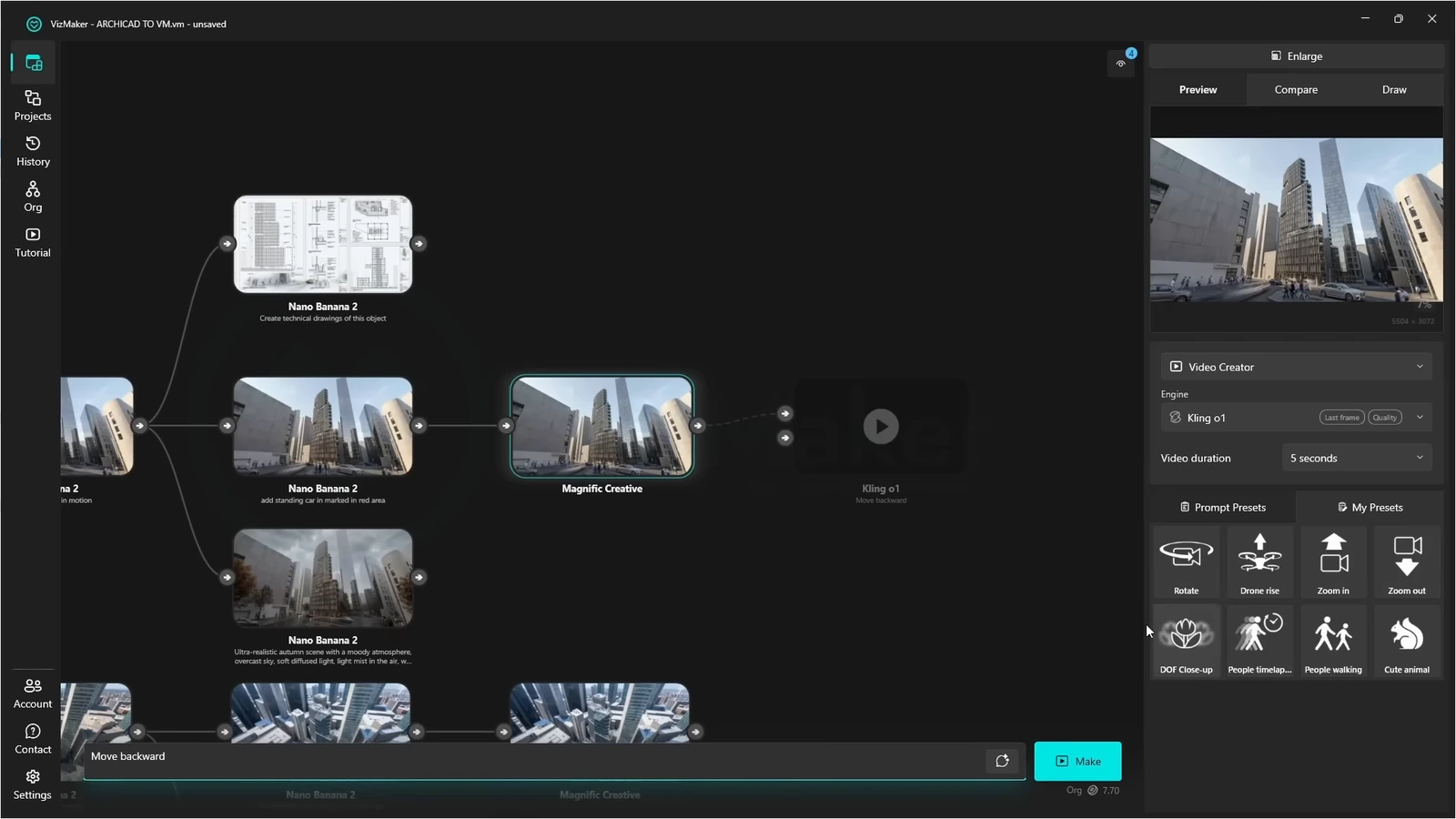
Open Video Creator on the reviewed image, choose an available engine and set a movement or activity brief. The cited Archicad demonstration includes a rising exterior reveal and interior close-up motion. These are examples of image-based video generation inside VizMaker.
Review a clip for timing, architectural continuity and consistency with the source image. Generated video is a different result from an interactive Unreal environment or an exact scene camera sequence. Use it when a short visual concept serves the presentation, and retain scene-based output when movement must follow the modeled space precisely.
- Match the clip to one presentation purpose.
- Review the full sequence before choosing it for a client film.
Prepare reference-derived assets for the environment
3D asset generation can supply a starting furnishing or context object for further review.
The ebook describes generating a model from an isolated furniture reference. Inspect the object in VizMaker before exporting: rotate around it, examine hidden sides and review its shape without textures. Use known dimensions rather than estimating scale from the appearance of a generated image.
Check the import path supported by the Unreal project and review geometry, materials and texture assignments after import. If an asset will be used interactively, the project may also need appropriate collision and other scene-specific preparation. The supplied examples do not establish an automatically optimized or game-ready asset pipeline.
- Review the generated mesh and dimensions before export.
- Prepare the imported object for the requirements of the actual environment.
Build a clear Unreal Engine visualization workflow
Choose the deliverable first: an image study, a concept clip, an interactive environment or a precisely defined sequence. VizMaker adds presentation options around the captured view, with the scene retained for the work that depends on its actual geometry and behavior.
- Use captured views to explore image directions around the scene.
- Distinguish generated video from interactive and exact camera deliverables.
- Review imported assets for the environment in which they will be used.
Questions and answers
Is an AI-generated VizMaker clip an interactive Unreal walkthrough?
No. The documented Video Creator workflow produces a video from image inputs. An interactive environment and a generated clip are different deliverables.
Does the plugin transfer the complete Unreal project?
The evidence establishes plugin setup and view capture. It does not document complete project transfer, including assets and scene behavior, through the capture command.
Are generated 3D objects automatically ready for an Unreal project?
Inspect the model and check the target import workflow. Geometry, scale, materials and any requirements for interactive use need review in the actual project.
Start with a prepared design view, explore a focused AI visual direction, and review the result alongside your source project.
Download VizMakerSource: This ArchiCAD AI Plugin changes everything · VizAcademy UK ·
Source: VizMaker Guide Ebook · VizMaker · PDF, 76 pages
Source: VizMaker plugin installation panel · VizMaker
Source: VizMaker source-view, rendering and animation workspace · VizMaker