
AI rendering software for architects is useful when a working model needs a convincing presentation image. In VizMaker, send a view from your design application, use Image Editor and the View to Render preset, then compare and save the results. Use Image Creator separately for early concepts, and check generated details against the design before presenting an image as a project proposal.
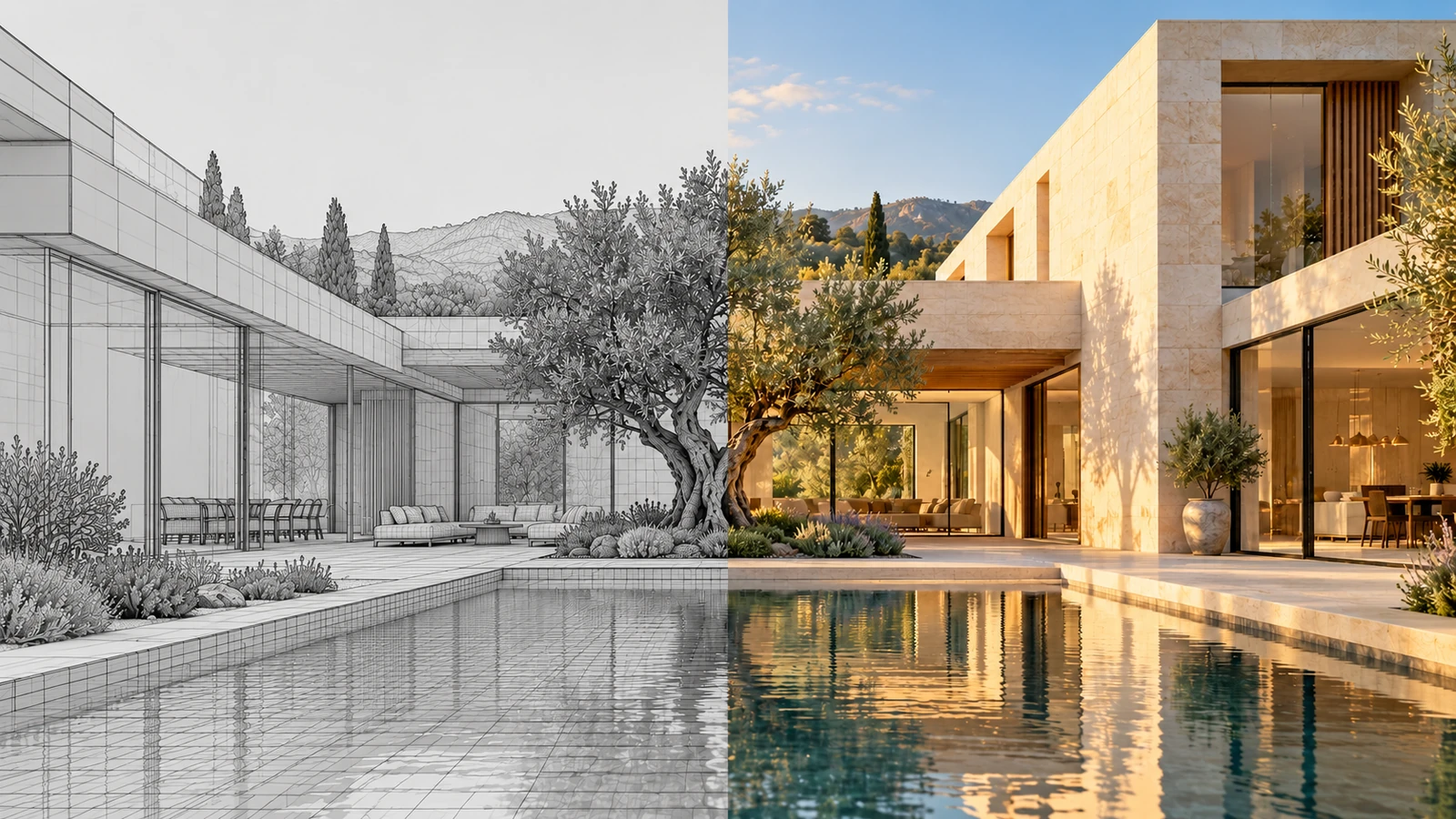
AI-generated editorial cover. Workflow screenshots below are taken from the credited sources.
Give a working model a clear presentation purpose
A CAD or BIM view can explain the layout while leaving a client to imagine the atmosphere, materials and light. An architect may need an exterior direction for a review, while an interior designer needs a room image that makes a furniture or finish decision easier.
VizMaker connects those presentation tasks to your existing design workflow. This guide develops the screen-to-render process described in the VizMaker Guide Ebook and separates model-based visualization from open-ended concept generation. A polished image is a communication asset; the source model remains the place to confirm dimensions and design intent.
Start with the view that explains the design
Use a VizMaker plugin to bring an existing design view into the image workflow.
The guide shows integrations with 3ds Max, Revit, SketchUp, Archicad, Rhino, Unreal Engine and Blender. Installation is managed in Settings, where the relevant application and version can be selected. The examples show different host interfaces, so follow the controls available in your own application.
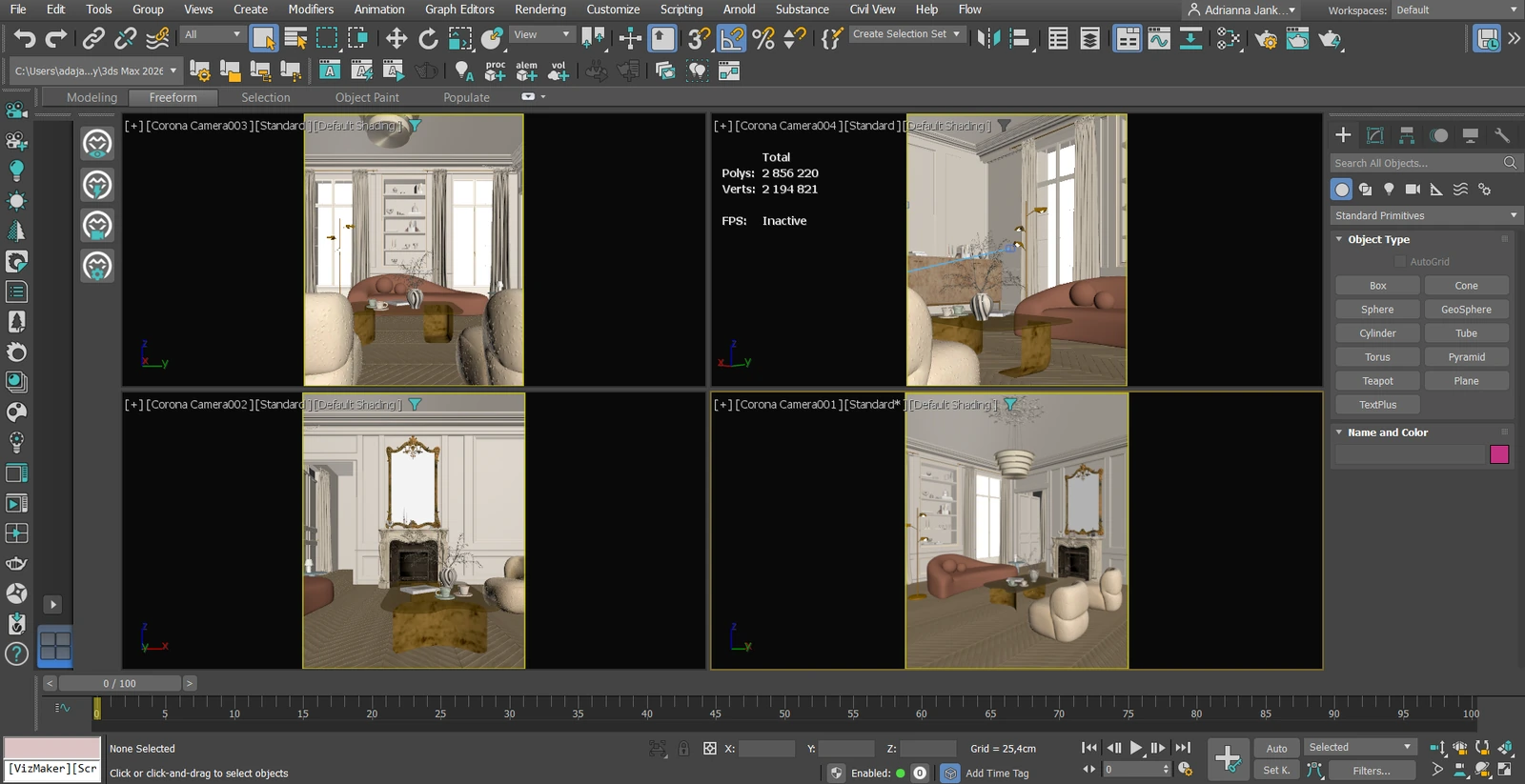
In the 3ds Max example, Send Viewport to VizMaker transfers the current view. Instant Render combines transfer and generation, while Batch Render handles multiple views; Render Settings provides the prompt and generation options. These are the documented 3ds Max controls, rather than a promise that every integration exposes the same commands.
Before sending the view, choose what the client should understand: an entrance, a facade composition, or the relationship between seating and circulation. A useful starting image makes that subject legible. Keep the original view alongside its generated versions so that later comparisons have a stable reference.
- Choose a view with a clear architectural subject.
- Install the matching integration through Settings.
- Transfer the view and retain the source image in the workspace.
Turn the viewport into a presentation image
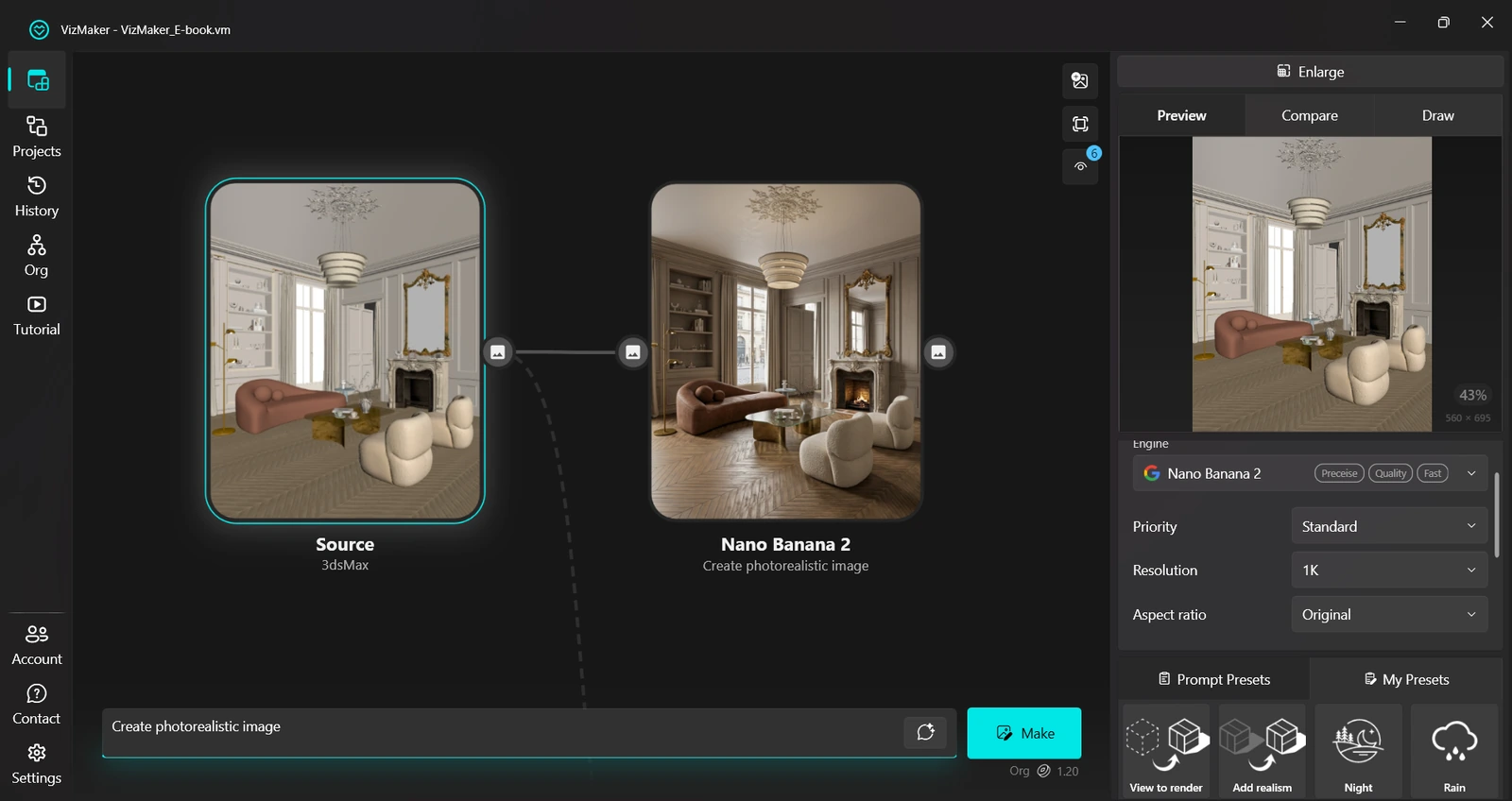
The documented viewport to render workflow uses Image Editor and the View to Render preset.
Select the transferred image, open Image Editor, choose an available image engine, then select View to Render. The ebook demonstrates this with Nano Banana. Read the preset prompt, add the project-specific information that matters, and choose Make to generate a result.
A practical brief can identify the material character, daylight direction and intended setting. For example, describe a pale masonry facade with warm timber accents and soft daylight. Treat that wording as your design brief, not an instruction guaranteed to preserve every window or junction.
Review the result against the input before developing it further. Check openings, roof edges, furniture positions and important sightlines. If an attractive generation changes the design, return to the source view or refine the brief instead of allowing the change to become an accidental design decision.
- Select the source image and the View to Render preset.
- Add a short material and lighting brief.
- Check key design elements before choosing a presentation version.
Use concept generation when the design is still open
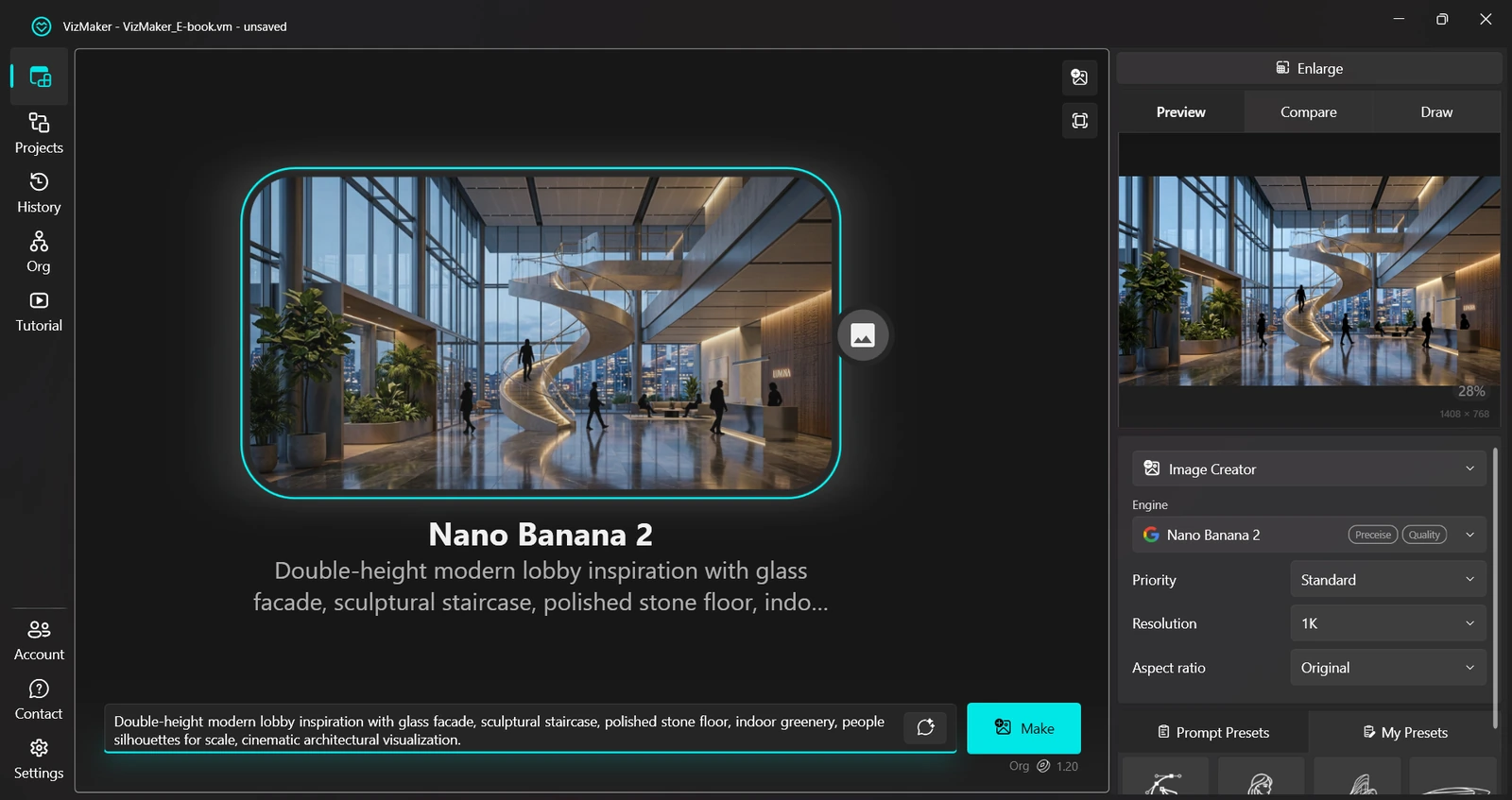
Image Creator supports visual exploration before a detailed scene is ready.
Some project questions are broader than improving a fixed view. You may still be choosing between a restrained timber interior and a more expressive material palette. The guide shows Image Creator generating visual concepts from a written prompt, with controls for the engine, resolution and aspect ratio.
Select Image Creator, set the available options, describe the spatial character you want to explore, and choose Make. Give the concept a purpose: a small reception area, a calm residential living room, or an entrance with a particular atmosphere. Review alternatives against the brief rather than collecting unrelated attractive images.
Keep these concept images distinct from visuals based on your actual model. A concept can suggest a useful direction, but it does not establish that the arrangement fits the plan. Develop the selected idea in the design application and then use a model view for the next presentation stage.
- Use prompts to explore a defined design question.
- Identify concept images clearly when presenting them.
- Bring accepted ideas back into the design model.
Keep the project editable and the chosen images easy to find
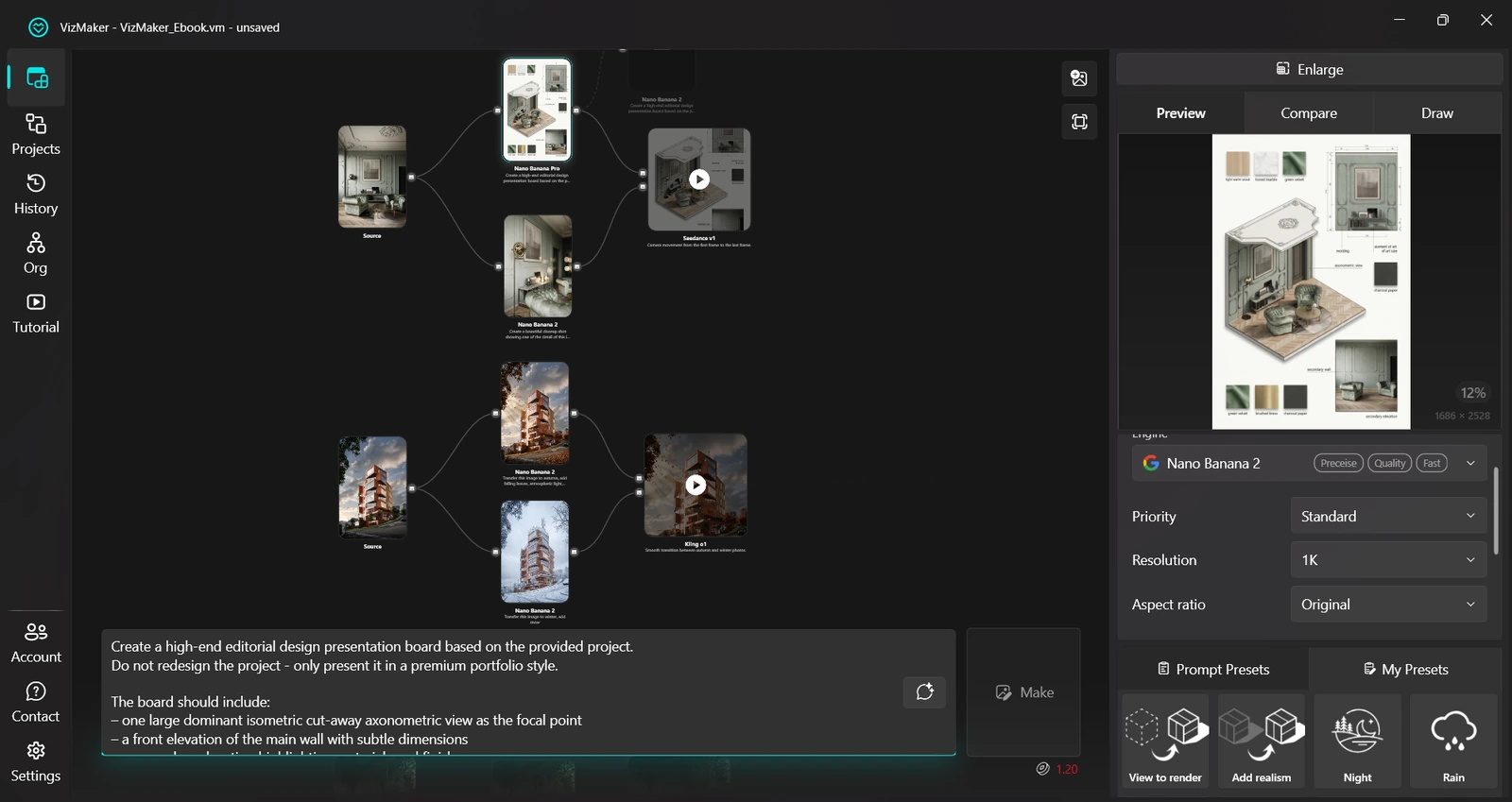
A visual node workflow keeps source views and alternatives available for the next design discussion.
The guide introduces nodes as the workspace structure and groups as a way to organize related items. Name groups by room, view or design direction so that a later revision starts from a recognizable source. Rearrange nodes can help tidy the workspace when the number of options grows.
Saving an image and saving a project serve different purposes. Save Selected Media or Save media as exports a chosen result; Save All Media exports the project media. Save Project retains the working project, while Save Project As creates another project copy.
For a client review, select only the alternatives that answer the current decision. Keep the project behind them, including the source views and useful intermediate results. This gives the next conversation a clear starting point instead of forcing you to reconstruct how an image was made.
- Group related views and label design directions.
- Save the editable project as well as final media.
- Present a focused set of options tied to one design decision.
Build a repeatable architectural visualization workflow
Start with a view that explains the project, develop it with a specific visual brief, and compare the output with the source model. Use concept generation when the design question is open and model-based rendering when the proposal needs to stay connected to an established view.
- Use the host integration to bring design views into VizMaker.
- Keep concept exploration and project-specific visualization clearly identified.
- Retain the project, source views and chosen results for the next revision.
Questions and answers
Can I use VizMaker with Revit, SketchUp or Archicad?
The guide shows viewport workflows for Revit, SketchUp and Archicad, alongside other design applications. Install the relevant plugin in Settings and use the controls provided for that host application.
Should I use Image Editor or Image Creator for architectural rendering?
Use Image Editor when an existing viewport or image is the starting point. Use Image Creator to explore a visual concept from a written brief before you have a specific source image.
Does a generated render confirm the geometry of my project?
No. Review openings, proportions and other design-critical details against your CAD or BIM model. The generated image supports visual communication and does not verify dimensions or construction accuracy.
Bring a viewport from your design application into VizMaker and develop a focused presentation image.
Download VizMakerSource: VizMaker Guide Ebook · VizMaker · PDF, 76 pages