
For Revit AI rendering, prepare a shaded 3D view with distracting edge outlines turned off, then use Send to VizMaker. Generate a first image with Nano Banana Pro and View to render, refine material and environment instructions, and compare the result with the source. Add animation or upscaling only after choosing a useful architectural image.
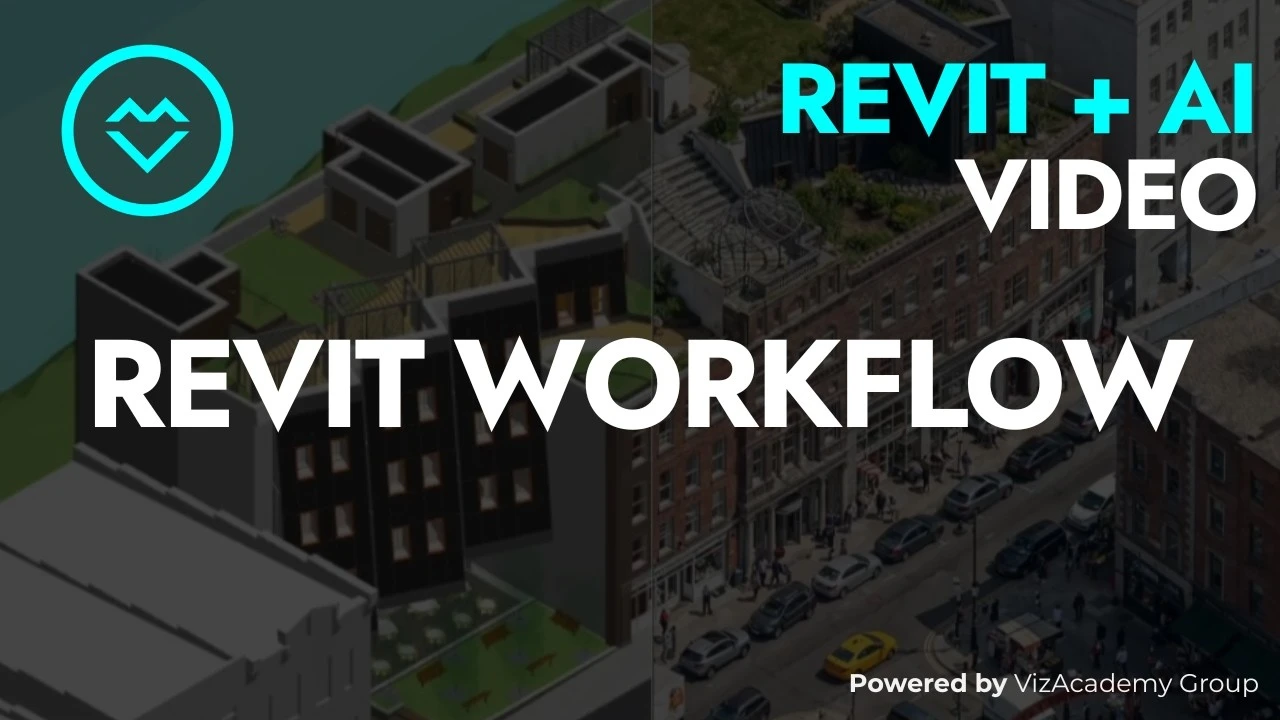
The viewport contains visual signals the image model may misread
A BIM view is optimized for working with a building model, not necessarily for guiding an image generator. Bright outlines, flat background colors, and simplified surroundings can all be interpreted as part of the intended appearance.
The first improvement therefore happens before generation: prepare a cleaner input. This Revit-to-VizMaker workflow combines that preparation with targeted prompting and comparison so the resulting images remain useful for architectural communication.
1. Prepare a shaded view and disable distracting edges
Clean display settings reduce ambiguity in the image sent from Revit.
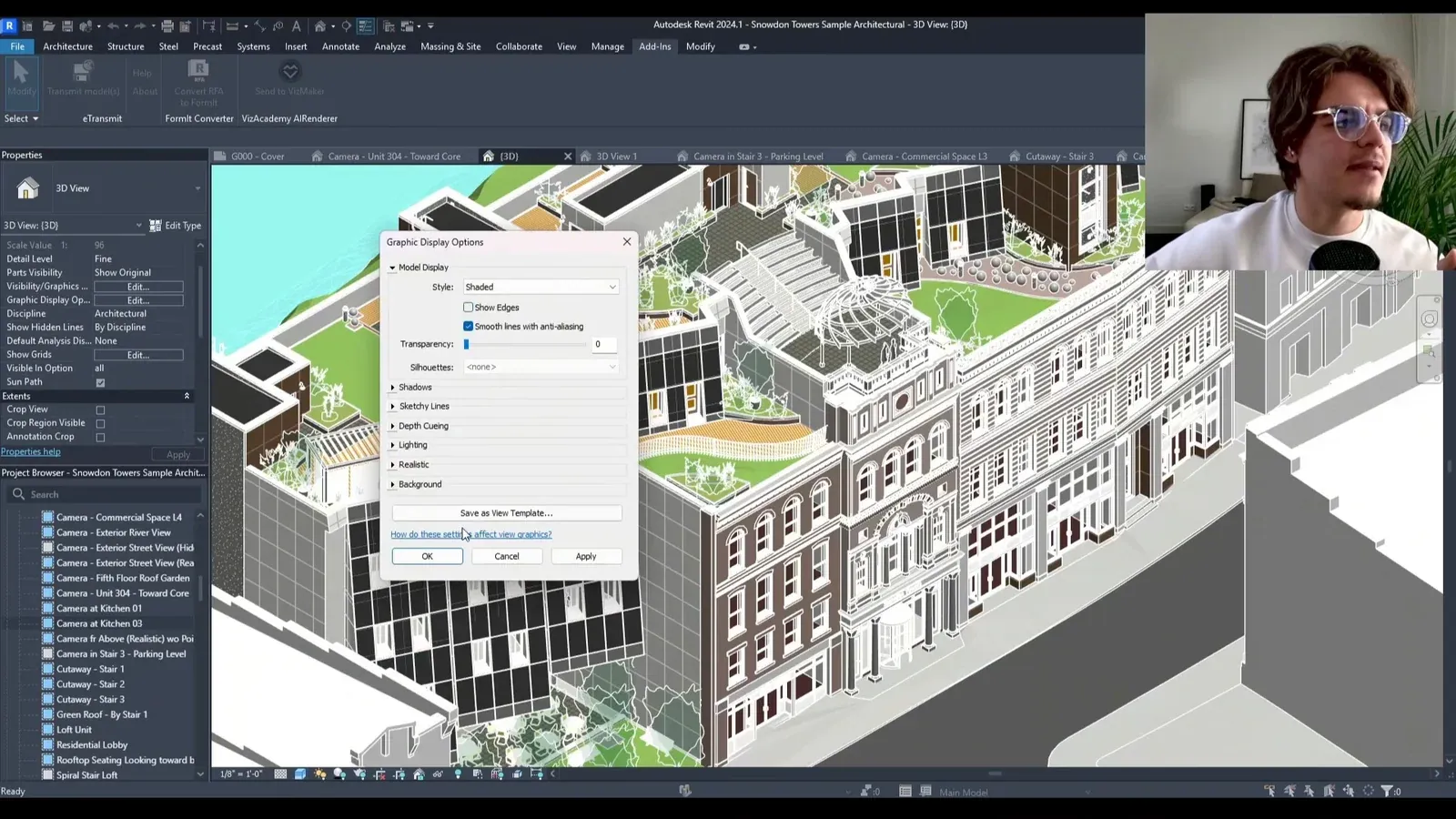
Frame the building in a useful 3D view. A saved camera is not required for the demonstrated handoff; the example works from a regular 3D view with the composition adjusted in the viewport.
Open Graphic Display Options, choose Shaded, and turn off Show Edges for this workflow. The examples show bright edge lines being carried into generated facades as pale segmentation or surface detail.
Inspect the source at the scale that will be sent. The building, its material colors, and its relationship to the surroundings should be readable before generation begins.
2. Send the prepared view and make a baseline image
Establish a first result before adding a more elaborate brief.
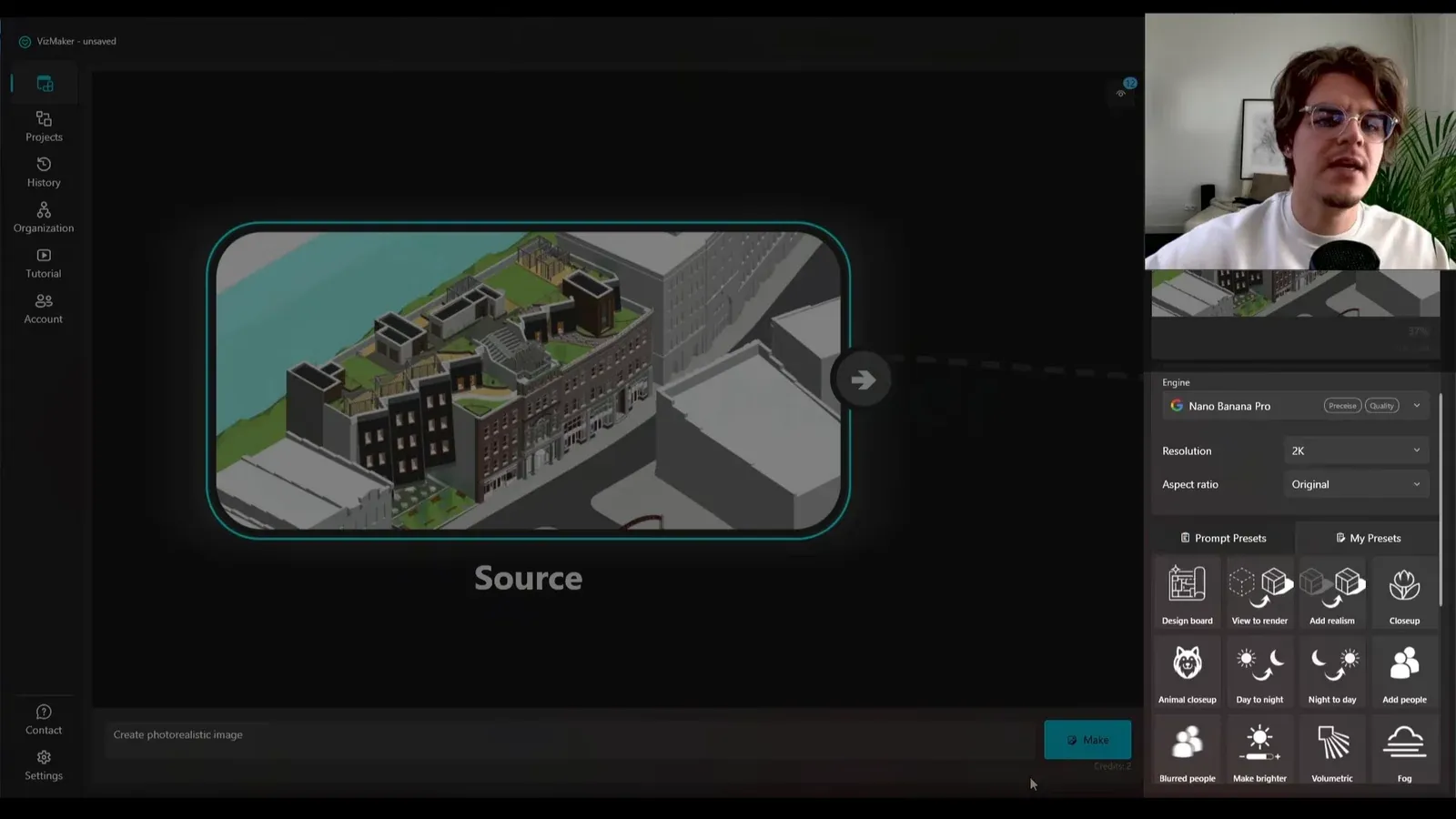
Use Send to VizMaker from the Revit add-in controls. The demonstrated handoff transfers an image of the viewport into VizMaker; it should not be treated as transfer of the BIM model’s structured data.
Select the received source, choose Nano Banana Pro, use 2K resolution as demonstrated, and apply View to render. Generate alternatives to see how the source is interpreted before adding extra requests.
Keep the source node available for comparison. It is the visual reference for deciding whether the output retains the intended massing and facade arrangement.
3. Describe project-critical materials and context
A specific prompt can address information that the viewport leaves ambiguous.
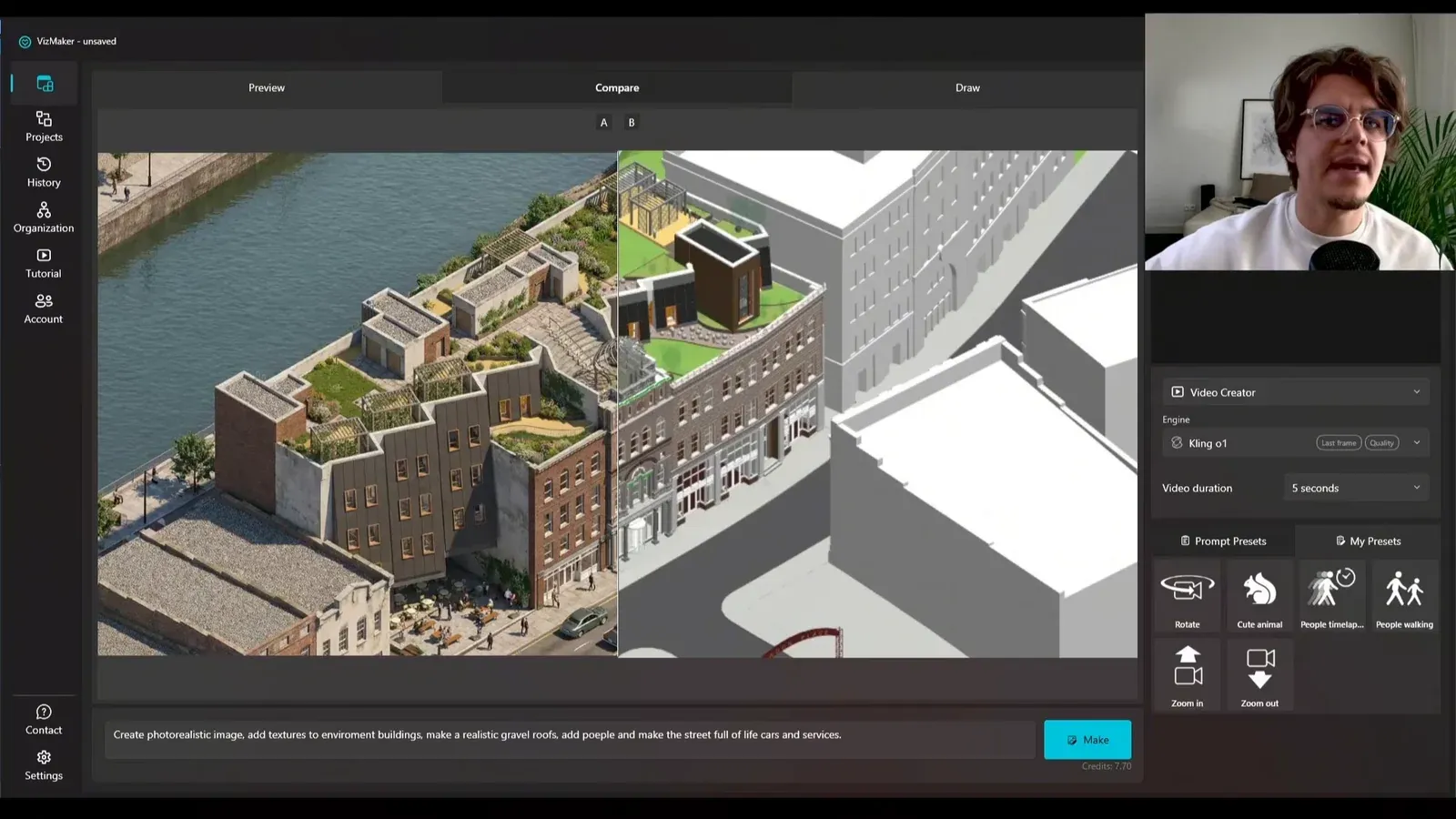
Extend the baseline request with details that matter to the proposal. The example names gravel roofs, textured surrounding buildings, people, and an active street. Such instructions give the model more direction than a general request for realism.
The blue area behind the building illustrates a useful failure case: an ambiguous surface may be interpreted as a street or developed with additional buildings. Describe what that area represents and state any important exclusions in the prompt.
Use architectural visualization prompts to clarify the brief, then compare the result. A more detailed instruction can improve the intended character while still introducing content that needs correction.
4. Compare facade details before accepting the image
Look closely at surfaces that were affected by viewport lines.
Use A/B comparison and zoom into the facade. In the edge-line comparison, bright source outlines influence the generated surface pattern. The cleaner source produces a different wall treatment without the same unwanted segmentation.
Check openings, facade divisions, roof edges, and the junctions between materials. Review the background too: a convincing foreground does not make invented neighboring development part of the design.
Keep the Revit model as the authority for dimensions and geometry. The generated image is a presentation interpretation whose important features need to agree with that model.
5. Develop selected images into lighting and motion alternatives
Expand the presentation after choosing the still image.
A day-to-night treatment can create an alternative exterior mood, with illuminated windows and a darker setting. Compare it with the approved still so that added lighting does not conceal changes to the building.
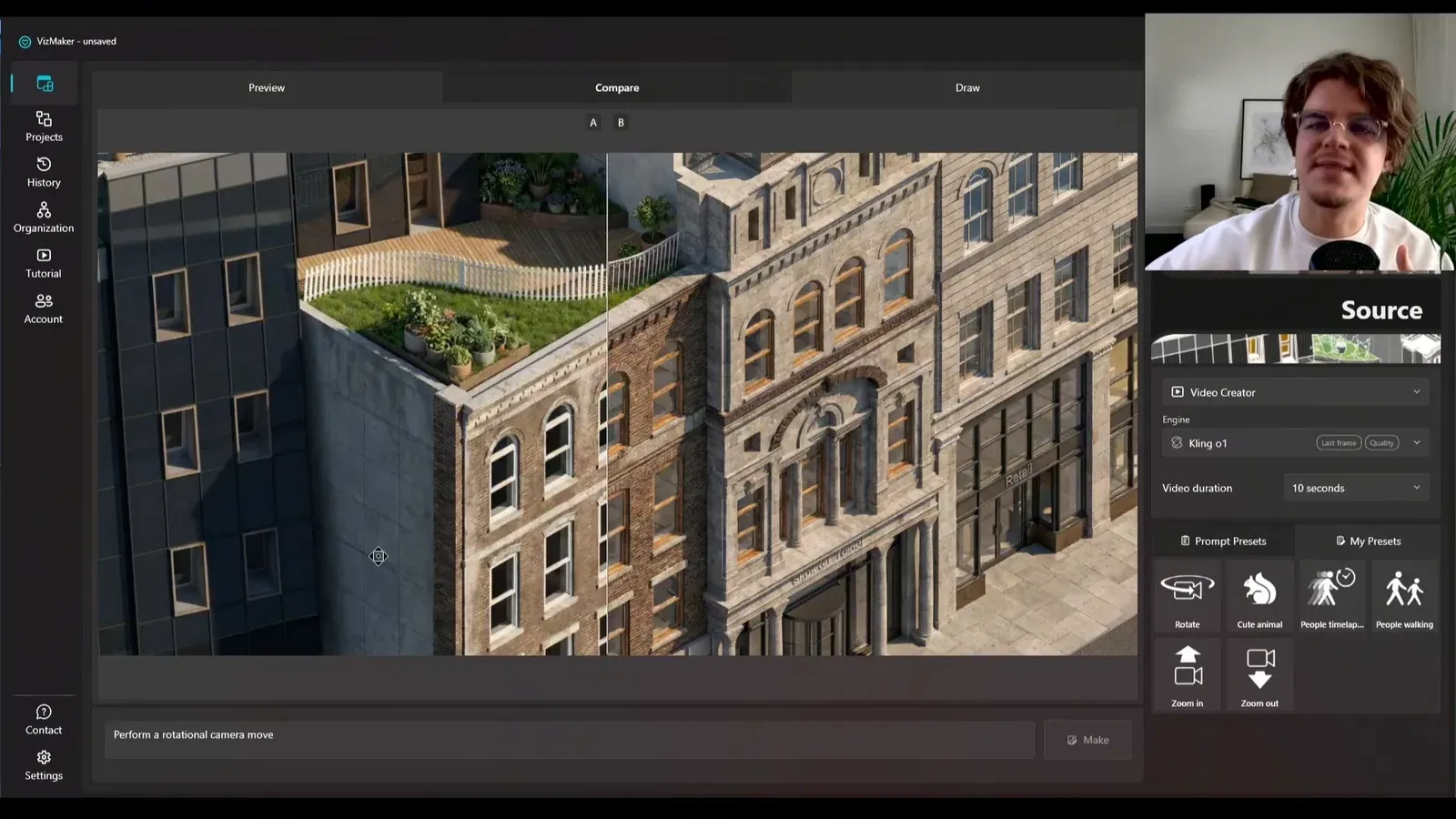
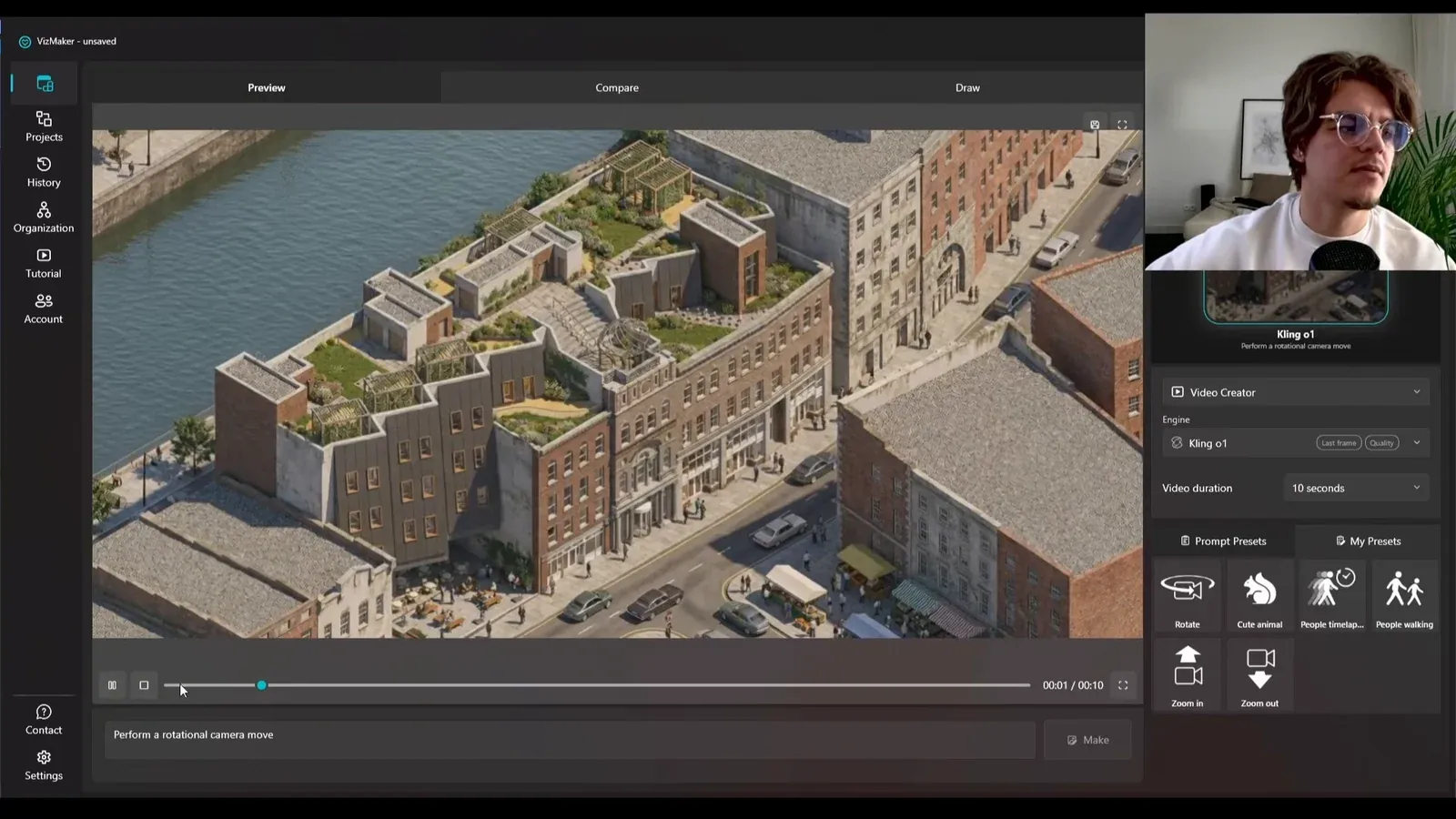
For architectural animation, switch to Video Creator and select a movement such as rotate or zoom out. The recorded workflow uses Kling o1 and explores short clips with moving people and cars.
Review the complete clip for stable edges, credible movement, and newly revealed surroundings. A still-image animation may generate details outside the original view, so keep the movement aligned with what the presentation needs to explain.
6. Upscale the selected image and inspect the added detail
Apply finishing effort to an image whose composition has already been reviewed.
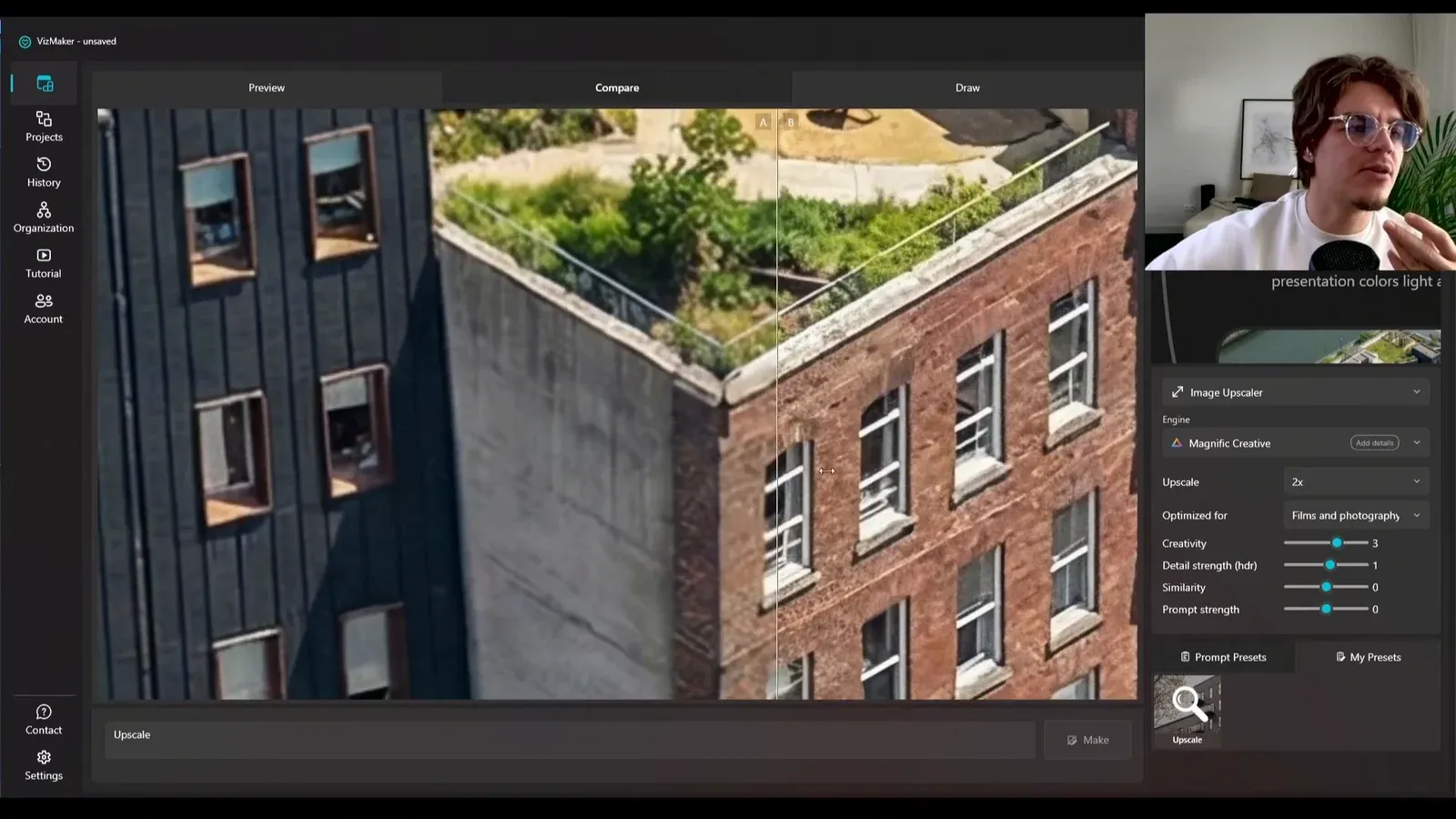
Switch to Image Upscaler and choose Magnific Creative. The demonstrated finishing setup uses 2× enlargement, a films-and-photography profile, and a modest creativity setting before generating the enlarged image.
Compare the result at close range. Brickwork, roof planting, and facade details may look sharper, but creative enhancement can introduce new texture. Judge whether the additional detail supports the material and scale of the design.
Retain the original alongside the upscaled version. That makes it possible to choose the better image for the intended display size without losing the earlier rendering decision.
Conclusion: improve the input before refining the output
A clean Revit view gives the rendering process a clearer starting point. Combine it with specific prompts, careful source comparison, and selective finishing to produce a useful set of presentation images. The model remains the design reference throughout.
- Use a readable shaded view and review whether edge outlines are confusing the generation.
- Describe materials and ambiguous surroundings explicitly.
- Inspect the still before developing lighting, animation, or upscaled alternatives.
Questions and answers
Do I need a saved Revit camera for this workflow?
The demonstration uses a regular framed 3D view. A deliberate composition matters, but a saved camera is not required for the shown handoff.
Why turn off Show Edges?
In the examples, bright edge lines influence the generated facade as unwanted pale surface divisions. Disabling them provides a cleaner input for this image-rendering workflow.
Does Send to VizMaker transfer BIM information?
The demonstrated operation transfers an image of the Revit viewport. The guide does not establish transfer of BIM properties, dimensions, or editable model geometry.
When should I upscale the render?
After reviewing the composition and design content. Compare the enlarged result with the original, especially when creative upscaling adds texture detail.
Follow the source-view preparation, prompting comparisons, facade checks, animated results, and Magnific finishing example.
Watch the Revit rendering tutorial on YouTubeSource: VizMaker - From Revit to AI Visuals in Minutes - 2026 Workflow · VizMaker - AI Renderer ·