
Reduce AI image degradation by preserving a clean source image and controlling how much of it is regenerated. In VizMaker, make alternative generations from that source, use Draw selections for local changes, and retain results on editable layers. Finish ordinary color and light adjustments with raster modifiers when a new generation is unnecessary.
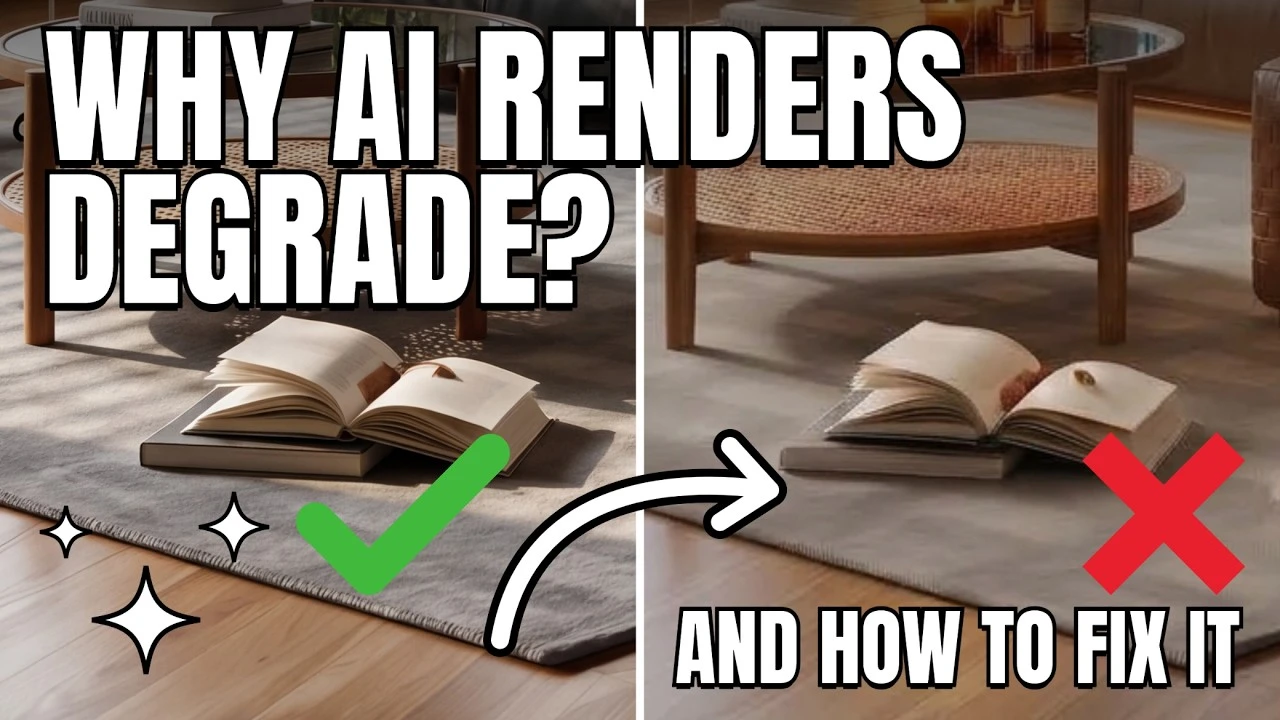
Small edits can accumulate into a different image
An interior can gradually lose its approved look when each AI result becomes the input for the next edit. Color may become stronger, edges may grow heavier, and fine detail can drift even when the request concerns only one object. The practical issue is cumulative reinterpretation of the image.
For architectural visualization, that drift matters because materials, furniture, and the overall mood need to remain comparable across revisions. A controlled workflow separates the base image, generated changes, and finishing adjustments so an unsatisfactory edit does not force another full-image pass.
1. Prepare and retain a clean base image
Resolve the composition and material direction before building a chain of edits.
Start with references that clarify the intended materials, lighting, and composition. Turn that direction into a useful prompt and prepare the source viewport so the main surfaces are readable. Generating from a clear brief is more useful than repeatedly trying to rescue a weak result.
Keep the chosen original as a separate starting point. If you upscale it, inspect the added texture and edges before treating that version as the base. Image upscaling can provide a larger working image, but it cannot certify the accuracy of newly generated detail.
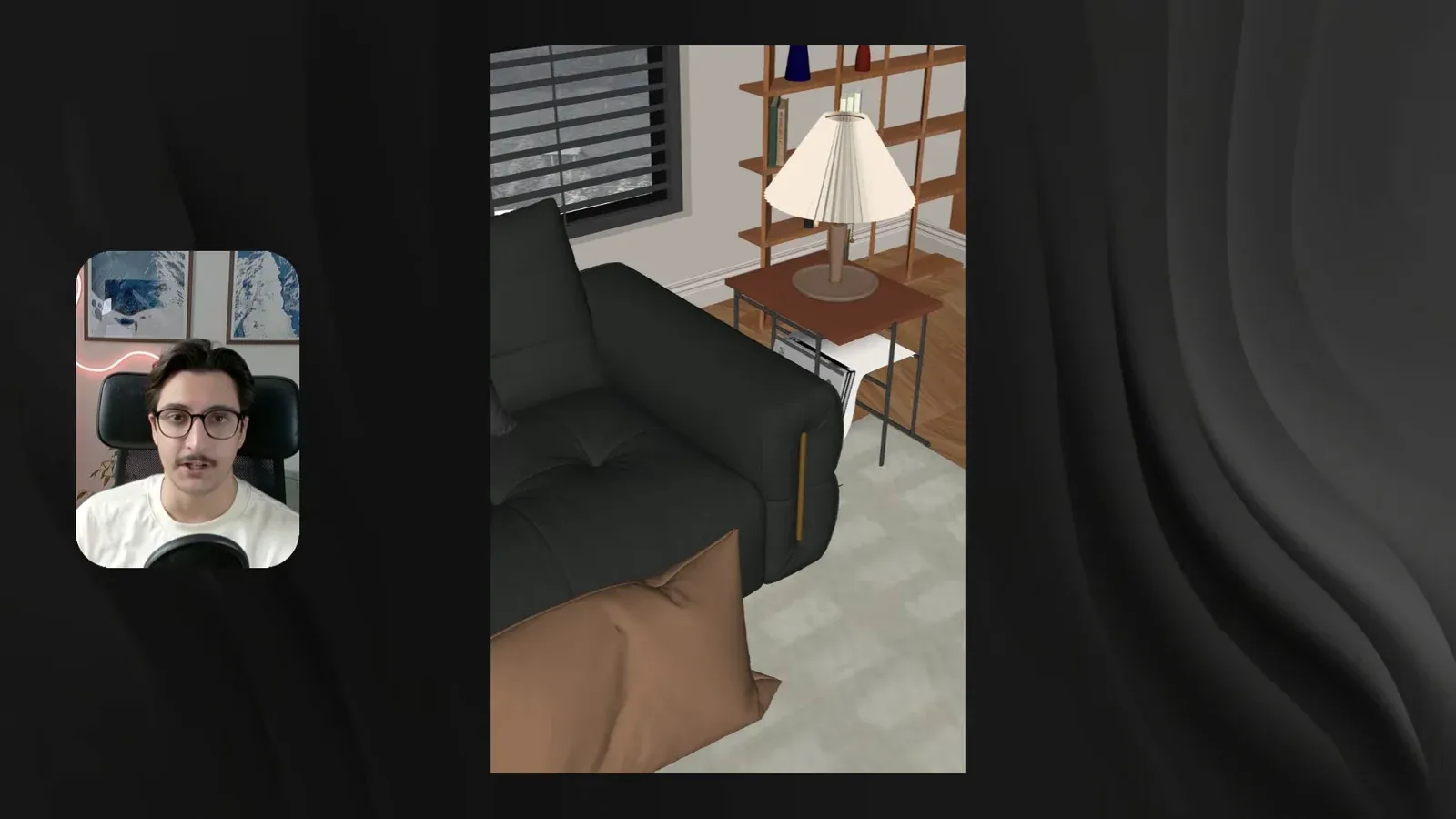
2. Create variations from the original
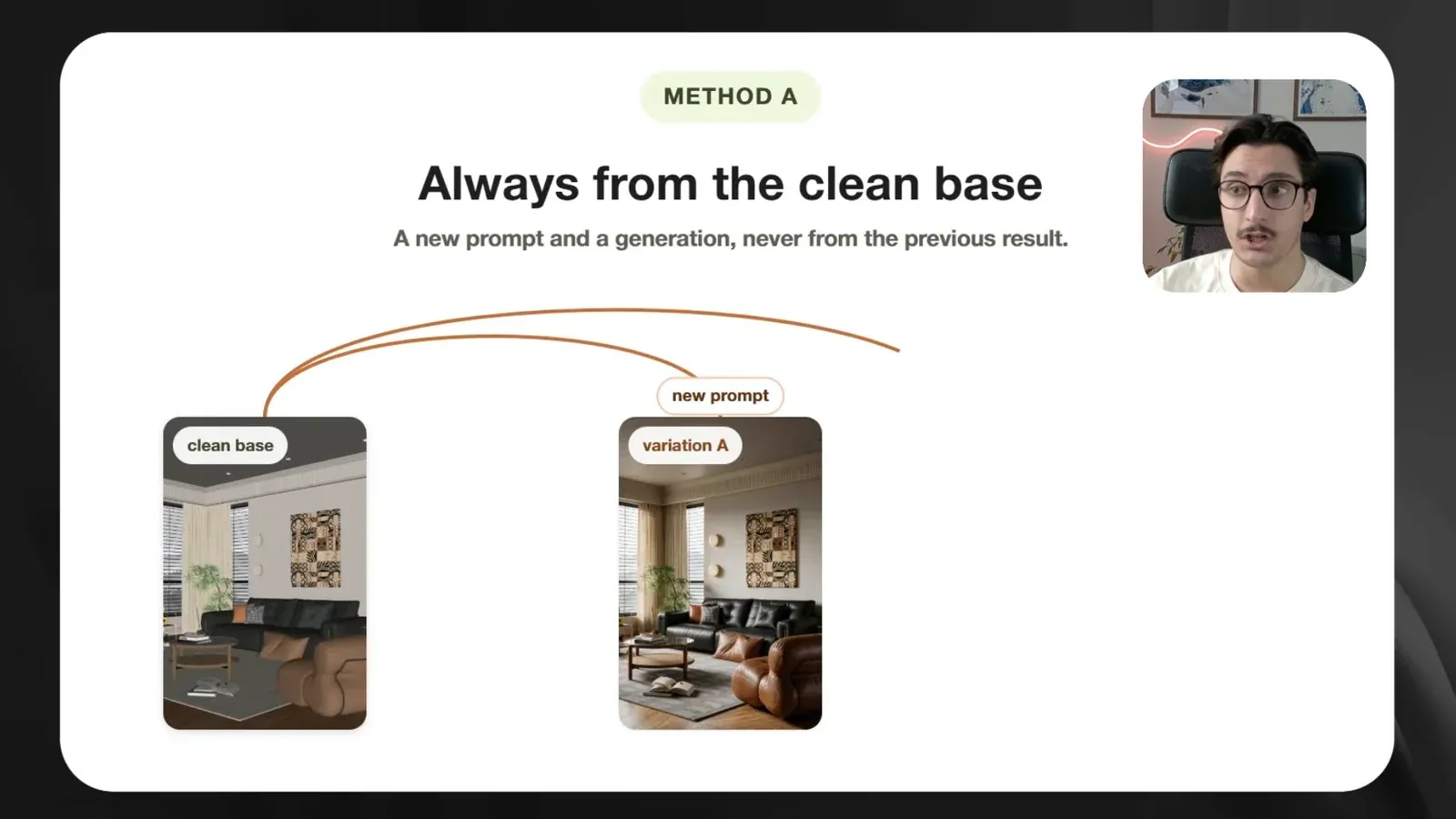
Branch alternatives from the clean base instead of repeatedly editing the latest output.
For a substantial change, return to the base image and write a new prompt. This lets you compare alternatives against a consistent starting point rather than inheriting every accidental change in an earlier variation.
The distinction is especially helpful during material exploration: several alternatives can answer the same brief without becoming successive copies of one another. Each output still needs inspection, but an error in one branch does not have to shape the next.
3. Use references and selections for local changes
Give the edit a specific object and a limited working area.
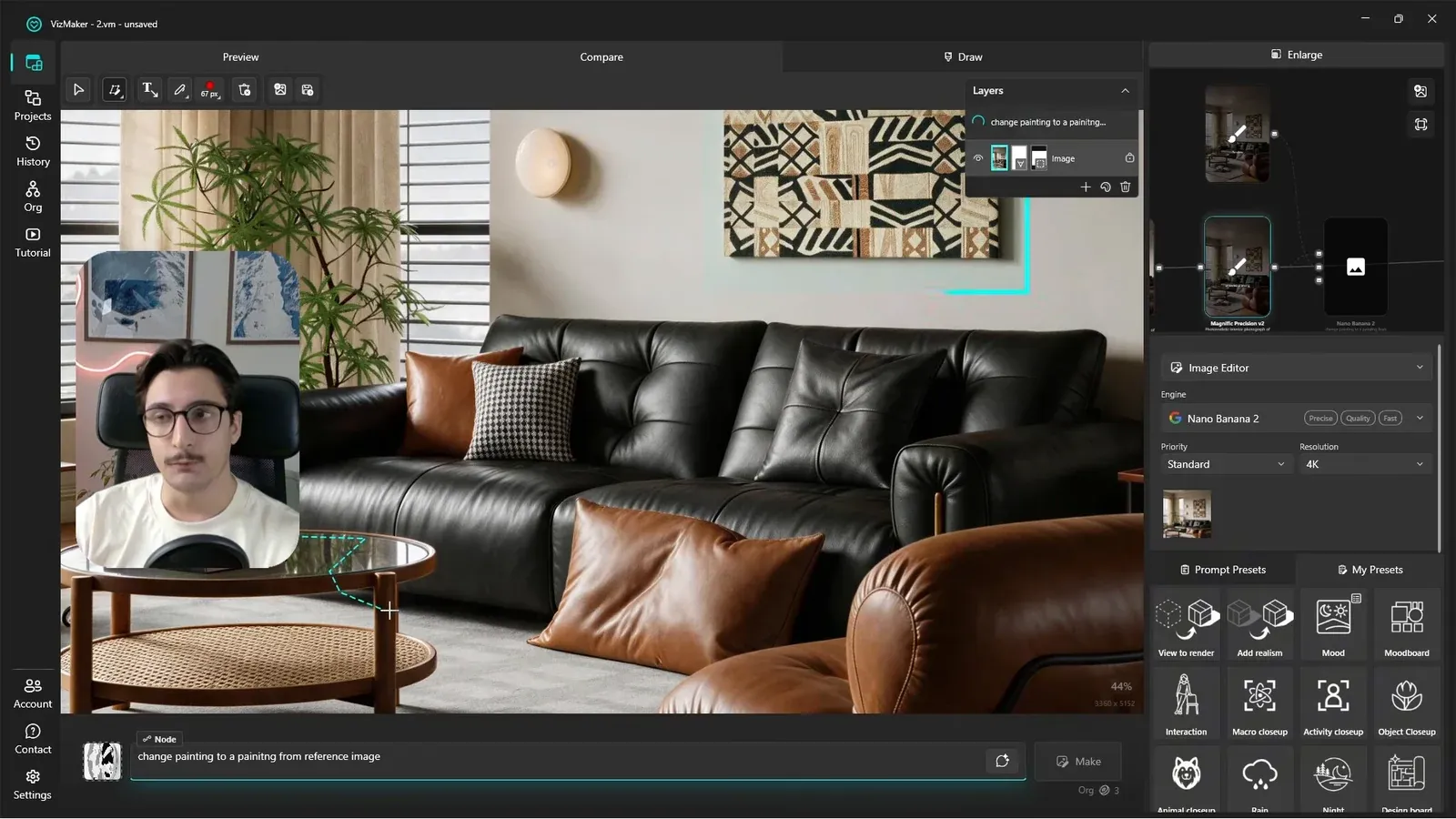
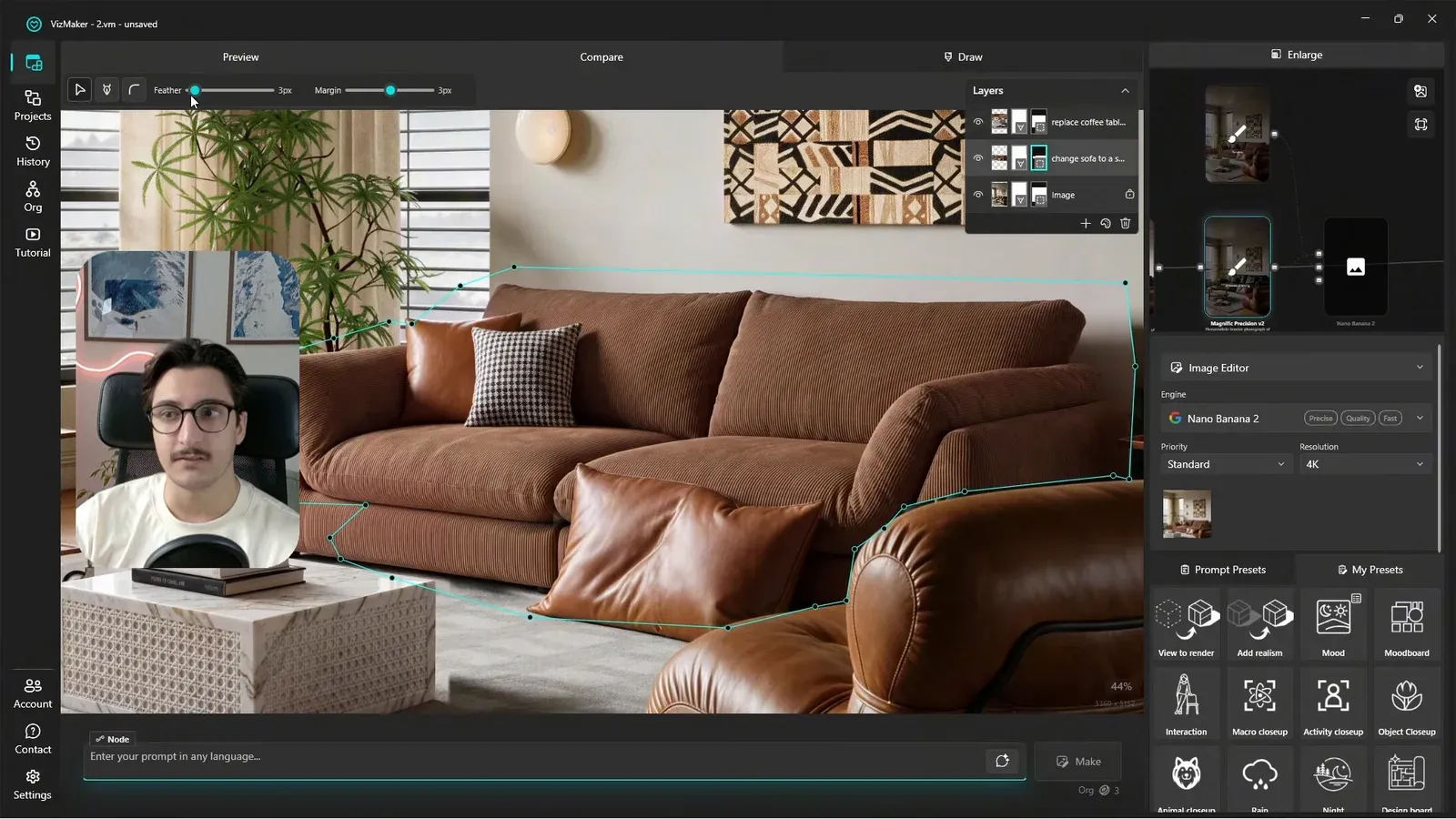
VizMaker Draw supports an object reference when the request is a targeted replacement, such as changing artwork. Describe what should replace the object and identify its position instead of asking the model to reinterpret the room without a clear target.
For tighter control, use a lasso selection around the region that needs work. Local AI editing limits the generated change to a chosen part of the composition, while the layer and mask workflow controls how that result appears over the base.
Inspect the selection boundary as carefully as the new object. A plausible replacement can still need blending around shadows, overlapping furniture, or adjacent wall surfaces.
4. Retain control with layers and masks
An editable result lets you revise the composite without generating the whole scene again.
Keep each change on its own layer. Toggle it to compare with the base, erase unwanted areas, restore parts of a mask, and adjust opacity or blending as needed. These controls let you decide how much of a generated result belongs in the final image.
Layer masks are particularly useful when the replacement is good but its boundary is not. Fixing that boundary can be a compositing task rather than a reason to regenerate every surface in the room.
5. Finish color and light without another generation
Use pixel-based modifiers when the remaining change is tonal.
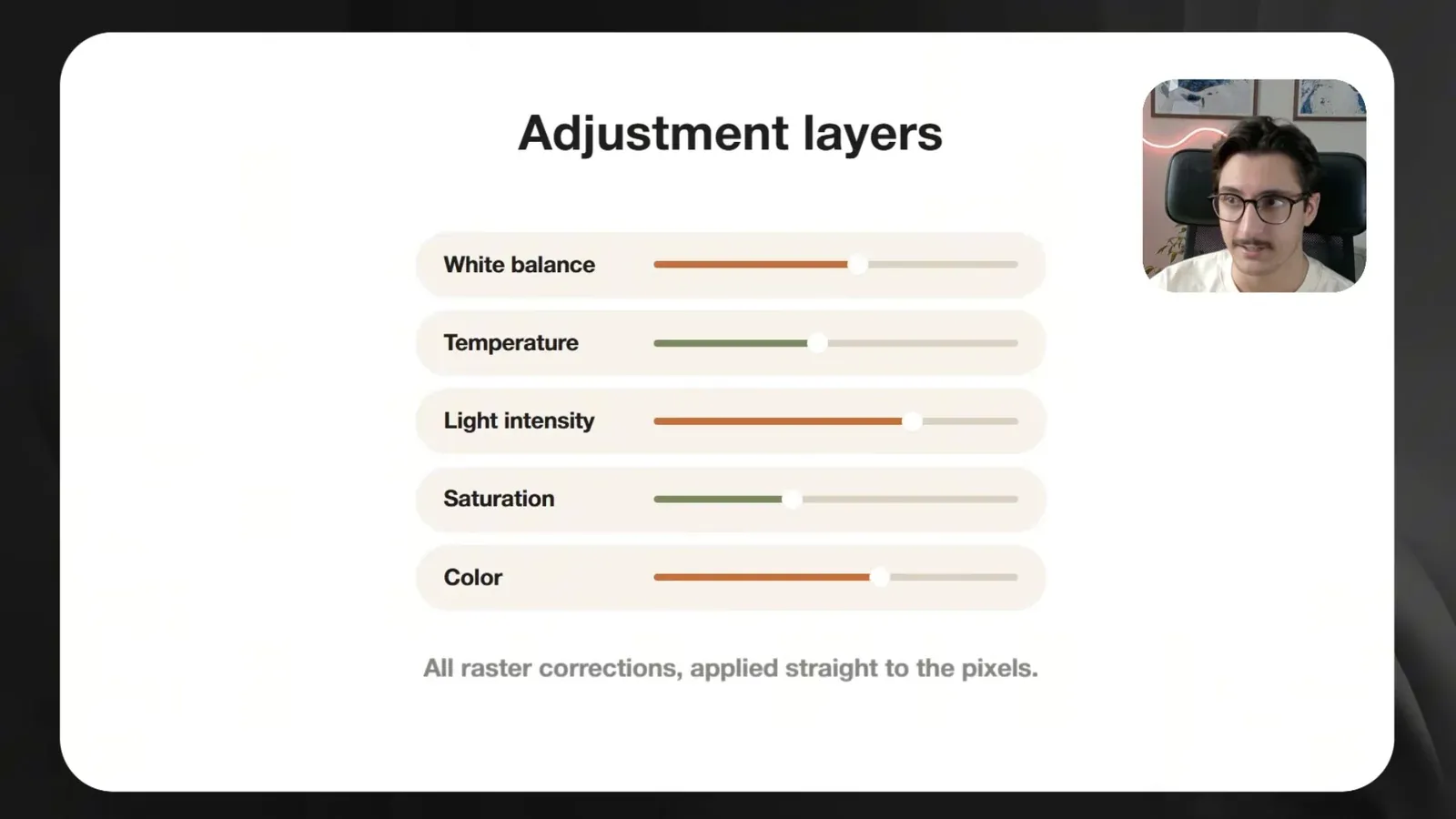
Color, saturation, light intensity, temperature, and white balance can be adjusted with raster modifiers. These changes operate on the image pixels rather than requesting another AI interpretation of the scene.
Use ArchViz post-production controls for a warmer balance or lower saturation; reserve generation for changes that need new visual content. Raster corrections can still be overdone, so compare the adjusted result with the base and the design reference.
Conclusion: preserve the base and isolate each decision
Cleaner iteration comes from controlling the editing process. A saved base, local selections, editable layers, and restrained tonal adjustments let you change the requested detail while keeping the rest of the composition easier to evaluate.
- Branch substantial alternatives from a retained original.
- Use a reference and selection for a specific object change.
- Revise masks, opacity, and color before deciding that another generation is necessary.
Questions and answers
Why can an AI image change outside the requested edit?
A generative edit can reinterpret more of the input than the requested object. Reusing that result as the next input can carry those unintended changes into later versions.
Does upscaling prevent all quality loss?
No. It can provide a larger working image and additional apparent detail, but generated detail still needs inspection. Retaining the original and limiting unnecessary regeneration remain useful.
When should I use raster adjustments instead of AI generation?
Use them when the requested change concerns color balance, saturation, or overall tonal treatment and does not require creating or replacing scene content.
Watch the complete demonstration of independent variations, selected-area edits, layers, and finishing adjustments.
Watch the image editing tutorial on YouTubeSource: Why AI Images Degrade With Every Edit · VizMaker - AI Renderer ·