
Use AI texture extraction in VizMaker to turn a visible material reference into a separate texture image. Select the source, mark the material with Draw, choose a square output, and describe the desired surface. Compare the result with the reference before upscaling it or requesting a displacement-map version.
The useful material is only one part of the reference image
A photograph may contain the wall finish, upholstery, or tile pattern you want, but it also includes perspective, shadows, reflections, and unrelated objects. A simple crop can leave those distractions embedded in the texture.
The workflow uses AI material generation to interpret the marked surface as a separate image. It can produce a useful starting point for material development, while color, pattern, repeat behavior, and scale still need checking in the intended design workflow.
1. Mark the material and set the output format
Make it clear which surface the extraction request refers to.
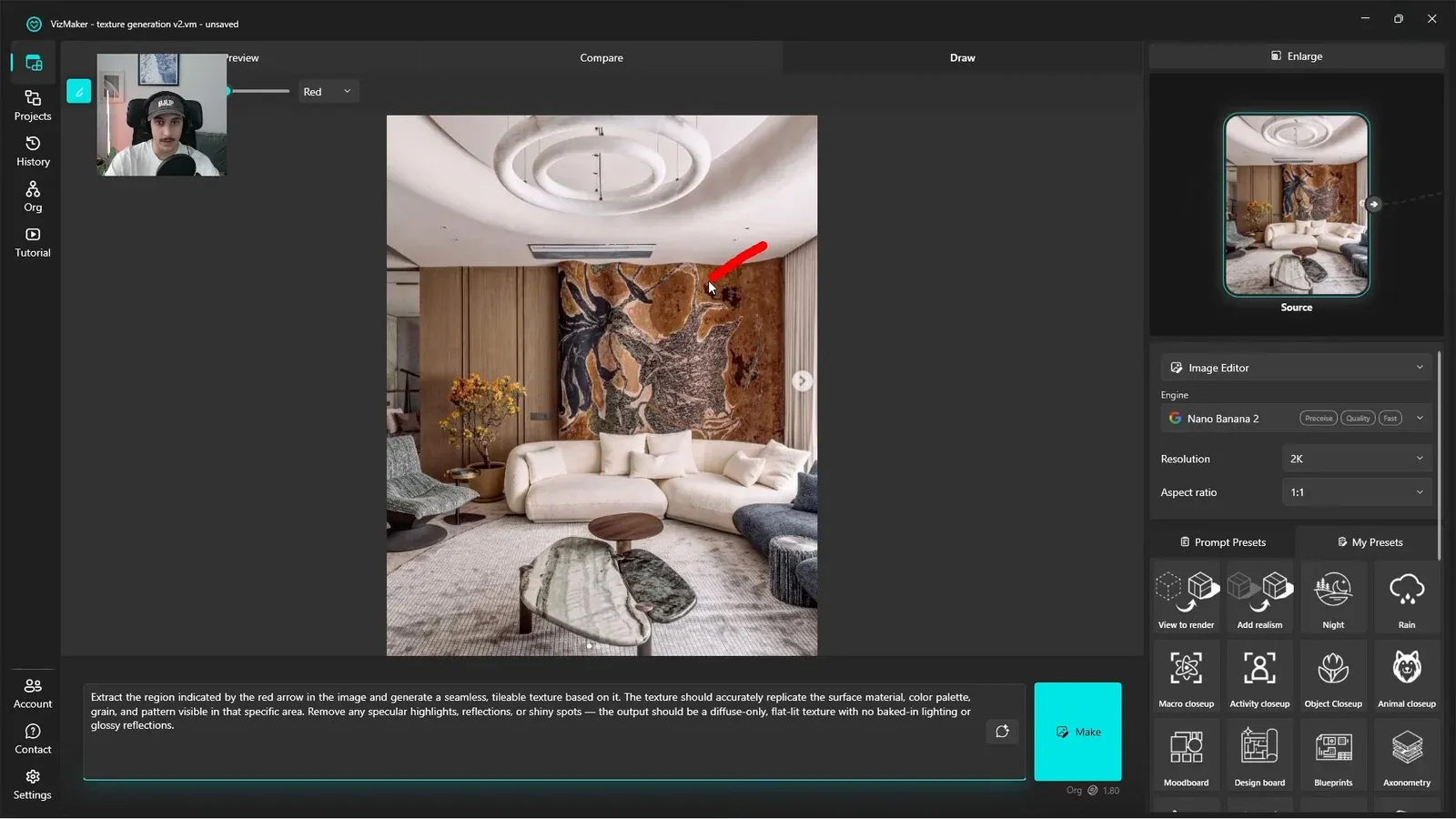
Select the reference image, choose 2K resolution, and set the aspect ratio to 1:1. Open Draw and mark the target surface with a red arrow. The examples identify a patterned wall, floor tiles, and upholstery rather than asking for every material in the photograph.
Describe the desired surface and ask for a flat texture appearance without the source image’s baked-in reflections or shiny highlights. The demonstrated prompt also requests a seamless, tileable output; treat that as a requested property to inspect, not an automatic guarantee.
Remove the previous arrow before marking a new source. Keeping one clear target avoids sending contradictory location instructions into the next extraction.
2. Compare the extracted color and pattern
Select the material interpretation that matches the reference and the brief.
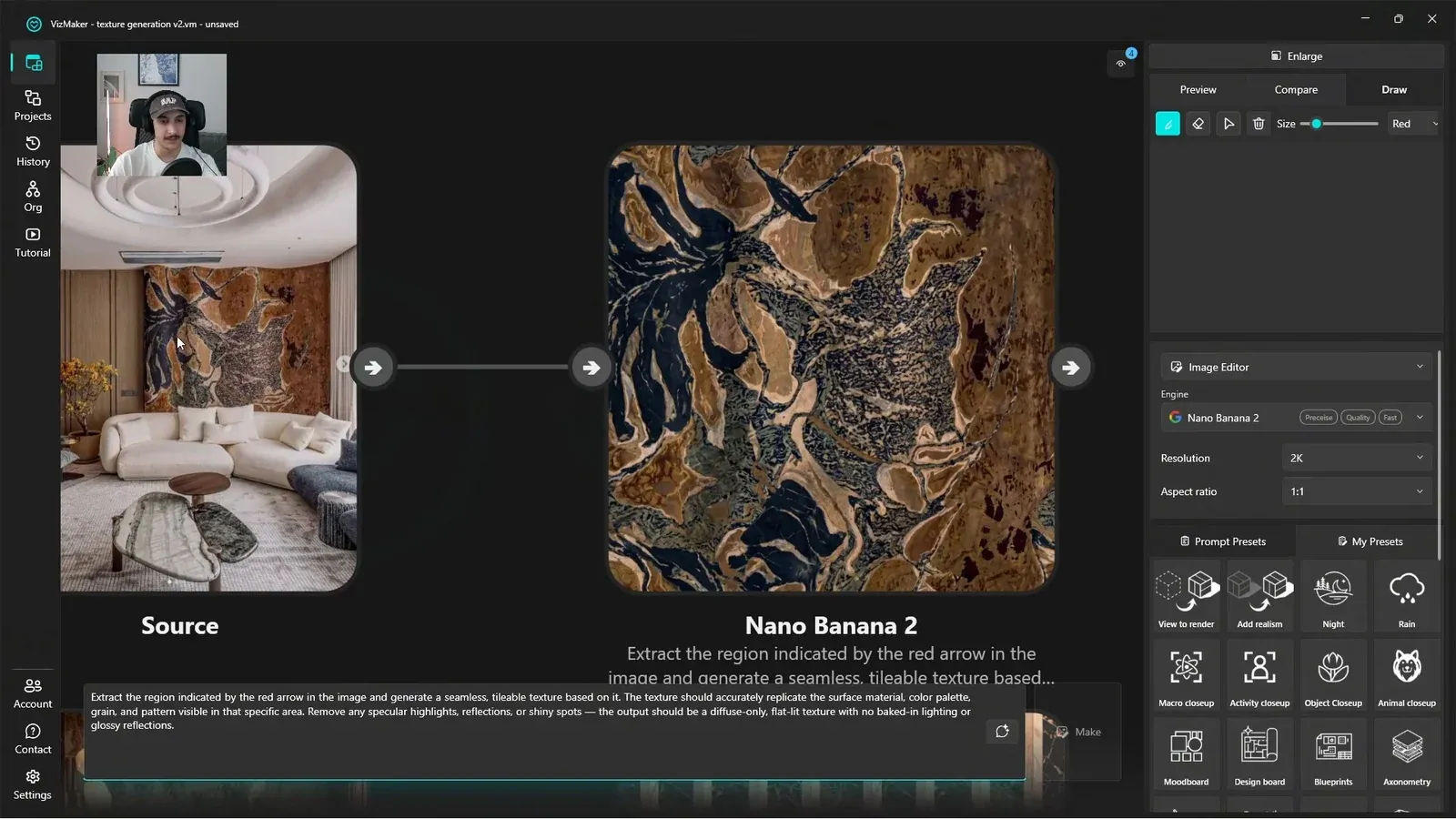
Place the generated texture next to the source and compare the characteristic pattern, palette, and material scale. The wall example produces a separate decorative surface, while other examples extract tile and upholstery patterns.
One floor result changes the intended color. Refine the prompt with the required material color or pattern characteristics and generate another version when that difference matters.
Before using the texture across a large surface, inspect it in the intended material context for visible repetition or seams. A convincing square image is only the beginning of a usable architectural material.
3. Upscale a selected texture for closer views
Finish a useful texture rather than trying to enlarge an unresolved result.
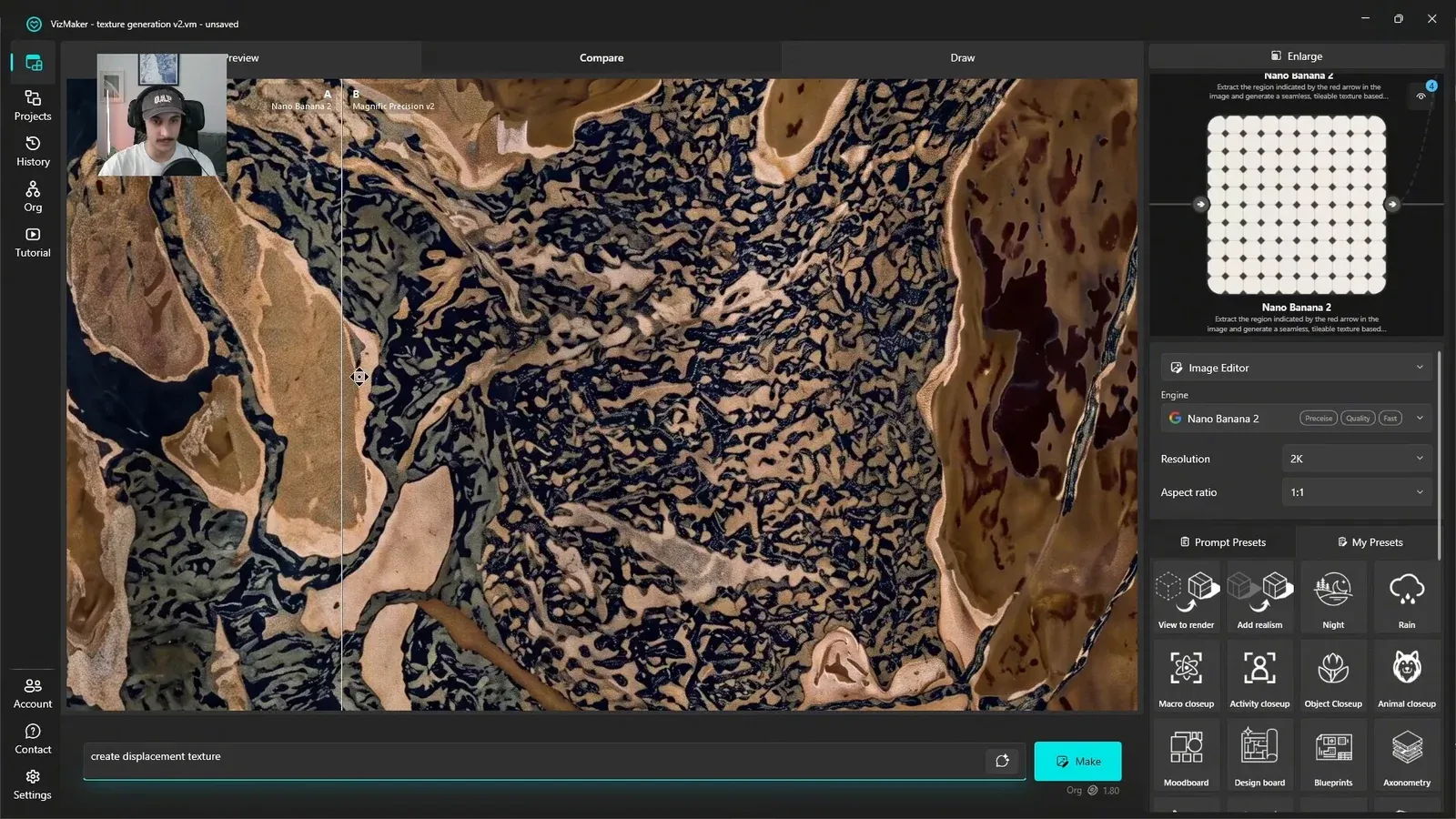
Open Image Upscaler and select Magnific Precision v2, the option shown in the recorded interface. Apply the upscaling step to the texture you want to keep, then compare the before and after images at close range.
Look at fine pattern boundaries and whether the enhanced detail remains consistent with the reference. A larger texture can be useful in a close-up presentation, but added sharpness does not prove that every new feature belongs to the real material.
Retain the unmodified extraction so you can choose the better version when applying the material to your scene.
4. Generate and inspect a displacement-map draft
Use a selected texture as the starting point for a separate material-map request.
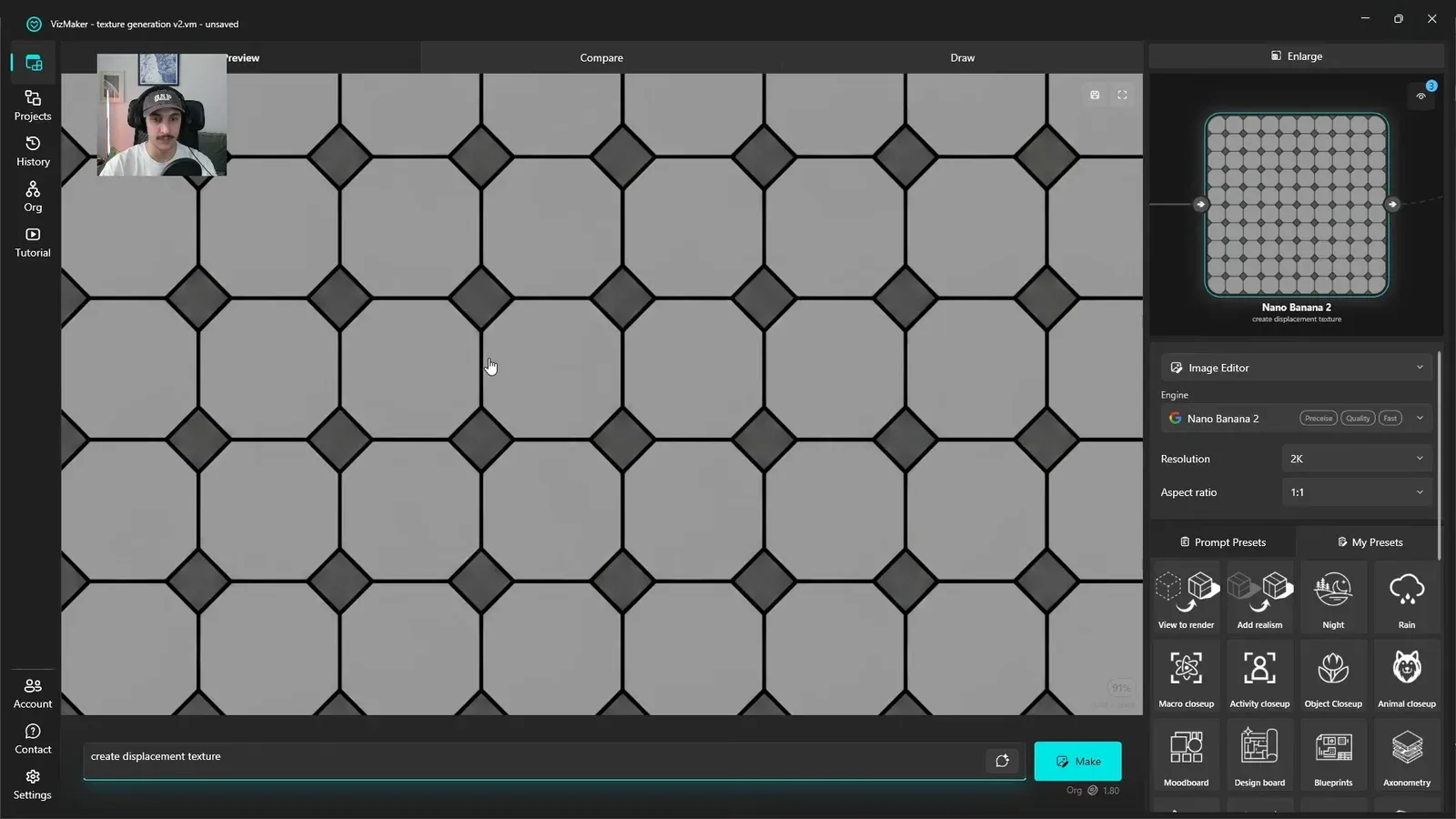
Return to Image Editor with the tile texture selected and request a displacement texture. The example produces a grayscale tile pattern with darker joints separating the main tile faces.
Inspect whether the joints and tile shapes align with the color texture. Adjust contrast if needed, then evaluate the map in your target material setup. A generated grayscale image does not establish a measured surface depth or a ready-to-use physical scale.
The demonstrated process covers extraction, upscaling, and a displacement-map example. Develop additional material maps as separate tasks and inspect their consistency instead of treating one output as a complete material package.
Conclusion: build a material from a clearly identified reference
A marked source area and a specific output request make texture extraction easier to control. Review the base texture before adding resolution or generating another map, and keep checking the relationship between the reference and the material you are building.
- Use one clear marker and square output for each extraction.
- Compare color, pattern, and repeat behavior before applying the texture broadly.
- Review upscaled detail and displacement-map alignment as separate finishing decisions.
Questions and answers
Can I extract a texture from just one area of an image?
Yes. The demonstrated workflow uses a red Draw arrow to identify the wall, tile, or upholstery surface to interpret as a separate texture.
Does requesting a seamless texture guarantee it will tile correctly?
No. Inspect repetition and seams in the intended material setup before relying on the result across a large surface.
Does this workflow produce a complete physically accurate material?
The example creates texture images and a displacement-map draft. It does not establish calibrated material properties or a complete, validated material set.
Follow the marked wall, upholstery, and tile references through extraction, upscaling, and the displacement-map result.
Watch the texture workflow on YouTubeSource: Texture generation in seconds (AI Workflow) · VizMaker - AI Renderer ·