
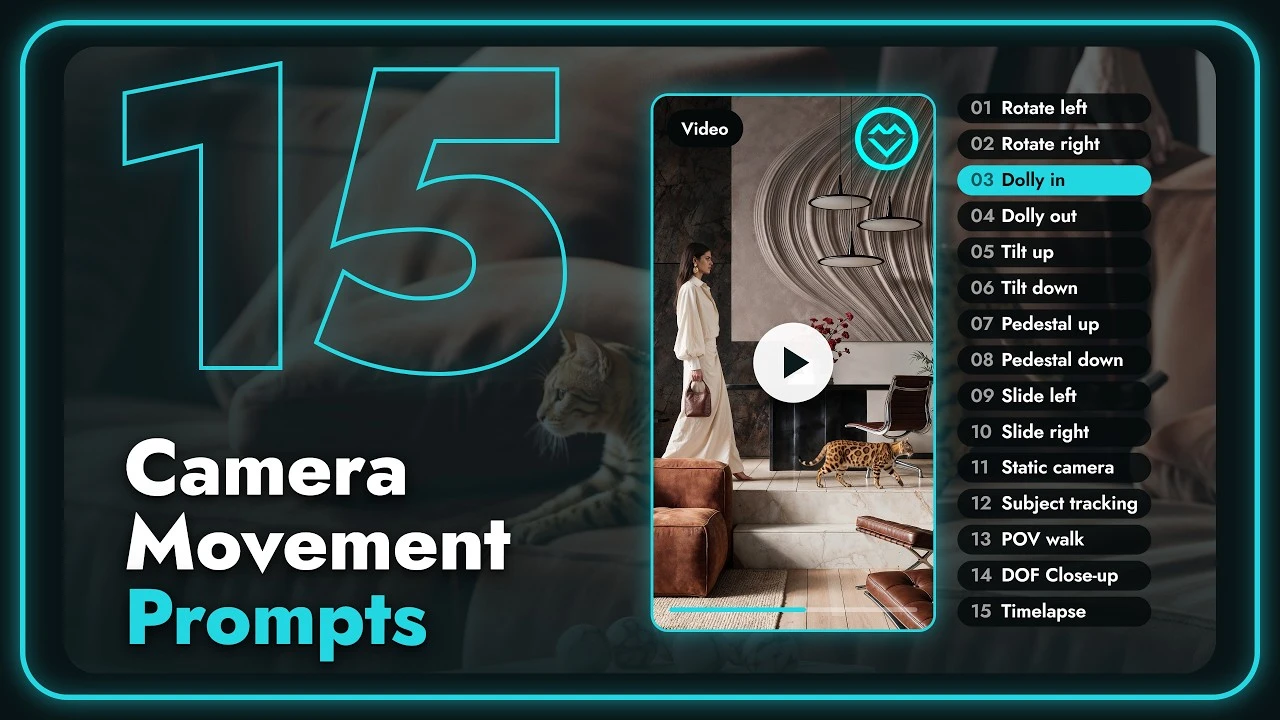
Use AI camera moves for architecture to give a still render a specific presentation purpose: reveal depth, explain scale, highlight a material, or show activity. VizMaker provides presets for 15 movements and scene treatments. Begin with the smallest move that communicates the design, then inspect the resulting clip for changes to walls, windows, furniture, and people.
A moving image needs a clear architectural purpose
A render contains one view of a space. As a camera moves away from that view, a generative model may need to invent surfaces that the original image never showed. A dramatic orbit can therefore introduce more uncertainty than a restrained slide.
Planning the movement before generating helps connect the animation to the design brief. A facade presentation, a furniture detail, and an occupied interior need different kinds of motion. The following groups cover all 15 presets without requiring a separate prompt-writing exercise for each one.
1. Use slides and pedestals to reveal depth
Four directional moves introduce motion while keeping the camera path simple.
Slide left and slide right move the camera sideways. Foreground objects shift against the background, producing parallax: the visual separation that helps a flat image feel spatial. A clear one-point perspective gives that movement a readable direction.
Pedestal up and pedestal down raise or lower the whole camera while retaining its viewing angle. This differs from tilting, which rotates the camera. Use a pedestal when vertical relationships matter, then check that facade lines remain stable throughout the generated clip.
The demonstrated starting choice for these linear moves is Kling o1 Standard. Treat that pairing as a practical starting point from the workflow, and judge the output against your own source image.
2. Choose a static camera or a detail close-up
Scene activity and material detail can carry a shot without a large camera move.
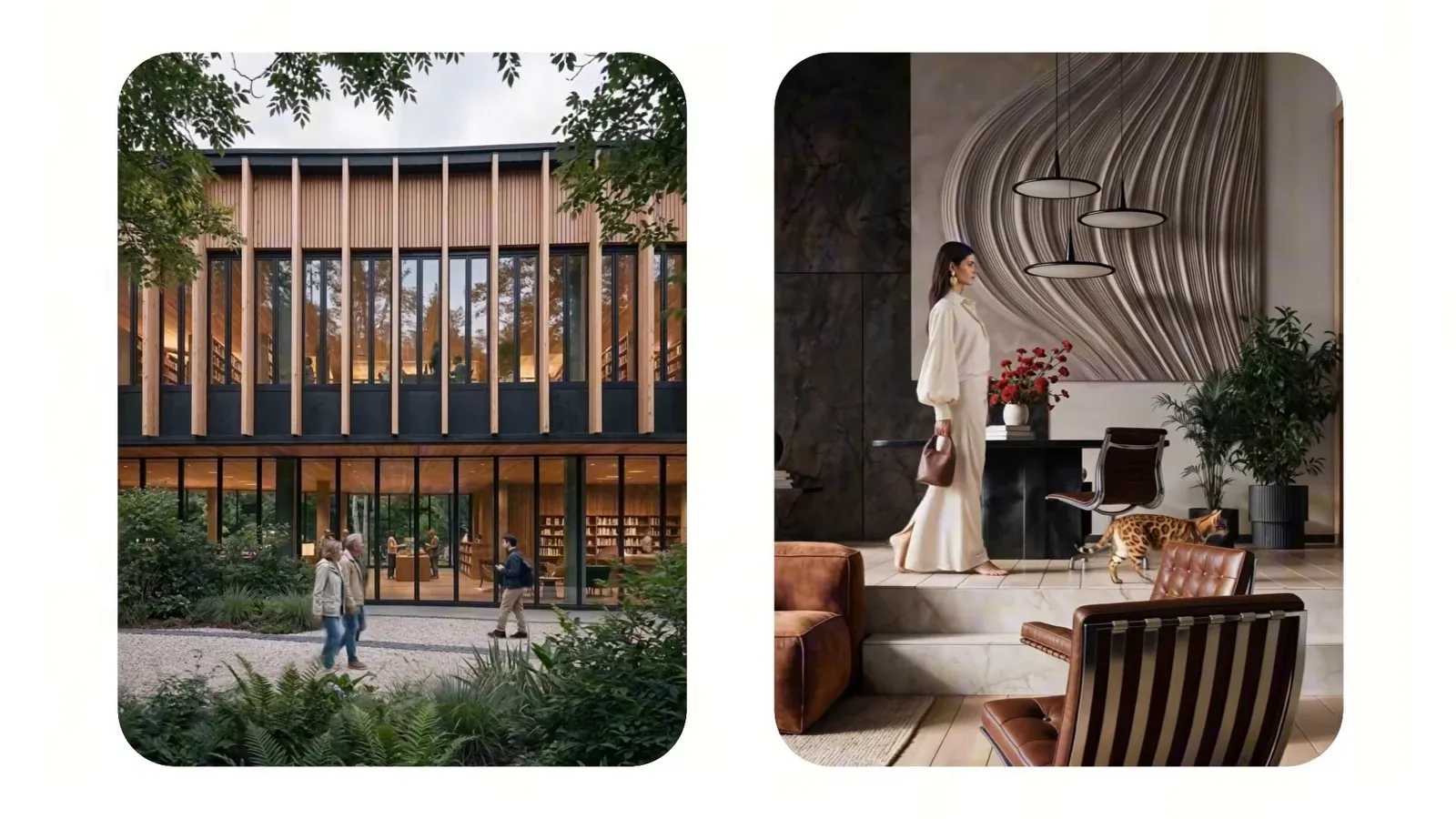
A static camera keeps the composition in place while trees, people, or other scene elements move. It suits a calm architectural presentation where the building should remain the main reference point. Check moving figures and foliage even when the camera itself stays still.
The depth-of-field close-up combines a slow push toward a detail with a softly blurred background. Begin with an image that already separates the subject from the background through focus. A sharply focused, flat source may not produce the intended photographic effect.
These two treatments complete the six presets paired with Kling o1 Standard in the demonstration. For a material or furniture sequence, a restrained close-up can communicate more than a large movement across the whole room.
3. Use tracking, walkthroughs, and rotations deliberately
Four presets ask the model to resolve changing depth and previously hidden surfaces.
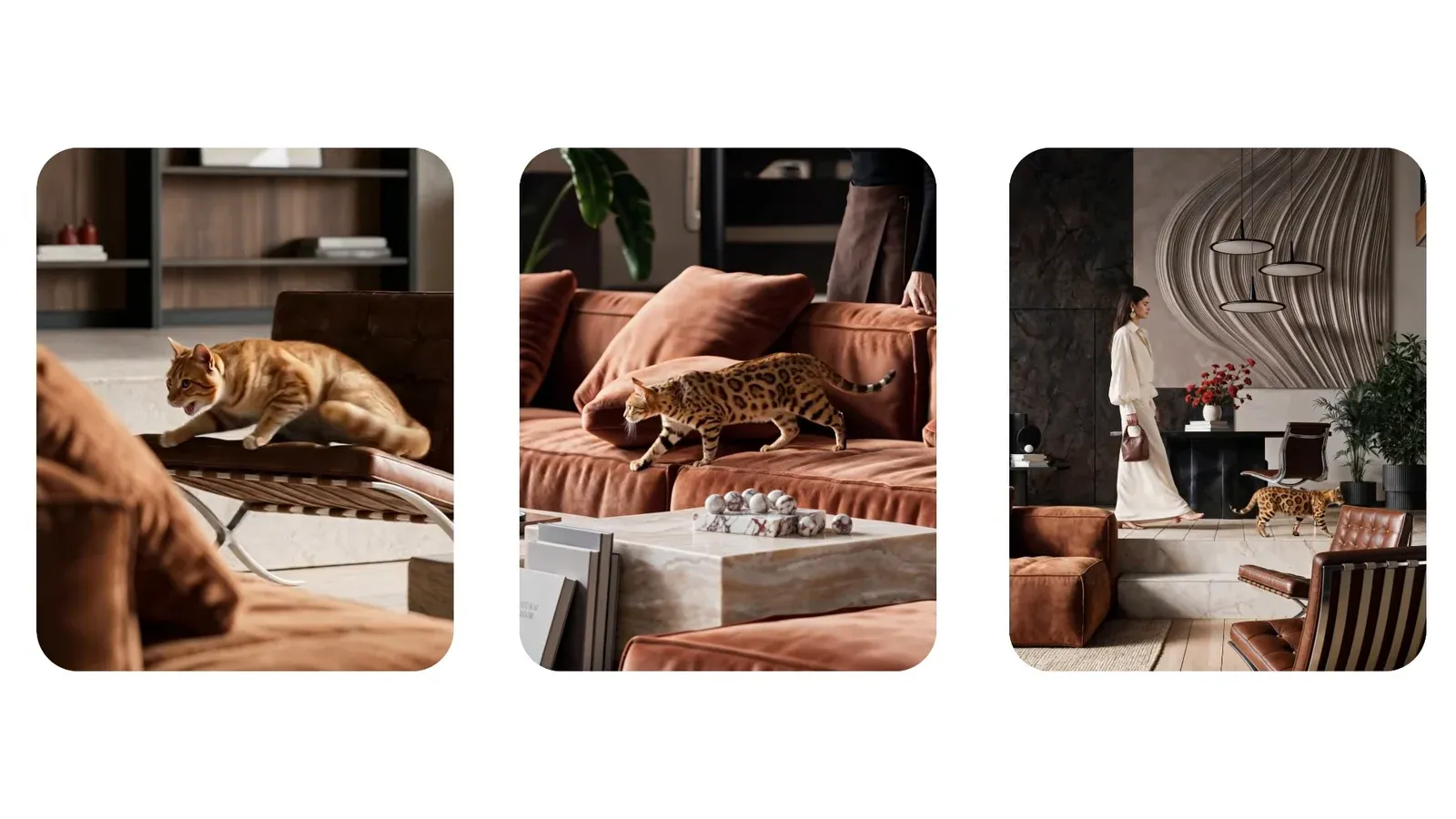
Subject tracking follows a person or animal through the scene. Choose an image in which the subject clearly separates from its surroundings, so the intended focus is unambiguous. A first-person POV walk instead makes the camera itself travel through the architectural space.
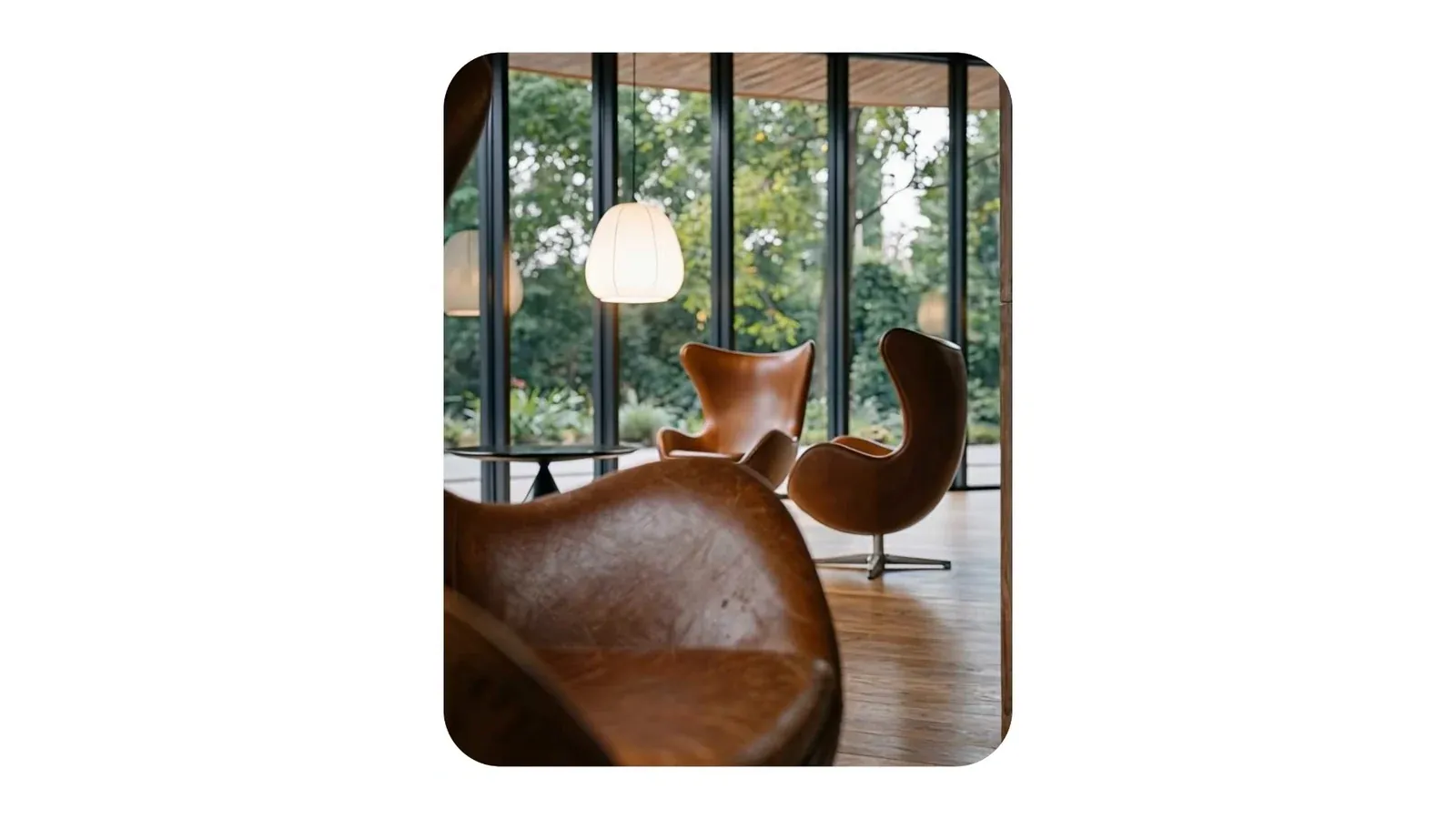
Rotate left and rotate right arc around an object such as an armchair or kitchen island. These moves can expose sides that were absent from the source render. Review those invented surfaces against the design rather than assuming they match the original model.
The workflow pairs these moves with Kling o3 Pro. That recommendation concerns the demonstrated depth-heavy shots; it is not a guarantee that every generated walkthrough will preserve the design.
4. Separate dolly movement from facade tilts
The next four presets explain distance and building height in different ways.
Dolly in moves forward through space; dolly out pulls back to reveal more of the setting. Both change spatial relationships, so inspect window frames, wall edges, and furniture for wobbling or distortion as the view develops.
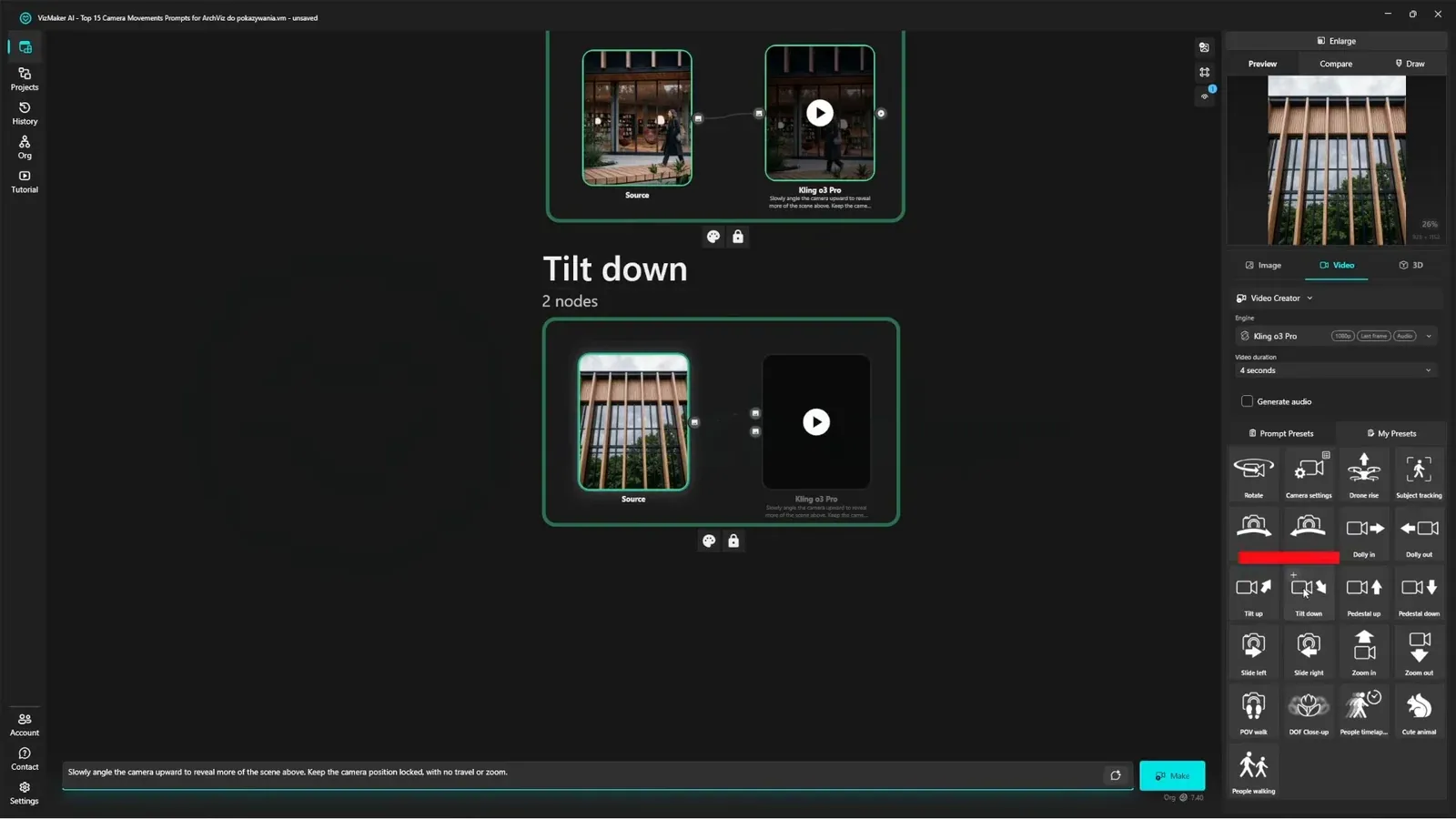
Tilt up and tilt down keep the camera position fixed while pivoting its angle. A tilt can reveal a facade from ground level toward the roof, helping communicate the building’s scale. It is a different visual effect from moving the whole camera vertically.
The demonstrated model choice is again Kling o3 Pro. For presentation use, review the entire transition, not just a good-looking first or final frame.
5. Use timelapse to explain a change in atmosphere
The fifteenth preset changes the scene over time rather than simply repositioning the camera.
An architectural timelapse can move the scene from daylight toward dusk, with clouds and shadows changing across the facade. It is useful when the presentation needs an atmospheric transition rather than another viewpoint.
The demonstration groups timelapse with Kling o3 Pro alongside the more complex motion presets. Compare lighting continuity, building edges, and surrounding activity before selecting a clip. A convincing sky transition is only one part of a coherent architectural sequence.
- Choose linear motion for a restrained reveal.
- Use depth-heavy movement only when the additional view helps explain the project.
- Use timelapse when changing light is the subject of the shot.
Conclusion: choose the shot before choosing the model
A useful architectural animation has a clear job. Start with the source image and the message, choose an appropriate preset, and then compare model outputs. Restrained motion, deliberate focus, and careful review help keep the architecture legible.
- All 15 presets fit into five practical groups: linear moves, static/detail shots, tracking and rotations, dolly and tilt, and timelapse.
- Use the demonstrated o1/o3 grouping as a starting point, then evaluate your own results.
- Treat newly revealed geometry as generated interpretation that needs review.
Questions and answers
What is the difference between a pedestal and a tilt?
A pedestal moves the whole camera up or down while retaining its angle. A tilt keeps the camera position fixed and pivots the viewing direction.
Which moves are paired with Kling o1 Standard?
The demonstrated grouping includes slide left and right, pedestal up and down, static camera, and the depth-of-field close-up.
Can an AI orbit reveal the exact hidden side of furniture?
The model may generate a plausible hidden side, but a single render does not establish what that side actually looks like. Compare the result with the design or another reference.
See the complete examples and the model-selection overview, then choose a movement for your own architectural presentation.
Watch the camera moves tutorial on YouTubeSource: 15 AI Camera Moves for Architecture in 3 Minutes · VizMaker - AI Renderer ·