
To explore SketchUp exterior lighting with AI, select a prepared render in VizMaker and choose a lighting or weather preset. Night, Rain, Golden hour, Artificial light, and Volumetric each produce a different visual treatment. Compare the generated image with its source before accepting changes to materials, reflections, or surrounding context.
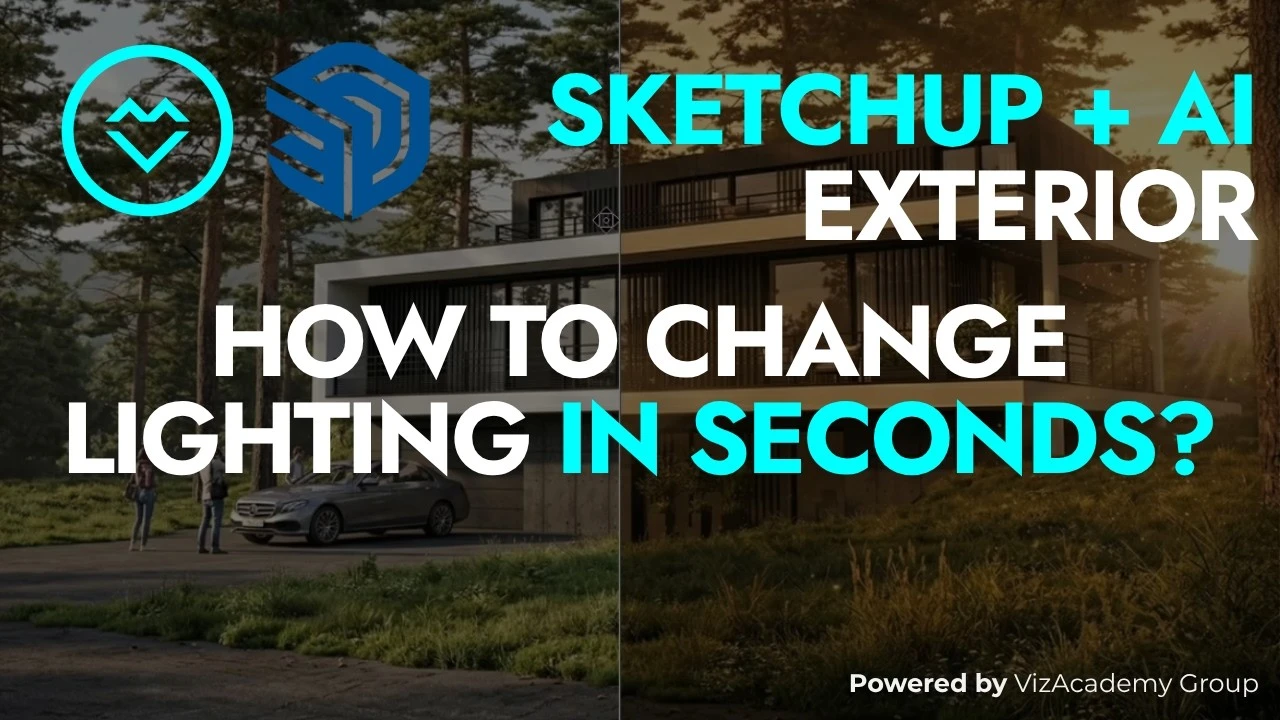
One daylight view may not communicate every design possibility
A building can read very differently at dusk, in wet weather, or under warm low-angle light. Those conditions change the emphasis on glazing, facade rhythm, and the surrounding landscape. A single daytime image may leave useful presentation options unexplored.
AI relighting offers a way to investigate those options from an existing image. The important distinction is between exploring a visual mood and proving a physical lighting design: the generated result still needs to be checked against the architecture and the presentation brief.
1. Start from a prepared exterior image
Use the source image as a stable point of comparison for each mood.
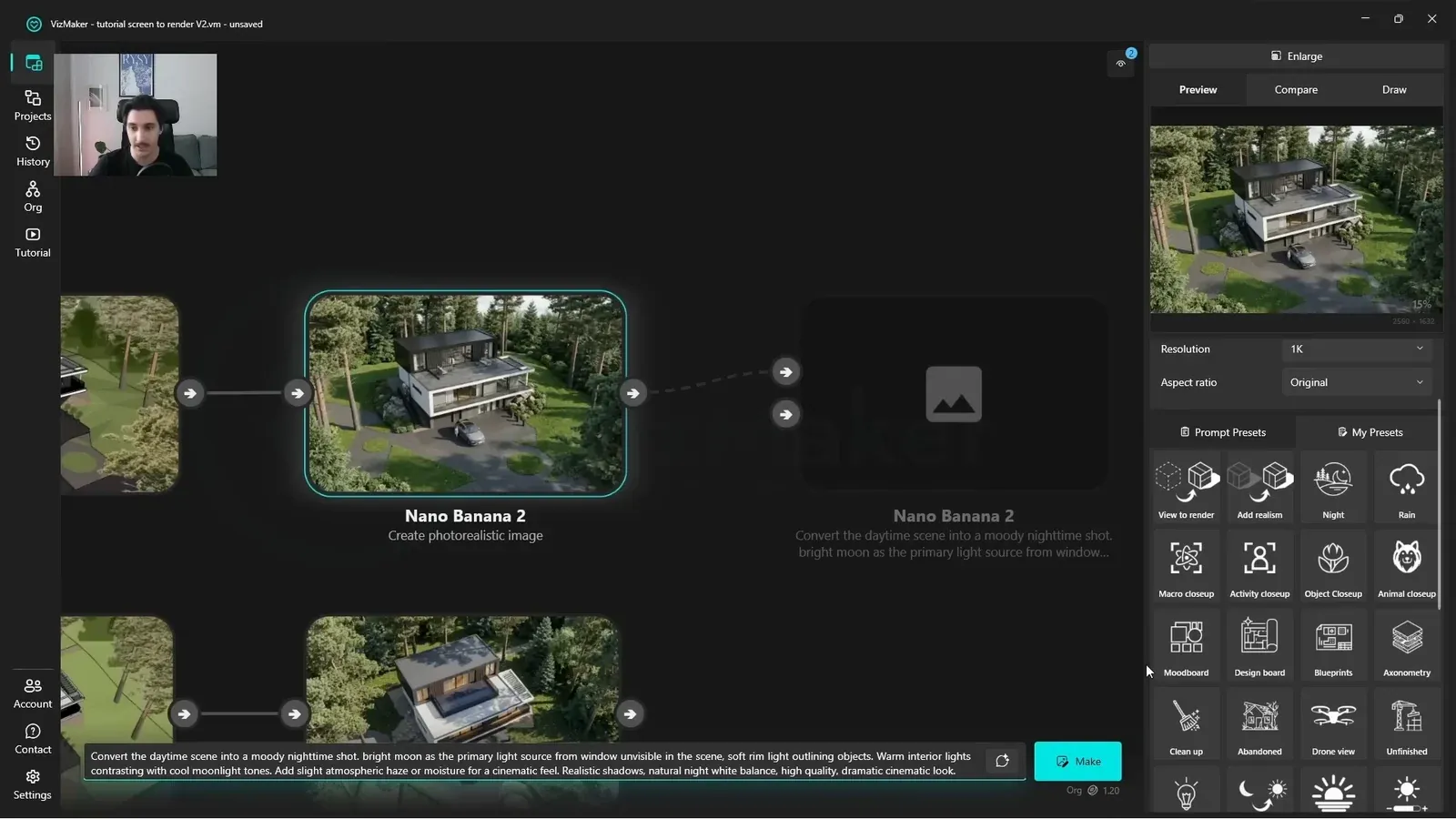
Select the existing architectural image with the left mouse button and choose a lighting preset. The demonstration changes the output resolution to 2K and generates the selected treatment. Repeat from a useful source when exploring a different option.
The preset supplies a starting prompt that can be edited. Name the environmental details that should stay consistent if the setting is important to the project. Keep the original accessible so that a stronger atmosphere does not hide an unwanted scene change.
2. Use night lighting to emphasize the building’s interior glow
Inspect glazing and reflected light along with the overall mood.
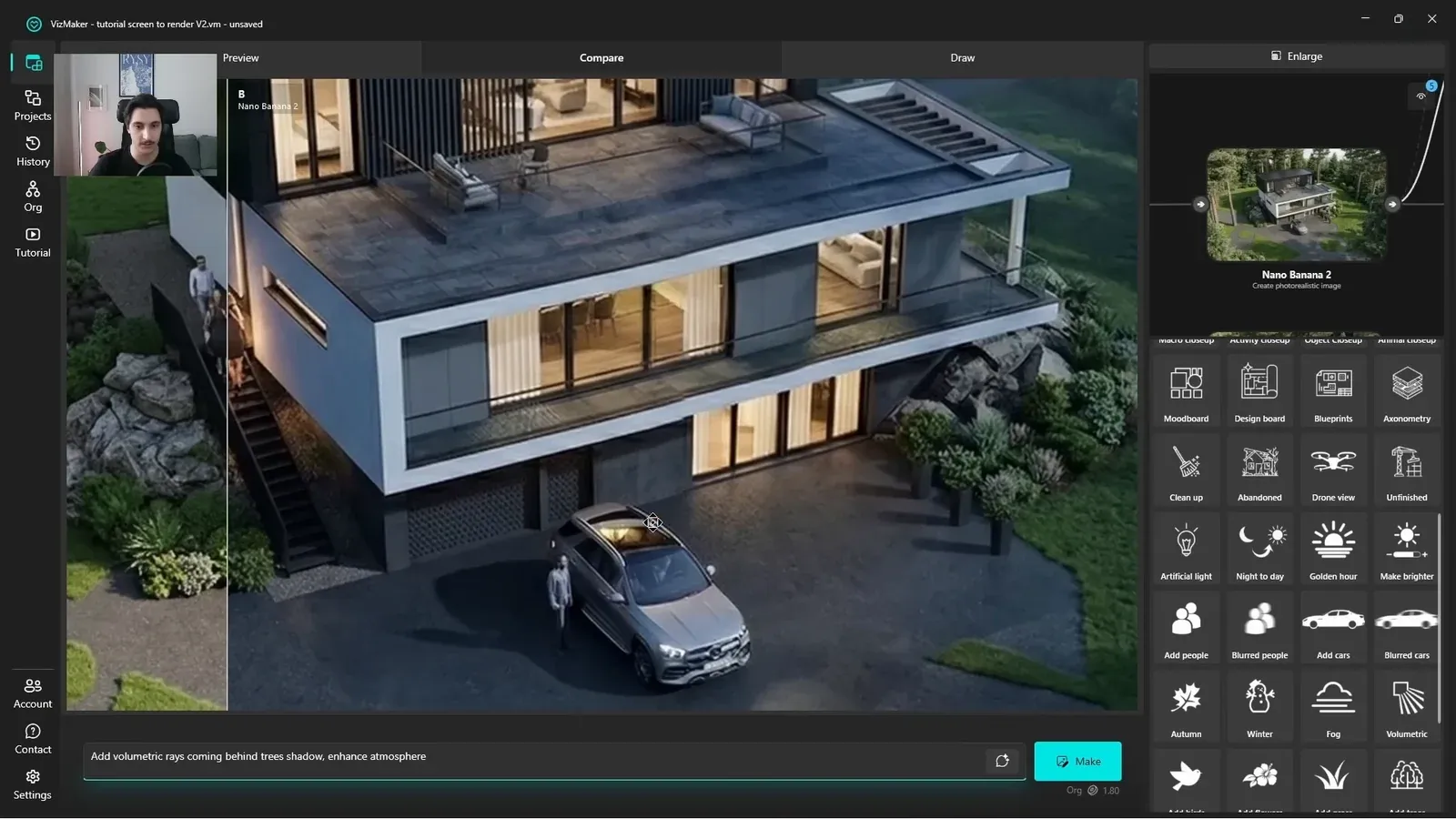
Night exterior rendering can make interior light a stronger part of the composition. In the example, warm windows and reflections on a parked car become key visual details as the surrounding scene darkens.
Enlarge the result and check whether the reflections agree with the visible windows and surfaces. Also inspect the facade and terrace edges. A convincing nighttime color palette should not distract from changed geometry or implausible highlights.
3. Check rain treatments for surface and geometry changes
Wet-weather effects affect more than the sky.
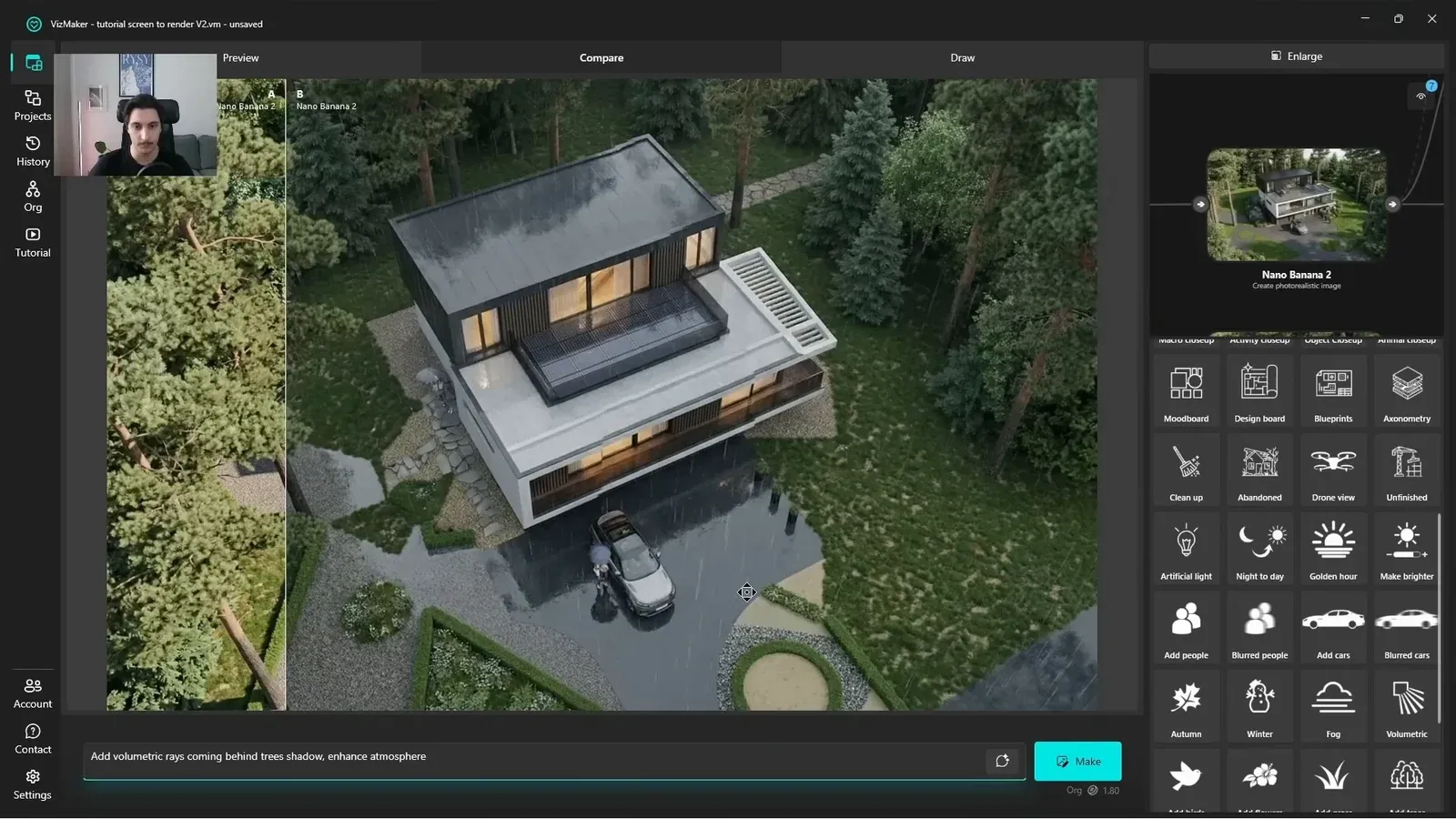
The Rain preset introduces wet pavement, puddles, and stronger reflections. This can support a moody exterior presentation, but it also changes the ground treatment and how the building sits in its setting.
One example shows an unwanted tilted detail. Compare the output against the source and refine or regenerate the variation if a structural line changes. Treat puddles and reflected objects as content to inspect rather than assuming they are automatically plausible.
4. Control the strength of a golden-hour treatment
Warm light can become visually dominant and change the background.
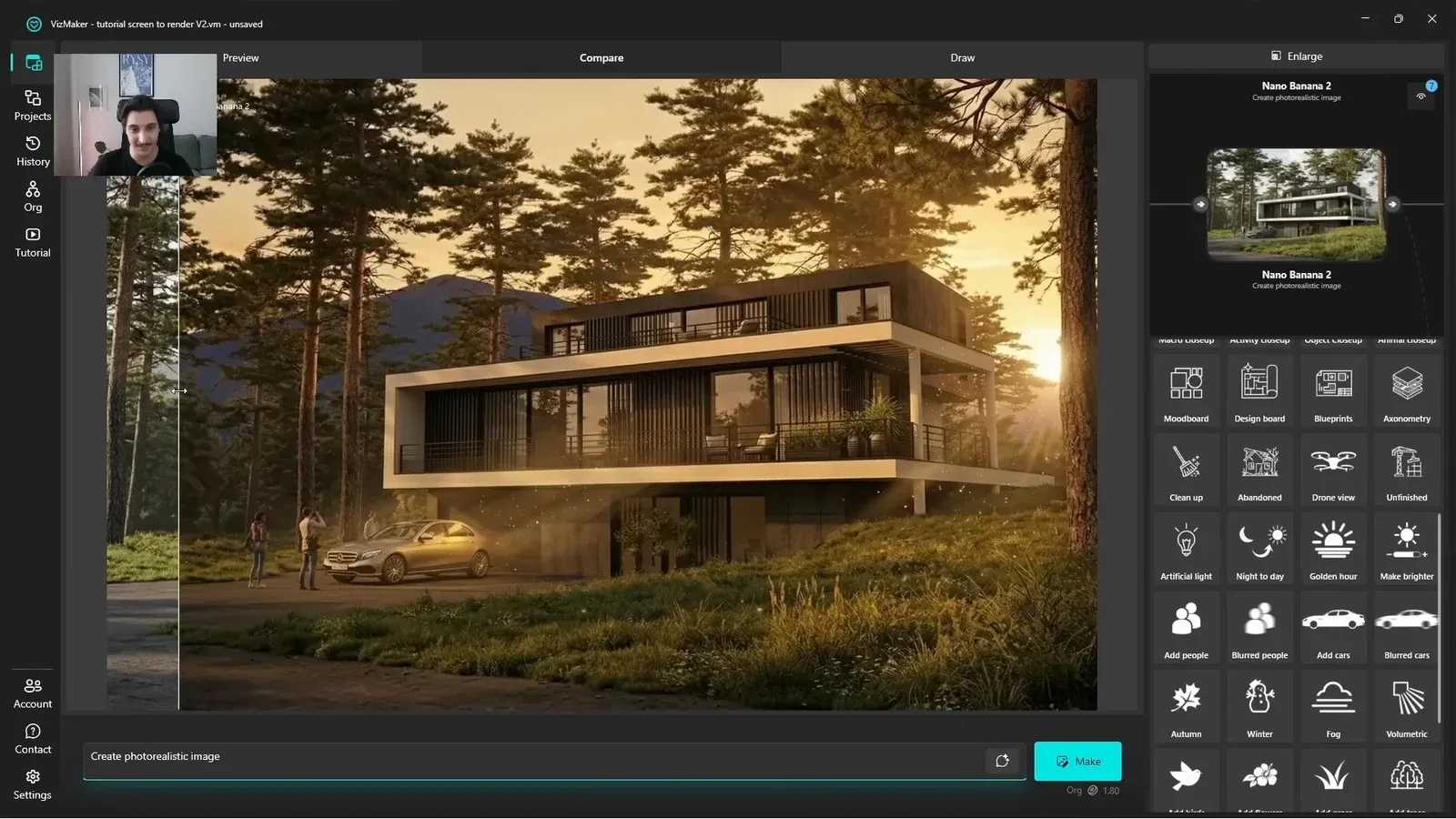
Golden hour rendering introduces low, warm light and a more dramatic atmosphere. In the example, the result has a strong amber cast rather than a subtle adjustment.
Compare the vegetation, sky, and surrounding context as well as the building. If the treatment changes too much of the setting, make the prompt more specific about the desired background and lighting intensity. Choose the mood that supports the project rather than simply the most dramatic version.
5. Explore artificial accents and visible light rays
These presets communicate different kinds of atmosphere.
Artificial light can add illuminated accents such as LED-like strips below floor edges. Review these as a proposed visual treatment: a generated strip does not establish where a real fixture is installed or how it performs.
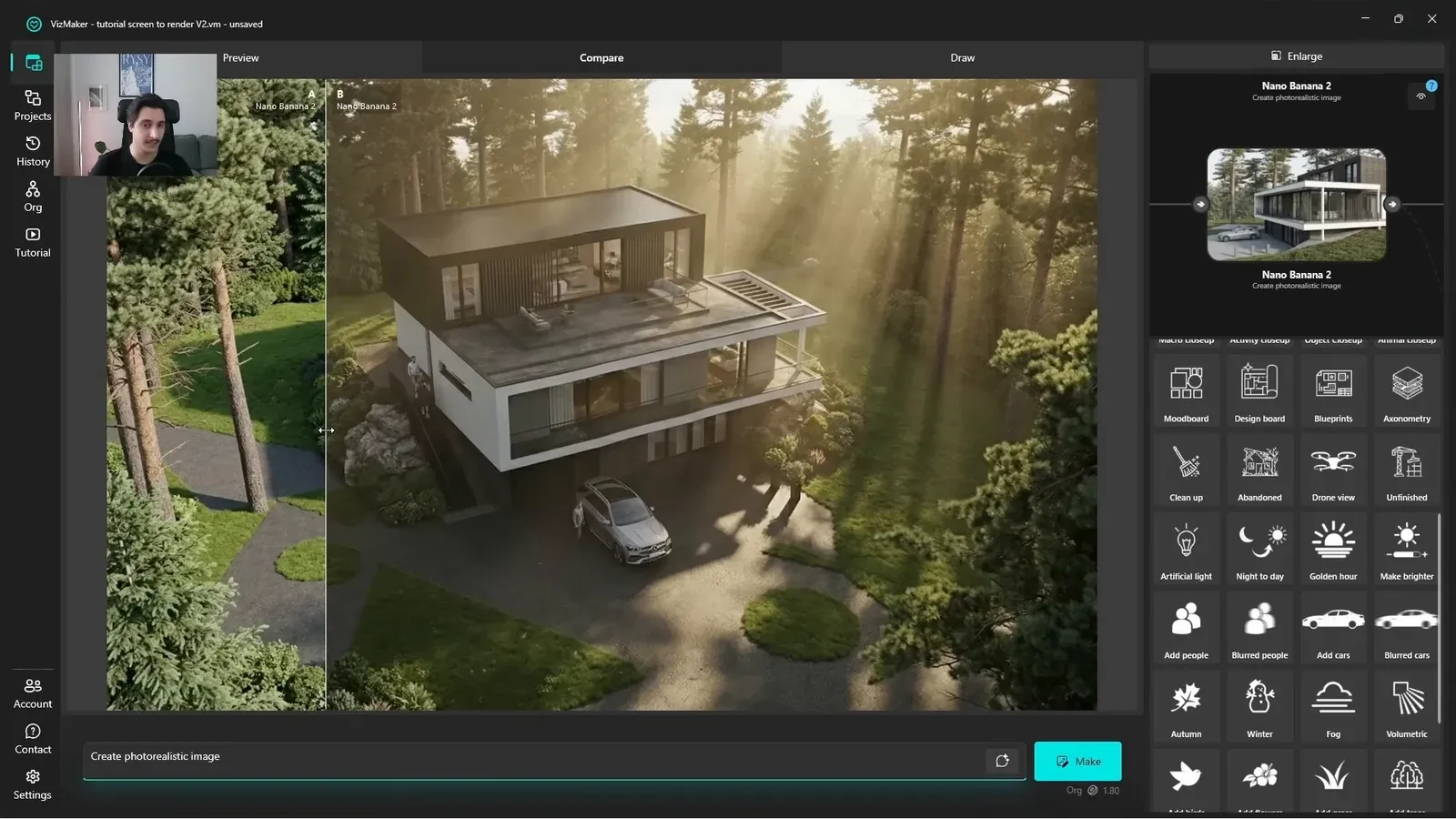
Volumetric light introduces visible rays through the atmosphere, particularly around trees and openings in the canopy. Check whether the effect helps the building remain legible and whether the direction of the light feels coherent.
The workflow also exposes options for a brighter image or a night-to-day treatment. Choose the adjustment that answers the presentation need, and avoid piling multiple mood changes onto an output without comparing it with the original.
Conclusion: compare lighting as a design presentation choice
A set of lighting alternatives is useful when each version answers a clear question about atmosphere. Start from a prepared image, choose the treatment, and inspect the building and setting before selecting the final exterior view.
- Use distinct source-based alternatives for different lighting directions.
- Check reflections, geometry, and backgrounds after every treatment.
- Treat generated artificial lighting as a visual concept that still needs design review.
Questions and answers
Can lighting presets also change the environment?
Yes. The examples include wet ground, puddles, altered backgrounds, and added lighting accents. Review the whole image rather than only its brightness.
How does a preset differ from reference mood transfer?
A preset begins with a named treatment and its prompt. Reference mood transfer supplies a separate image to guide the lighting and atmosphere more specifically.
Can I adjust a preset prompt?
Yes. The workflow allows prompt changes so you can specify the desired background or refine the lighting request.
Watch the night, rain, golden-hour, artificial-light, and volumetric examples to see how each changes the image.
Watch the exterior lighting tutorial on YouTubeSource: Change Exterior Lighting in Seconds (SketchUp + AI) · VizMaker - AI Renderer ·