
For SketchUp AI mood transfer, use a finished render as the main input and place a reference photograph in the second image slot in VizMaker. Ask the image editor to match the reference’s lighting and atmosphere. Compare the output with the original to check both the intended mood and any unintended additions to the scene.
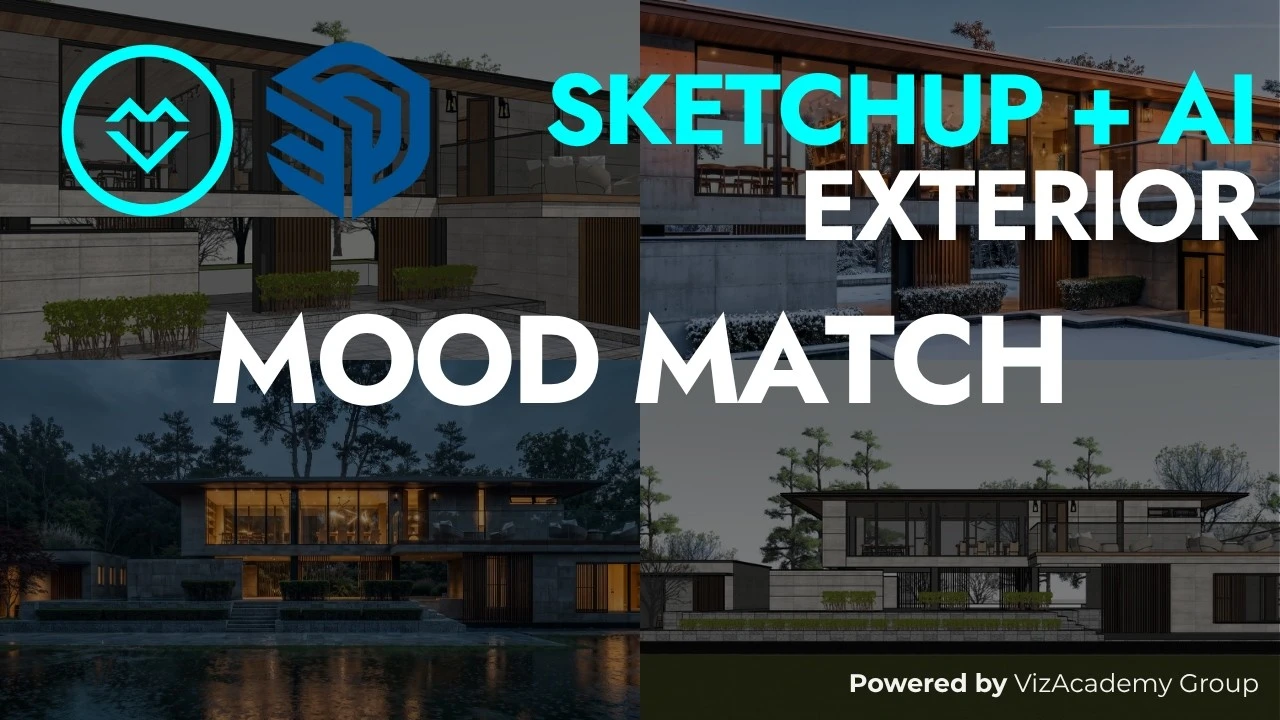
A lighting reference is easier to show than to describe
A client may like the pink light of a winter photograph, a foggy landscape, or the warm interior glow of an evening exterior. Recreating that visual direction from a text description alone can leave the intended contrast, sky color, and atmosphere ambiguous.
Reference-guided rendering gives the edit a concrete visual target. It is still an interpretation: an image model may borrow snow, reflections, or people along with the lighting. The useful workflow therefore combines a reference with comparison and a more precise brief when needed.
1. Pair an approved render with a lighting reference
Keep the architectural image and the mood reference in distinct input roles.
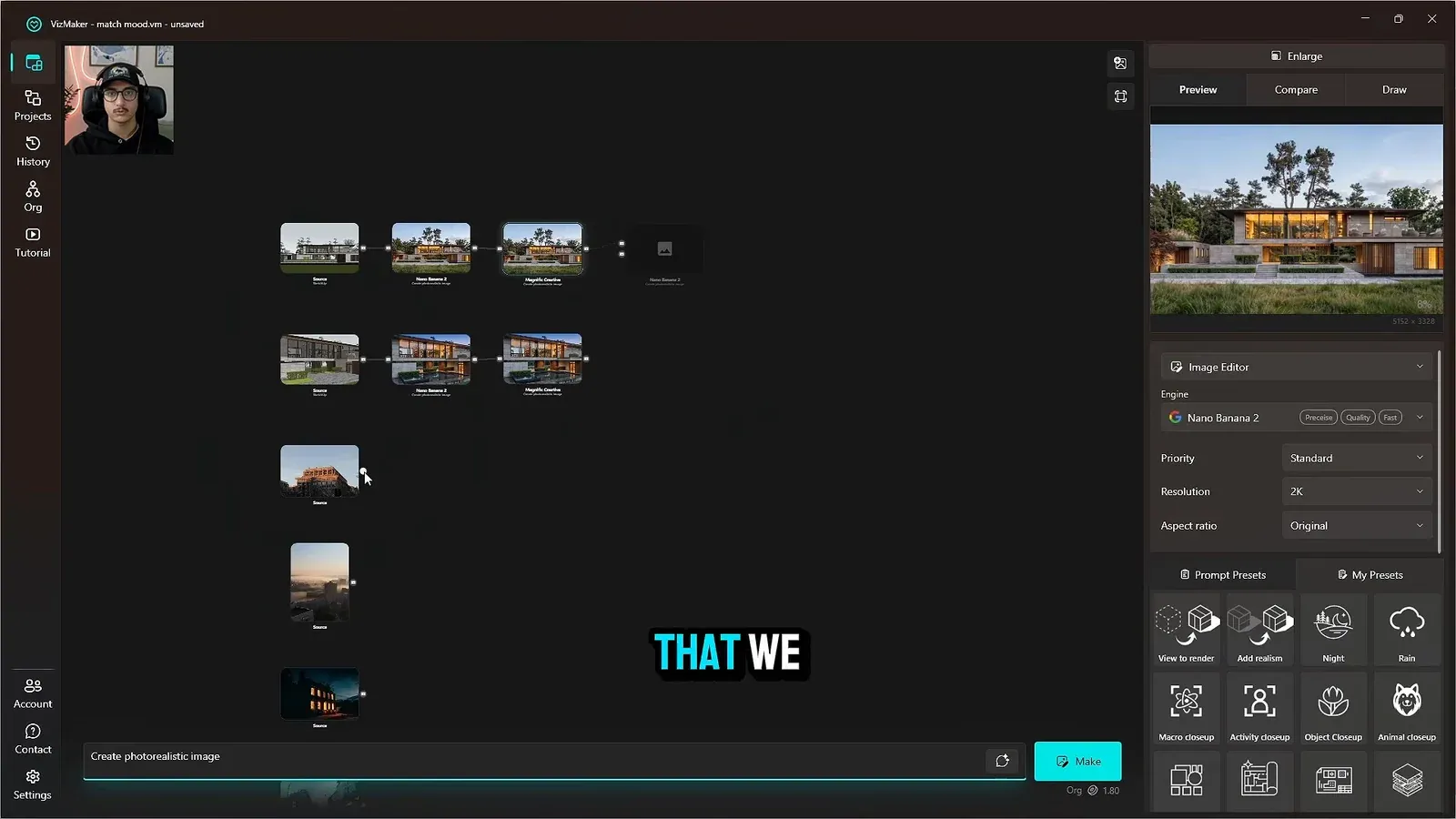
Prepare the SketchUp view, generate a realistic base image, and inspect any upscaled version before starting the mood edit. This process begins from that prepared image; it does not require rebuilding the SketchUp lighting setup for each visual alternative.
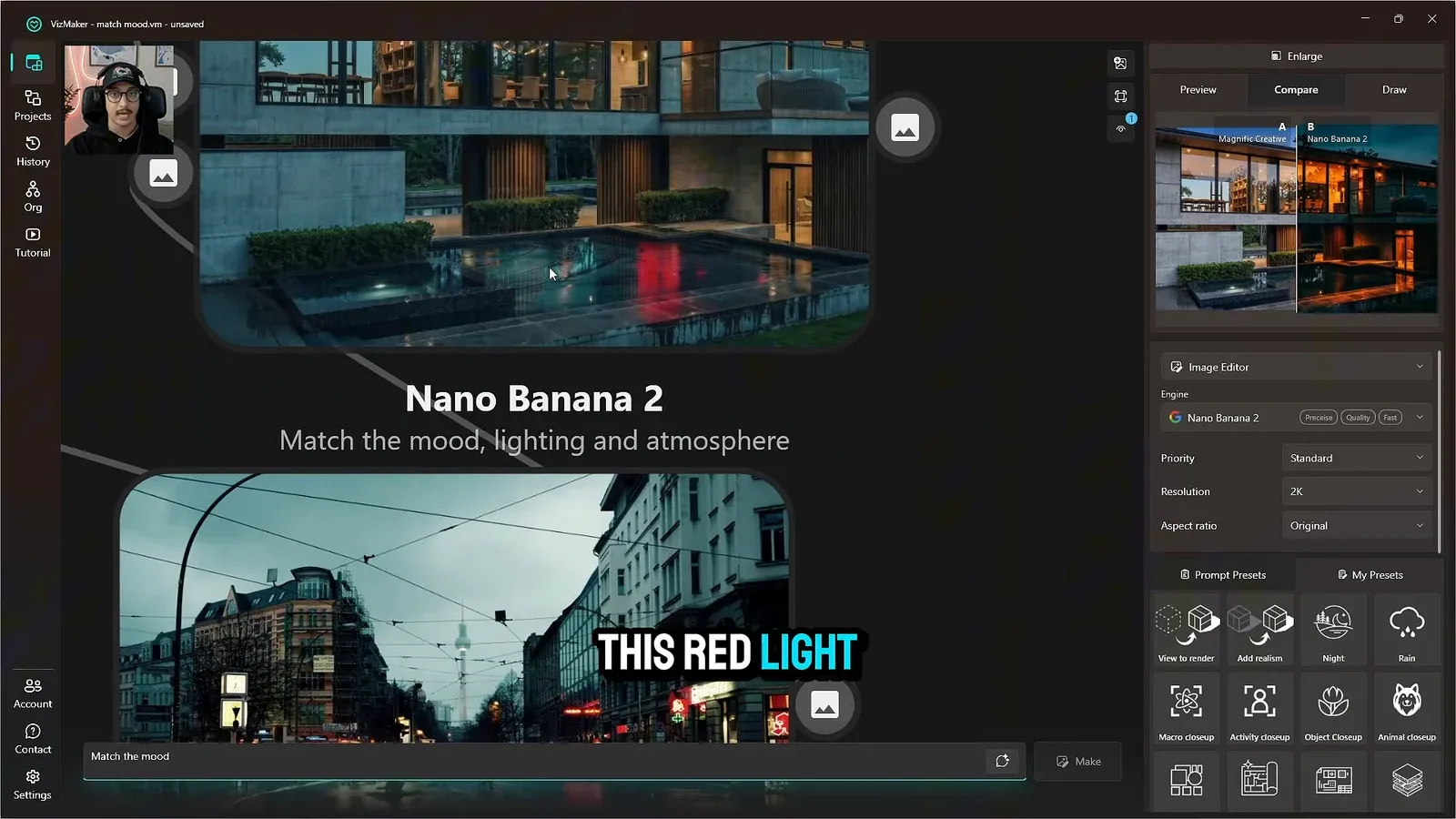
Select the architectural image with the left mouse button, then place the mood reference in the second slot. In the demonstrated Nano Banana 2 workflow, the prompt asks for matching mood, lighting, and atmosphere. Use a reference whose intended lighting qualities you can identify clearly.
For a second camera view, repeat the pairing with that view’s own base image. A shared reference can guide a consistent presentation direction, but compare each result separately.
2. Compare light, sky, and seasonal additions
A convincing color shift can arrive with changes beyond the requested lighting.
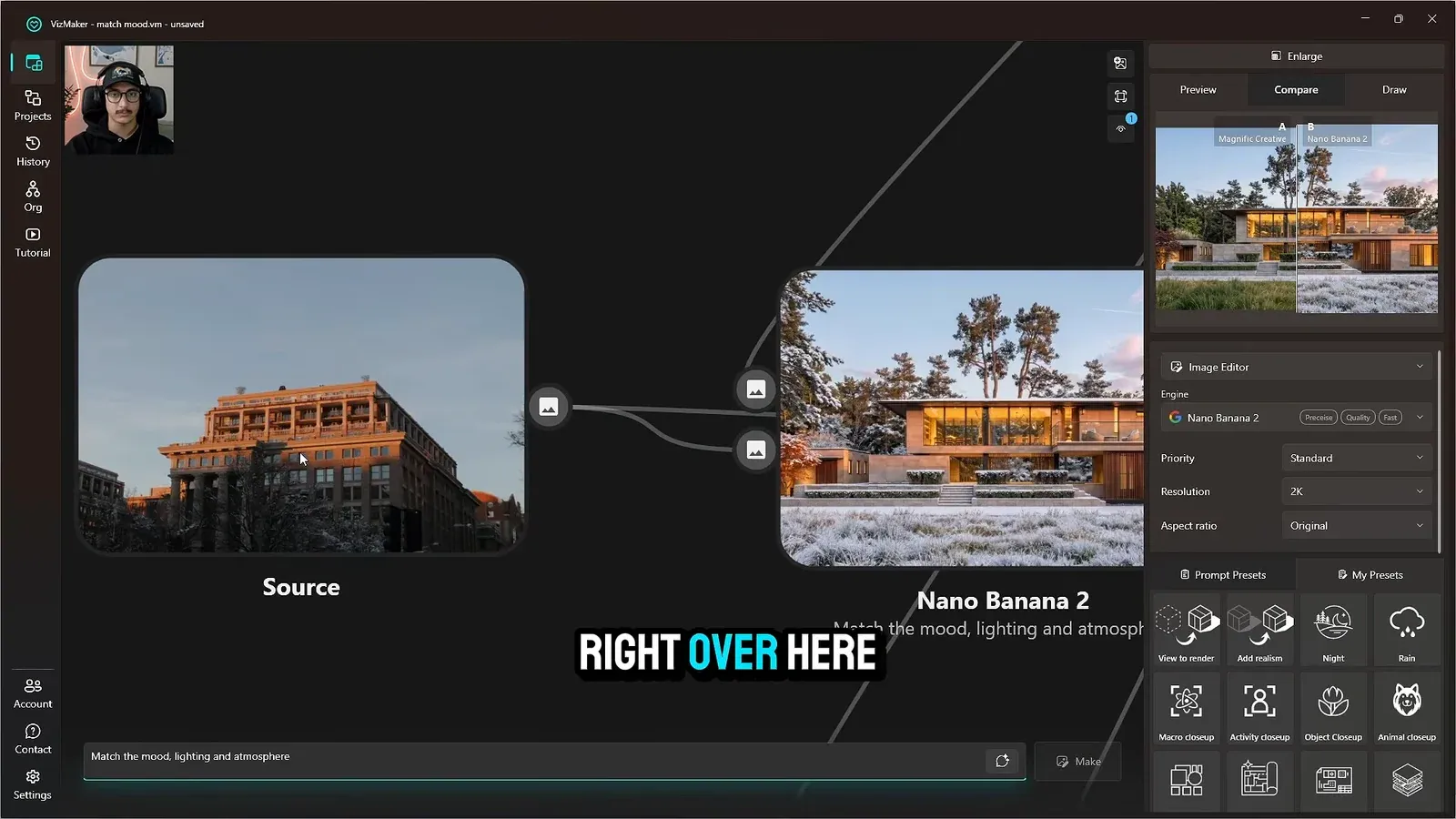
A warm reference can influence the sky and the color of light on the facade. In the winter-style example, the output also introduces snow. That makes the result useful for a seasonal study, but it would be a change to review if the brief only requested warmer light.
Use A/B comparison to examine the facade, planting, ground, and materials alongside the new atmosphere. Decide which features of the reference are wanted and name those features more specifically in the next prompt if the initial interpretation is too broad.
3. Judge fog and evening light across multiple views
Atmospheric consistency matters at the presentation level as well as within a single image.
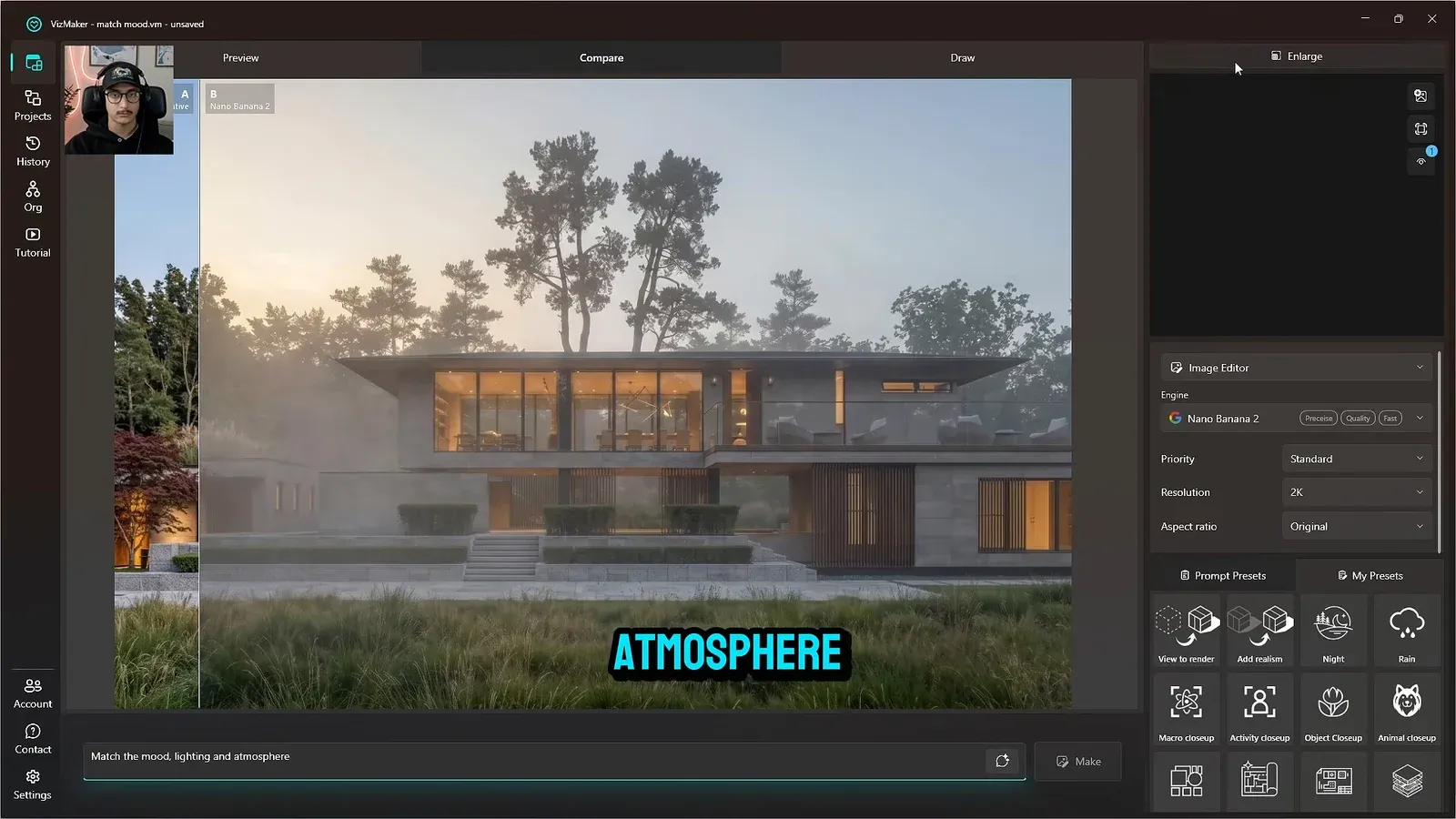
Foggy exterior rendering can soften the background and change the apparent separation of the building, trees, and sky. Check whether the facade remains readable and whether the atmosphere supports the intended design presentation.
An evening reference can emphasize warm interior light against a darker exterior. Apply it to each chosen view and compare the results together. In the examples, one night interpretation adds people while another does not; the same reference does not produce identical secondary content in every view.
4. Refine unwanted reflections and added content
Use the result to identify which parts of the reference the model should avoid borrowing.
A city reference with colored lights can introduce a red reflection into an otherwise different residential scene. The generated image may fit the overall mood while importing a detail that does not belong to the project.
Make the brief more specific: describe the desired sky, light direction, or interior warmth, and identify unwanted colored reflections or extra people. Keep the original image available so revisions can be judged against the design instead of only against the previous generation.
Treat AI lighting transfer as a way to explore and communicate atmosphere. Final approval still depends on comparing geometry, materials, and added scene content with the project.
Conclusion: transfer the atmosphere with a clear visual brief
Reference images make lighting direction easier to communicate, especially across several views of the same project. The strongest result is the one that achieves the intended mood while retaining the design information that matters to the presentation.
- Use a prepared architectural image and a separate mood reference.
- Compare light, sky, materials, and seasonal changes together.
- Refine the prompt when the reference introduces unwanted objects or reflections.
Questions and answers
Can I transfer a reference mood to more than one SketchUp view?
Yes. Pair each prepared view with the reference and generate its own result. Review the set for consistent atmosphere and unintended differences.
Will mood transfer change only the lighting?
Not necessarily. The examples also introduce snow, people, and colored reflections. Compare the whole scene with the source image.
Do I need a finished base image first?
This workflow starts with realistic images generated from SketchUp views, followed by upscaling. Establish and inspect that base before applying the mood reference.
Watch the winter, fog, and night examples to see both successful mood matching and the details that need refinement.
Watch the reference mood tutorial on YouTubeSource: How to Transfer Mood from References (SketchUp + AI Workflow 2026) · VizMaker - AI Renderer ·