
Architectural animation in VizMaker starts with an image and a motion brief. Video Creator can animate a single render or use first and last images to guide a transition. For a home tour, prepare connected exterior and interior shots, generate separate clips, then assemble them in a video editor. Review the motion as a design presentation rather than assuming it reproduces a measured camera path.
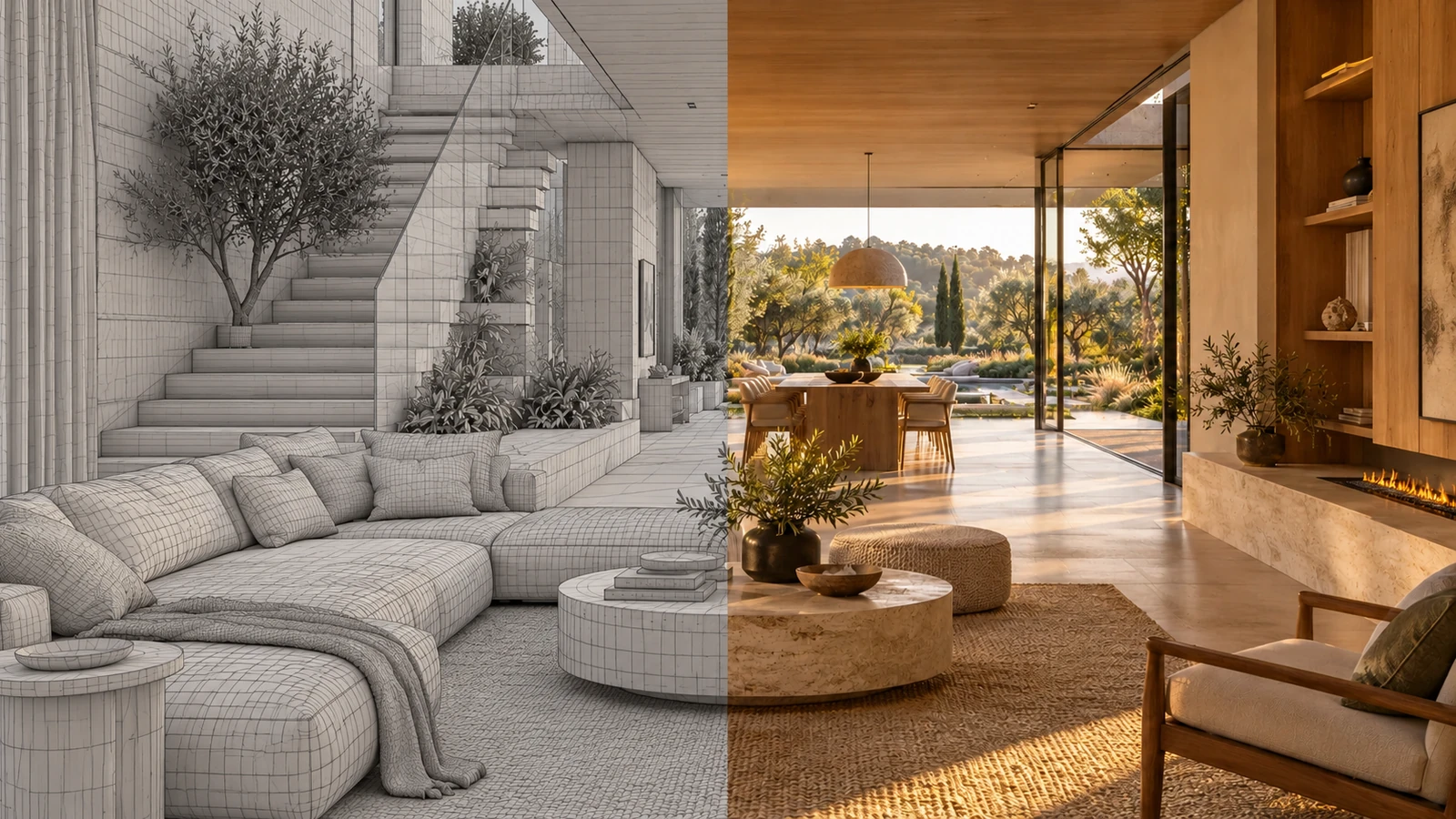
AI-generated editorial cover. Workflow screenshots below are taken from the credited sources.
Give a presentation a sequence, not just movement
An architect may want to introduce the approach to a house before showing its entrance. An interior designer may want to move from a full room view to the seating area. Motion helps when each shot adds information and the sequence supports a clear story.
The VizMaker Guide Ebook covers single-image animation, first-and-last-frame generation and a home tour with a recurring presenter. These are related tools for building a presentation. The PDF provides still examples and workflow instructions; it is not evidence that every generated clip will preserve geometry or continuity perfectly.
Start with one render and one motion intention
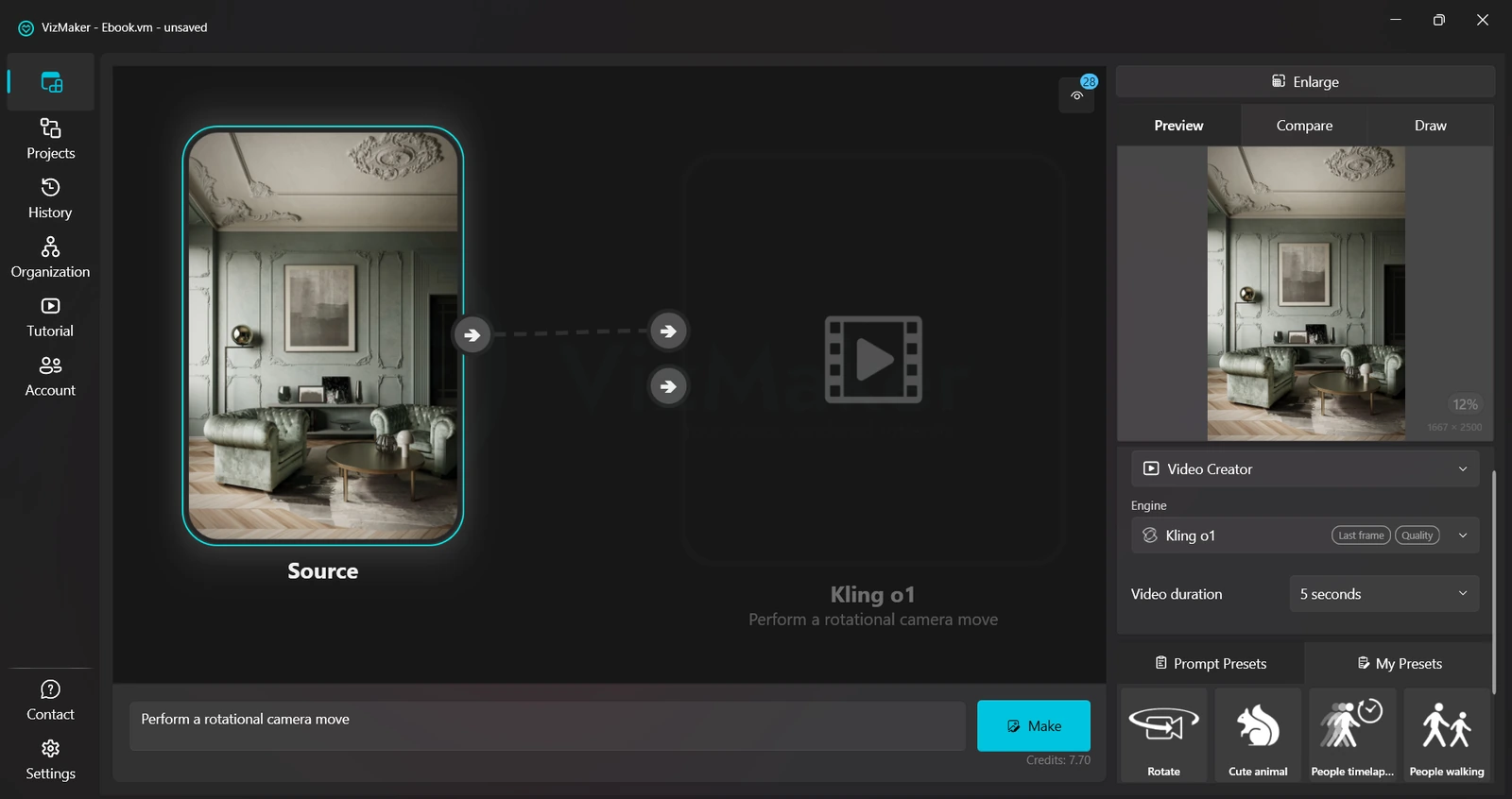
Video Creator turns a selected image into a clip guided by a preset or your own prompt.
Upload or generate the starting image, select it, and open Video Creator. Choose an available engine, adjust its video parameters, and use a preset or write a motion brief. Choose Make to generate the clip. The guide illustrates zoom-in, zoom-out and rotation directions.
Decide what the movement should reveal before choosing it. A gentle approach can introduce an entrance; a restrained movement through a room can draw attention to the main living area. A practical prompt might ask for a slow move toward the seating area while keeping attention on the interior composition.
Review the whole clip, including the beginning and end. Check vertical edges, furniture shapes and reflections as they move through the frame. If the result changes important features, simplify the requested motion or revisit the input image. A more dramatic camera request is not automatically a more useful architectural presentation.
- Select a reviewed still as the starting image.
- Describe one clear camera or atmosphere change.
- Inspect the complete generated clip for unwanted visual changes.
Use two images when the destination matters
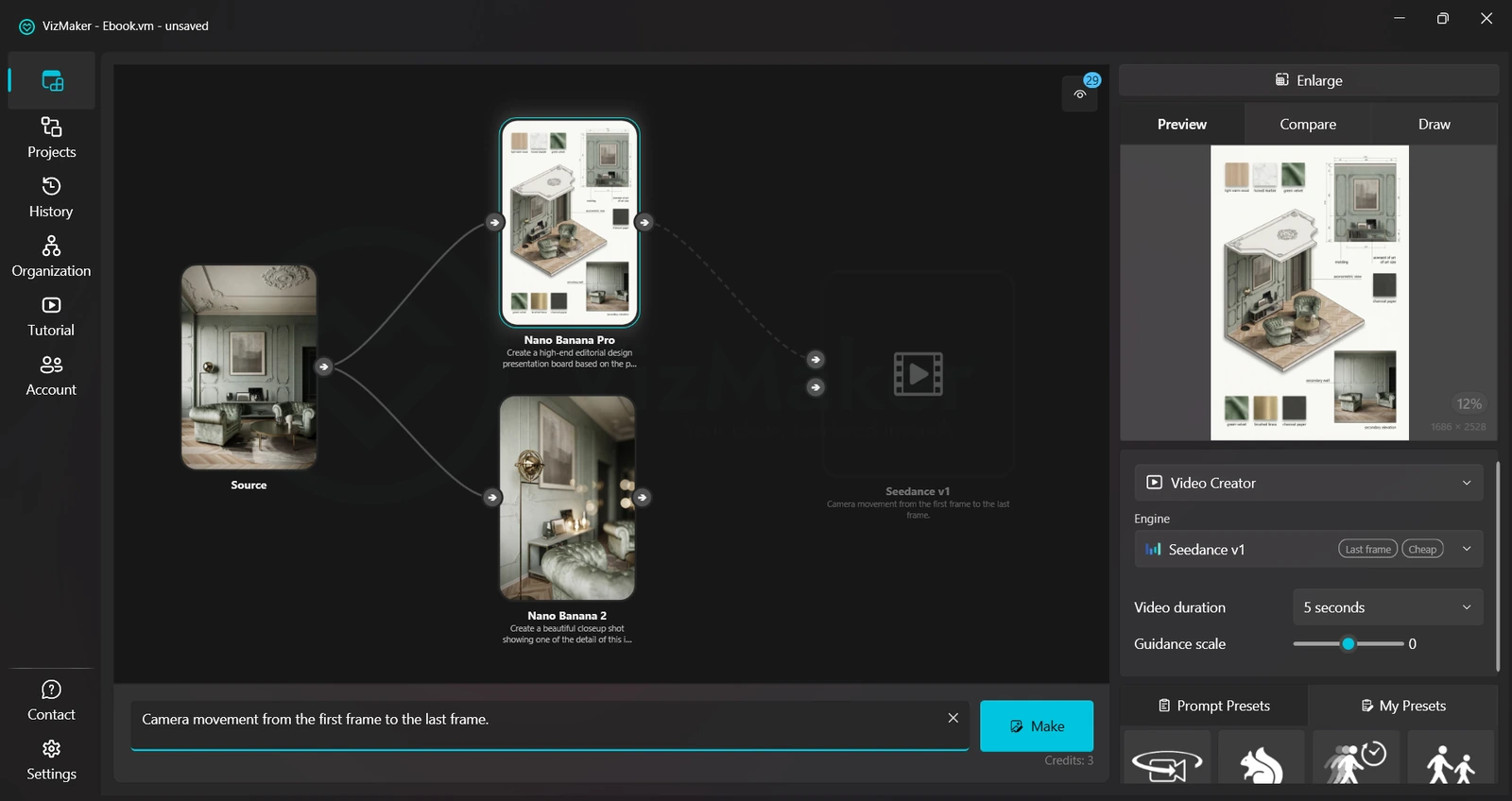
First and last frame inputs define the visual endpoints of a generated transition.
Prepare the starting and ending images, select the first, open Video Creator, and choose an engine that supports the two-frame workflow. Connect the second image to the additional input, describe the transition, and generate the clip. The guide demonstrates a design-board-to-close-up sequence and a transition between seasonal images.
For architectural work, select endpoints that belong to the same presentation idea. A room overview followed by a compatible detail view gives the transition a purpose. Compare the materials, furniture and atmosphere of the two stills before generating motion between them.
The endpoints guide the generation; they do not specify an exact physical camera trajectory through a model. Inspect the middle of the clip as carefully as the first and last images. If a precise route through modeled geometry is the requirement, keep that distinction visible when choosing the presentation method.
- Prepare compatible endpoint images.
- Choose an engine that exposes a second-frame input.
- Review the transition between the endpoints, not only the endpoints themselves.
Build the home tour as a set of connected shots
AI home tours work best when the approach, entrance and interior each have a clear role.
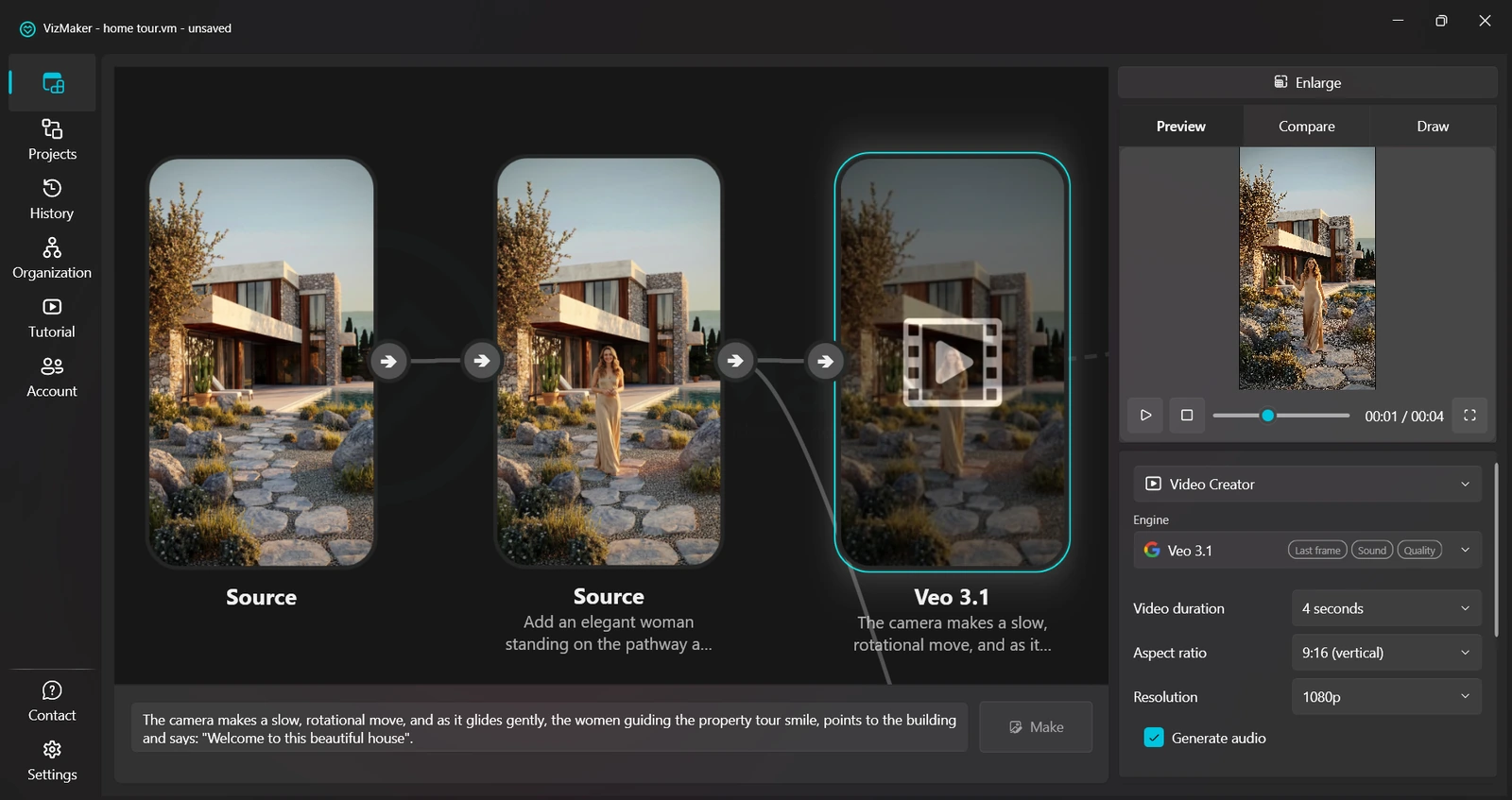
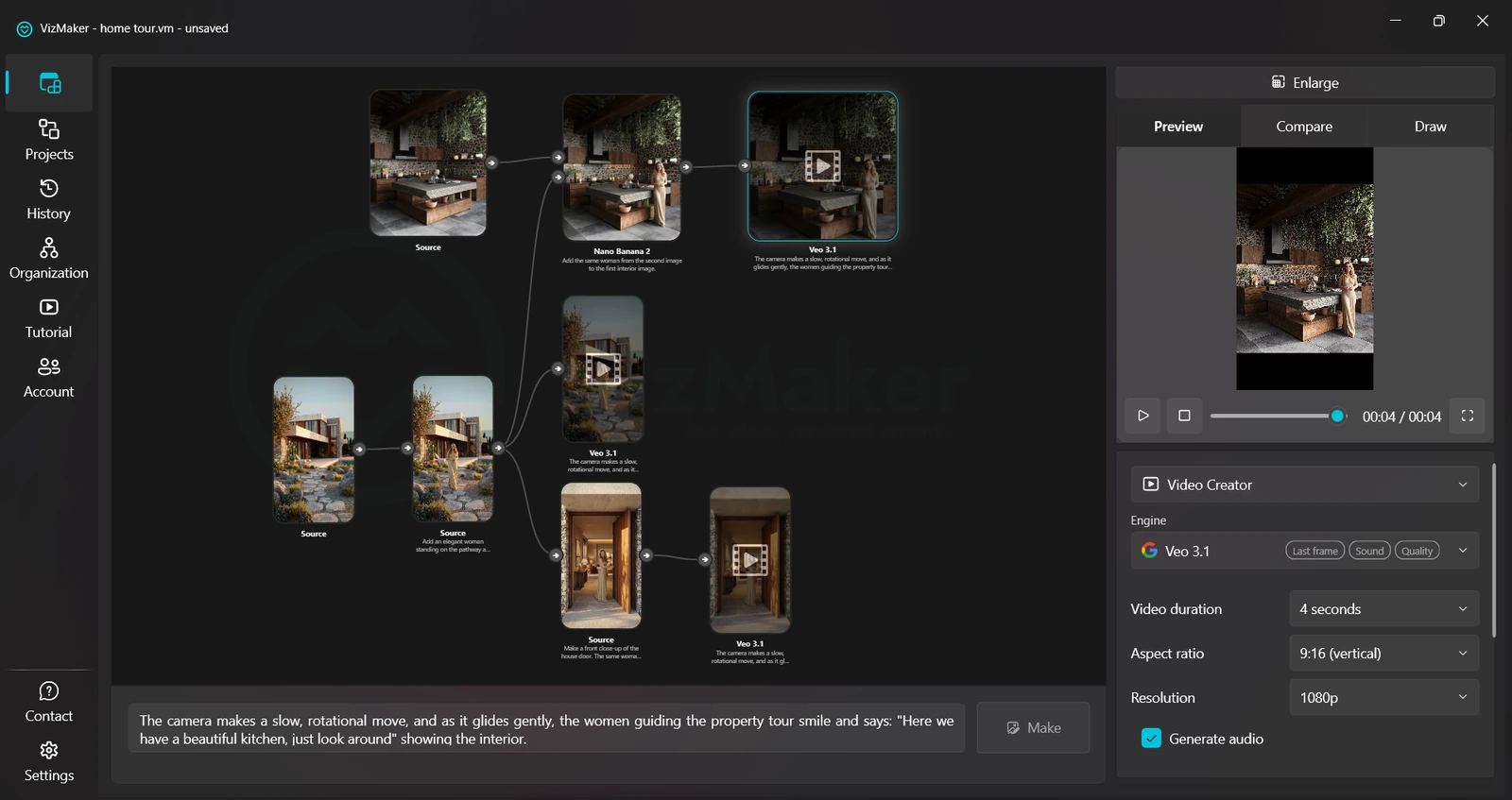
The guide builds the exterior portion of a home tour with a recurring woman in the scene. It first creates an image containing the presenter, animates that image, then creates another still with the same person near the entrance and generates a second clip.
Use this structure to plan the sequence before generating everything. Establish the property, introduce the entrance, and then move into the interior. A presenter is optional for an architectural story; the useful principle is that every still and clip should support the same route through the presentation.
When a recurring person is part of the concept, compare identity, clothing, scale and position between shots. The guide uses image editing to carry the person into another setting. Treat continuity as something to review, rather than assuming that separate generations will agree automatically.
- Plan the exterior, entrance and interior shots before generating clips.
- Prepare stills with a consistent visual direction.
- Review recurring people and design features across the sequence.
Carry the story indoors and assemble the clips
Reference editing connects the interior scene to the earlier shots; a video editor assembles the final presentation.
For the interior continuation, the guide selects the finished room image in Image Editor and connects the earlier exterior shot containing the presenter to the second input. A prompt asks for the same person to be placed in the interior. Once that still is satisfactory, it becomes the input to another Video Creator generation.
If the presentation needs speech or other generated sound, use an engine and settings that expose the relevant audio option. The ebook demonstrates Generate Audio, but engine names and controls can change; confirm the available options in your installed version before planning around them.
Download the resulting clips and combine them in a video editing application. The guide names CapCut as one example. Review the assembled sequence for abrupt changes in light, viewpoint and character appearance, then trim or replace clips that interrupt the story. Keep the approved stills alongside the clips so revisions have clear references.
- Review the interior still before animating it.
- Choose audio only when it serves the presentation and is supported.
- Assemble and review the complete tour in a video editor.
Design the shot sequence before generating the film
Begin with a small set of approved images and give every clip a purpose. Use one image for a focused motion study, two images for a defined transition, and a sequence of related clips for a home tour. The final review belongs to the assembled presentation, where continuity and design clarity become visible together.
- Match motion to the architectural information you want to reveal.
- Review intermediate frames and continuity between shots.
- Assemble separate clips in a video editor for the final home tour.
Questions and answers
Can I animate an existing architectural render?
Yes. Select an uploaded or generated image, open Video Creator, choose an engine and video settings, and give a motion prompt or use a preset. Review the resulting clip for changes to the design.
What is the difference between one-image and two-image animation?
One image supplies the starting visual. A two-image workflow supplies a starting and ending visual, giving the transition a defined destination. Neither alone establishes an exact camera path through a measured model.
Does the home tour workflow create one finished film automatically?
The ebook generates separate clips for different shots, then downloads and combines them in a video editor. Editing the sequence is part of producing the final presentation.
Start with one reviewed render, give the camera a clear purpose, and build toward a connected presentation.
Download VizMakerSource: VizMaker Guide Ebook · VizMaker · PDF, 76 pages