
AI interior design workflows in VizMaker let you develop an existing room image into furniture, lighting and finish alternatives. Use a reference image to guide a replacement, Draw to identify the intended area, and Image Upscaler to refine a selected result. Compare each version with the source so that the proposed change remains clear to the client.
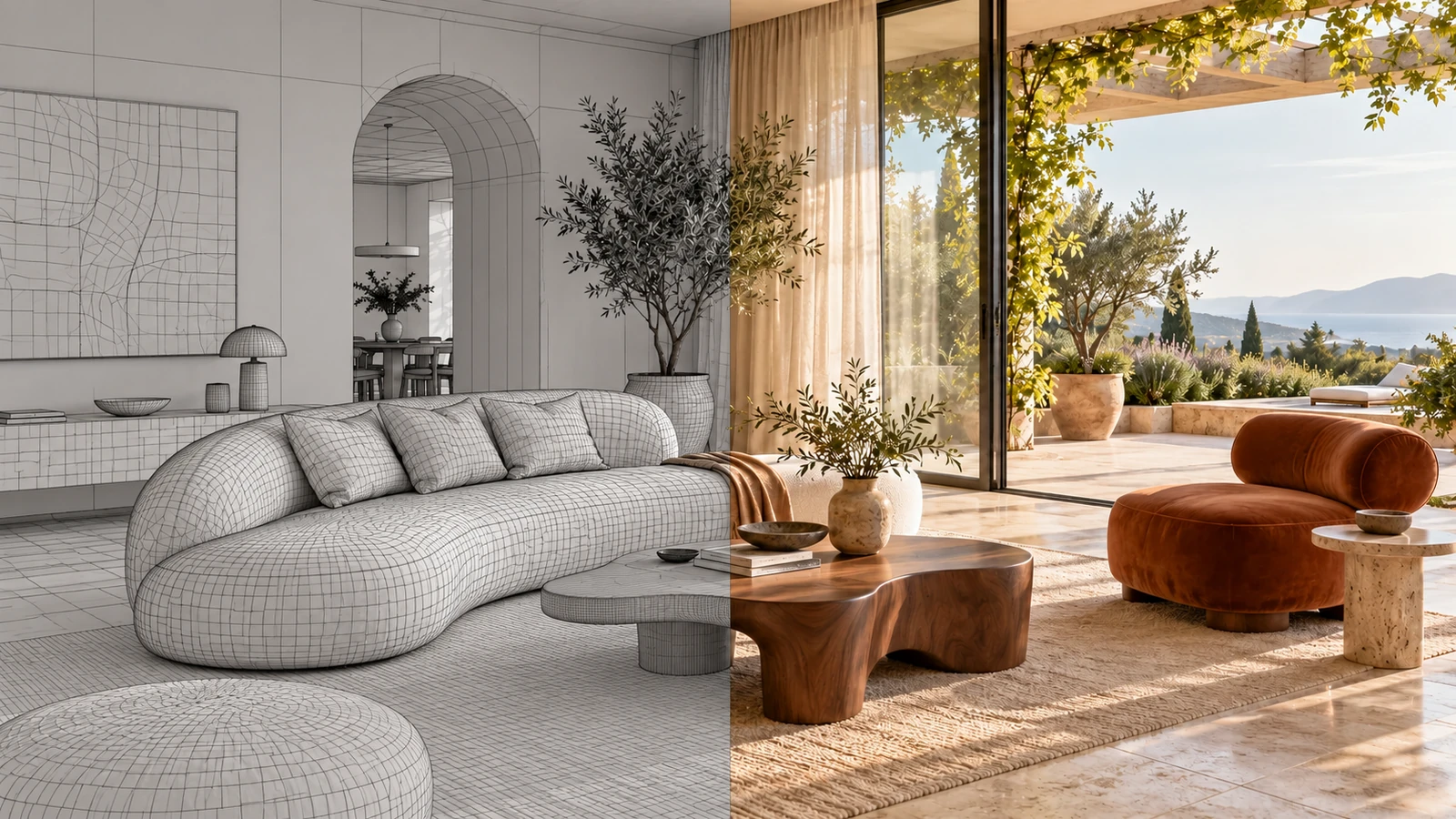
AI-generated editorial cover. Workflow screenshots below are taken from the credited sources.
Make the next interior decision easier to see
A client often agrees with the overall room but still needs to choose a sofa, reconsider a focal point, or understand the evening atmosphere. Reworking the entire presentation for each question can obscure what is actually being decided.
The VizMaker Guide Ebook demonstrates several ways to edit an existing image. Combining them into a deliberate sequence gives an interior designer a practical approach: establish one source view, change a specific feature, compare the result, and refine the selected option for delivery.
Replace furniture with a visual reference
Reference-based editing connects the room image with a photograph of the intended object.
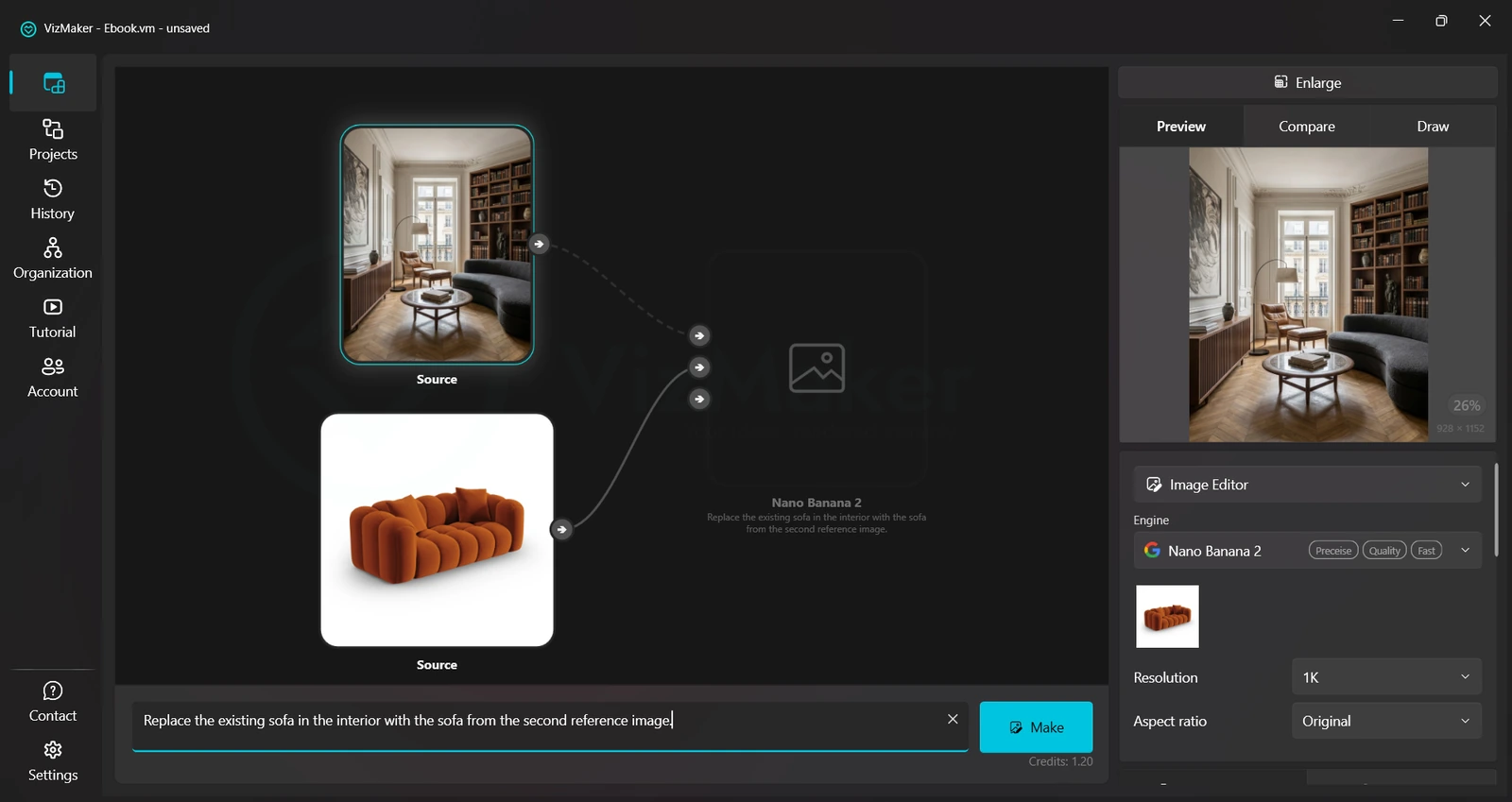
The guide uses a sofa replacement to explain the two-input workflow. Upload the interior image and the furniture reference, select the interior, choose an image engine, and connect the reference to the second input. Describe which existing object should be replaced and choose Make.
A useful reference shows the features that distinguish the proposed piece: its silhouette, upholstery, legs and proportions. In your prompt, identify both the target object and the reference. For a design review, ask for a clear replacement before combining it with unrelated changes to the entire room.
Compare the output with both inputs. Does the object still resemble the reference? Is its apparent scale plausible next to the surrounding furniture? A successful visual integration helps discuss the proposal, but dimensions and product specifications still need to come from the actual design and supplier information.
- Upload the room and a clear furniture reference.
- Connect the reference to the second input and describe the replacement.
- Compare the proposed object with the reference before presenting it.
Use Draw to identify where a change belongs
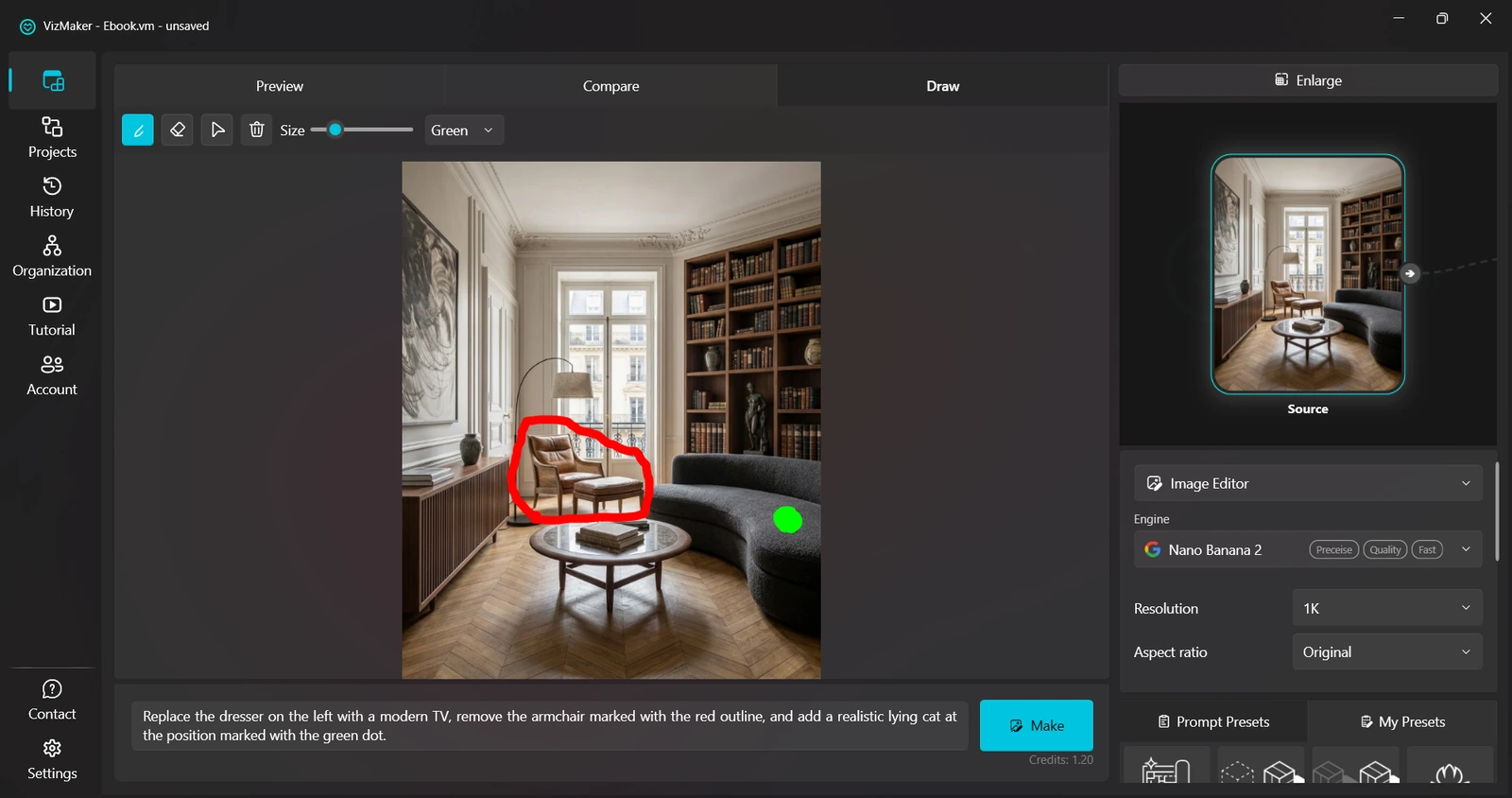
The Draw panel adds visual guidance when a text-only description leaves the target unclear.
Select the room image, open Draw and use Enlarge for a larger editing area. The guide shows two useful approaches: pasting an object image onto the scene, and using colored marks to identify an area for a replacement, removal or addition.
With a pasted reference, position and scale the image to explain the intended location before giving the editing instruction. With colored marks, explicitly connect each color to an action in the prompt. For example, state which marked object should be removed and what should occupy that position.
The annotation communicates intent; the generated result still needs review. Look at edges, contact with the floor, shadows and objects near the changed area. Keep the original room image available so you can check whether the edit introduced unwanted changes elsewhere.
- Use Enlarge to place references or marks clearly.
- Name the marked area and the requested action in the prompt.
- Inspect the boundary and surrounding furniture after generation.
Explore lighting and atmosphere as separate options
AI interior rendering can help compare how one composition reads under a different visual treatment.
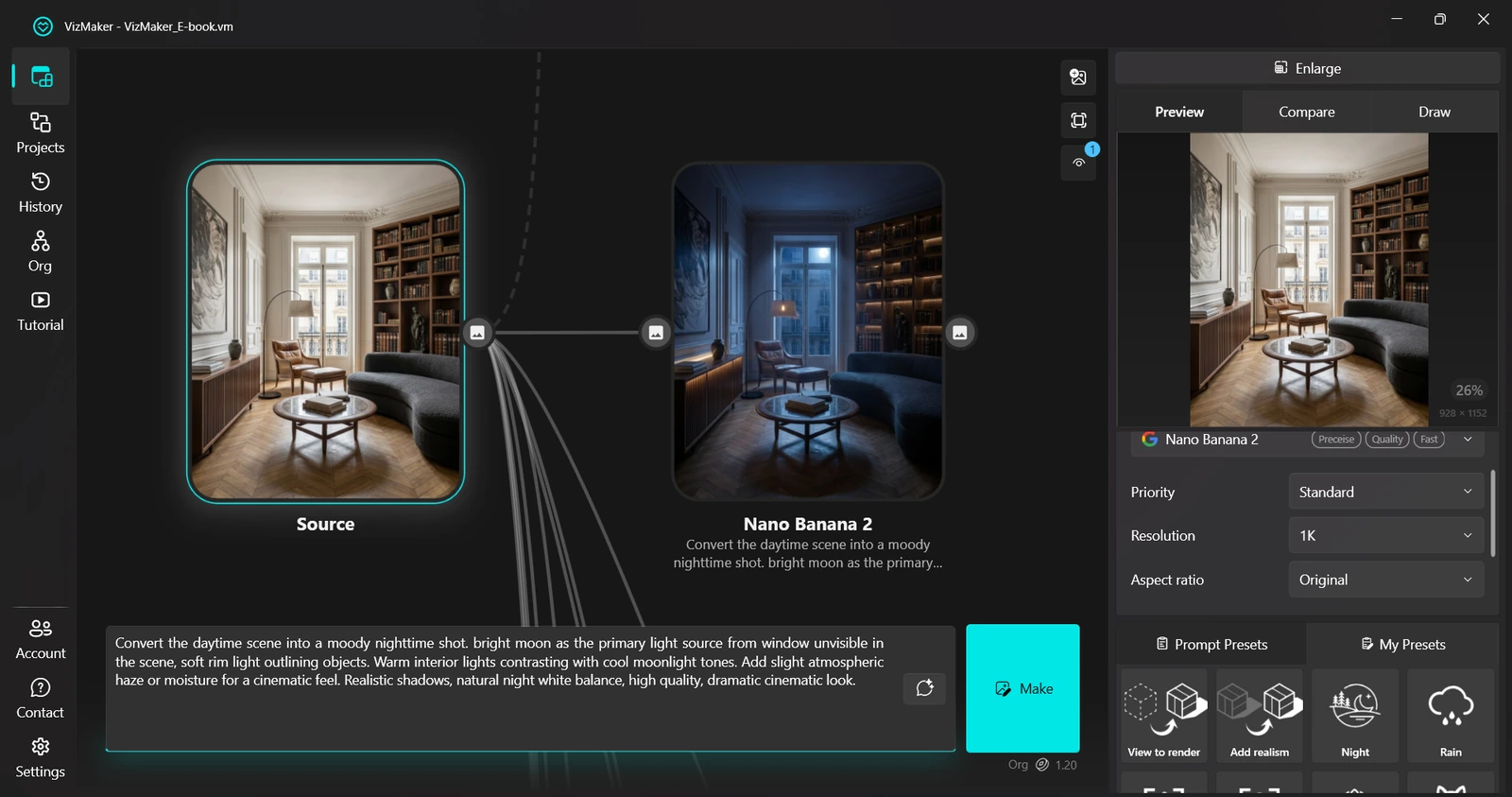
The Image Editor examples include a day-to-night change, close-up views, and seasonal treatments. For an interior presentation, the day-to-night example is a useful starting point for discussing mood. A close-up can focus attention on a selected detail once the overall direction is understood.
Select the source image, choose a relevant preset, read the prompt and adapt it to the room. Keep a named daytime option and a separate evening option so that the comparison remains easy to follow. If you also want to change furniture, make that a clearly identified alternative rather than hiding several decisions inside one image.
Review the light treatment for visual coherence, including reflections and the relationship between bright and shaded areas. This is an image-based atmosphere study; use a dedicated lighting design process when the question concerns specified illuminance or fixture performance.
- Choose a preset that matches the presentation question.
- Separate furniture alternatives from atmosphere alternatives.
- Use detail views to explain a choice after reviewing the whole room.
Refine the selected image and inspect the differences
Image upscaling is most useful after the composition and design direction have been selected.
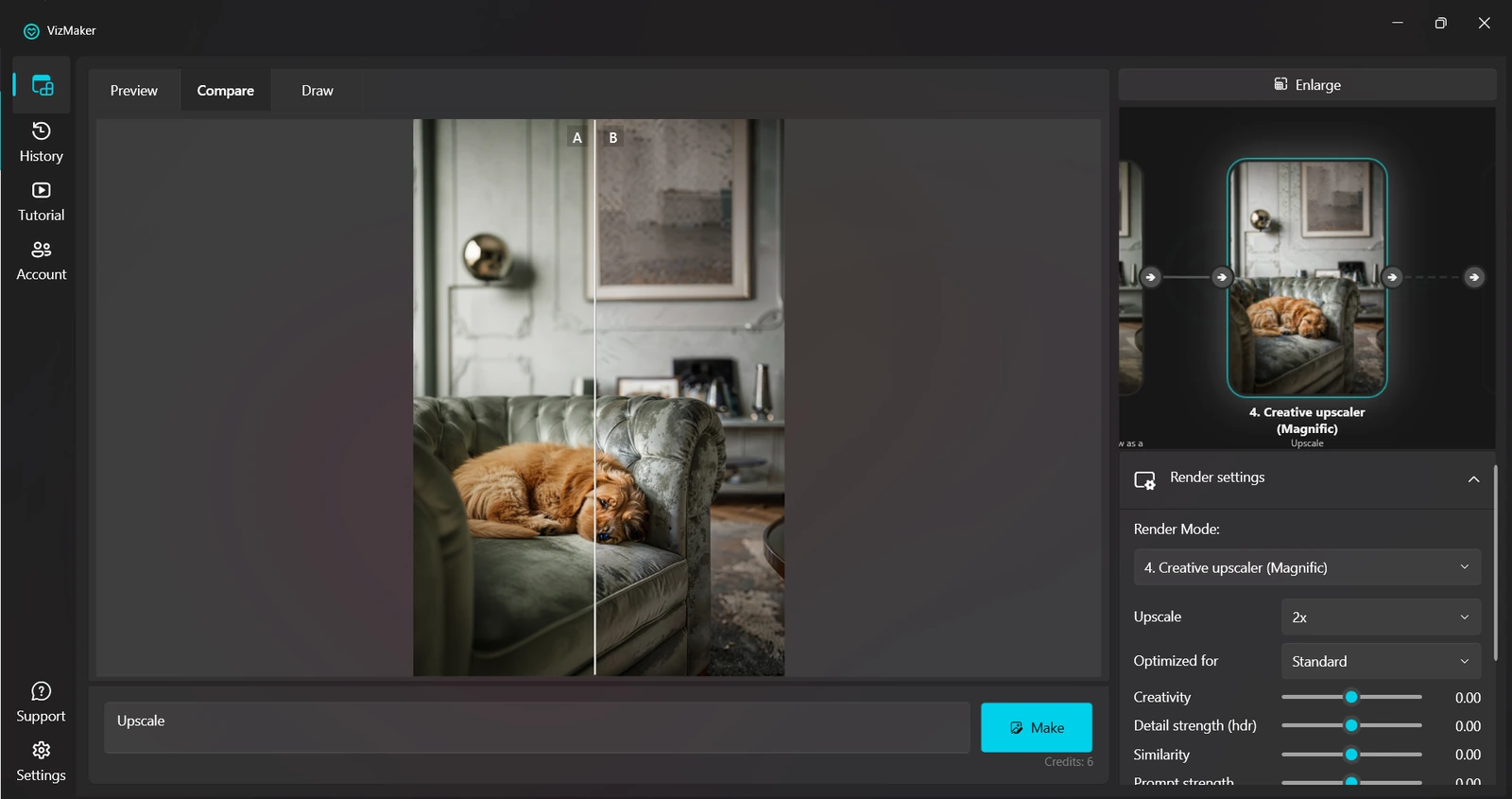
Select the chosen result and open Image Upscaler. The ebook describes different approaches to enhancement, including more creative detail generation and processing intended to remain close to the source. Choose the available engine and settings according to the purpose of the image, then generate an enhanced version.
The guide provides a direct comparison workflow: right-click the original and choose Compare A, then choose Compare B on the processed image. Enlarge opens the larger comparison, and the vertical divider reveals changes across the same image.
Use that comparison to inspect upholstery, wood grain, joints and sharp edges. More visible detail is only useful when it supports the intended design. Keep the source if the enhancement changes a fabric pattern or material character that matters to the proposal, and select a more restrained result when necessary.
- Choose enhancement after selecting the design option.
- Assign the original to Compare A and the enhanced image to Compare B.
- Inspect material identity and edges before exporting.
Present clear alternatives rather than a pile of images
Use one room image to answer a sequence of focused design questions. Reference inputs explain what to add, Draw explains where it belongs, atmosphere variants explore mood, and comparison helps decide whether an enhancement improves the presentation.
- Give each image option a specific design purpose.
- Check replacements against the room and the furniture reference.
- Upscale the chosen result and retain the original for comparison.
Questions and answers
Can I show a specific sofa in an existing room image?
Yes. The guide connects a sofa reference to the second input of Image Editor and uses a prompt to replace the existing sofa. Review the generated likeness and apparent scale; the image does not verify product dimensions.
When should I use Draw instead of a second reference input?
A second reference input communicates the object or visual reference. Draw is useful when you also need to show its intended placement or identify a particular area with a colored mark. The guide demonstrates both methods.
Can upscaling change the appearance of materials?
Enhancement can introduce or strengthen detail, especially with a creative approach. Use Compare A and Compare B to inspect the result against the original, particularly where a specific finish or textile must remain recognizable.
Bring a room image and one furniture reference into VizMaker, then compare a focused design variation.
Download VizMakerSource: VizMaker Guide Ebook · VizMaker · PDF, 76 pages