
Create 3D furniture from photos in VizMaker by isolating the object, sending the reference to 3D Model Creator, and inspecting the generated model from several angles. Use multiple views when you have them, then export and set the correct scale in your design application. The result is a starting asset for visualization, with geometry and dimensions that still need review.
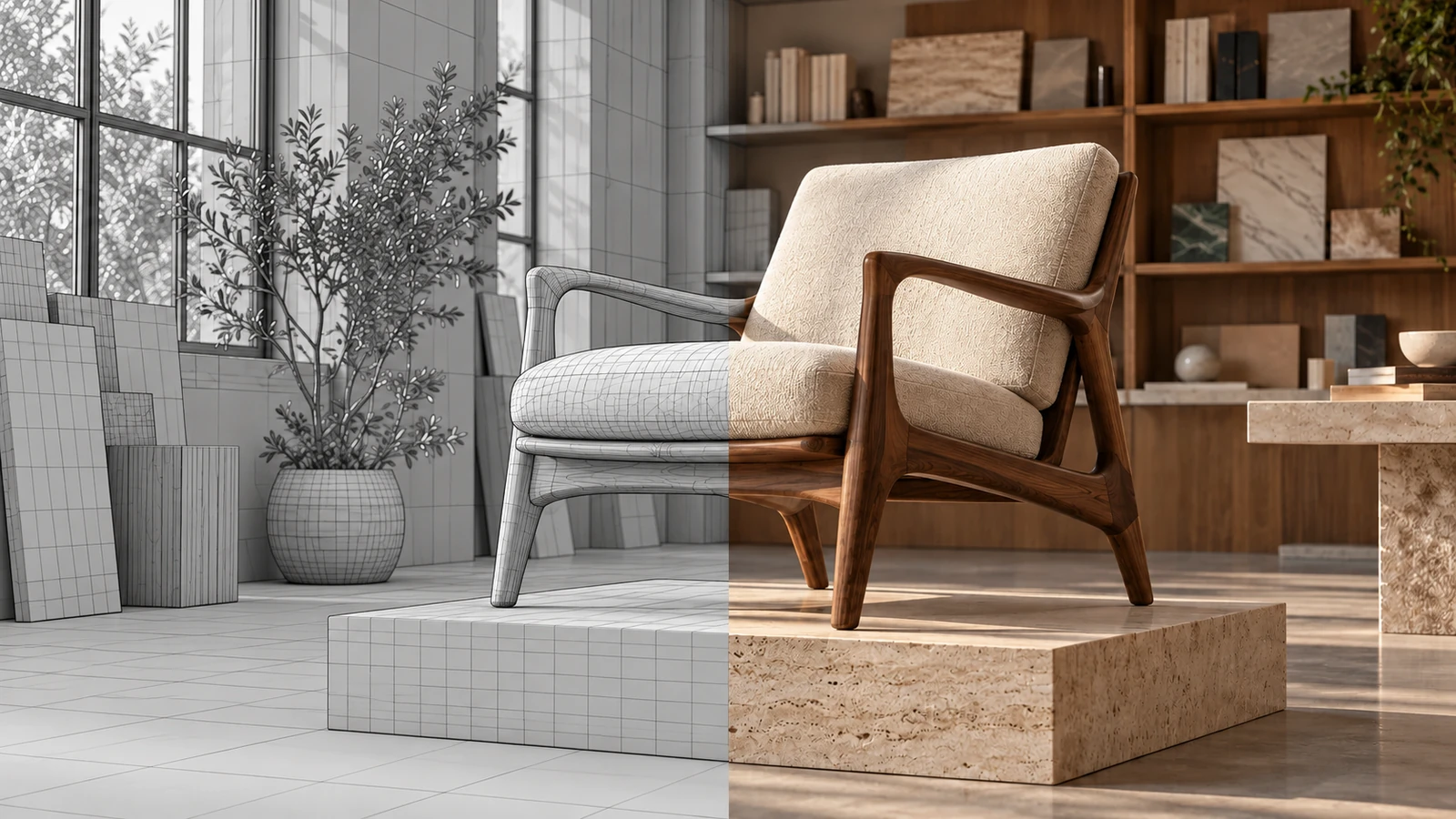
AI-generated editorial cover. Workflow screenshots below are taken from the credited sources.
Bring a reference object into the interior scene
An interior designer can find the right chair or plant in a reference image and still lack a usable model for the project. A flat image helps discuss the idea, but a 3D asset is needed when the object must appear from different camera angles in the scene.
The furniture workflow in the VizMaker Guide Ebook follows that gap from photo to exported model. It covers object extraction, generation from one or several images, model inspection and import. Keep the reference and known dimensions available throughout: generated geometry is not a manufacturer-verified product model.
Give the generator a clear view of the object
A clean reference helps image to 3D generation focus on the furniture rather than the surrounding room.
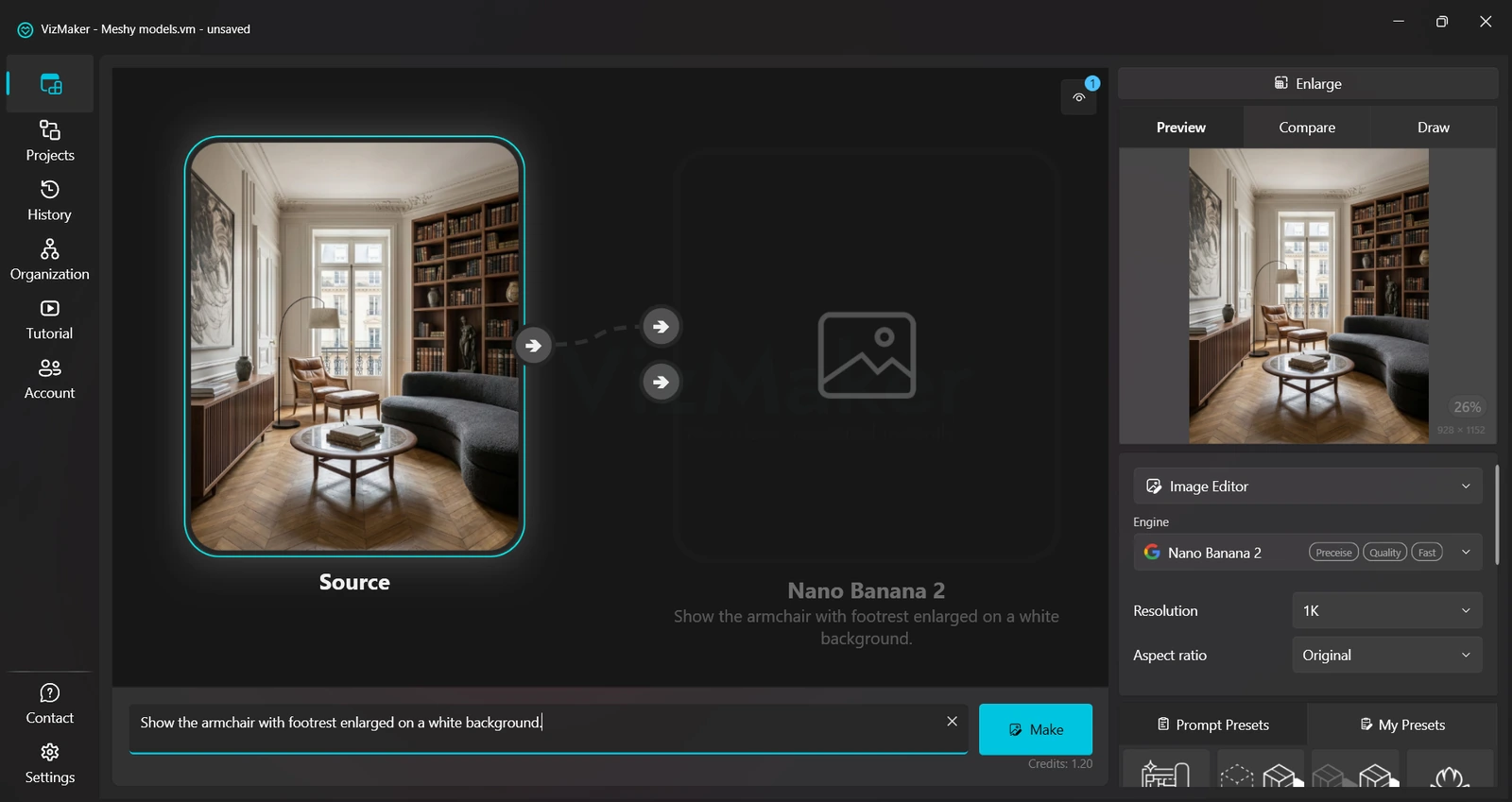
Start with a product photo on a neutral background when one is available. If the object is part of a wider interior image, the guide uses Image Editor to isolate it: select the image, request the chosen object on a white or neutral background, and generate the extracted view.
Inspect the extraction before treating it as the reference. Look for missing legs, merged edges, altered proportions or pieces of the background attached to the object. Correcting the input is more useful than repeatedly generating geometry from a misleading silhouette.
Keep the original photograph beside the isolated image. That comparison makes it easier to spot when extraction has changed a detail that matters, such as the outline of an armrest or the relationship between the seat and base. If the existing photo already shows the object clearly, the guide allows this preparation step to be skipped.
- Prefer a clear object photo with a neutral background.
- Isolate an object from a room image when needed.
- Compare the extracted silhouette with the original before generation.
Choose a single-image or multiple-image workflow
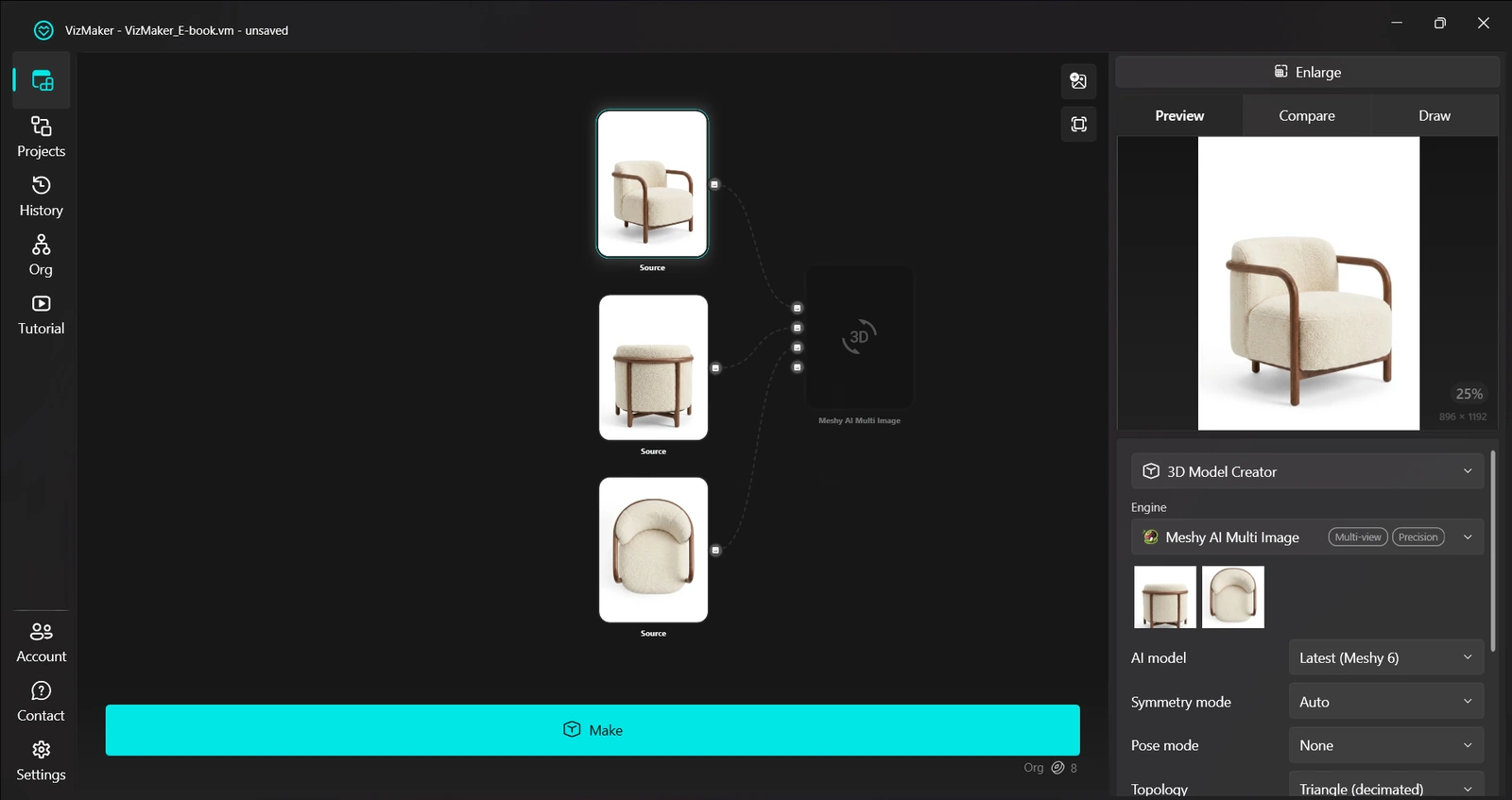
3D Model Creator uses the reference to generate an asset; additional views can describe sides a single image cannot show.
For the single-image furniture example, select the prepared object image, choose 3D Model Creator, select Tripo 3D and choose Make. The ebook uses this as a starting workflow for simpler furniture and objects, rather than establishing a performance benchmark across all model types.
When several photographs show the same object, the guide demonstrates Meshy AI Multi Image. It connects one to four references to the node and exposes options for topology, target polygon count, remeshing, textures and material maps. Use the inputs and controls available in your installed version.
Choose views that explain the same object consistently. A front view and a side or rear view can add useful information; unrelated furniture photographs create a conflicting brief. Consider where the asset will appear in the interior scene when choosing detail settings. A distant plant and a close-up chair do not need to serve the same presentation purpose.
- Use a single clear reference for the documented basic workflow.
- Connect compatible views of the same object for a multi-image workflow.
- Choose geometry and texture options with the intended scene in mind.
Inspect the geometry before exporting
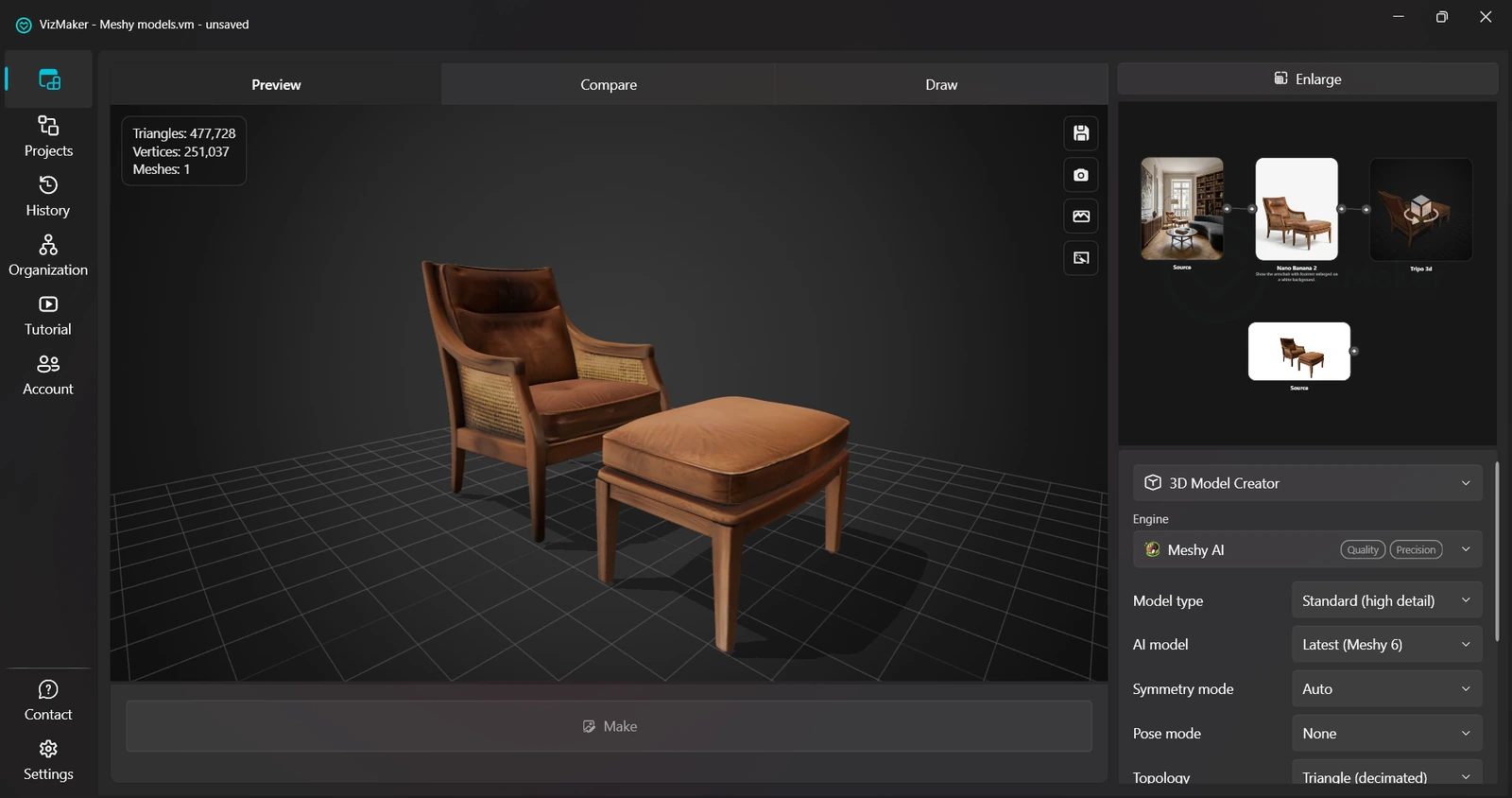
The 3D model preview lets you examine the asset beyond the angle shown in the source photo.
Open the generated model and choose Enlarge for a larger preview. The guide shows dragging with the left mouse button to rotate the model and using the mouse wheel to zoom. It also identifies the polygon and vertex information and the option to show the model without textures.
Rotate around the full object rather than accepting the first attractive view. Inspect the back, underside, thin legs and open spaces. A photograph contains limited information about hidden surfaces, so those areas are especially important when the asset will be visible from several interior cameras.
Use the untextured view to separate shape problems from surface appearance. A convincing fabric texture can hide a weak silhouette from one angle. The guide also offers Add this view as a Node to create an image of the current model view; this is useful for keeping a visual reference in the workflow.
- Rotate and zoom around the complete model.
- Check the untextured shape as well as the textured result.
- Consider mesh density and the views that the final scene will use.
Export the asset and set its real dimensions
A usable interior design asset needs the right scale and a successful import into the target scene.
Choose Save 3D model as in the preview and select an available format. The ebook demonstrates an OBJ workflow: save the model, extract all files from the downloaded archive into a folder, and open the OBJ in the target application.
Keep the extracted files together so that accompanying materials and textures remain available during import. Use the import method supported by your design application, then inspect orientation and materials in the scene. The guide explicitly reminds the reader to scale the object to the correct dimensions.
Use known product dimensions to set the size, and compare the asset with surrounding furniture. Check that seats, legs and clearances make sense in the project. The model may be useful for visualization after this review, but an image-derived approximation does not replace a verified product model when exact fabrication or installation information is required.
- Export and extract the complete asset package.
- Inspect orientation, materials and texture links after import.
- Set the scale from known dimensions before using the asset in the project.
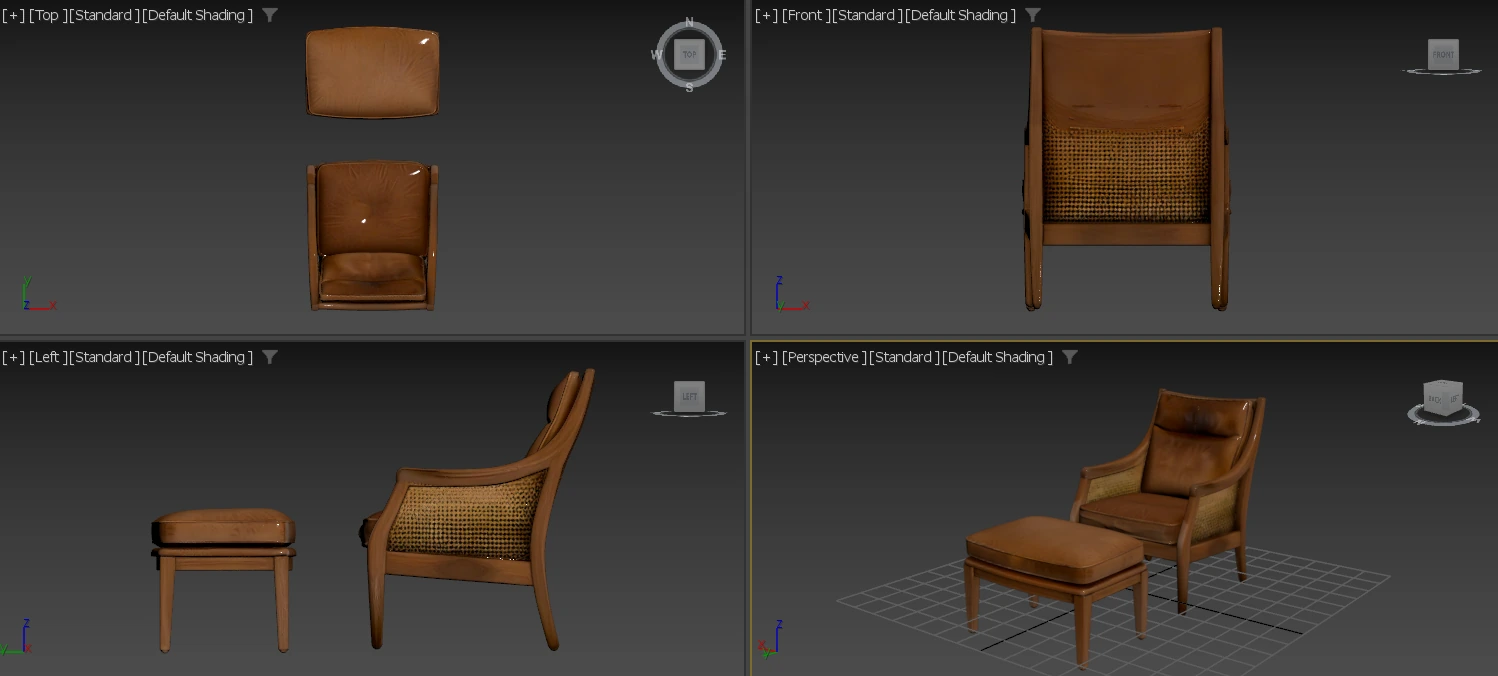
Treat generation as the start of an asset workflow
A good reference, a suitable generation setup and a careful inspection make the output more useful in an interior scene. Keep the source image and dimensions close to the asset, and finish the workflow with a checked import rather than stopping at the preview.
- Review object extraction before generating geometry.
- Inspect hidden surfaces and the untextured silhouette.
- Import, check materials and set dimensions in the design application.
Questions and answers
Do I need to isolate furniture before generating a 3D model?
Not always. The guide skips extraction when the photo already shows a close view of the object on a neutral background. It uses Image Editor when the object needs to be separated from a larger scene.
Can I use more than one photo of the same object?
The ebook demonstrates Meshy AI Multi Image with one to four references. Use consistent views of the same object and check the input options in your installed version.
Will the generated furniture model already have the correct dimensions?
Do not assume so. The guide explicitly calls for scaling the imported model to the correct dimensions. Use known measurements and inspect the asset in the target scene.
Prepare a clear object photo, generate a model in VizMaker, and inspect it before adding it to your interior scene.
Download VizMakerSource: VizMaker Guide Ebook · VizMaker · PDF, 76 pages