
The SketchUp AI rendering plugin brings a model view into VizMaker so designers can explore realistic images from an early spatial concept. Develop a material and lighting direction, refine the selected result, and use it for a short animation. Image-to-3D tools provide a separate route for generating furniture references that can be inspected and prepared for scene use.
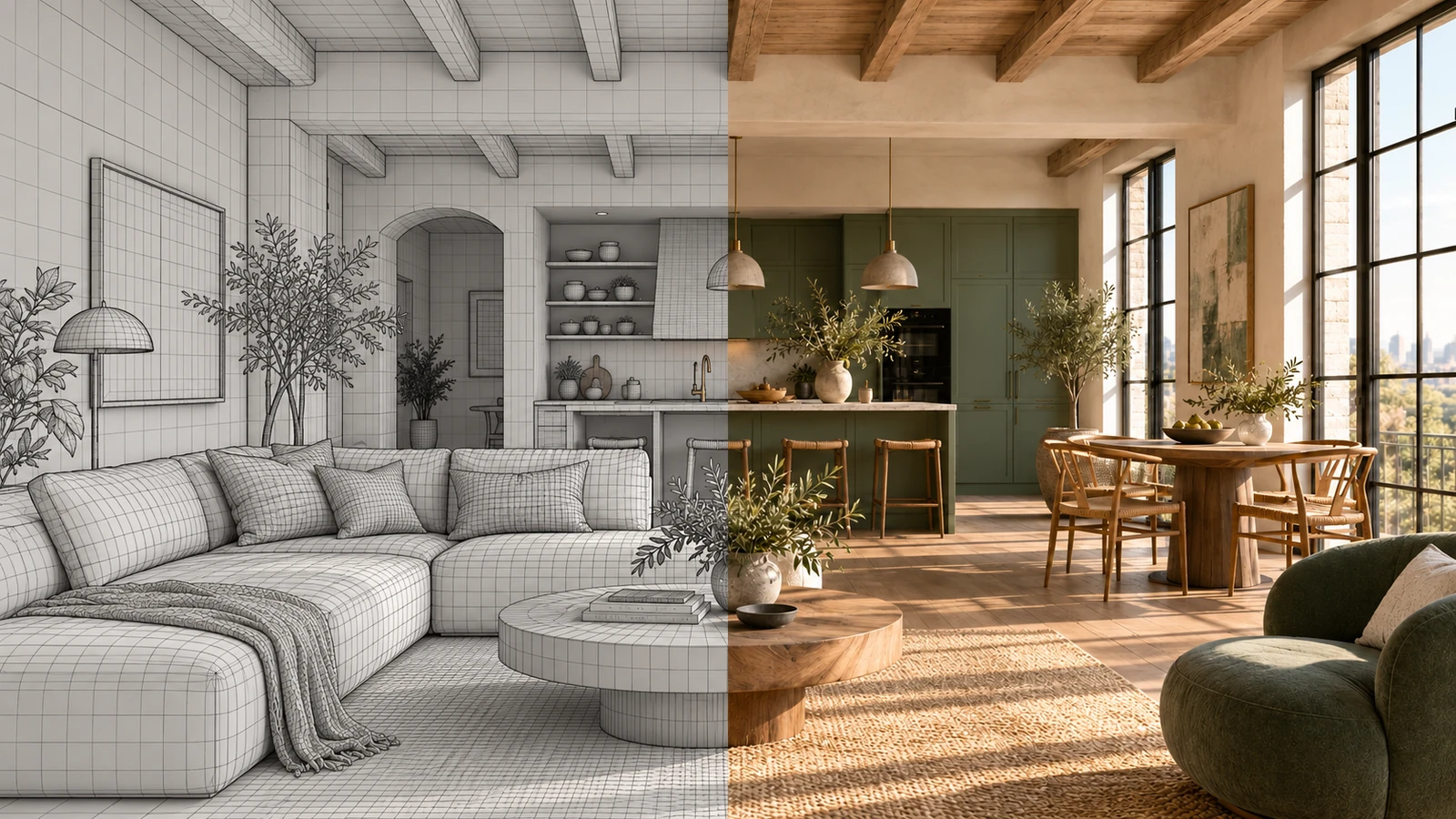
AI-generated editorial cover. Workflow screenshots below are taken from the credited sources.
Turn a clear concept model into a useful visual proposal
A SketchUp model can communicate room proportions and a proposed arrangement before every object or finish is fully developed. For an interior designer, the next challenge is often helping a client imagine how those elements belong together.
VizMaker connects that model view to image editing and generation. The benefit is a focused progression from concept to presentation: keep the composition clear, explore a specific visual direction, and review the result before adding detail or motion. This guide uses the SketchUp integration shown in the ebook and shared VizMaker workflows from the supplied material.
Capture the SketchUp concept from a useful angle
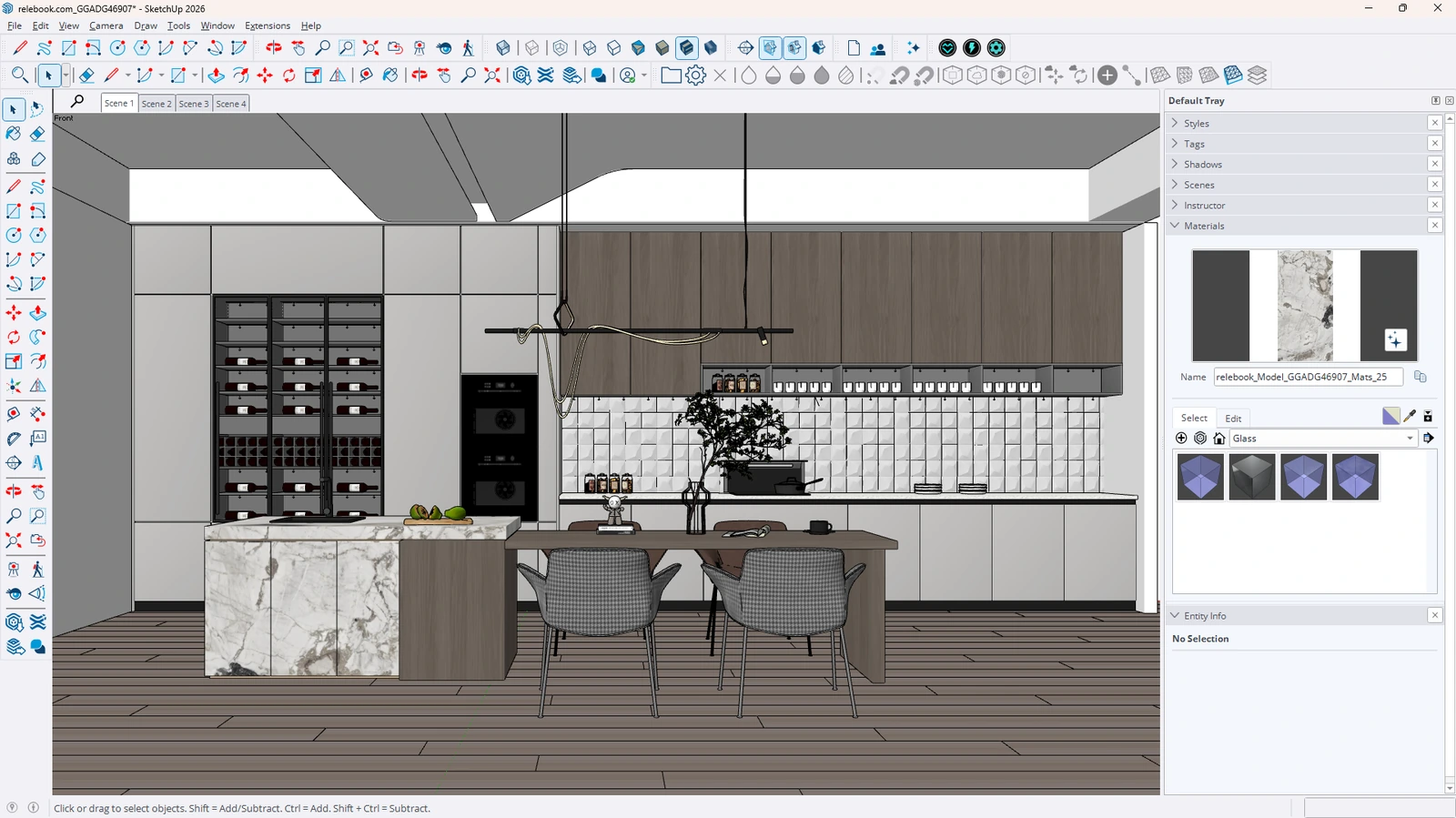
The ebook shows a VizMaker control in the SketchUp toolbar for bringing the working view into the image workflow.
Install the integration for your SketchUp version through VizMaker Settings and Plugins. Prepare a view that explains the room or building, then use the installed capture control. Inspect the transferred image before starting generation so that the input contains the important parts of the concept.
For a small interior, choose an angle that makes the main furniture arrangement and circulation visible. For an exterior, give the entrance and building massing enough context. The useful starting point is a legible model view; a vague or obstructed view leaves more of the presentation to interpretation.
- Choose the camera for the design question rather than visual drama alone.
- Keep the captured view alongside its generated alternatives.
Develop the material direction from the captured view
SketchUp rendering software should help make a proposal understandable, not merely produce an attractive image.
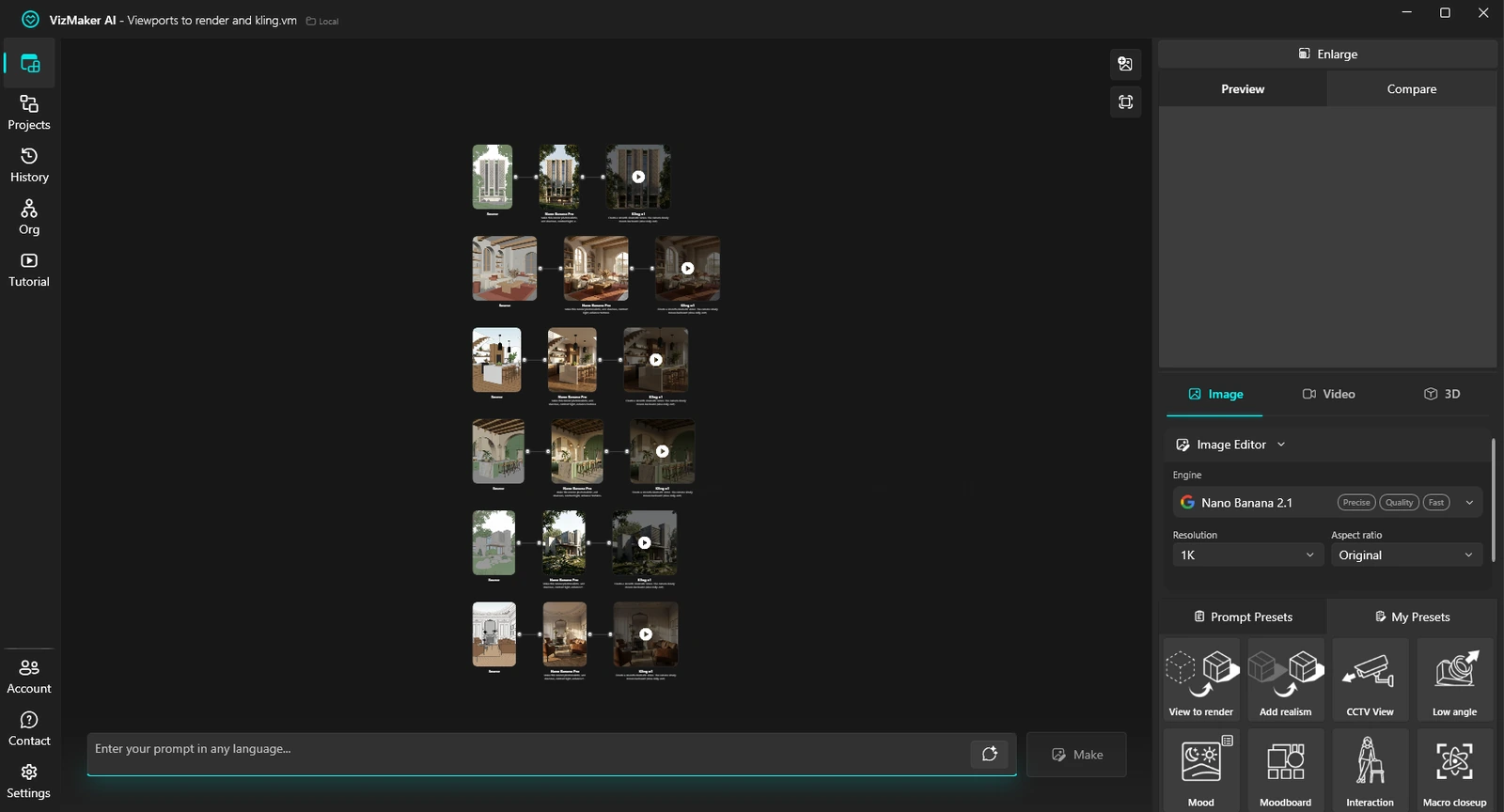
Select the input in Image Editor, choose an engine and the View to Render preset, then describe the intended materials and mood. A concise brief for a dining area might identify pale walls, timber furniture and soft afternoon light. Compare a small set of coherent directions before introducing detailed edits.
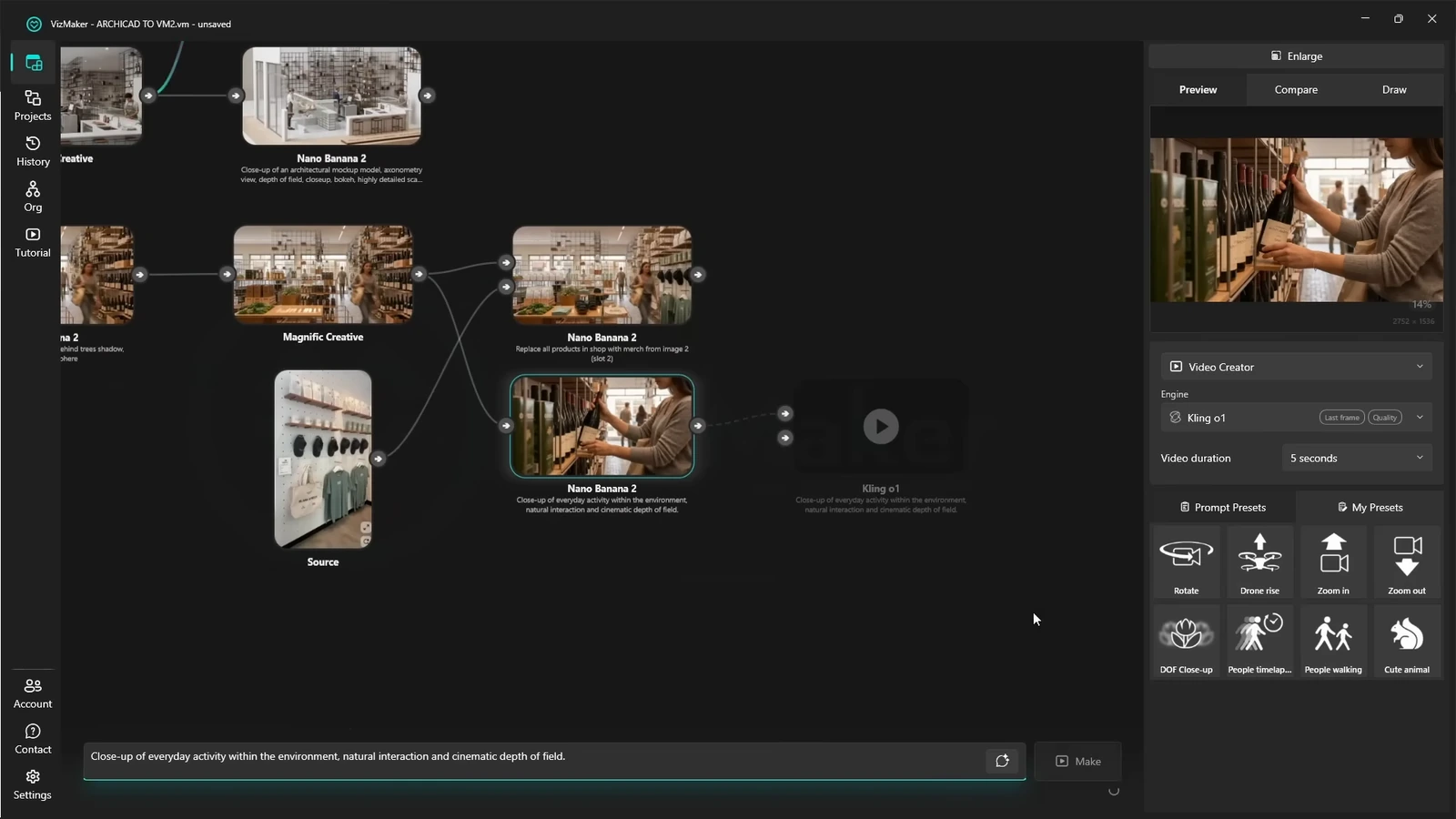
The supplied workspace shows source images connected to generated images and then video clips. Keep that chain readable for your own project. If a new image changes a cabinet outline, opening or furniture position, decide whether it is an error or a design idea that must first be developed in SketchUp.
- Give each variant a clear material or atmosphere purpose.
- Return intentional layout changes to the model before presenting them as resolved.
Prepare the chosen image for presentation
AI upscaling can refine a selected SketchUp-based visualization after the concept is agreed.
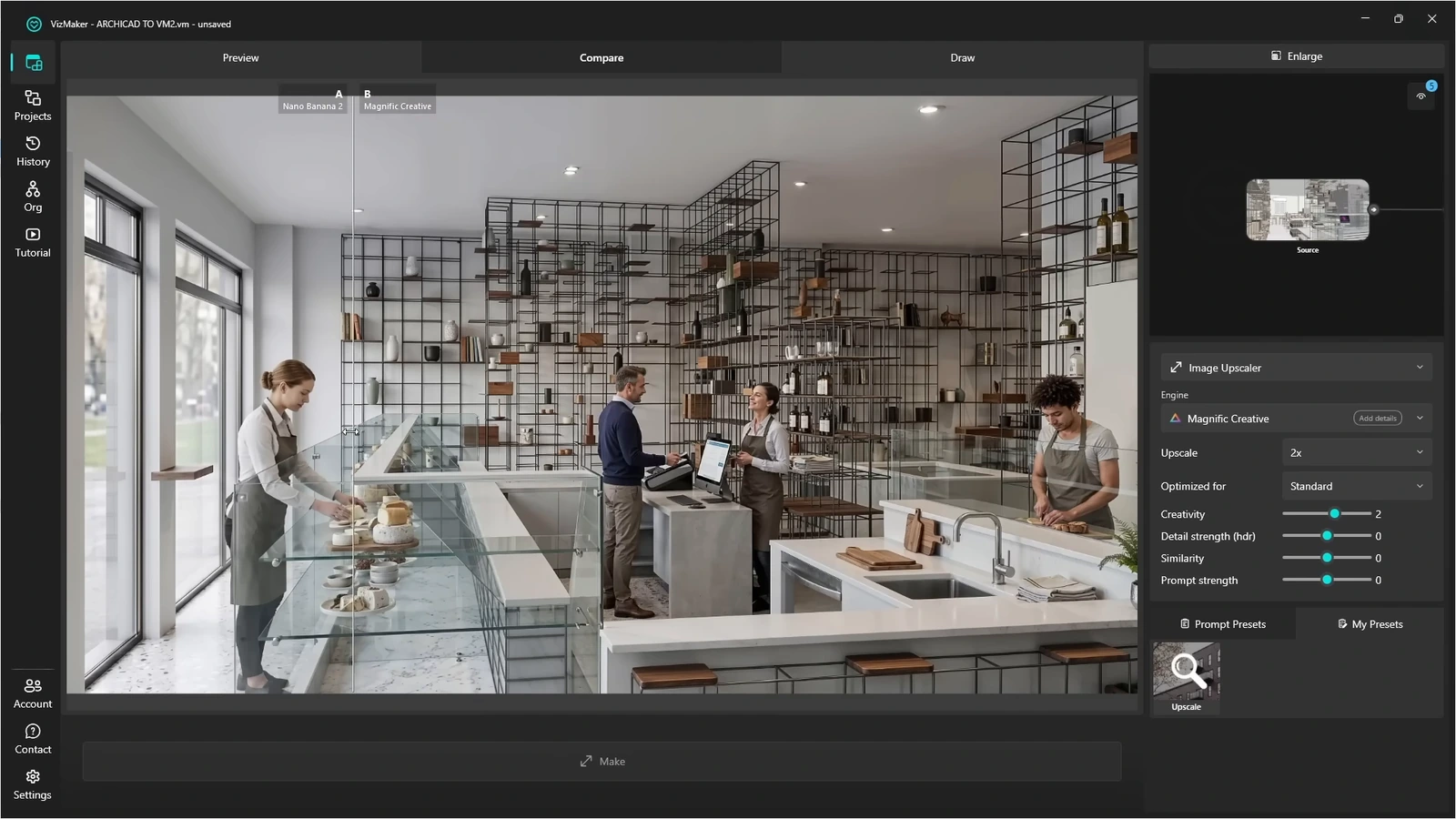
Use Image Upscaler on the chosen VizMaker result and compare the output with its source. The Archicad demonstration shows the same shared enhancement workflow, including a comparison of textures and small scene details. Start from an accepted image so the enhancement supports a known direction.
Interior clients may focus on a fabric, timber tone or worktop edge. Inspect those features closely, especially when a creative upscale introduces detail. Preserve a clean version of the original result so you can distinguish the design proposal from the enhancement treatment.
- Compare at the size needed for the presentation board or screen.
- Check the materials that the client is being asked to choose.
Add a short animation to the concept presentation
AI camera movement can give a selected image a clear presentation role.
Open Video Creator on a reviewed image and choose a supported motion preset or write a short brief. A restrained move toward a dining table or an exterior reveal can help frame the proposal. Where available, two compatible images can define the starting and ending views of a transition.
Keep the request proportionate to the input. One still image contains limited information about hidden parts of a room. Review changing geometry throughout the clip, and use a model-based route when the purpose is to demonstrate exact spatial connections or clearances.
- Choose motion that emphasizes one feature of the concept.
- Inspect the full clip before adding it to a presentation.
Develop a furniture reference into a 3D asset
Furniture from images gives a concept designer another way to explore an object beyond a flat reference.
The ebook describes isolating an object from a reference image before using 3D Model Creator to generate geometry. Use a clear object view and inspect the result from the back and sides as well as the original angle.
Export using a format supported by the intended asset workflow, then check the imported object in the scene. Scale it from known dimensions and inspect orientation and materials. This step is especially important in a compact SketchUp interior, where an incorrectly scaled chair can make the arrangement appear more workable than it is.
- Use the reference to check silhouette and proportions.
- Confirm dimensions before relying on the object in a furniture layout.
Build a clear SketchUp visualization workflow
Keep the concept model legible, explore a coherent visual direction and return accepted spatial changes to SketchUp. That sequence connects the appeal of the final image to the design decisions behind it.
- Start with a concept view that explains the space.
- Explore coherent material directions before enhancing detail.
- Keep layout decisions connected to the model as images become more polished.
Questions and answers
Do I need a fully detailed SketchUp scene before using VizMaker?
The workflow starts from a working model view and can support visual exploration before every detail is developed. Important geometry and the intended composition should still be clear in the input.
Does changing the image update the SketchUp model?
The documented process edits an image in VizMaker. Develop an accepted layout or geometry change in SketchUp before treating it as part of the resolved design.
Can I use the generated image for an animation?
Yes. A selected image can become the input to Video Creator. Review the generated motion for continuity and use a scene-based workflow when an exact route through the model is required.
Start with a prepared design view, explore a focused AI visual direction, and review the result alongside your source project.
Download VizMakerSource: This ArchiCAD AI Plugin changes everything · VizAcademy UK ·
Source: VizMaker Guide Ebook · VizMaker · PDF, 76 pages
Source: VizMaker plugin installation panel · VizMaker
Source: VizMaker source-view, rendering and animation workspace · VizMaker