
Create a SketchUp floor plan mockup by selecting a prepared interior layout image in VizMaker, applying the Mockup preset, and specifying a three-quarter view. The result presents the room as a miniature architectural model. Compare it with the plan before using it as a concept or portfolio image.
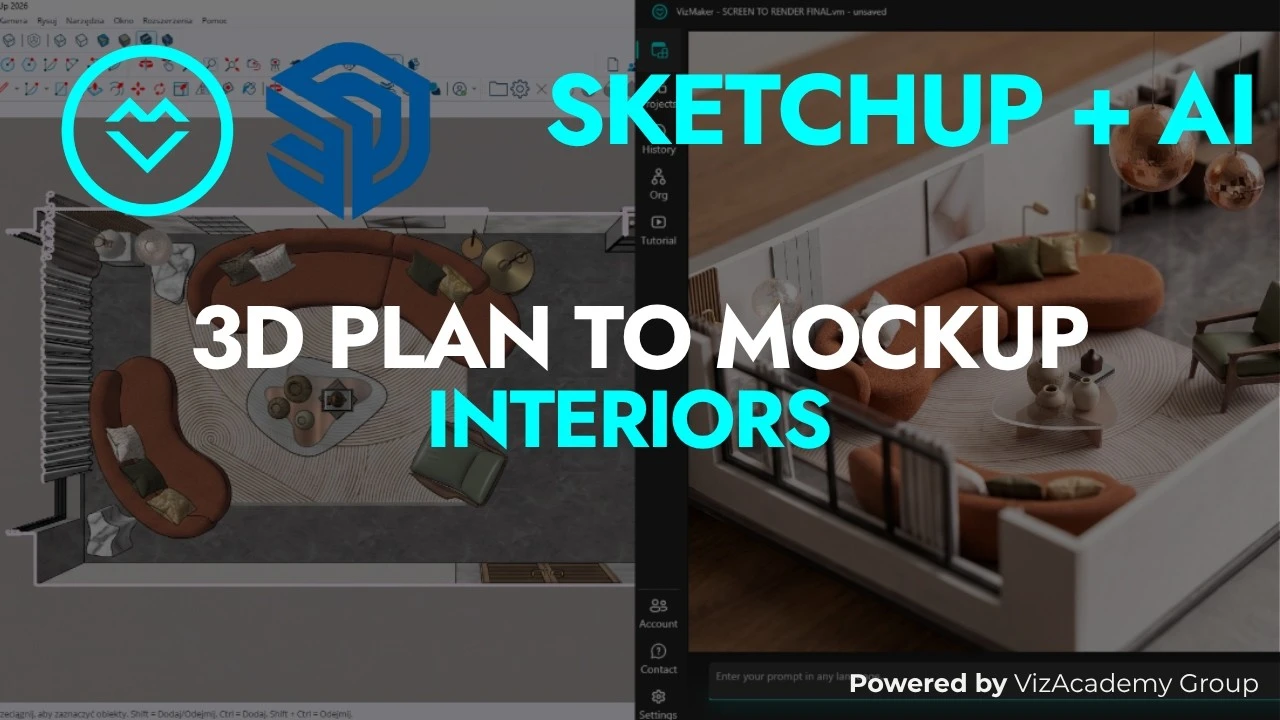
A top-down layout can be difficult to read as a space
A plan communicates arrangement, but a viewer may need more help understanding the relationship between furniture, walls, and room volume. A miniature-model presentation can make that arrangement easier to grasp while adding a tactile visual style.
This AI architectural mockup workflow starts with images already derived from a SketchUp layout. Its purpose is presentation: the generated picture can suggest the appearance of a model on a table without creating editable model geometry.
1. Choose the layout you want to present
Begin with a clear, prepared interior image rather than an unresolved arrangement.
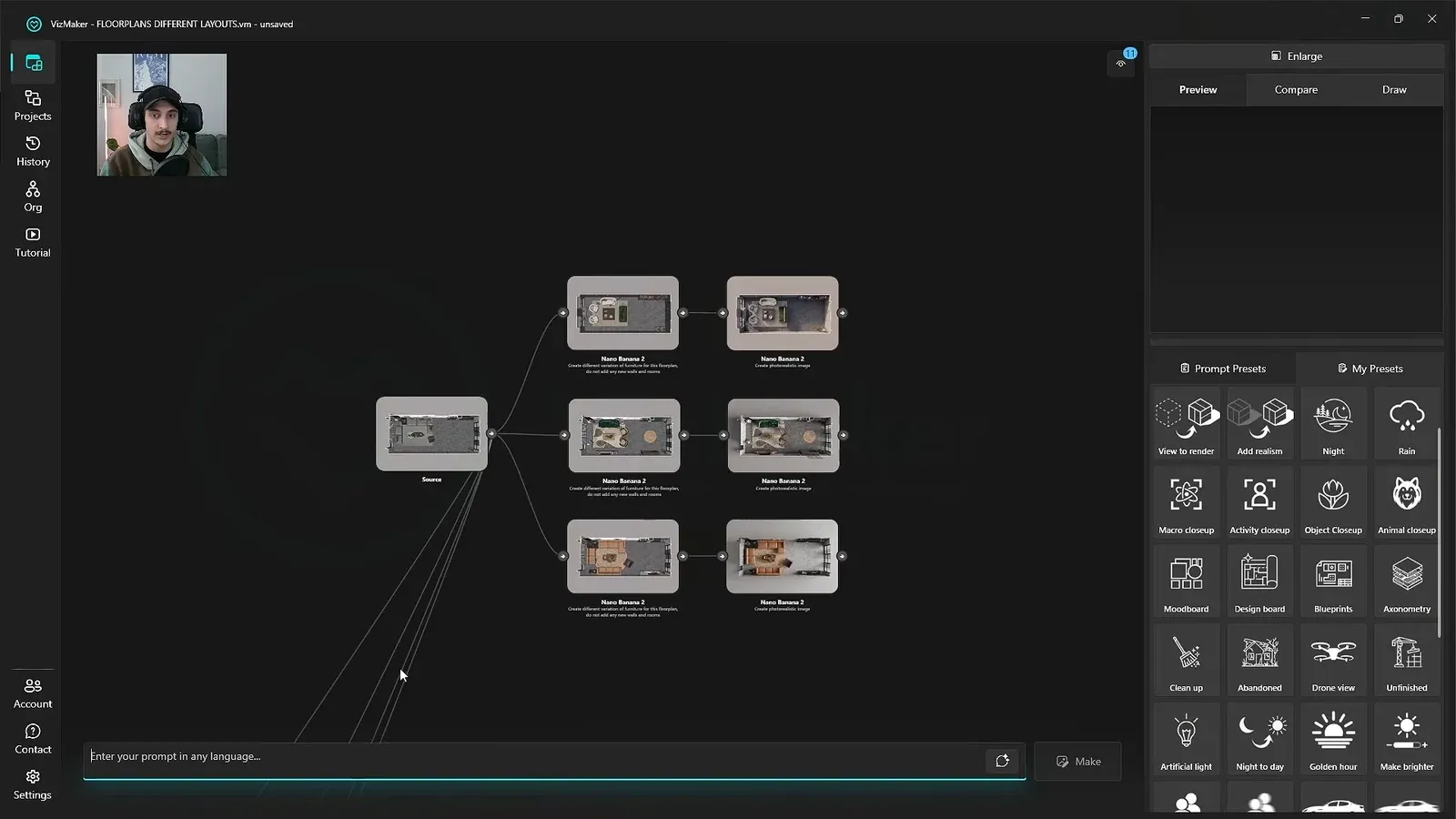
Select the layout alternative that best communicates your proposal. In the example, several floor-plan variations have already been generated and converted into realistic images from the SketchUp source. The mockup step uses those prepared versions.
Make sure the furniture arrangement and major openings are readable before changing the presentation style. If several alternatives are still under consideration, keep them separate so each mockup can be traced back to its own plan.
This is especially useful for a student project or early design presentation where the aim is to communicate an idea clearly. Keep the original plan available alongside the more expressive view.
2. Apply Mockup and specify a three-quarter view
A small prompt change shifts the presentation away from a straight top-down image.
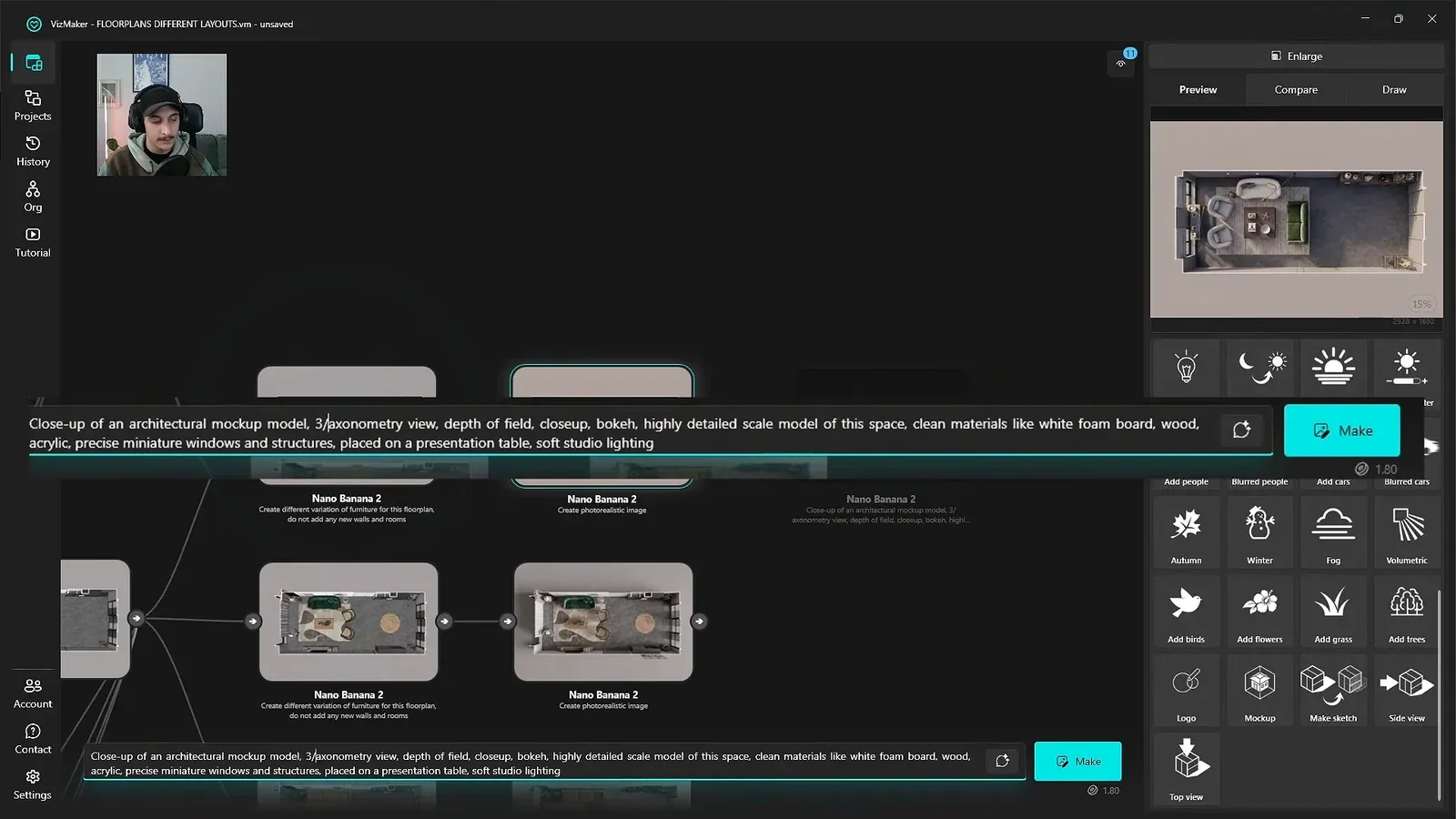
Select the latest prepared image and choose the Mockup preset. Edit the prompt to request a three-quarter view before generating. The demonstrated prompt combines that view direction with the appearance of a detailed miniature architectural model.
A three-quarter view reveals more of the walls and furniture height than the original plan. The miniature presentation can include a model base, simplified model-making materials, and studio-like surroundings, so decide whether that style suits the project.
Repeat the request for the other layouts you want to compare. Keep the viewing instruction consistent enough that differences in arrangement remain easy to understand.
3. Compare the mockup with its source plan
Check design continuity as well as the quality of the miniature effect.
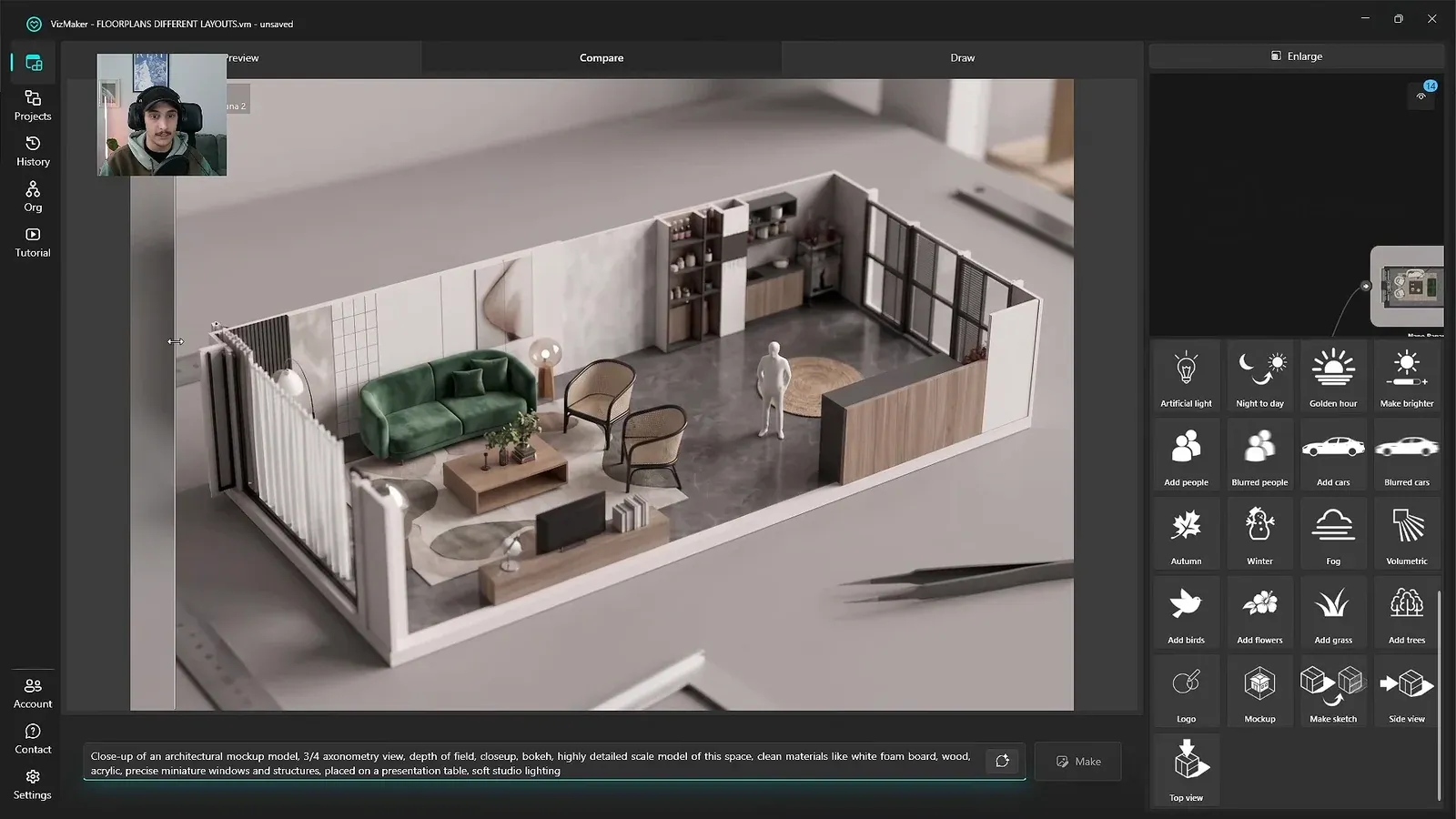
Use A/B comparison to inspect the location of sofas, chairs, tables, storage, and partitions. Look at distinctive objects too: an unusual lamp can reveal whether the generation retained the character of the source design.
The example includes a small model-like person added to one result. Such additions may support the presentation, but they are still generated choices to approve or reject. Check openings, object counts, and the overall room proportions rather than accepting the style alone.
Use the finished image as a floor plan presentation companion. Keep measured dimensions and technical information in the original project documentation; the mockup image does not establish their accuracy.
Conclusion: add a spatial presentation view to the plan
An angled mockup can make an interior layout easier to discuss, especially when the audience responds better to a model-like image than to a top-down plan. Start from a clear layout, specify the view, and compare the result before placing it in a presentation.
- Use a prepared layout image as the source.
- Specify a three-quarter view in the Mockup prompt.
- Present the generated mockup alongside the original plan.
Questions and answers
Does the Mockup preset create an editable 3D model?
The demonstrated workflow generates an image with the appearance of a miniature architectural model. It does not demonstrate exporting editable geometry.
Why add a three-quarter view instruction?
It asks for an angled view that reveals wall and furniture height, rather than keeping the presentation directly above the plan.
Can I make mockups of several layout alternatives?
Yes. Apply the workflow to each prepared layout image and compare the outputs with their respective source plans.
See the prompt adjustment and the miniature-style results for several interior layout alternatives.
Watch the architectural mockup tutorial on YouTubeSource: 3D Plan to Mockup in seconds (SketchUp + AI Workflow 2026) · VizMaker - AI Renderer ·