
The Rhino AI rendering plugin connects a prepared view to VizMaker for visual exploration of architectural forms, materials and atmosphere. Designers can develop several image directions, upscale a selected result and make a short motion study. Keep the Rhino model as the geometric reference while using AI imagery to explain the experience and character of the proposal.
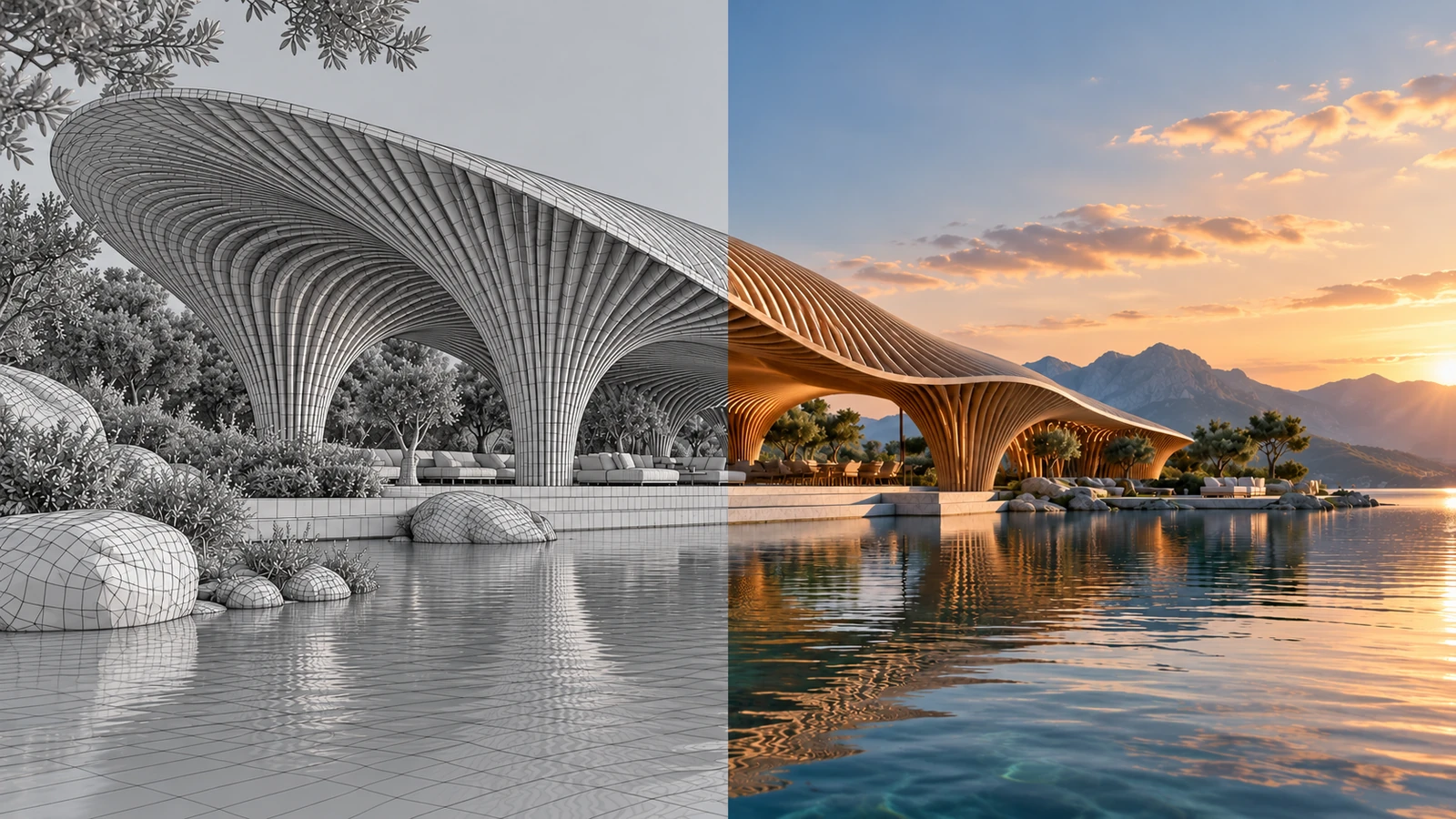
AI-generated editorial cover. Workflow screenshots below are taken from the credited sources.
Give an architectural form a material and spatial character
A carefully modeled form may still leave the client unsure about its material presence. A pavilion, curved interior element or sculptural facade needs a view that connects its shape to light, scale and surroundings.
VizMaker adds an image-based presentation stage to the Rhino workflow. It is useful for comparing visual directions around a model that already expresses the core idea. The source material shows the Rhino integration, while the accompanying Archicad frames explain the shared VizMaker enhancement and animation tools.
Prepare a Rhino view that explains the form
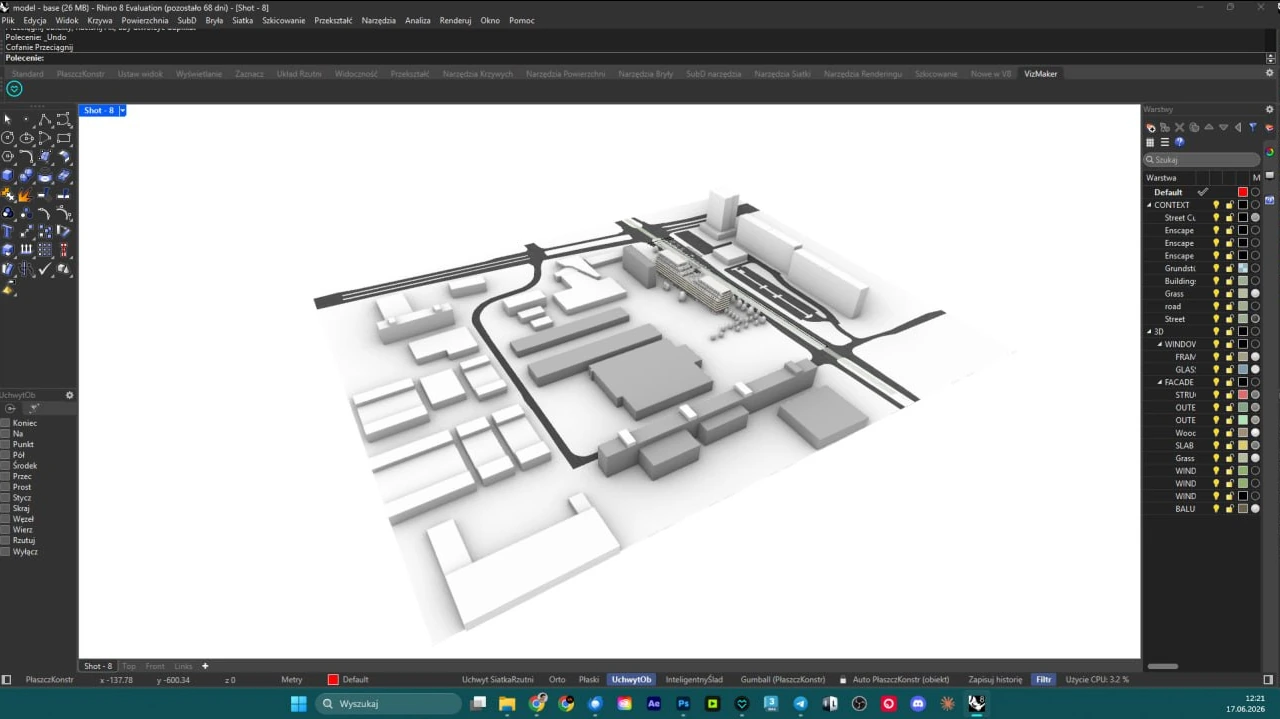
The ebook shows the VizMaker toolbar in Rhino beside an architectural model.
Install the Rhino integration from VizMaker Settings and Plugins, using the version available for your installation. Frame the form from an angle that reveals its defining relationships: a roof opening, a curved enclosure or the rhythm of a facade. Use the plugin control to capture that view into VizMaker.
Keep an identifiable source for each design option. If you are comparing two forms, preserve their separate views and labels. That organization makes it possible to distinguish a change to the Rhino design from a change to the AI treatment of the same design.
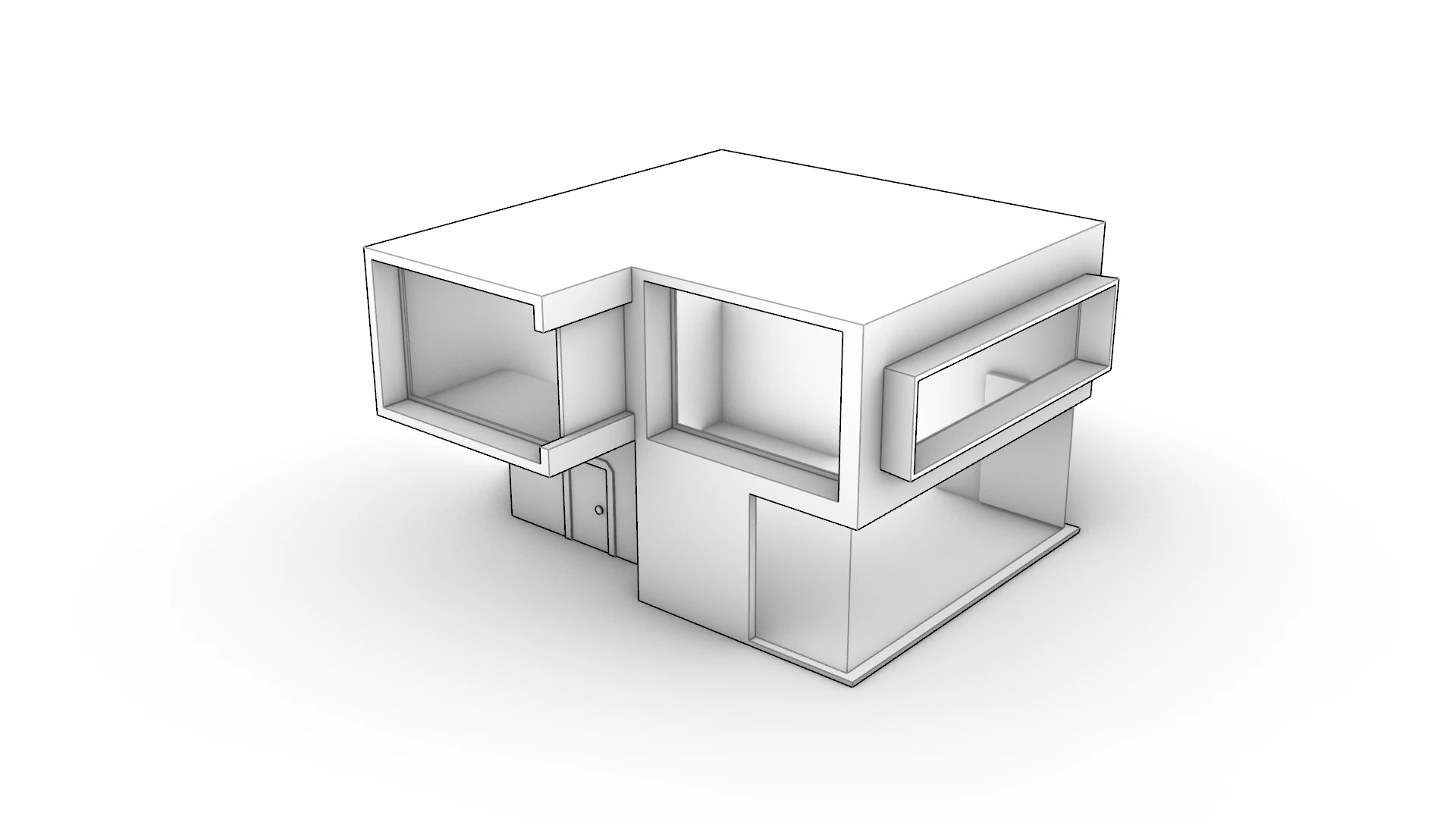
Rhino also provides native display styles for reading a design before image generation. The Monochrome building example below emphasizes edges, depth and openings. Keep that kind of clear geometric reference available when reviewing an AI interpretation.
- Choose a view with a readable silhouette and spatial context.
- Label separate geometry options before generating their visual treatments.
Explore material and context around the same geometry
AI material studies help compare how an architectural idea might be experienced.
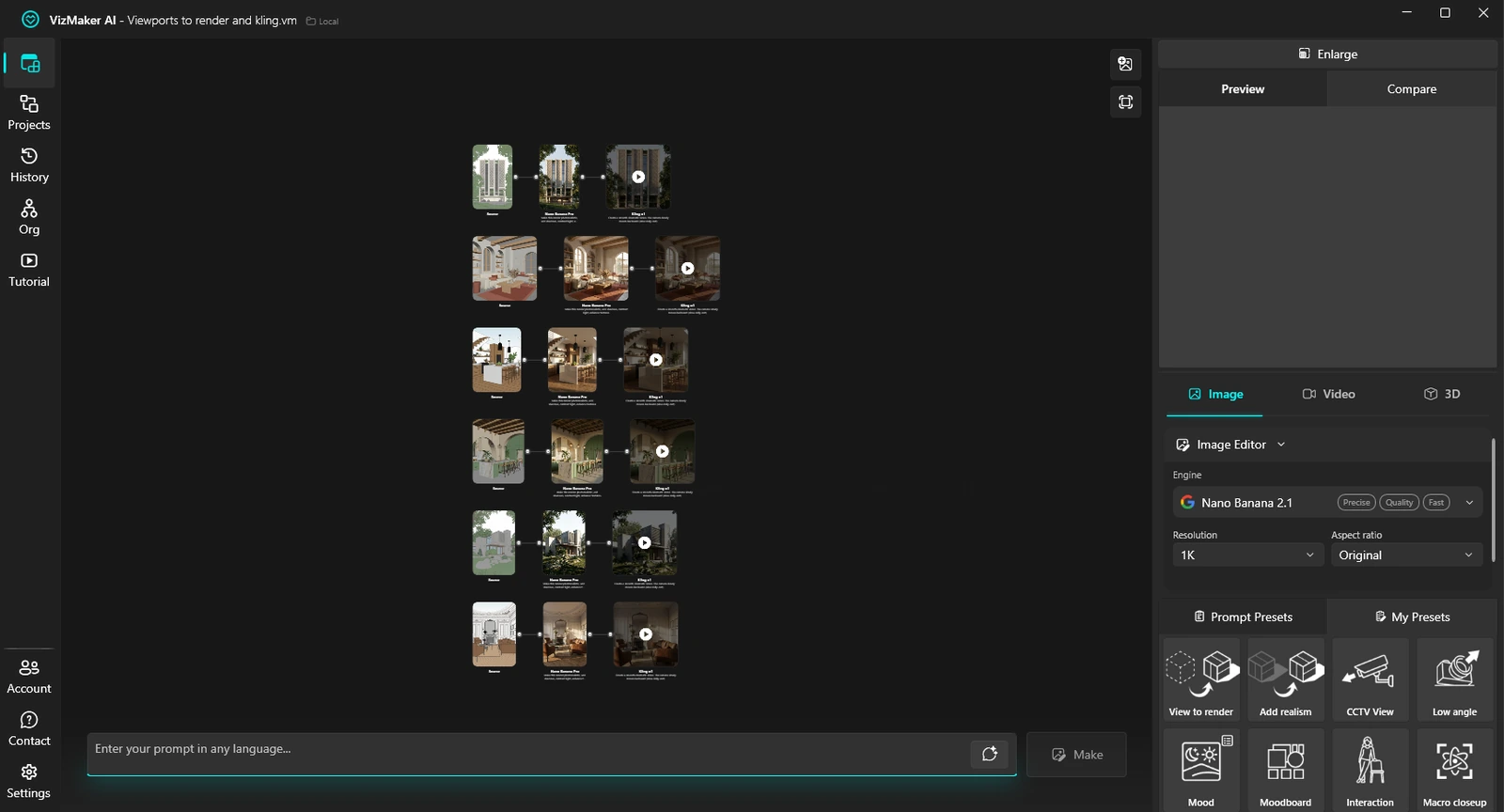
Select the captured view in Image Editor and use the rendering workflow with a clear brief. For a pavilion, describe the intended material character, the atmosphere and the relationship to the landscape. Explore a small number of alternatives that answer the same question rather than changing the whole brief at once.
Check the output against the defining shape of the model. Curvature, openings and thin edges are important to the design and can be reinterpreted in a generated image. If a visual change suggests a better idea, develop that idea in Rhino and capture a new reference view.
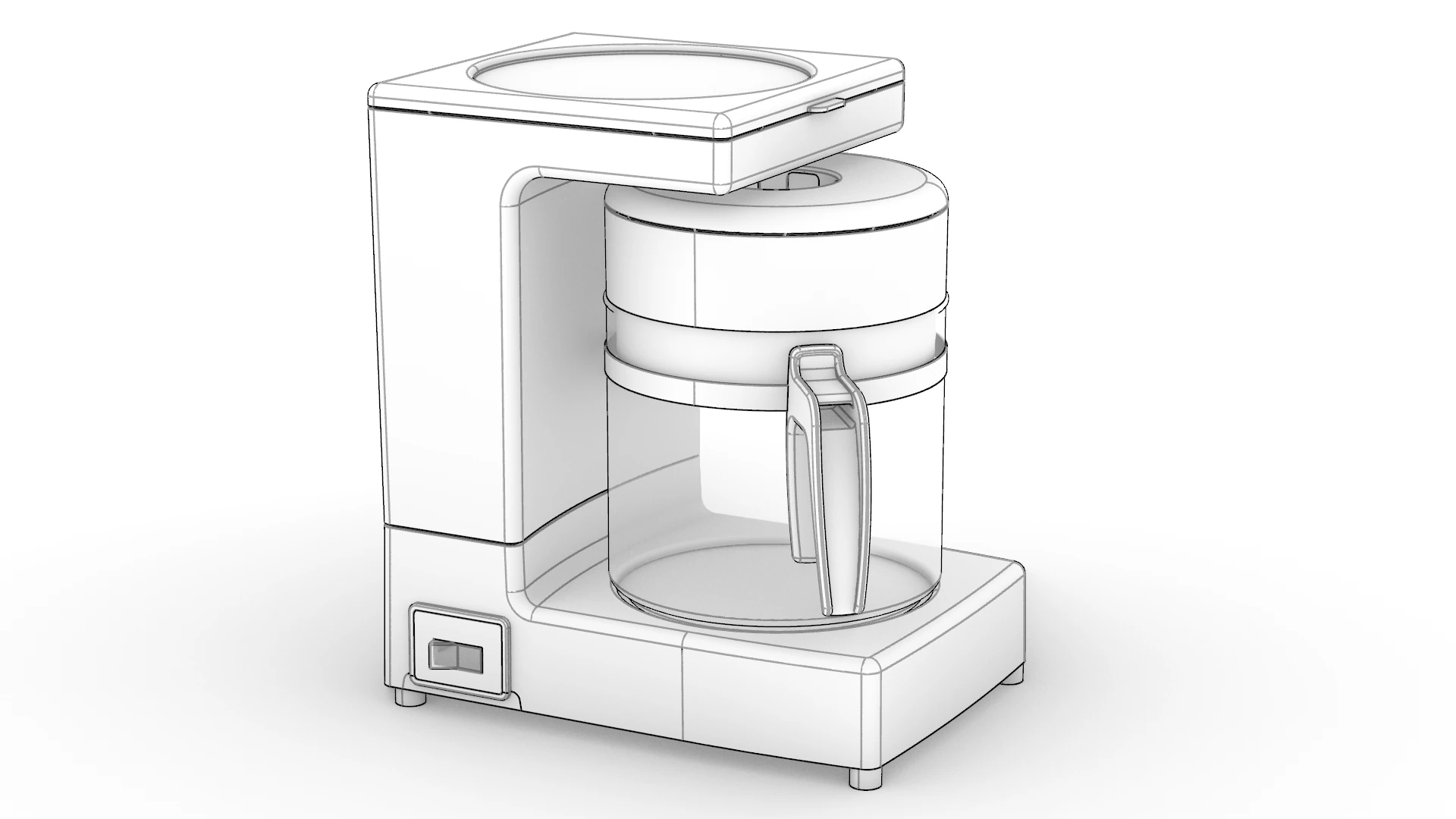
For product and interior-detail studies, a simple native view can also make small shape relationships easier to inspect. The Rhino appliance example below illustrates this approach before material and atmosphere variations are explored.
- Compare visual directions using a stable source form.
- Separate material exploration from intentional geometry revisions.
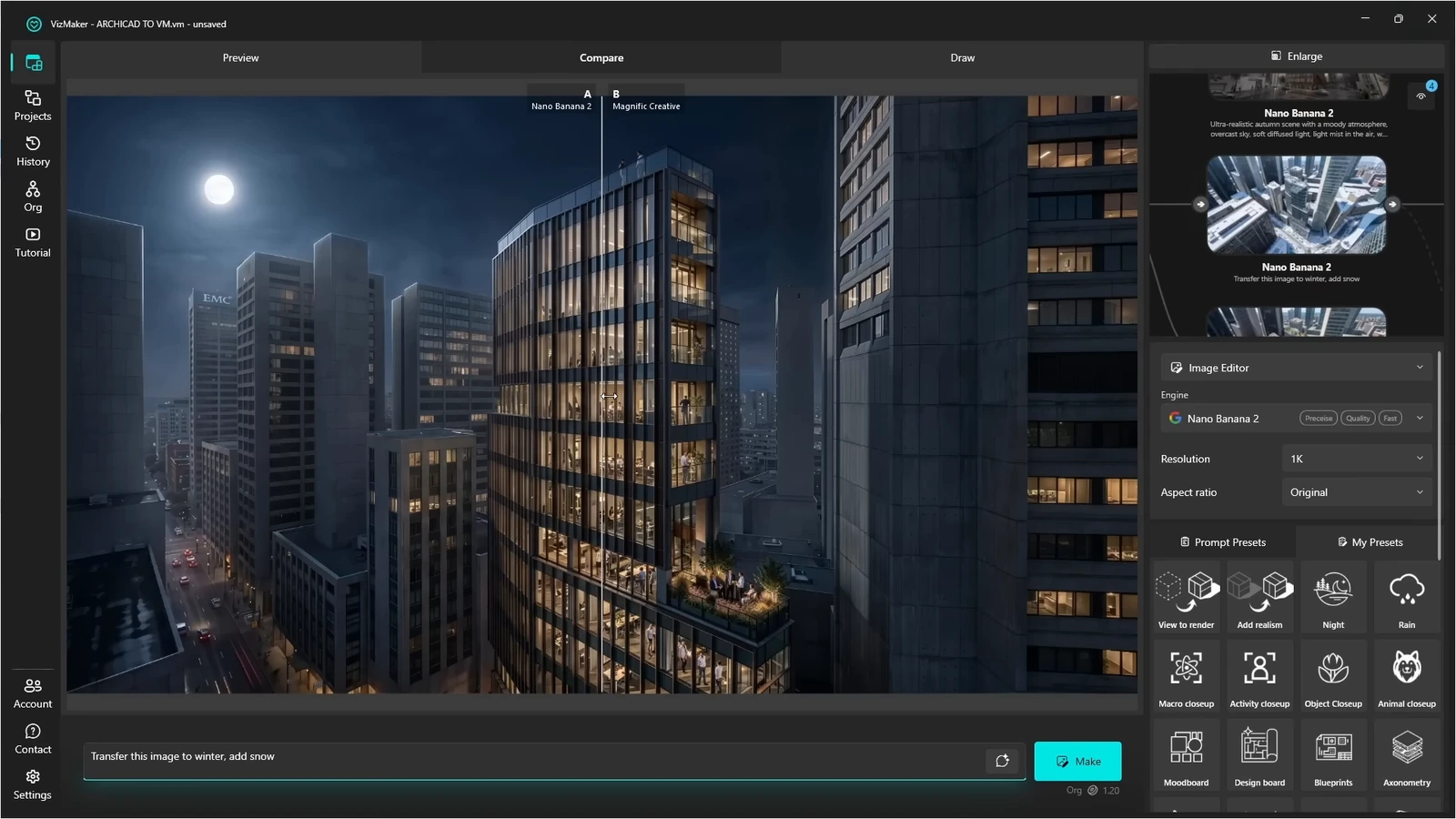
Inspect enhanced surface detail
Image upscaling can support a material presentation when its added detail remains consistent with the proposal.
After selecting the strongest image, use Image Upscaler and compare the processed result with the original. The shared workflow in the Archicad recording shows how enhancement affects surfaces, landscape elements and reflections.
For a curved facade or sculptural interior, inspect the continuity of material patterns and joints. Added grain or panel detail can change how the surface is perceived. Choose a result that supports the intended finish and retain the original image for a clear comparison.
- Inspect material continuity across curved or repeated surfaces.
- Keep enhancement subordinate to the architectural idea.
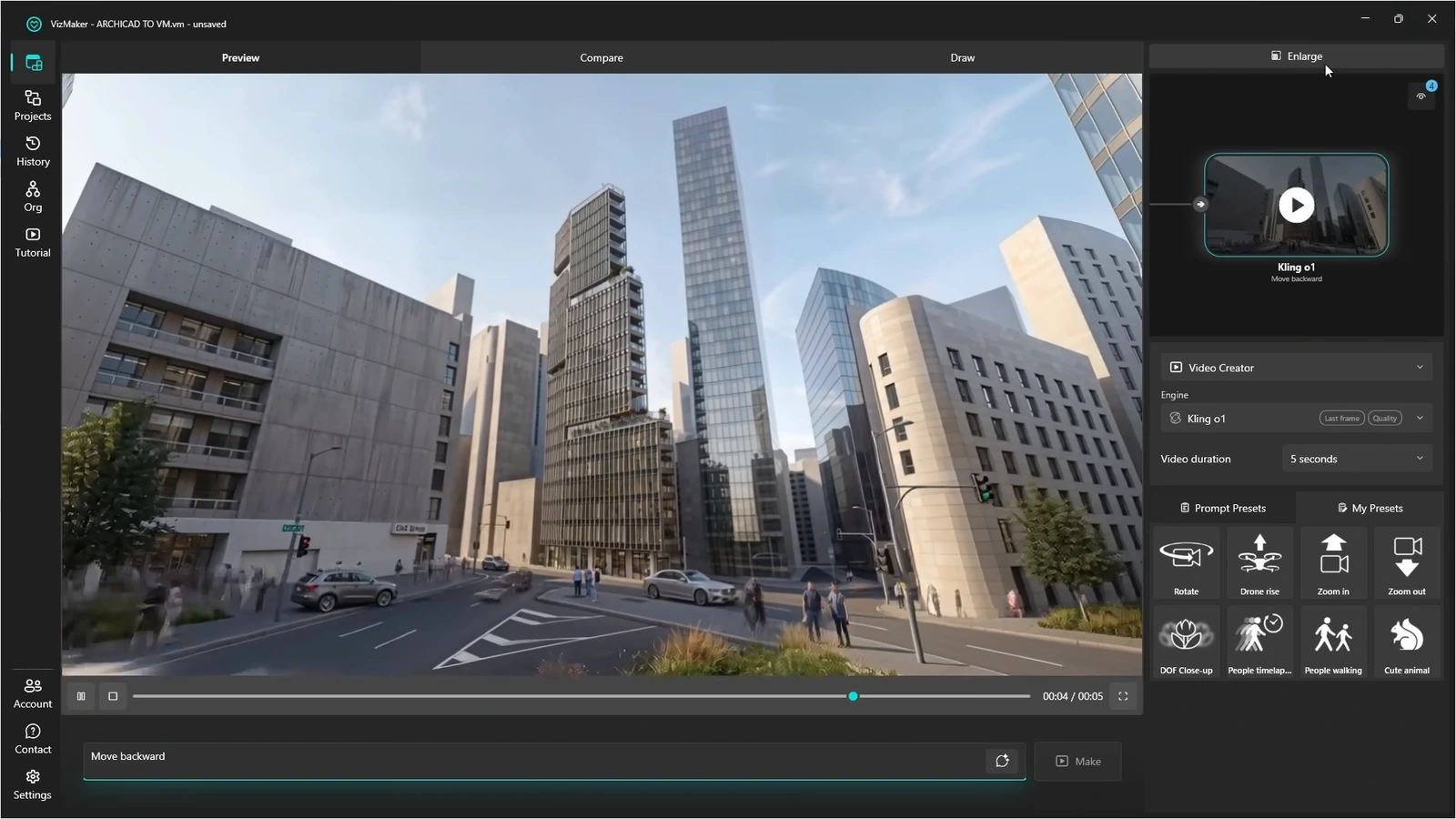
Make a motion study for the concept
Architectural motion studies can communicate atmosphere around a selected Rhino-based image.
Use Video Creator to describe a restrained reveal, a change of viewpoint or a lighting transition. A short clip may help communicate the arrival at a pavilion or the atmosphere beneath a canopy. First and last frame inputs, where supported, give a transition defined visual endpoints.
Review the generated movement against the form you modeled. The image-to-video process does not establish a geometric camera path through the Rhino scene, and surfaces can change between frames. Use it for a selected presentation purpose and retain a model-driven animation when exact geometry throughout the sequence is required.
- Choose movement that reveals a meaningful spatial relationship.
- Review the middle of the clip as carefully as its endpoints.
Use generated assets for visual context
AI 3D assets can provide furnishing or context ideas alongside a Rhino design.
The ebook describes generating a separate 3D model from a furniture reference. Use a clear image to explore an object, then inspect the generated geometry before export. The guide includes rotation, untextured preview and scale checks as part of the asset workflow.
A generated mesh is a different deliverable from the editable surfaces or construction logic in a design model. Check import compatibility, proportions, mesh quality and materials before using it for context. Keep precise design geometry in the modeling workflow that defines it.
- Inspect the generated object independently of its attractive texture.
- Confirm scale and the target import workflow before scene placement.
Build a clear Rhino visualization workflow
Use the modeled form to anchor the visual exploration. Let materials, atmosphere and short motion studies explain the proposal, while reviewing each generated result against the geometry that gives the project its identity.
- Use the source form to anchor material and atmosphere exploration.
- Review generated detail along curves, edges and openings.
- Choose image-based motion and assets for clearly defined presentation roles.
Questions and answers
Does VizMaker transfer the complete Rhino model?
The provided evidence establishes view capture into VizMaker. It does not establish transfer of the entire Rhino model or its editable surface structure.
Can AI rendering help with architectural material studies?
Yes. A captured view can be used to compare material and atmosphere directions. Keep the geometry recognizable and review changes to important surface features.
Will an AI-generated object be an editable Rhino surface model?
The cited image-to-3D workflow creates a model asset and documents mesh inspection and export. It does not demonstrate reconstruction of an editable Rhino surface model.
Start with a prepared design view, explore a focused AI visual direction, and review the result alongside your source project.
Download VizMakerSource: This ArchiCAD AI Plugin changes everything · VizAcademy UK ·
Source: VizMaker Guide Ebook · VizMaker · PDF, 76 pages
Source: VizMaker plugin installation panel · VizMaker
Source: VizMaker source-view, rendering and animation workspace · VizMaker
Source: Rhino Display Modes — Monochrome architectural example · Robert McNeel & Associates
Source: Rhino Display Modes — Monochrome product example · Robert McNeel & Associates