
The Revit AI rendering plugin sends a view from Revit into VizMaker for image-based visualization. Architects can use that view to explore materials and atmosphere, improve a selected image, and create presentation clips. The Revit model remains the source of project geometry and BIM information; generated images and reference-derived 3D assets require their own review.
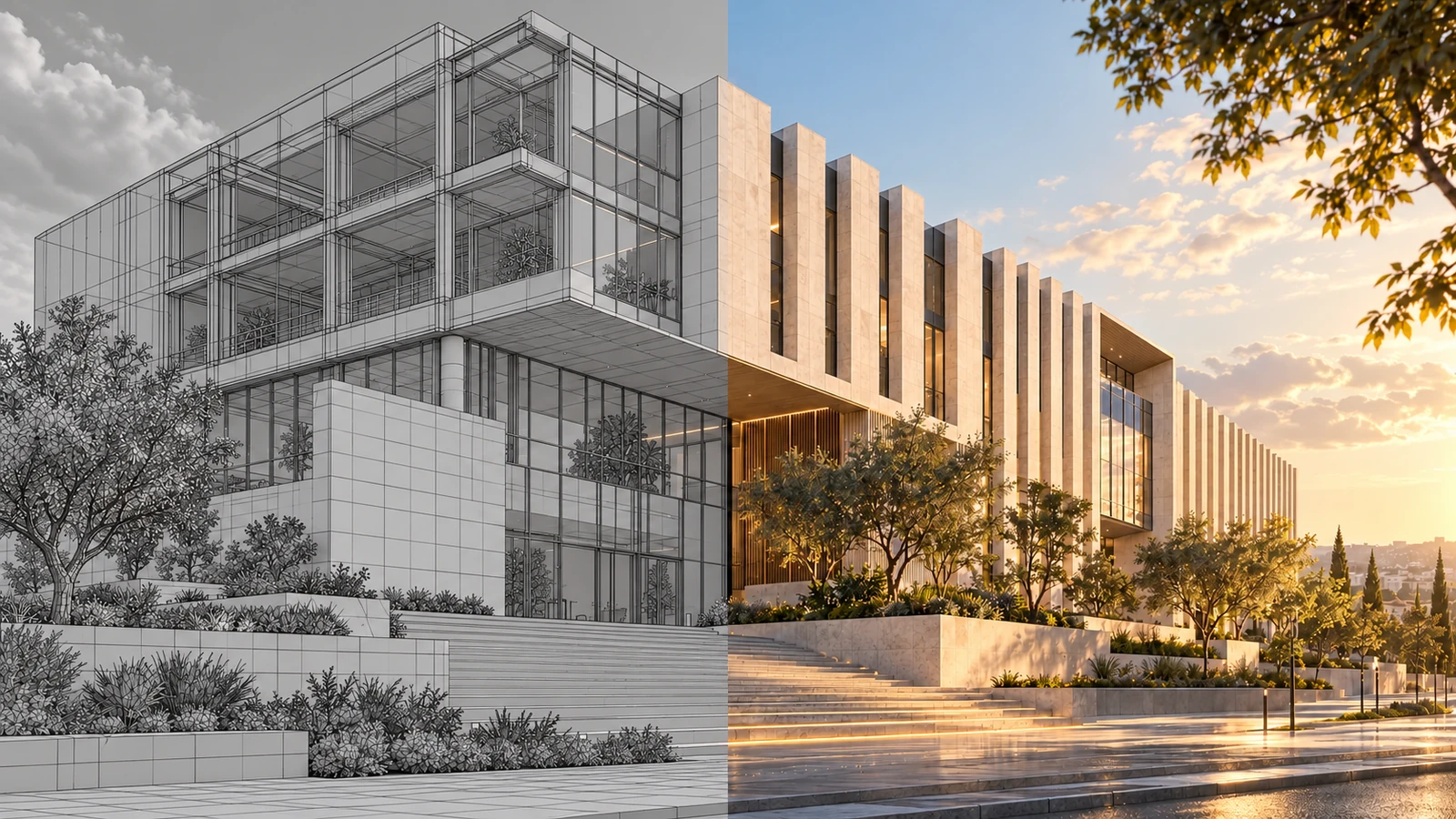
AI-generated editorial cover. Workflow screenshots below are taken from the credited sources.
Translate a coordinated model into a visual discussion
A BIM model is built to support many project decisions, but its working view may not communicate the intended atmosphere to a client. A facade concept, reception area or shared workspace often needs a clear visual explanation before the team commits to a direction.
VizMaker adds a presentation workflow around a captured view. The useful division of work is straightforward: prepare the design and viewpoint in Revit, explore the visual treatment in VizMaker, then return approved design changes to the model. The illustrations distinguish the Revit integration from shared AI tools demonstrated in Archicad.
Send a deliberate Revit view to VizMaker
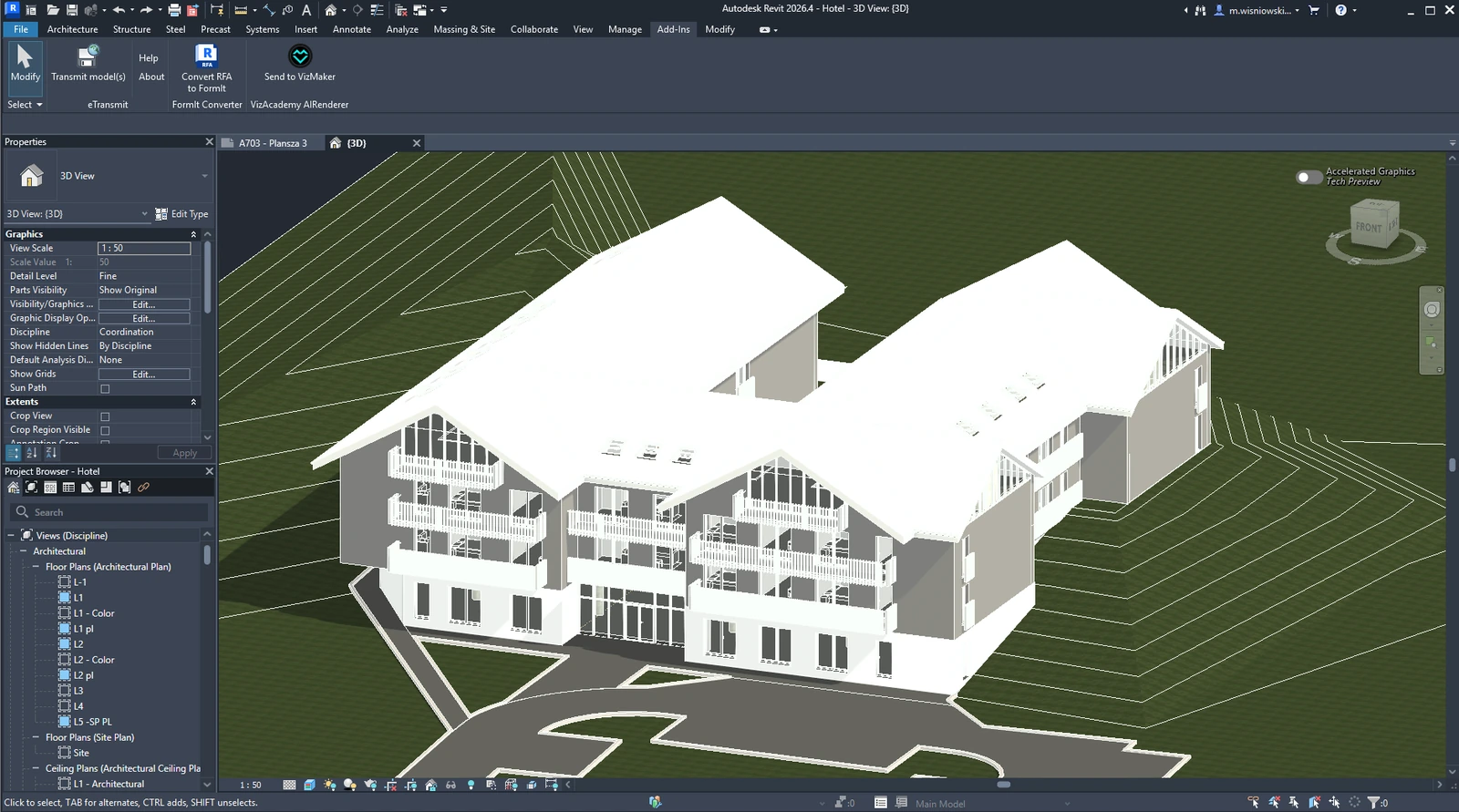
The ebook shows Send to VizMaker in the Revit Add-Ins interface.
Install the plugin for your Revit version through VizMaker Settings, then open the relevant model view. The source screenshot identifies the Revit command used to send that view to VizMaker. Start with a perspective that explains the facade, entrance or interior space under discussion.
Prepare the view so the important geometry is visible and presentation clutter does not dominate it. Keep the source view recognizable when comparing outputs. The plugin installer describes view capture; it does not establish the transfer of parametric families, schedules or the complete BIM database into an AI image.
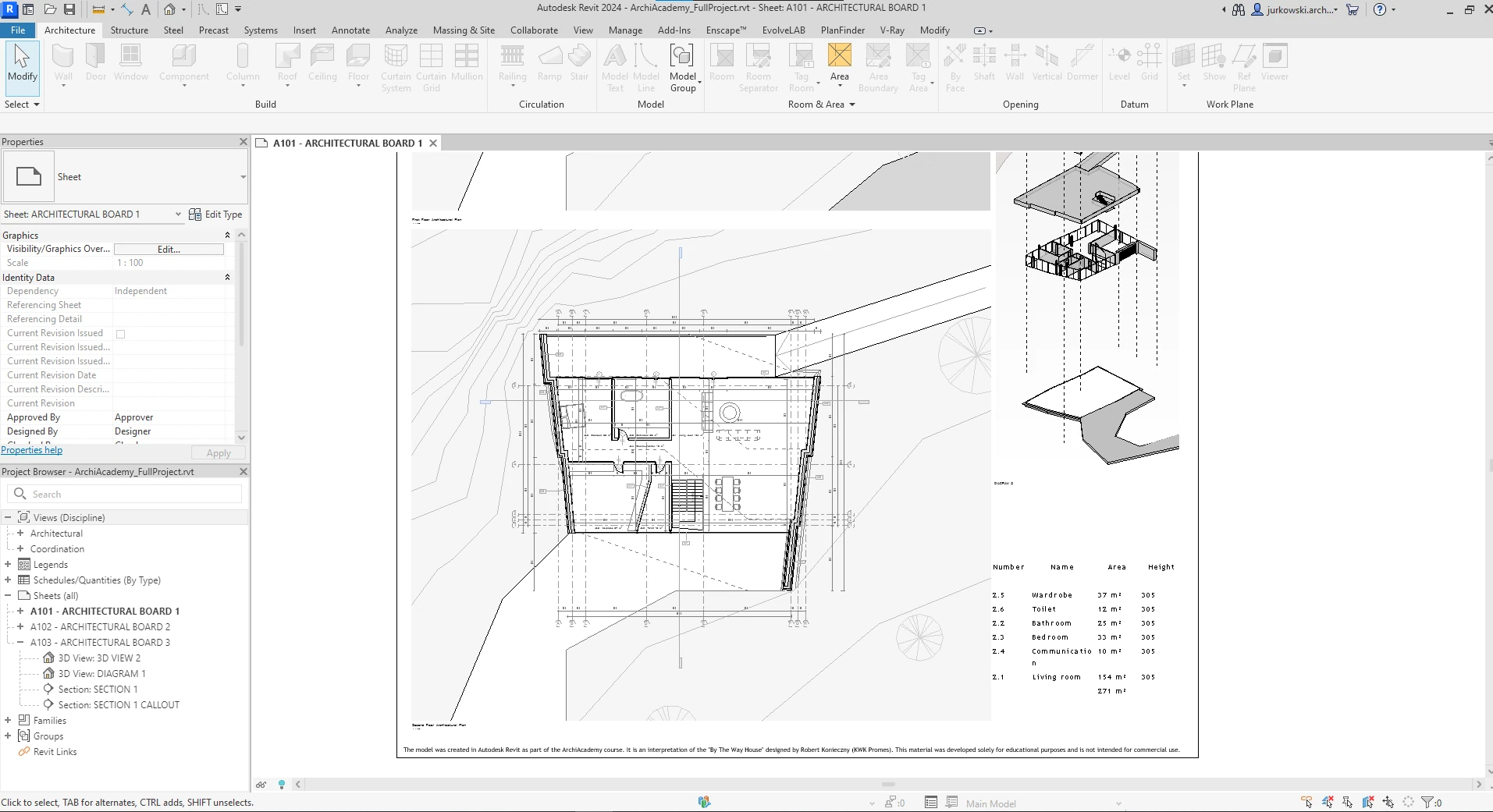
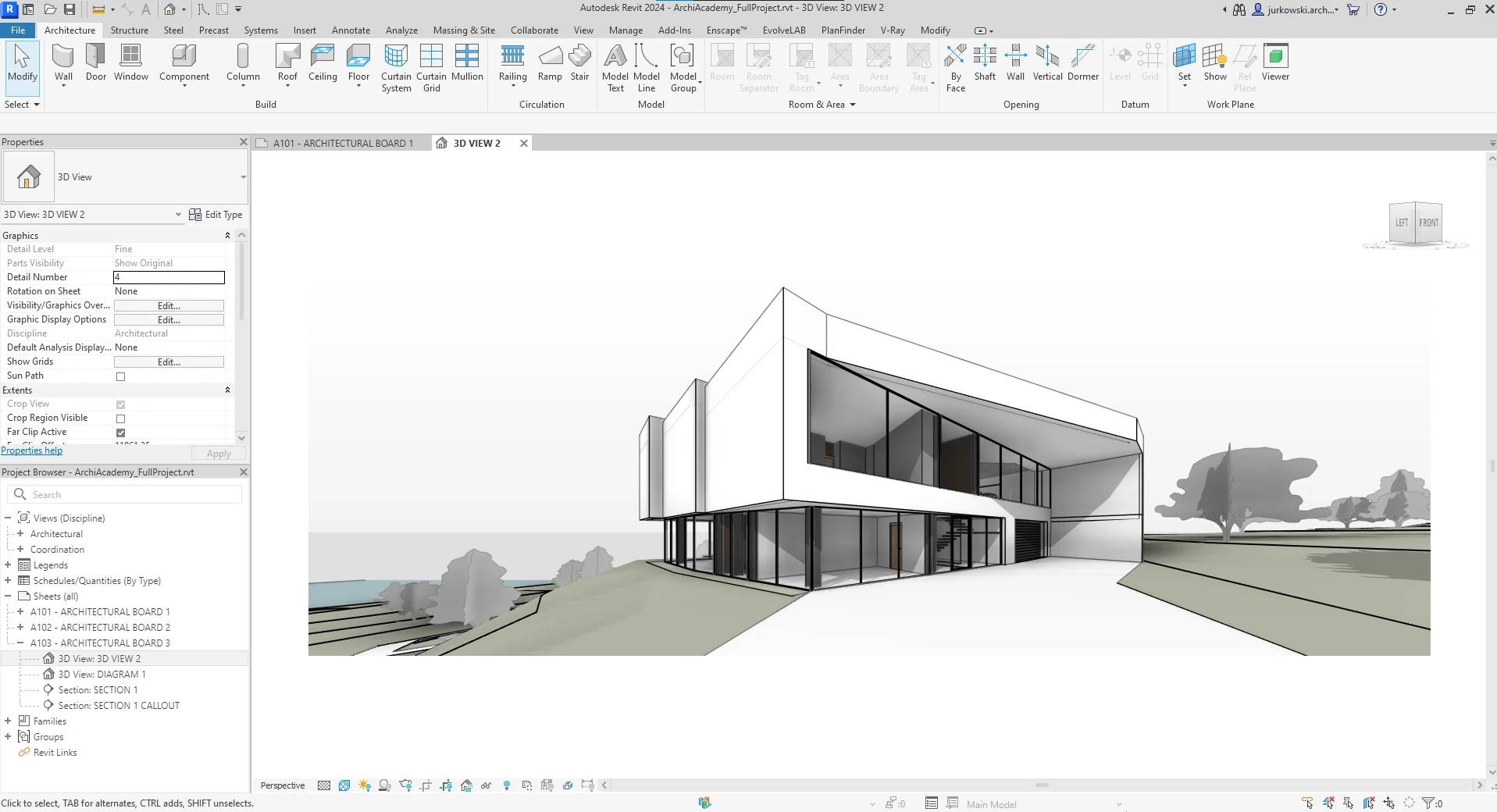
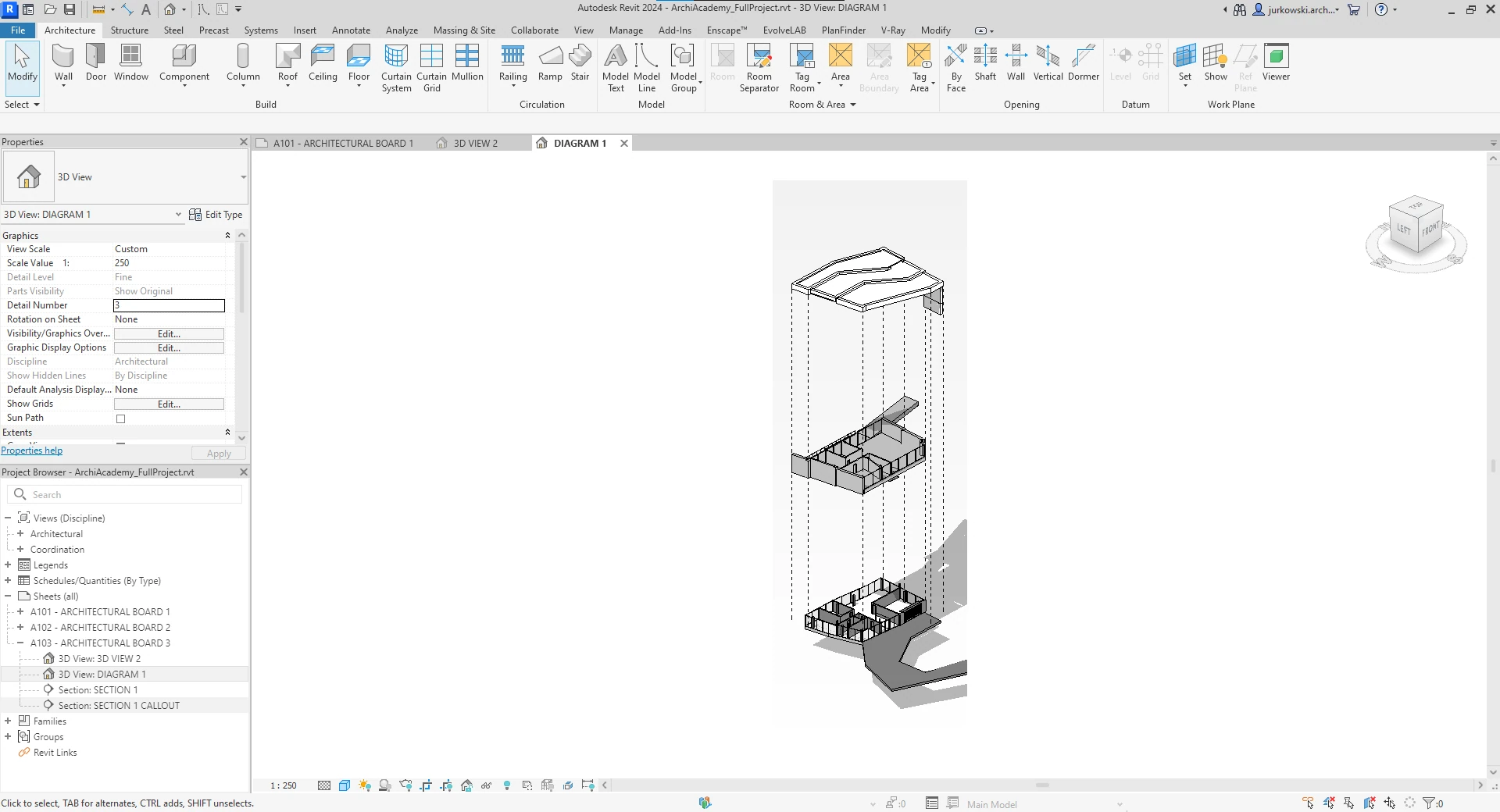
The additional Revit project examples below show an architectural board, an exterior perspective and an exploded axonometric. Keep these complementary views together during review: the perspective communicates the spatial idea, while the board and diagram help explain the building organization. They are owner-supplied project references, separate from the recording examples.
- Choose the relevant model and presentation view.
- Use the installed Add-Ins command and inspect the captured image.
Make material and lighting options readable
BIM visualization benefits from alternatives that answer one design question at a time.
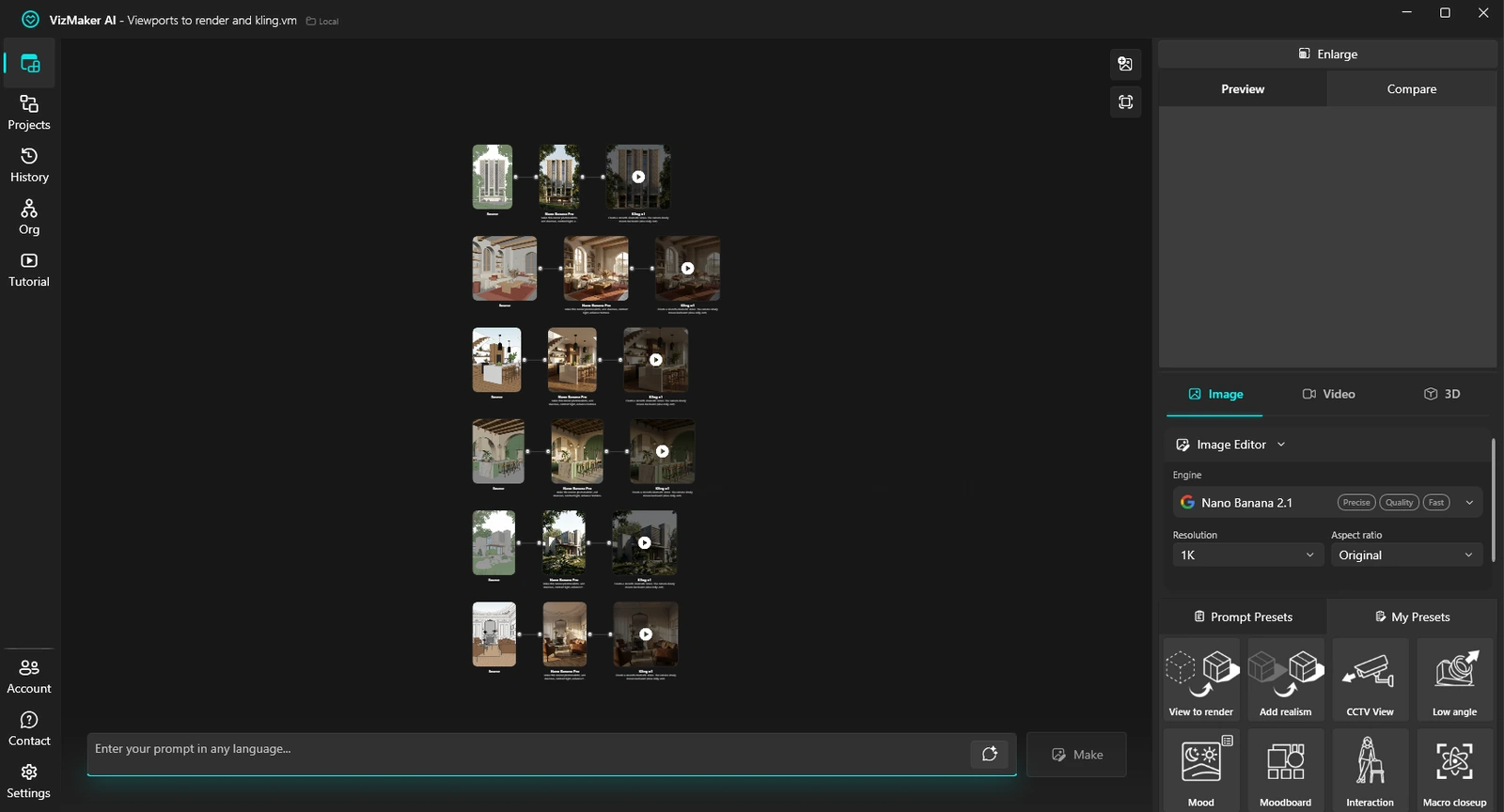
In VizMaker, select the captured image, choose Image Editor and the View to Render preset, then describe the material and atmosphere direction. For a facade review, keep the same view while exploring a restrained cladding palette or a different daylight mood. For an interior, focus on the relationship between finishes and furniture.
Compare openings, bay rhythm, circulation and major proportions with the Revit view. The Archicad recording provides a useful warning: one generated exterior omits a building feature, and the presenter rejects it. Visual quality alone is not enough to establish that an image represents the coordinated design.
- Keep alternatives comparable by using a stable source view.
- Bring accepted design changes back into Revit.
Refine presentation detail without changing the BIM model
AI upscaling improves a selected presentation image rather than the underlying model data.
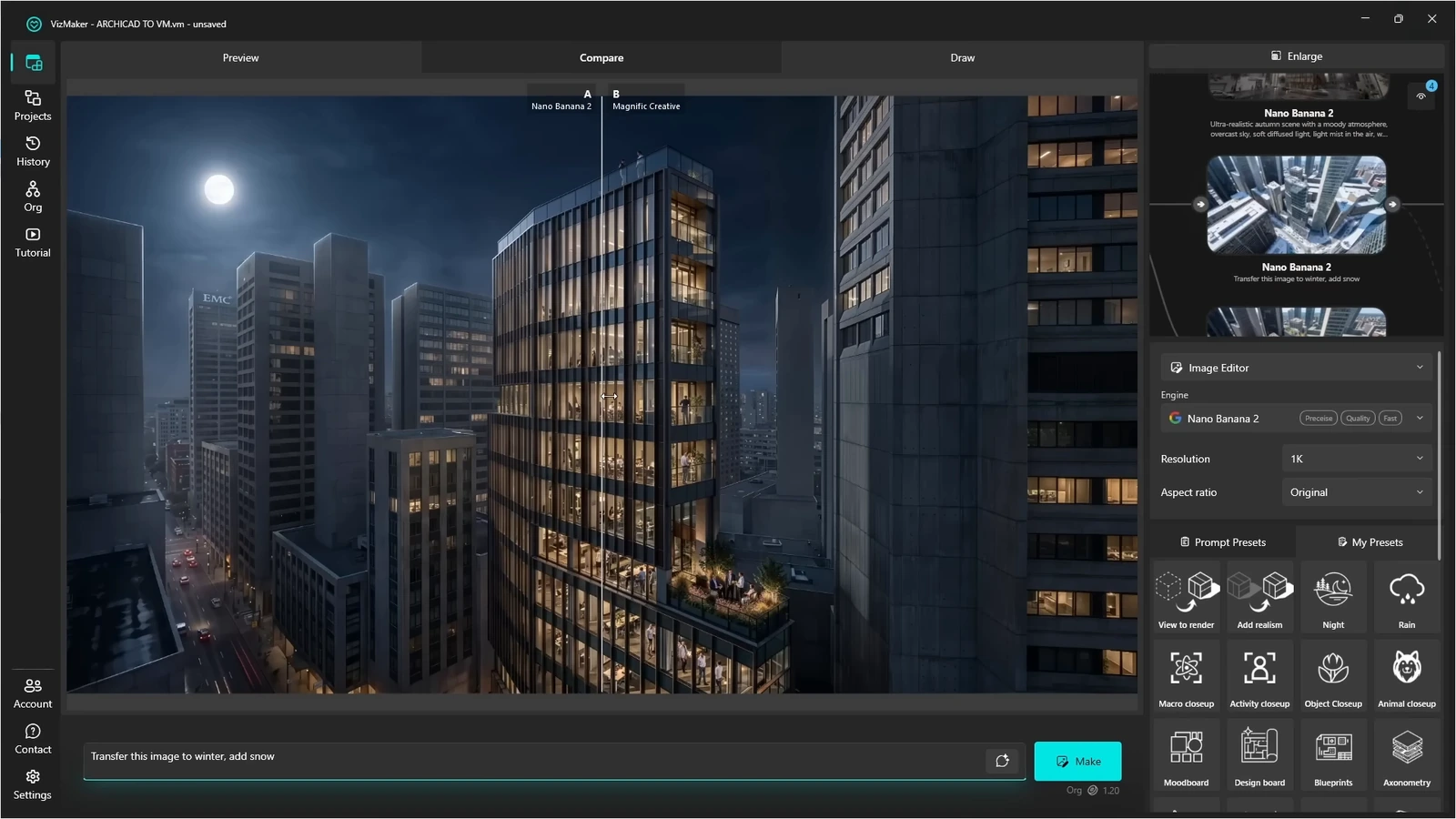
After choosing an image direction, open Image Upscaler and compare the enhanced result with the original. The supplied recording shows Magnific Creative being used on architectural surfaces, vegetation and interior details. Use those examples to understand the process, then choose settings according to your own image.
Inspect repetitive facade features and specified materials carefully. Added texture can help a client read the intended finish, but it can also suggest detail that was never modeled or specified. Keep the source and enhanced version available so the project team can see what changed.
- Check window patterns, joints and material character.
- Use the enhanced image for communication, with the model retained as the design reference.
Turn a reviewed view into a short presentation film
Architectural animation adds a sequence of visual impressions around a selected BIM view.
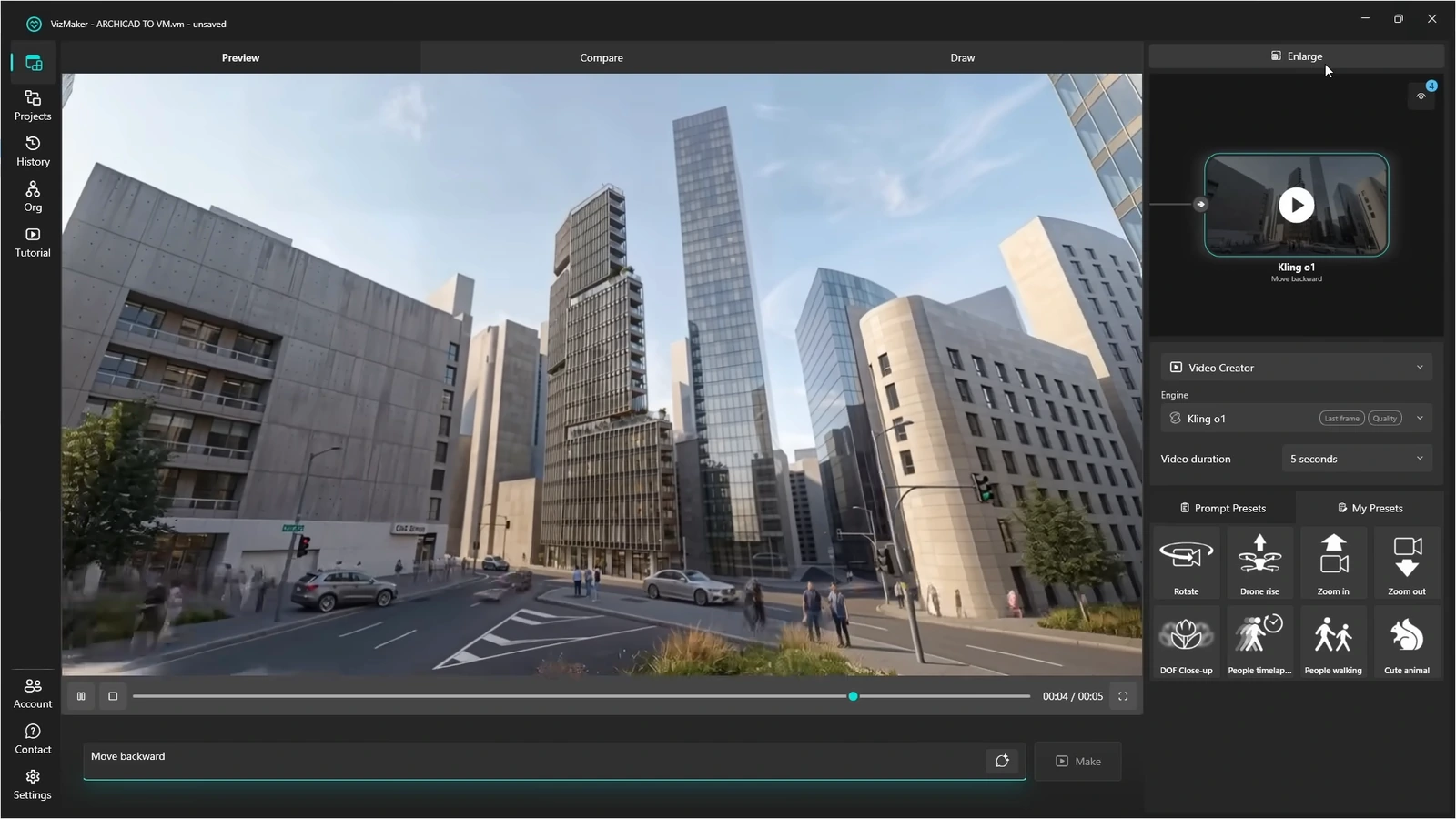
Use the approved image as an input to Video Creator. Choose an available engine and a restrained motion brief, such as a slow approach to the entrance or an interior detail reveal. Where supported, first and last images can define the endpoints of a transition.
Review movement across the whole clip, especially near glazing, thin elements and repeated structural features. An AI transition is not a verified route through the Revit building. If clearances, camera position or spatial continuity are the point of the presentation, use a workflow grounded in the modeled geometry for that part of the deliverable.
- Choose motion that serves the design narrative.
- Inspect changing geometry and continuity before sharing the clip.
Evaluate generated assets before considering BIM use
Image to 3D can create a visual furnishing reference, but a generated mesh is not a Revit family.
The ebook describes creating a 3D asset from an isolated furniture reference. This can help an architect or interior designer explore a custom object visually. Review the model in VizMaker, including its hidden sides and texture quality, before exporting.
The source material does not document a direct conversion to parametric Revit families. Check the import and conversion workflow available to your team, and use verified product dimensions. Keep family parameters, scheduling requirements and design responsibilities separate from a mesh created for visualization.
- Use generated assets for the presentation role they can support.
- Verify the target format and dimensions before bringing an asset into a project.
Build a clear Revit visualization workflow
Use the BIM model to define the proposal and the image workflow to communicate it. Clear comparisons and reviewed outputs let the presentation become richer while the source of project information remains identifiable.
- Use a clear BIM view as the starting reference for AI images.
- Review every output against the coordinated design.
- Keep generated images, clips and meshes separate from verified BIM information.
Questions and answers
Does VizMaker edit the Revit model when it changes a render?
The documented workflow captures a view and edits the resulting image in VizMaker. An image change does not establish a corresponding update to Revit geometry, materials or BIM data.
Can I use the Revit plugin for interior presentations?
Yes. Prepare an interior view in Revit and use it as the input for the same VizMaker image workflow. Review furniture placement and circulation against the model.
Are generated 3D objects ready-made Revit families?
No such family conversion is established by these sources. Treat the output as a mesh asset and check formats, dimensions and any conversion required by your BIM workflow.
Start with a prepared design view, explore a focused AI visual direction, and review the result alongside your source project.
Download VizMakerSource: This ArchiCAD AI Plugin changes everything · VizAcademy UK ·
Source: VizMaker Guide Ebook · VizMaker · PDF, 76 pages
Source: VizMaker plugin installation panel · VizMaker
Source: VizMaker source-view, rendering and animation workspace · VizMaker
Source: Revit 2024 architectural board — ArchiAcademy course model · VizMaker (owner-supplied screenshot)
Source: Revit 2024 exterior perspective — ArchiAcademy course model · VizMaker (owner-supplied screenshot)
Source: Revit 2024 exploded axonometric — ArchiAcademy course model · VizMaker (owner-supplied screenshot)