
The Archicad AI rendering plugin connects a design view to a complete VizMaker presentation workflow: exterior and interior image alternatives, selected-area edits, upscaling and image-based animation. Its value is the ability to develop several presentation formats from a reviewed view while keeping the Archicad project available as the design reference.
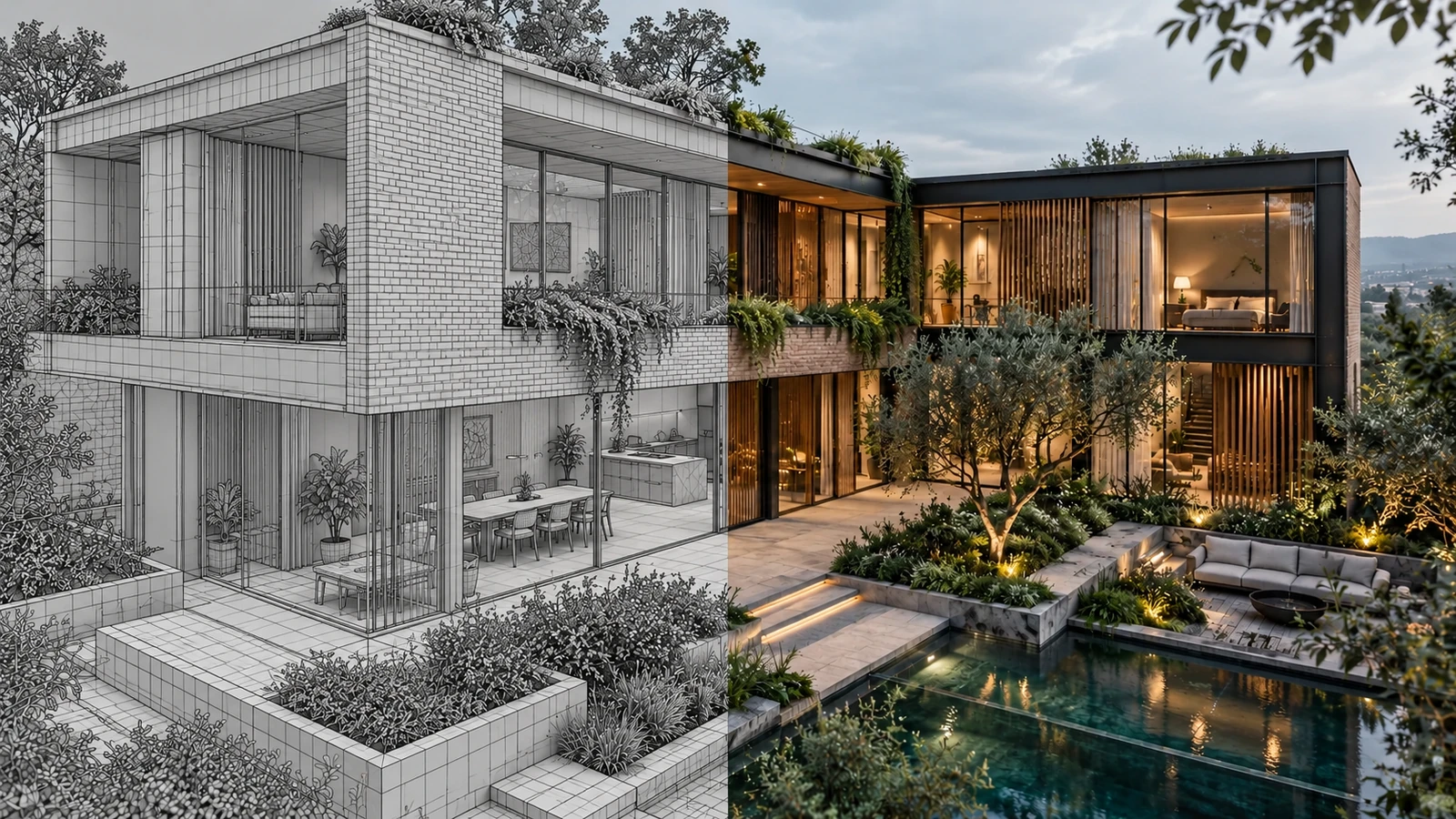
AI-generated editorial cover. Workflow screenshots below are taken from the credited sources.
Use one design reference to support several decisions
An architectural review may move quickly from the overall building to an interior, a material detail or the atmosphere after dark. A useful AI integration keeps these conversations connected to the same project rather than producing a collection of unrelated images.
The Archicad recording demonstrates that broader process, including the selection and rejection of outputs. This article explains when each tool is useful and how the integration fits a design practice; the linked step-by-step Archicad guide covers the recorded workflow in more detail.
Connect the Archicad view to the VizMaker workspace
The integration starts with plugin installation and a view chosen for a particular design discussion.
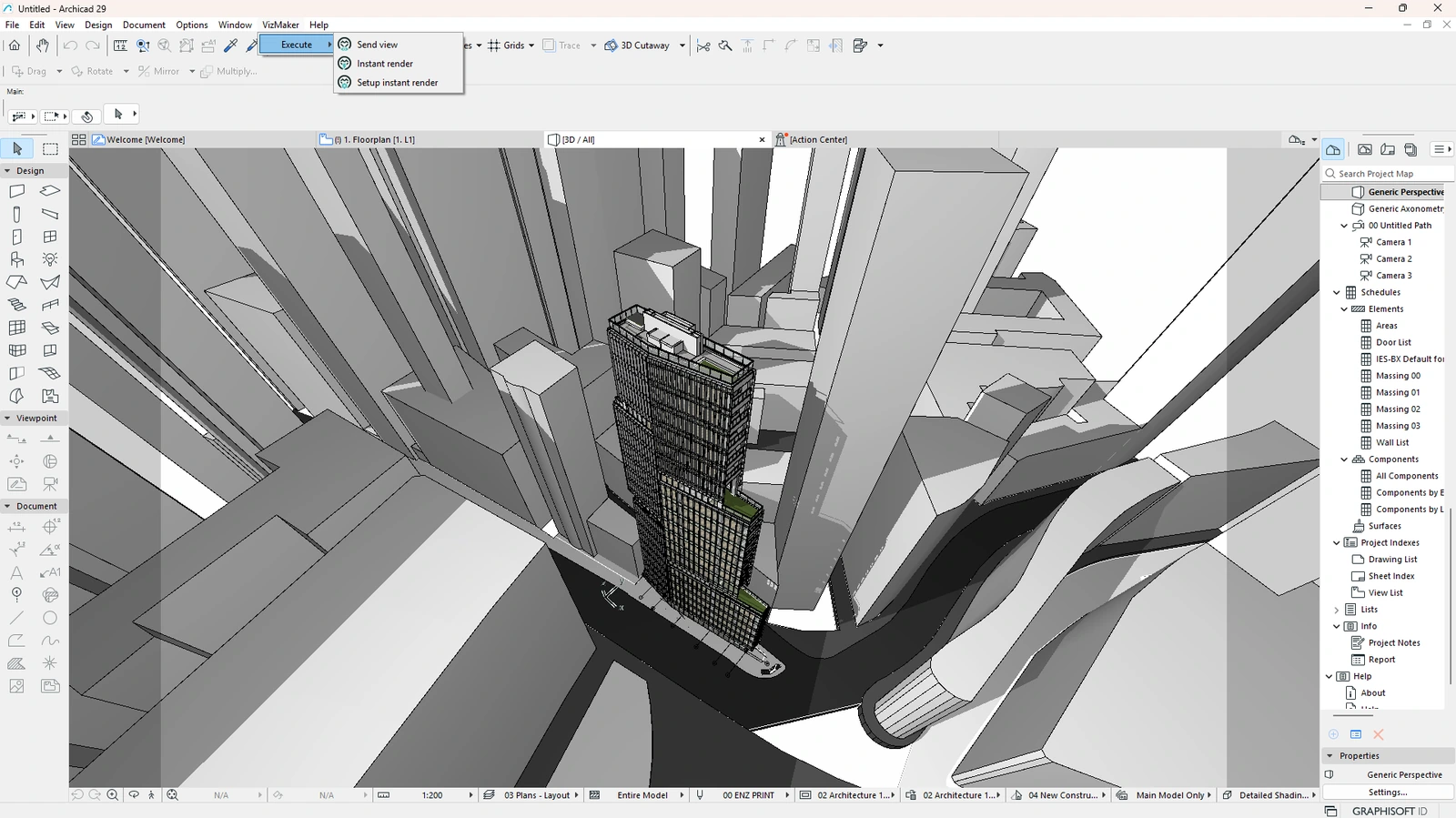
Open VizMaker Settings, choose Plugins and select the relevant Archicad version. The recording instructs users to restart Archicad if it was open during installation. The ebook shows the VizMaker menu with Send view, Instant render and Setup instant render commands.
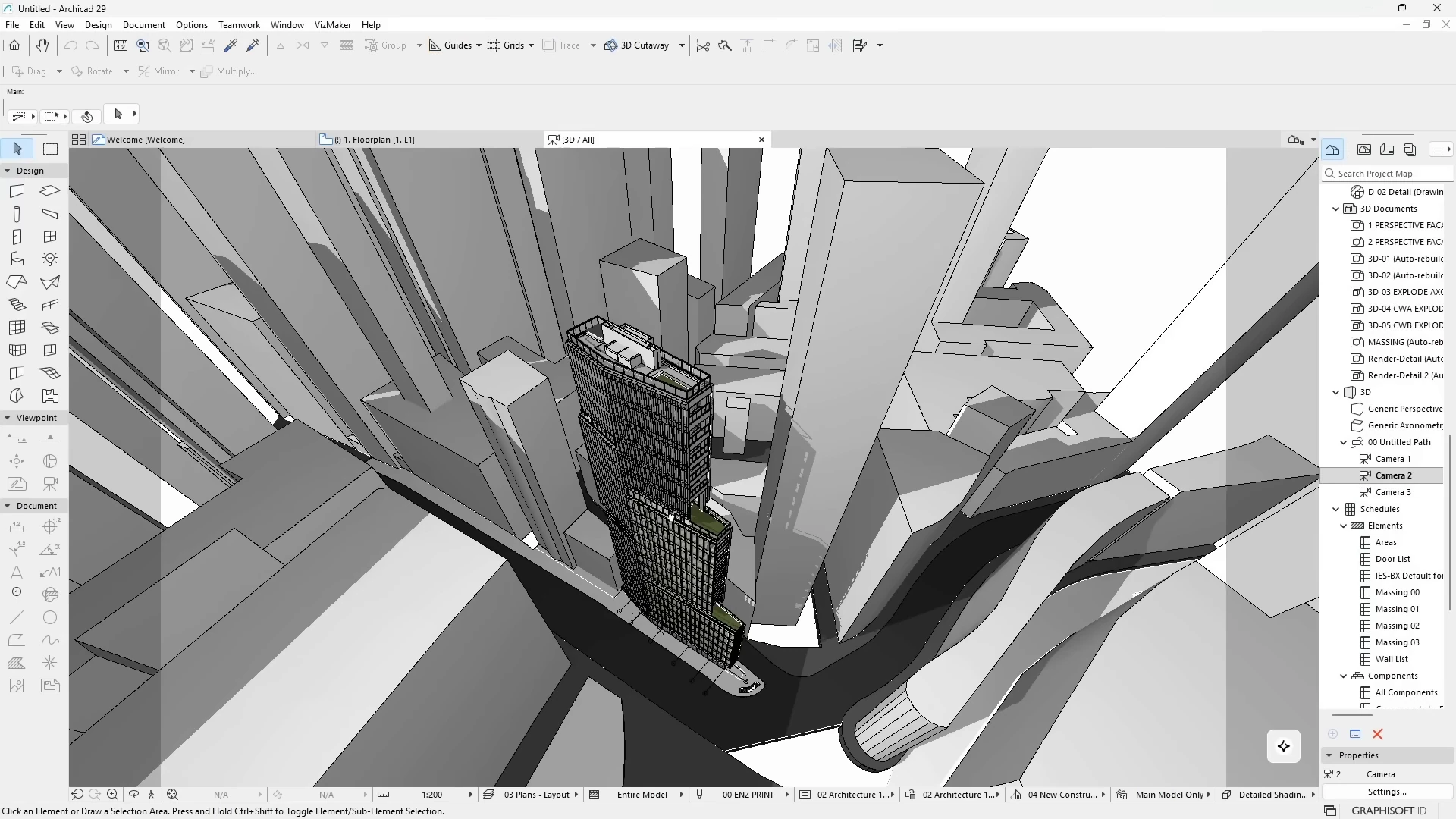
For an exterior review, establish the cameras before transferring the views. Group interior and exterior inputs in the workspace so each result remains associated with its source. A named set of views helps the team revisit the same questions after a model revision.
- Install for the Archicad version in use and restart the host if needed.
- Organize views by project area or presentation purpose.
Compare exterior and interior options before refining them
Archicad visualization becomes more useful when the selection process is explicit.
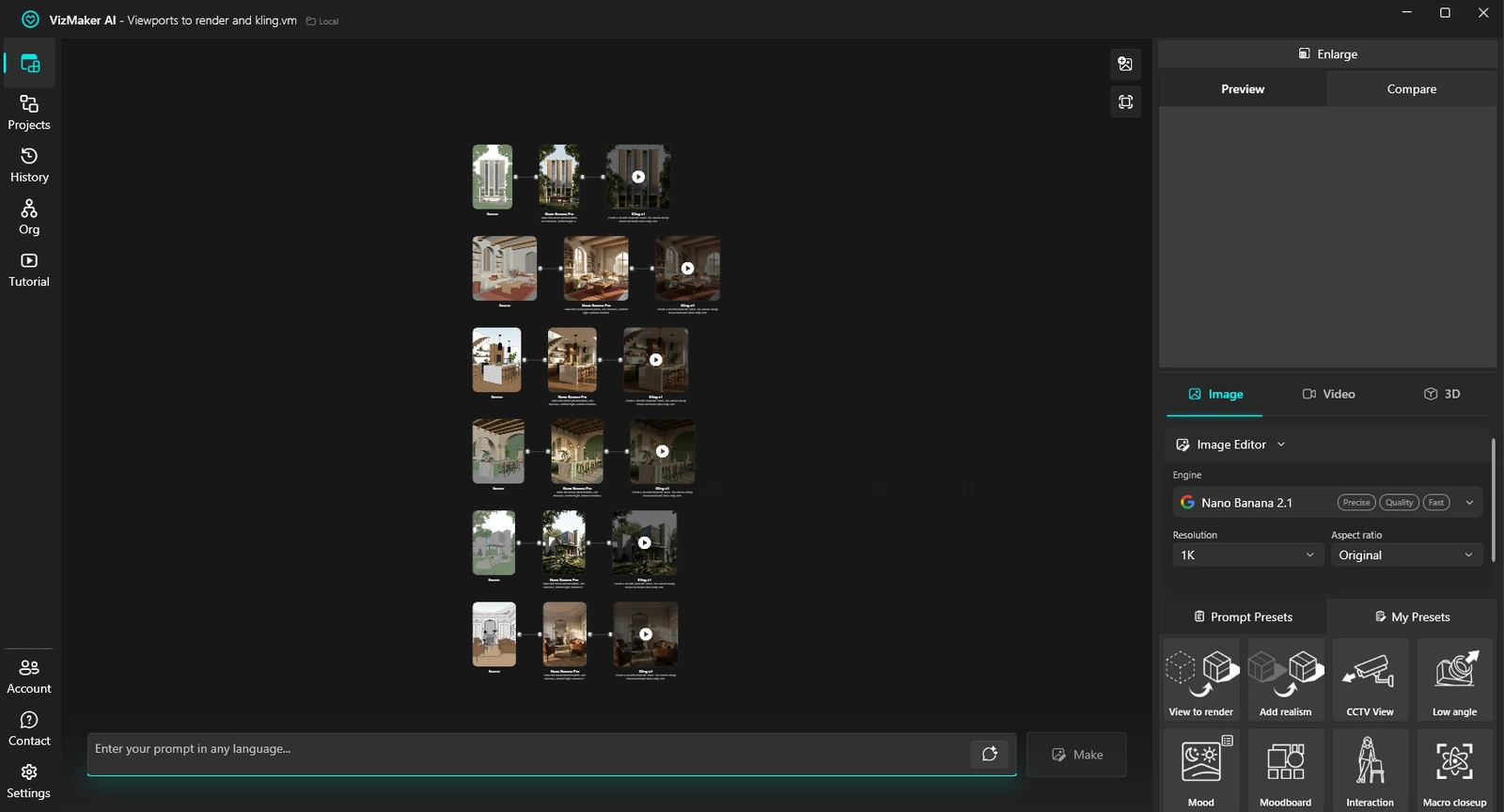
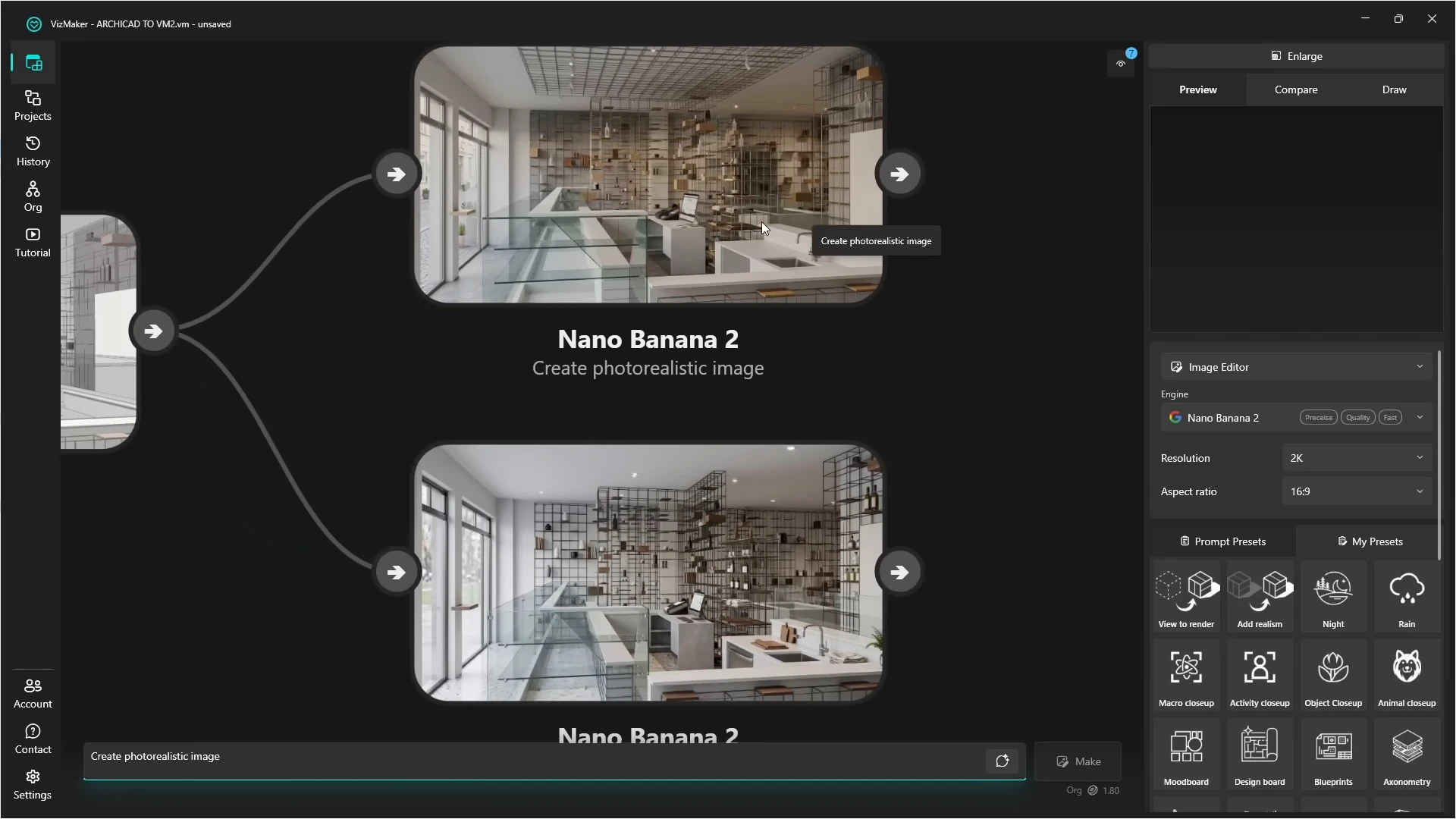
In the recording, the presenter generates two options per camera and chooses among them for lighting, color and the treatment of vegetation. One exterior output removes a building feature and is rejected. Follow that principle: compare the visual direction and the design content together.
Inside Image Editor, a view can become a daylight study, an evening proposal or a material direction. Presets also support people, seasons and detail views. Use these options to answer a client question, then keep the chosen result as the reference for further work instead of refining every generation.
- Compare alternatives from the same camera view.
- Check the building and room arrangement before choosing the most attractive atmosphere.
Refine the selected render with upscaling
Magnific upscaling is demonstrated on both exterior and interior images.
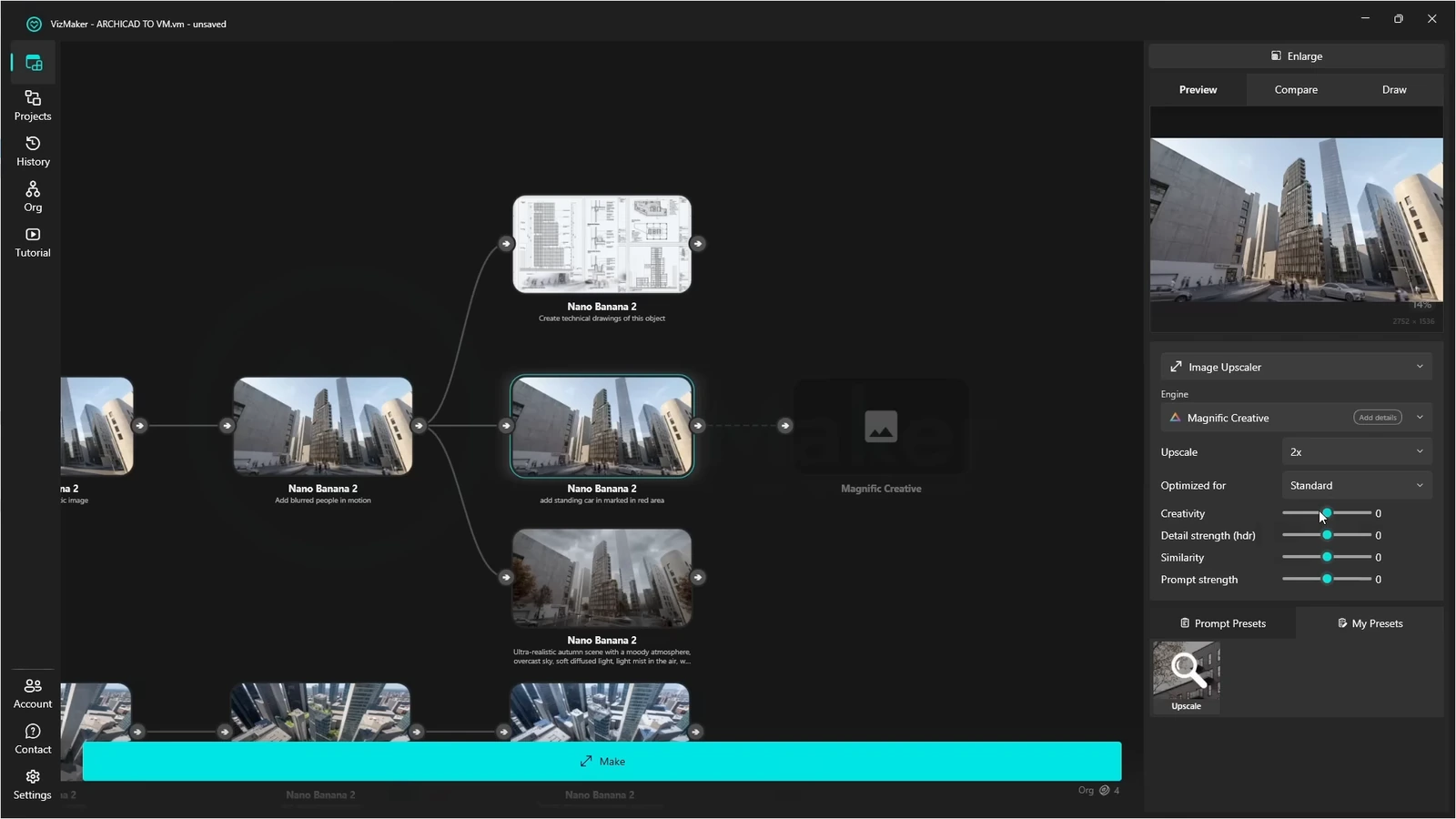
The source shows Magnific Creative being applied after image selection, followed by comparisons of surface detail, vegetation and reflections. This sequence is useful for an architectural presentation: decide what the image should communicate first, then inspect the quality of its details.
Use Compare A and Compare B to review the enhanced result at a useful size. On facades, check repeated elements and material transitions; indoors, inspect textiles, furniture edges and decorative details. Select enhancement settings according to the image and the level of fidelity the proposal needs.
- Upscale selected outputs after the design direction is settled.
- Compare small details while retaining the overall architectural context.
Choose animation that supports the design story
Interior design animation and exterior reveals can extend a still-image presentation.
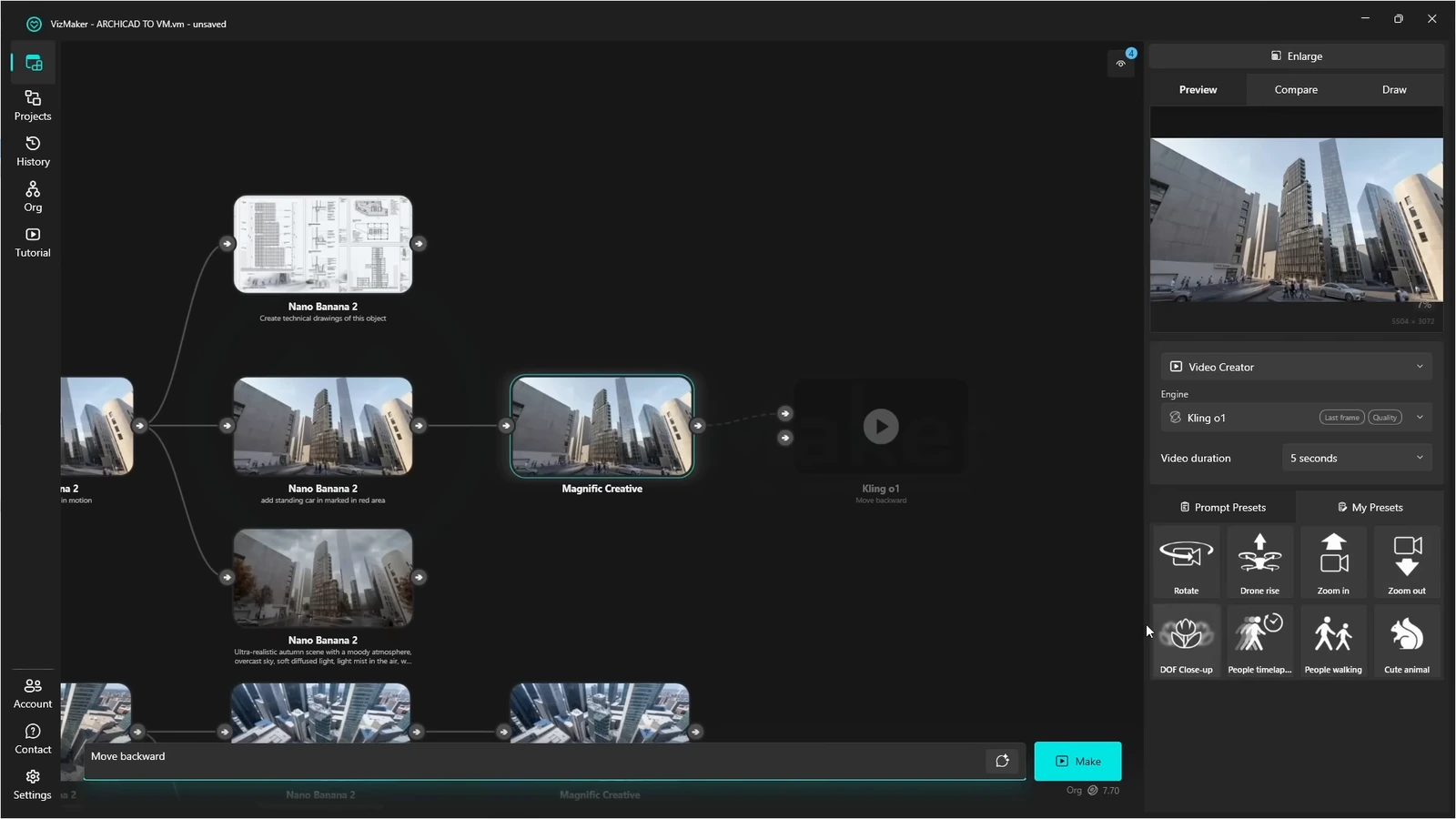
The video demonstrates backward movement, a first-to-last-frame transition and a rising exterior shot, followed by interior activity and close-up clips. Select the approved image in Video Creator and choose a movement that explains a feature of the project. The visible demonstration uses Kling o1.
A short facade reveal and a calm interior detail shot serve different purposes. Review the pace and continuity, then choose the clips that fit the presentation. The source itself identifies an overly fast result, which is a useful reminder that a generated clip still needs editorial selection.
- Start from a reviewed image rather than an unresolved design option.
- Choose motion and pace for the intended architectural message.
Extend the workflow with reference-based 3D assets
AI 3D model generation is another VizMaker tool that can support furnishing exploration.
The ebook describes generating a 3D asset from a furniture reference image. For an interior designer working in Archicad, that can provide a visual starting point for a custom furniture idea. Inspect the object in the model preview before export.
The ebook documents export and a scale check in the target design software. It does not demonstrate automatic conversion into an Archicad library object with all project-specific properties. Confirm the import or conversion route your team uses and keep verified dimensions alongside the asset.
- Review the model from several sides before exporting.
- Check the target asset workflow and dimensions before project use.
Choose how project media is kept
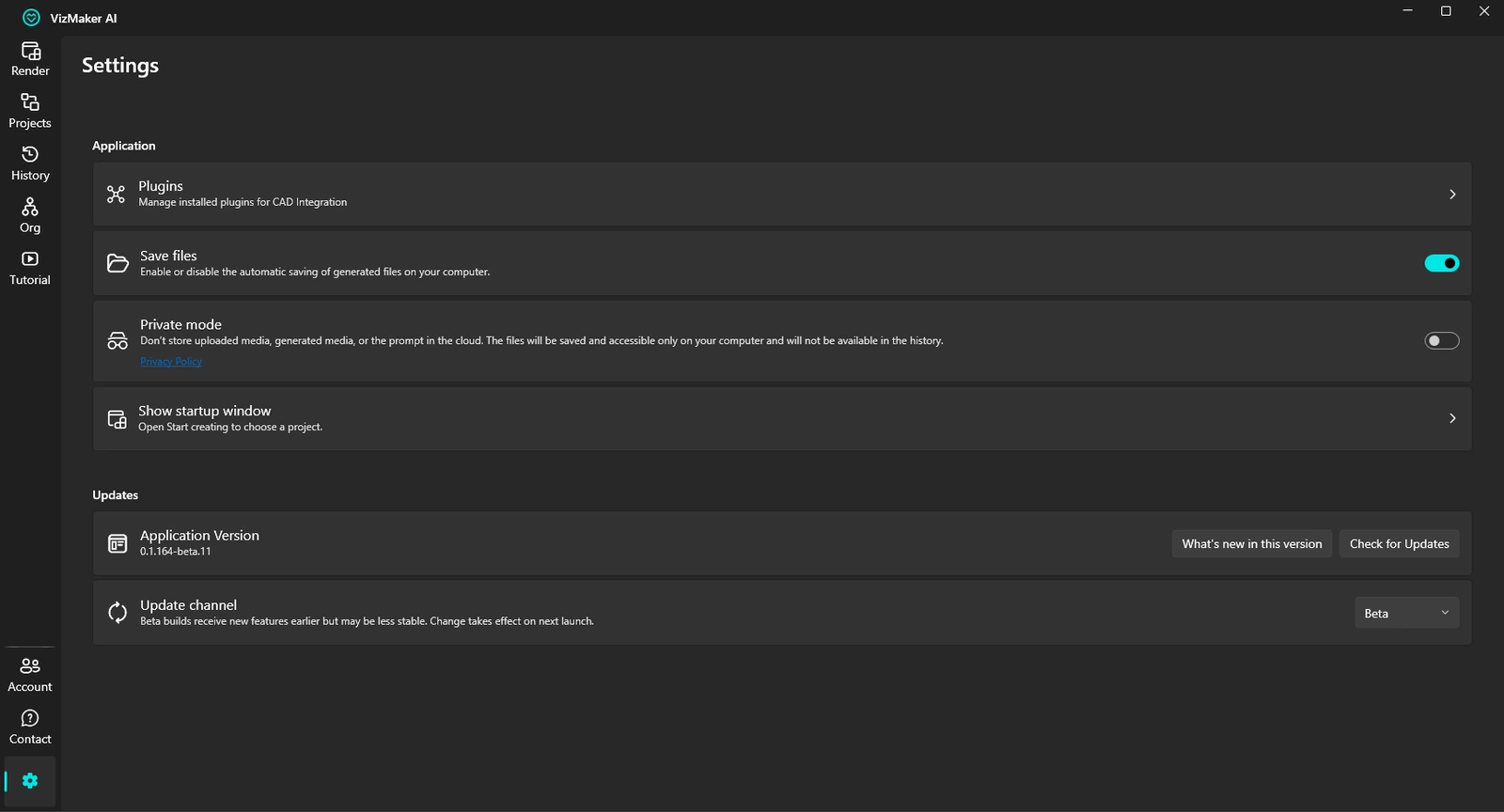
The supplied Settings screen makes file-saving and storage choices visible before a presentation project grows.
Save files enables automatic saving of generated files to the computer. Private mode is described in the screenshot as avoiding cloud storage of uploaded media, generated media and prompts, with files accessible locally and unavailable in history. Choose the workflow deliberately and keep the saved project and selected deliverables organized.
For an architectural practice, a clear folder and naming convention makes it easier to connect a client image to its source view and review decision. The storage controls are relevant to that process, but they should not be treated as a claim that online AI engines execute entirely on the workstation.
- Decide where generated media and the working project will be saved.
- Retain the selected inputs and outputs with clear project names.
Build a clear Archicad visualization workflow
Develop a small set of views into the images and clips the review actually needs. Select the strongest design match before adding enhancement or motion, and retain the source project for the next iteration.
- Build exterior and interior alternatives around recognizable source views.
- Choose the best design match before upscaling or animating.
- Keep a clear distinction between presentation imagery and project data.
Questions and answers
What can I do after sending an Archicad view to VizMaker?
The recording demonstrates image generation, people and object placement, atmosphere changes, upscaling, special presentation views and image-based video generation. These are separate steps that can branch from a selected image.
Can I create an exact architectural drawing with an image preset?
The recording includes blueprint, mock-up and axonometric image effects, but also notes errors in some outputs. Use them as presentation treatments; obtain technical drawings from the verified project model.
Does Private mode mean all AI generation runs offline?
The supplied Settings screenshot describes avoiding cloud storage of uploaded media, generated media and prompts, with files stored locally and excluded from history. That storage setting does not by itself establish offline generation.
Start with a prepared design view, explore a focused AI visual direction, and review the result alongside your source project.
Download VizMakerSource: This ArchiCAD AI Plugin changes everything · VizAcademy UK ·
Source: VizMaker Guide Ebook · VizMaker · PDF, 76 pages
Source: VizMaker plugin installation panel · VizMaker
Source: VizMaker application and file settings · VizMaker
Source: VizMaker source-view, rendering and animation workspace · VizMaker