
To add people to interior renders, select a prepared Archicad-based image in VizMaker and choose the Add people or Blurred people preset. For more control, mark intended areas with Draw and mention those markings in the prompt. Compare scale, pose, lighting, and placement before using the result in a presentation.
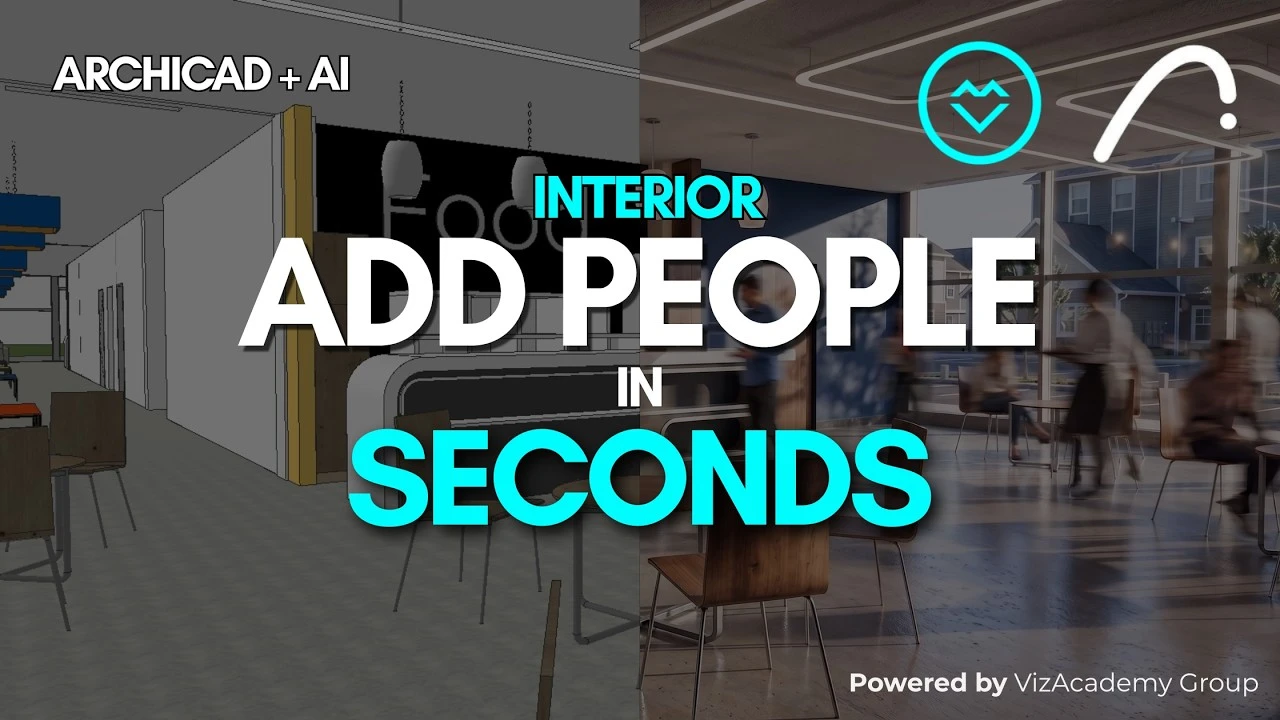
An empty interior does not always explain how the space is used
A technically clear office or lounge image can still feel unoccupied. People provide a sense of scale and help communicate how seating, work areas, and circulation are intended to function. Their placement also changes the composition, so more figures do not automatically make a better image.
The useful choice is between a readable person, a suggestion of movement, and a tighter view of an activity. This Archicad interior rendering workflow handles those choices from an already prepared image rather than requiring a person to be modeled for every position.
1. Choose clear or blurred people
Decide whether the image should emphasize an activity or simply suggest occupancy.
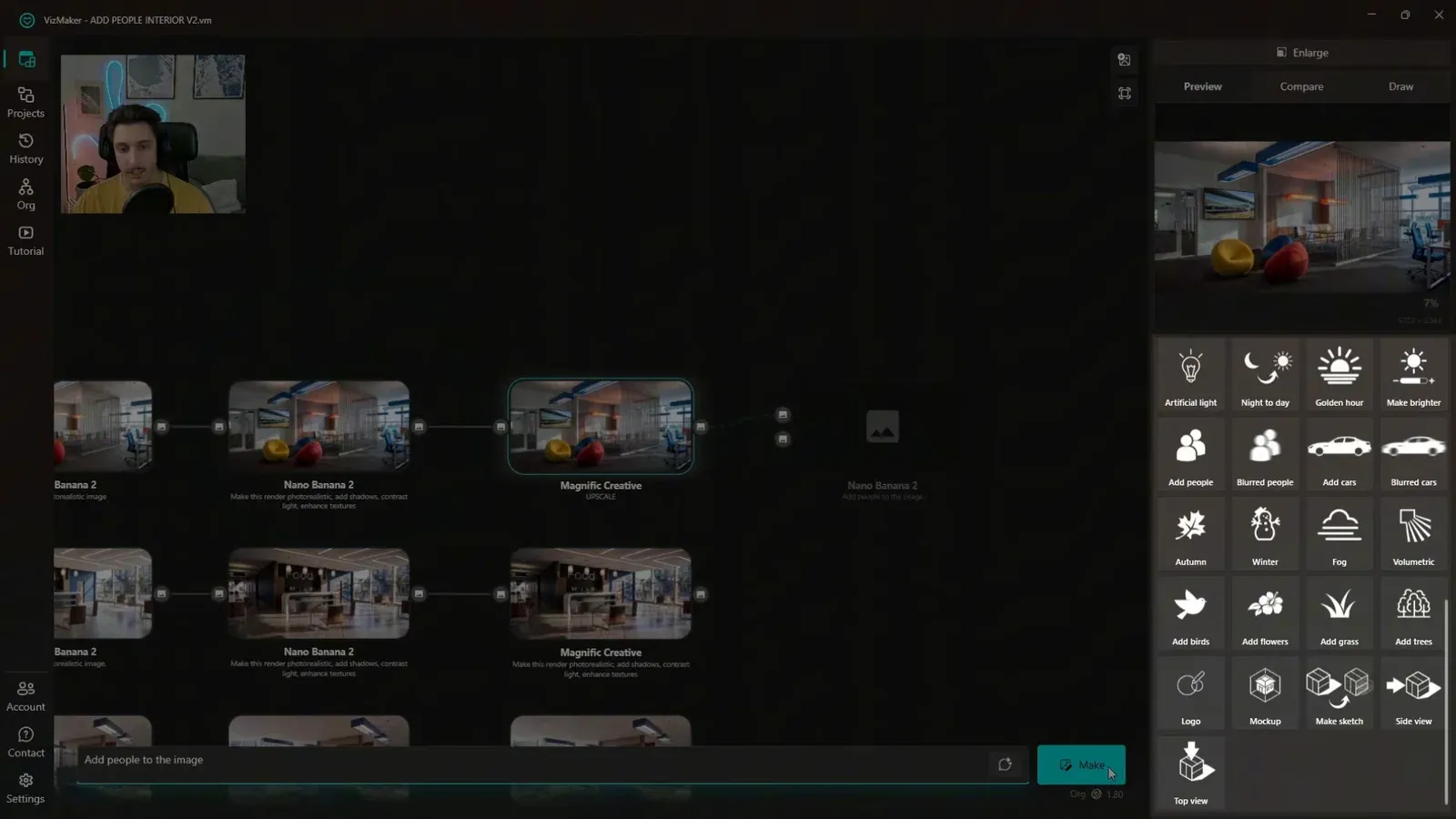
Start with a render whose materials and lighting are already suitable for presentation. Select it in VizMaker, choose the output resolution, and open the people presets. The demonstrated engine choices are Nano Banana 2 and Nano Banana Pro.
Use Add people when posture and activity should remain readable. Use Blurred people when you want an impression of movement through the space. A blurred figure in a still image is a visual treatment; it does not turn that image into an animation.
Generate the alternatives from the prepared image and compare their effect on the room. People should help explain the architecture, not obscure the seating, circulation, or feature being presented.
2. Mark intended locations with Draw
Annotations give the prompt a clearer spatial instruction.
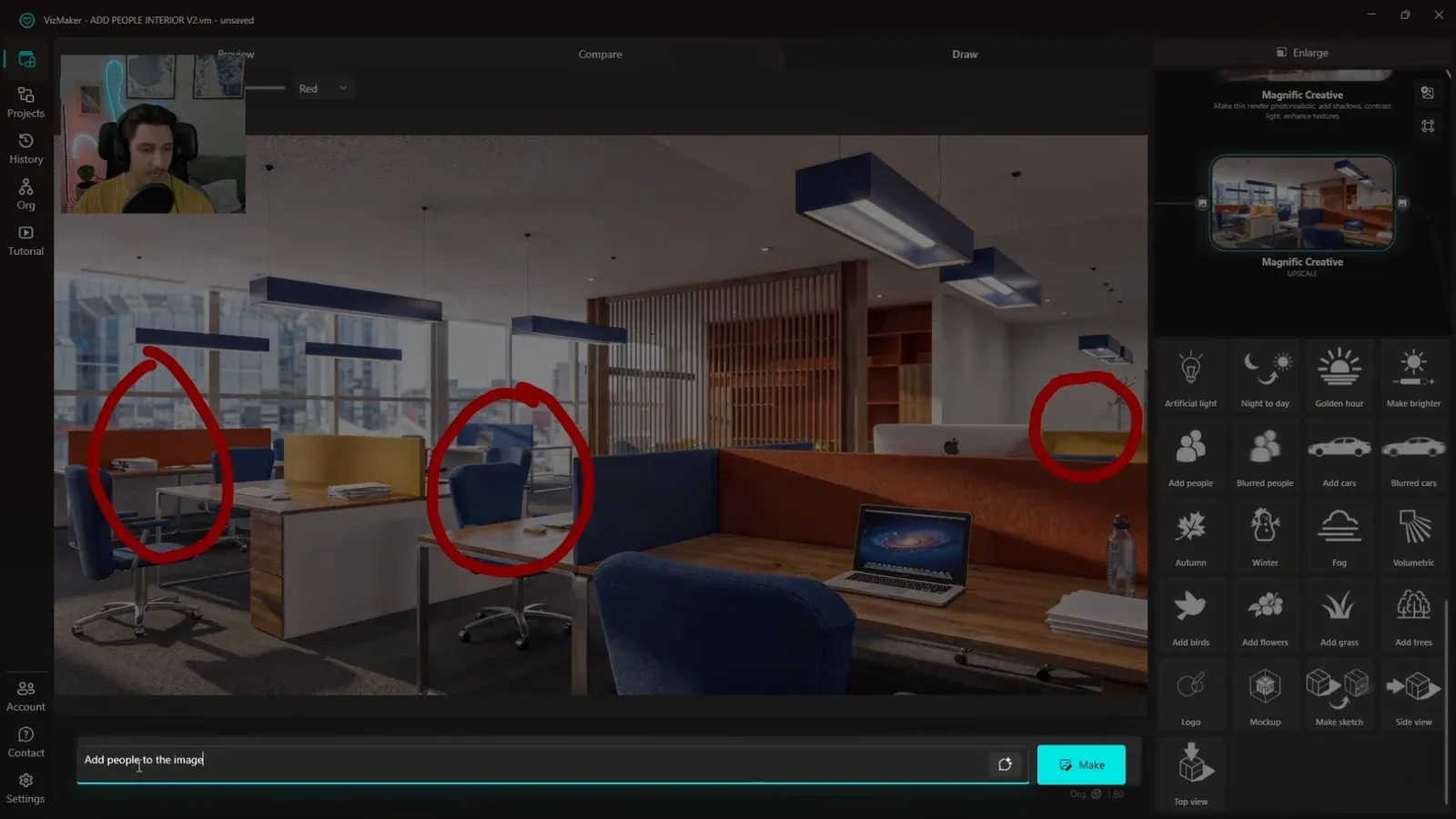
Open the enlarged view and use drawing annotations to mark the intended locations. In the office example, red circles identify positions near chairs and desks. Modify the people prompt so it refers to those red-marked areas.
Include the intended action when it matters: a seated occupant and someone walking through a room communicate different uses. You can repeat the marked request with the blurred-people treatment, but motion blur may encourage a moving figure instead of the seated pose you originally imagined.
Annotations guide the generation rather than fixing exact coordinates. Inspect the output for extra people, missed positions, and interaction with furniture.
3. Compare scale, lighting, and the level of activity
Judge the people as part of the room’s composition.
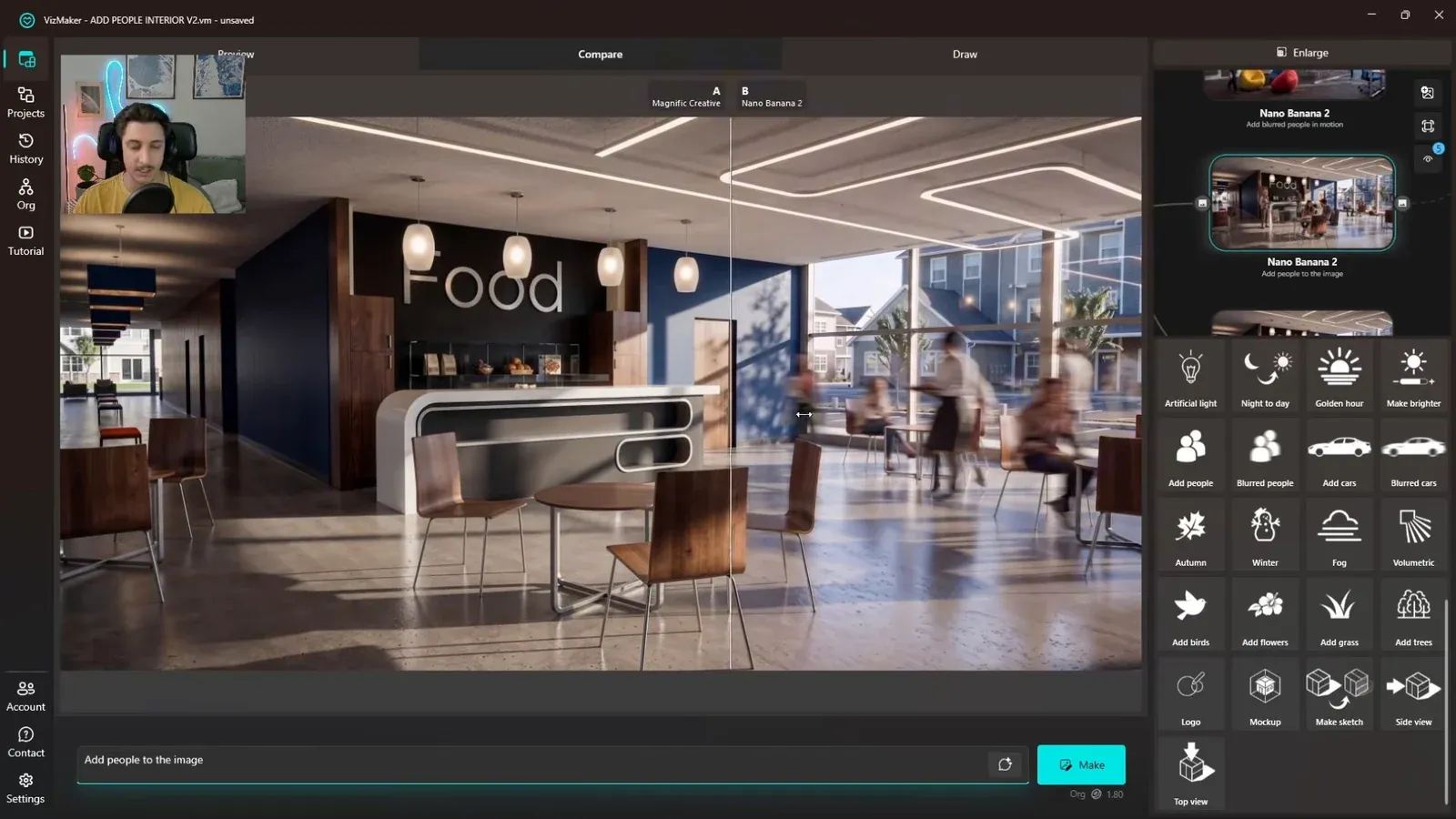
Use A/B comparison to inspect contact shadows, apparent body scale, and whether figures sit or stand convincingly in the space. Check hands, faces, and overlaps with furniture at the size intended for presentation.
The blurred cafe example gives the room a busier feeling. In the marked office example, the requested positions are broadly followed but an additional figure appears. Select the result that fits the brief, and refine the request when the occupancy level or placement is wrong.
Interior visualization benefits from believable use, not just a higher person count. An uncluttered room with a few well-placed figures can communicate the design more clearly than a crowded alternative.
4. Create a separate activity close-up
Use a tighter generated view to complement the wide architectural image.
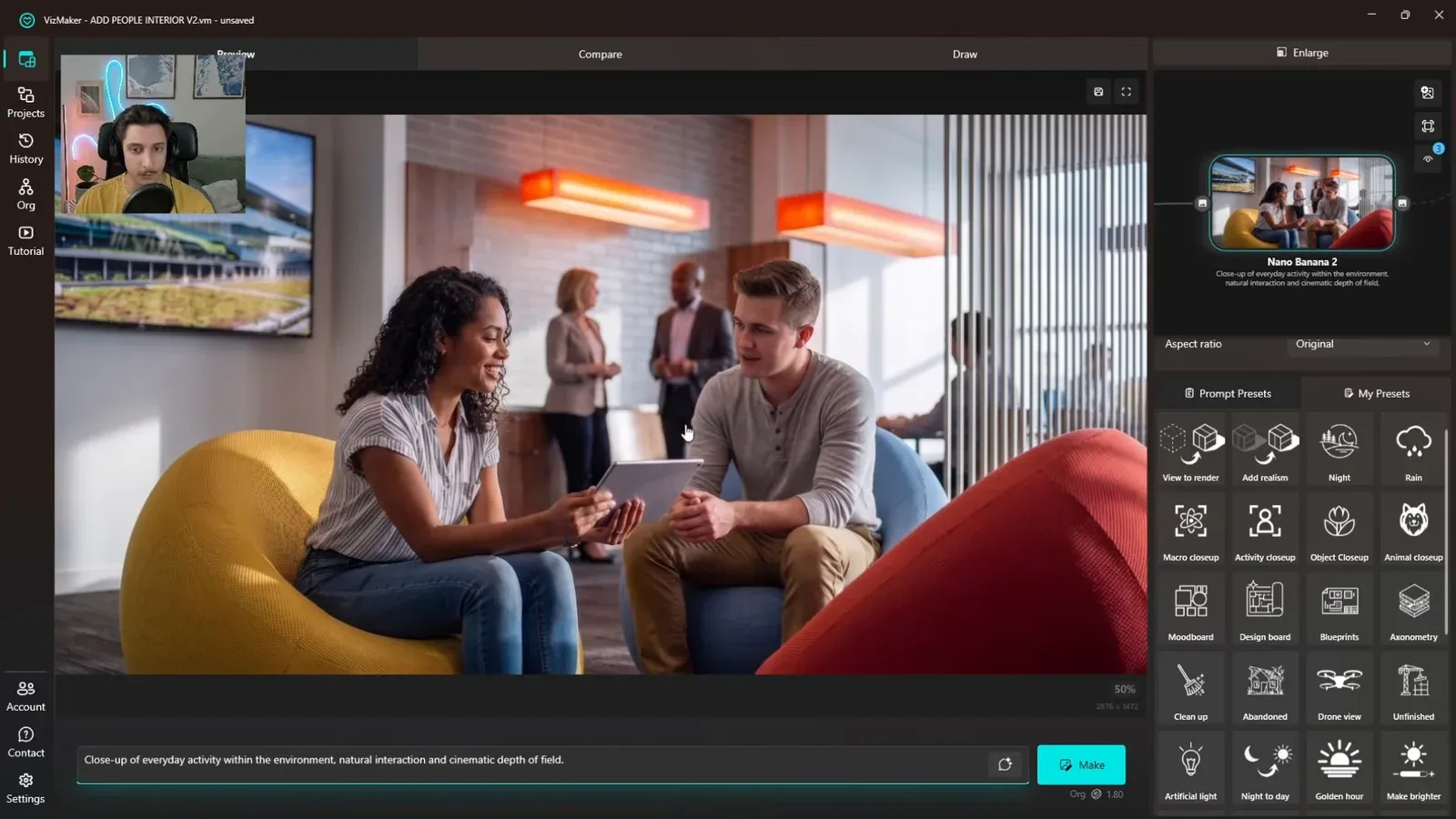
Select a populated image and apply the Activity close-up preset. The result reframes an interaction, such as people talking in lounge seating or working over books at a table. This creates a different presentation image, rather than merely adding more figures to the wide view.
Review what the new view emphasizes. A close-up can reveal furniture texture and human activity while showing less of the overall architecture. Keep the wide image alongside it so the viewer can still understand the room.
Inspect faces, objects, and continuity with the source before accepting the close-up. Upscaling may help presentation detail, but it is a separate step that also needs review.
Conclusion: use people to explain the interior
Choose the amount and type of occupancy that serves the presentation. Presets establish the treatment, drawing annotations guide placement, and activity close-ups offer a complementary human-scale view. Comparing each result with the original keeps the interior design at the center of the image.
- Prepare the materials and lighting before adding occupants.
- Use marks and action descriptions for more specific placement.
- Keep wide architectural views alongside activity-focused close-ups.
Questions and answers
How can I suggest where a person should appear?
Mark the region with Draw and refer to the marking in the prompt. Include the intended action, then review the result for approximate placement and extra figures.
Are blurred people an animation?
No. Here they are a motion-blur treatment in a still image, useful for suggesting movement or a busy interior.
Does the activity close-up preserve every detail?
It is a generated view and should be reviewed for changed objects, faces, and composition. Use it alongside the original wide image rather than assuming exact continuity.
See the people presets, red placement markings, comparison views, and activity close-ups applied to several interiors.
Watch the Archicad interior tutorial on YouTubeSource: Realistic Interior People in Seconds - Just One Click (ArchiCAD +AI Workflow) · VizMaker - AI Renderer ·