
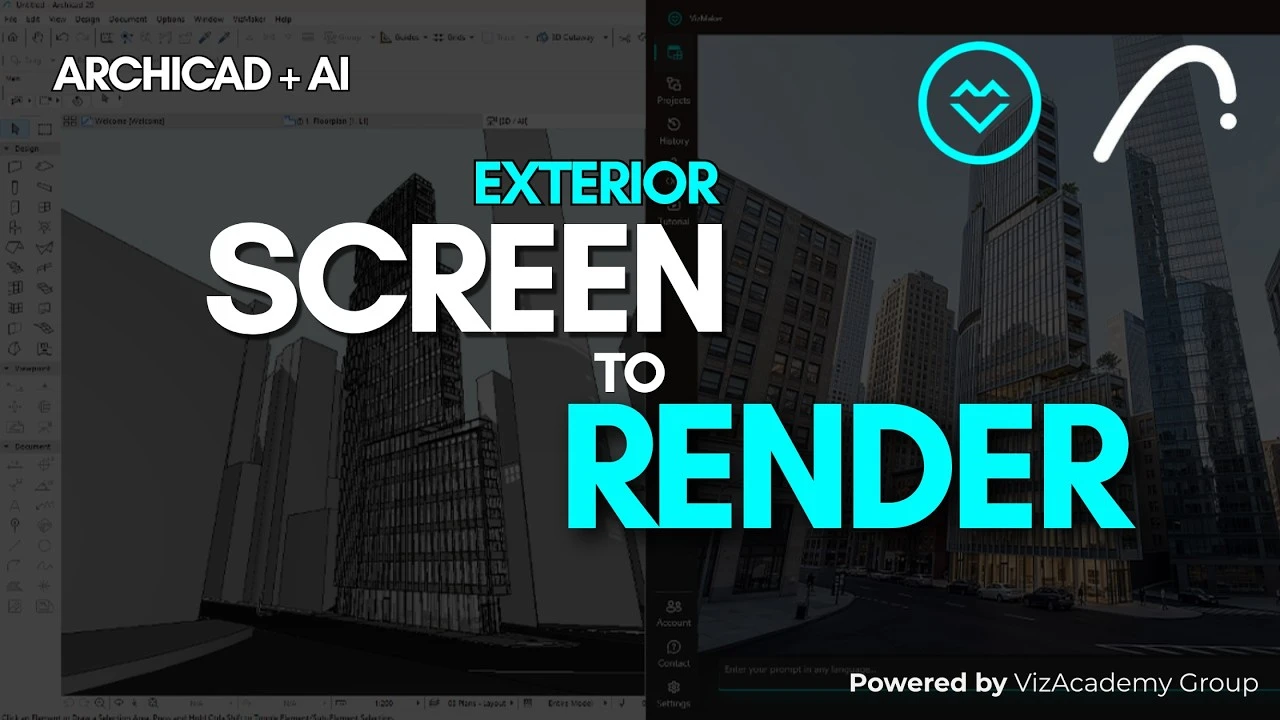
For Archicad exterior rendering with VizMaker, prepare the camera views in Archicad and use the plugin to send them into the image workspace. Select a view, choose Nano Banana 2 and the View to render preset, then generate and inspect the result. Keeping the original views available makes it easier to compare the AI images with the model.
A model view needs presentation context
An Archicad viewport can communicate massing and perspective while still lacking the materials, environment, and visual finish needed for a presentation image. Repeating the handoff manually for every camera also makes it harder to maintain an organized set of views.
This focused workflow takes a prepared exterior view into a first AI architectural render. It is useful for exploring presentation directions, provided the generated image is checked against the source geometry and surrounding context.
1. Prepare the cameras and send the views
Choose the viewpoints in Archicad before asking the image model to interpret them.
Open the project and establish the cameras you need. The example uses four views of the same urban building, allowing both street-level and elevated perspectives to be developed from deliberate source compositions.
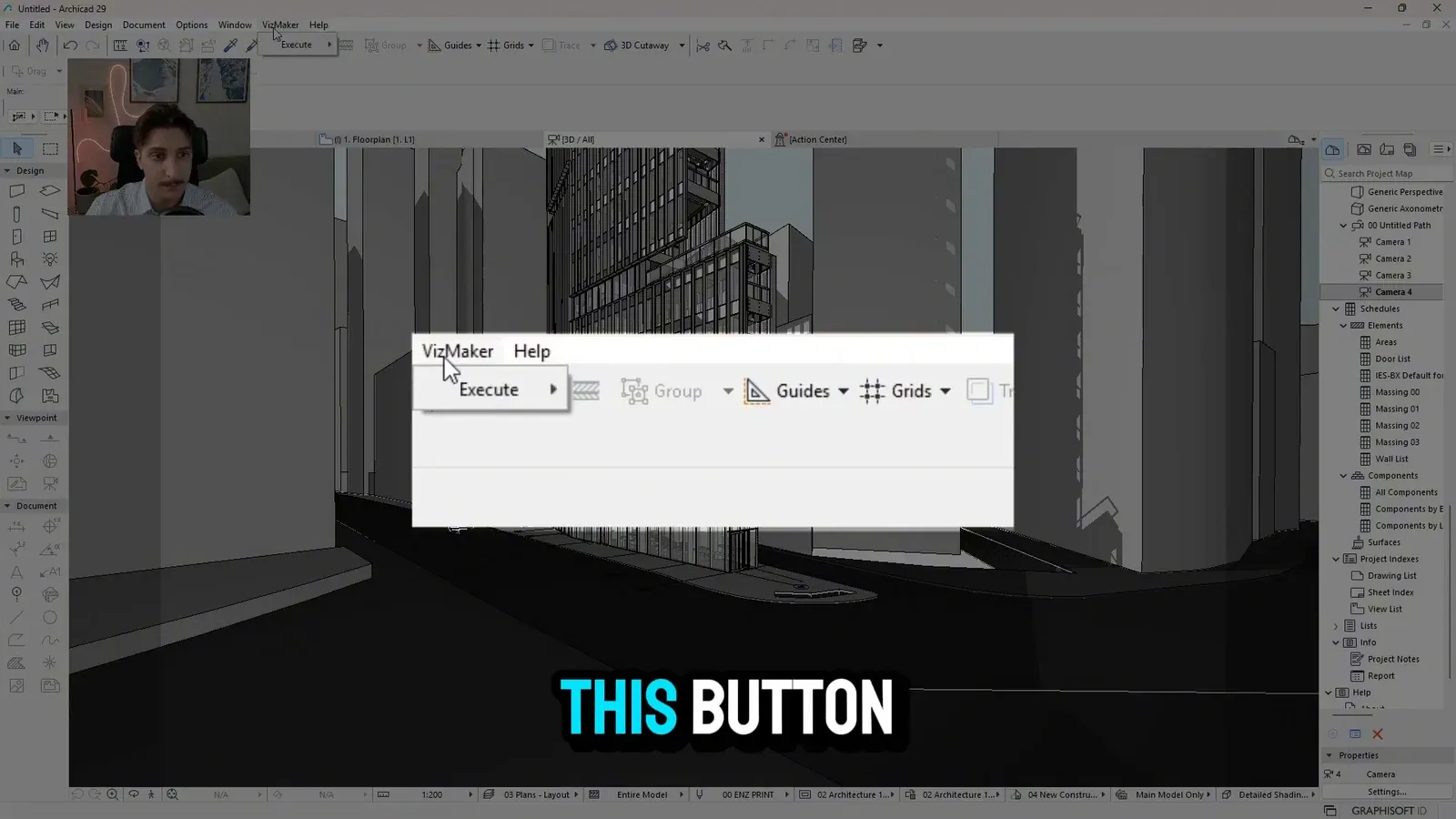
Open the VizMaker menu and its Execute submenu. Send a view transfers the prepared view for further setup. Instant render is a separate shortcut that starts generation with defaults; in the recorded setup, those defaults use Nano Banana 2 and a photorealistic-image prompt.
Choose the handoff that fits the task. Sending the view first gives you an explicit point to inspect the input and select settings before generating.
2. Generate the first exterior alternatives
Use one clear baseline before adding more specialized treatments.
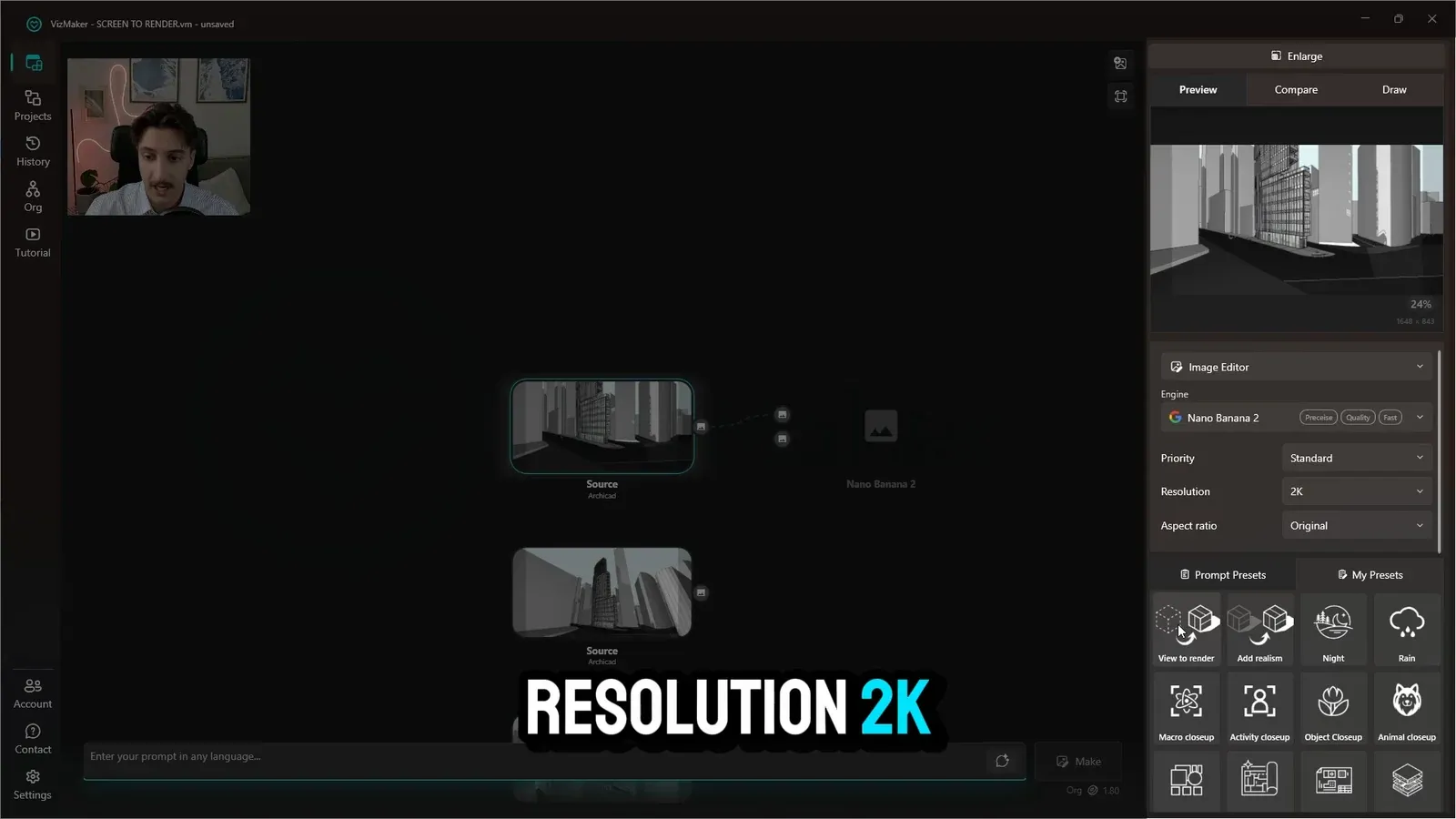
In VizMaker, select a transferred view, choose Nano Banana 2, set the resolution to 2K as demonstrated, and apply the View to render preset. Repeat for the other prepared views to build a comparable set of first results.
The preset provides a straightforward starting request for a realistic image. If a particular material or environmental condition matters to the project, add that requirement to the prompt rather than assuming the image model will infer it.
Keep generation time out of the acceptance criteria. A useful output is one whose composition and architectural details survive comparison with the source.
3. Inspect the results before further refinements
Enlarge the image and compare the parts of the project that matter.
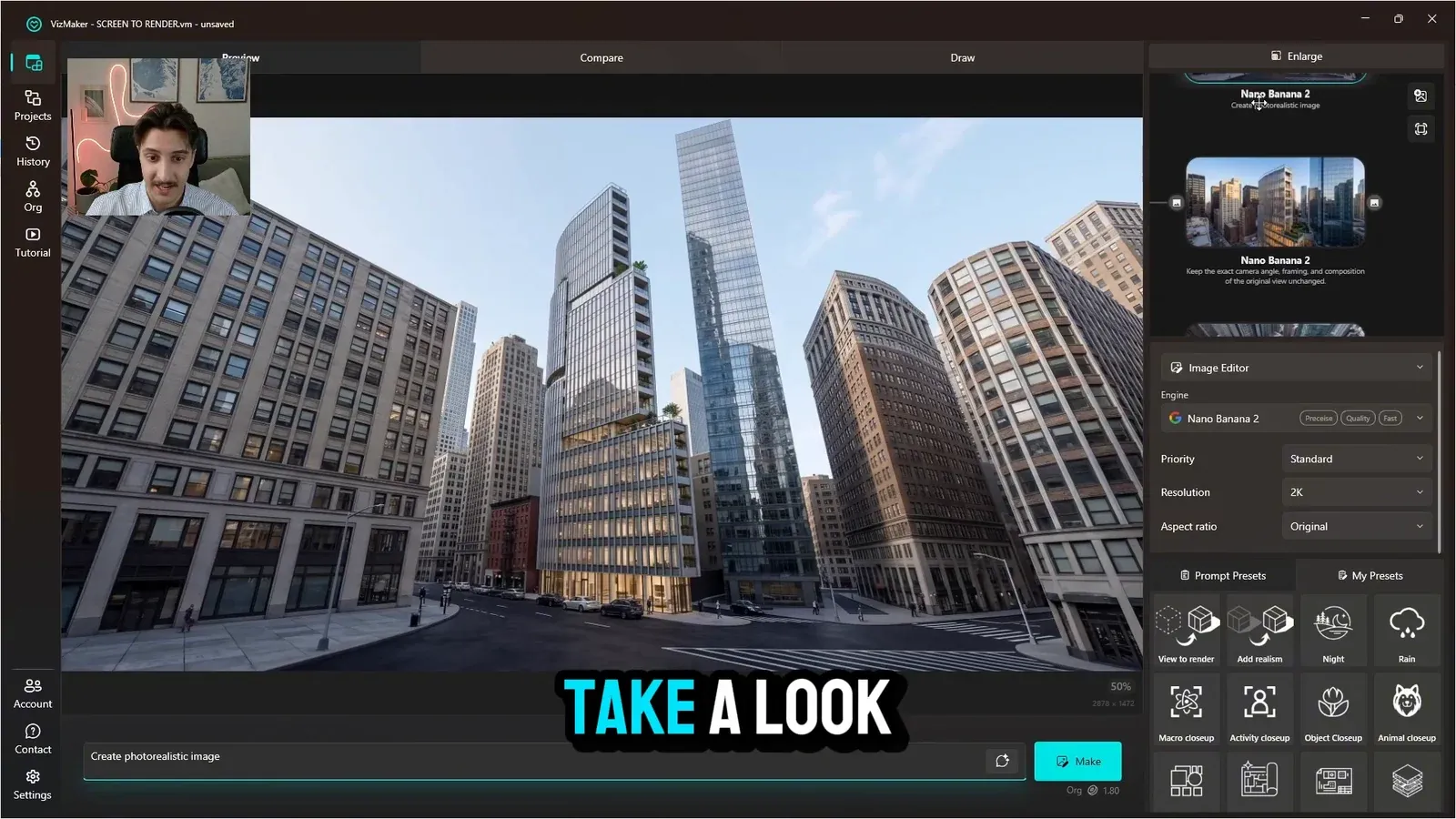
Open the larger preview and check the building silhouette, facade rhythm, glazing, street relationships, and neighboring structures. A polished appearance does not by itself establish that every generated detail matches the Archicad model.
Compare the set of views as well as each individual image. Materials and surrounding context should tell a coherent story across street-level and aerial compositions.
Once you have selected the useful results, further options include image upscaling, adding people, or requesting another shot. Treat these as follow-up decisions with their own review, rather than applying every preset to every image.
Conclusion: make the first render easy to compare
A short handoff can still be deliberate: compose the Archicad view, select a clear rendering baseline, and inspect the exterior before further edits. That keeps the first AI result useful as a presentation option and a starting point for refinement.
- Choose source cameras before transferring views.
- Use View to render as a baseline, then specify project-critical details.
- Check architecture and context before upscaling or adding people.
Questions and answers
What is the difference between sending a view and Instant render?
Sending a view transfers it for further setup. Instant render starts generation with default settings in the demonstrated plugin workflow.
Which settings are used for the first exterior images?
The example selects Nano Banana 2, 2K resolution, and the View to render preset for the transferred views.
Does the generated image replace the Archicad model?
No. This is an image-generation workflow from prepared views. Keep the Archicad model as the design reference and compare the output against it.
Follow the four-camera exterior example from the Archicad plugin menu through the first generated images.
Watch the exterior rendering tutorial on YouTubeSource: From Archicad to Realistic Exterior in SECONDS (VizMaker + Archicad Workflow) · VizMaker - AI Renderer ·