
The Blender AI rendering plugin sends a view to VizMaker, where artists can explore a visual direction, refine a selected image and generate short clips. The same workspace also supports reference-based 3D model generation. Use these tools around a Blender scene to develop presentation ideas, then inspect any imagery or assets before making them part of the final design deliverable.
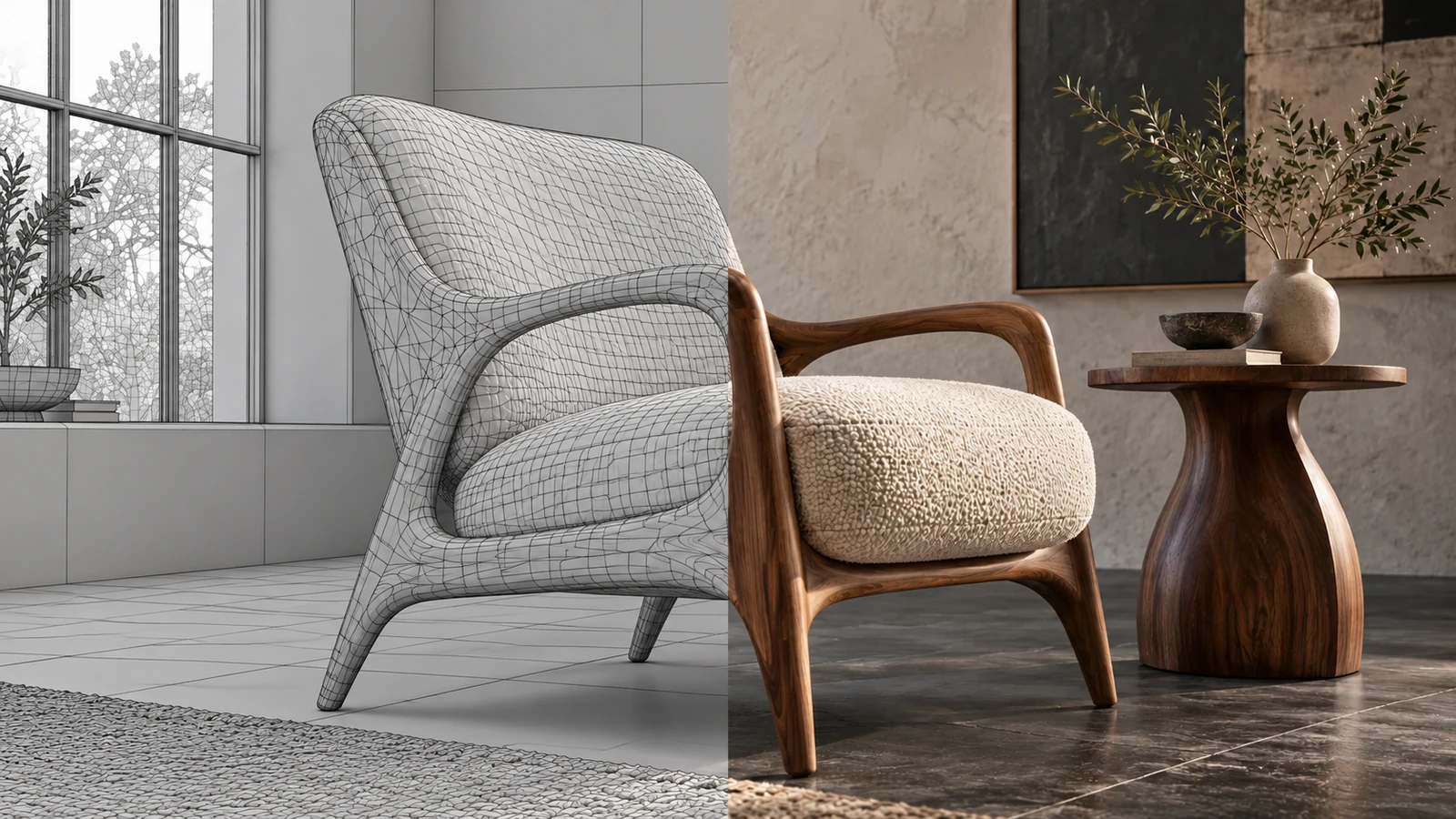
AI-generated editorial cover. Workflow screenshots below are taken from the credited sources.
Connect scene development with visual exploration
A Blender artist may work on an entire interior, a piece of furniture or a small architectural scene. In each case, the next task may be a visual decision: material character, lighting mood, composition or how an object should be presented.
VizMaker offers a route from a prepared view to AI image tools without starting the visual brief from a blank canvas. Its benefit is the connection between the source view and successive outputs. Keep scene development, image enhancement and asset generation as recognizable parts of the process so that each result can be reviewed on its own terms.
Send a Blender view into VizMaker
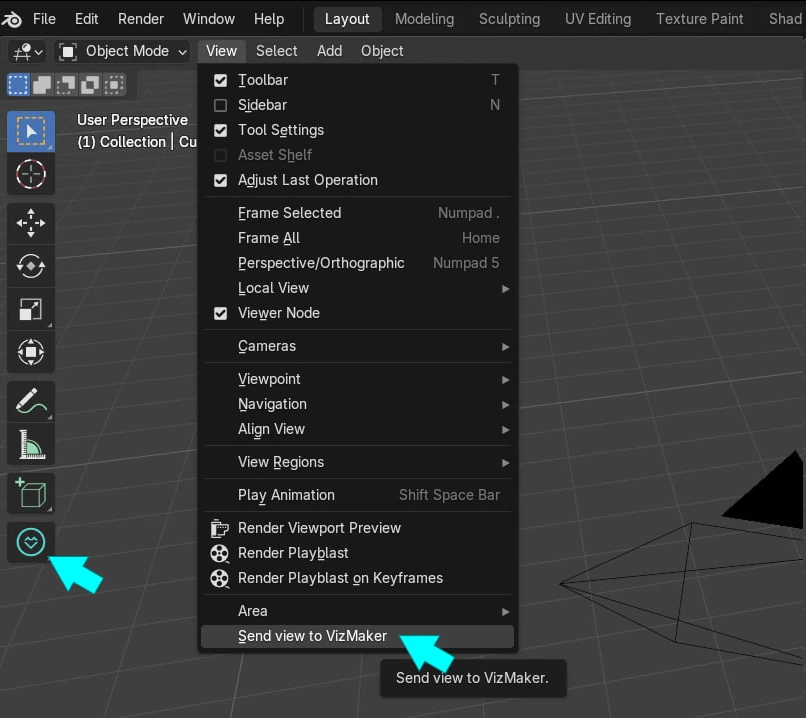
The ebook shows Send view to VizMaker in Blender, with a toolbar entry as another access point.
Install the integration for the Blender version available in VizMaker Settings and Plugins. Open the view you want to develop and use the plugin command. The supplied installer image lists several Blender versions, but the active compatibility choices should be checked in the installed application.
For a furniture scene, frame the object so its proportions and relationship to the interior are readable. For an architectural view, make the openings and main spatial relationships clear. The plugin capture provides an image reference; it does not establish transfer of Blender scene data or its material node graphs.
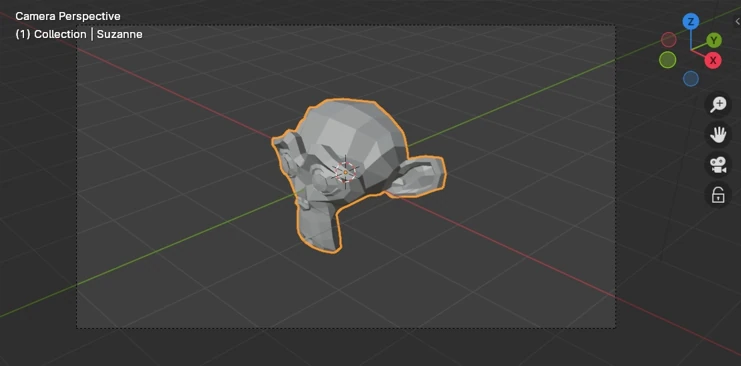
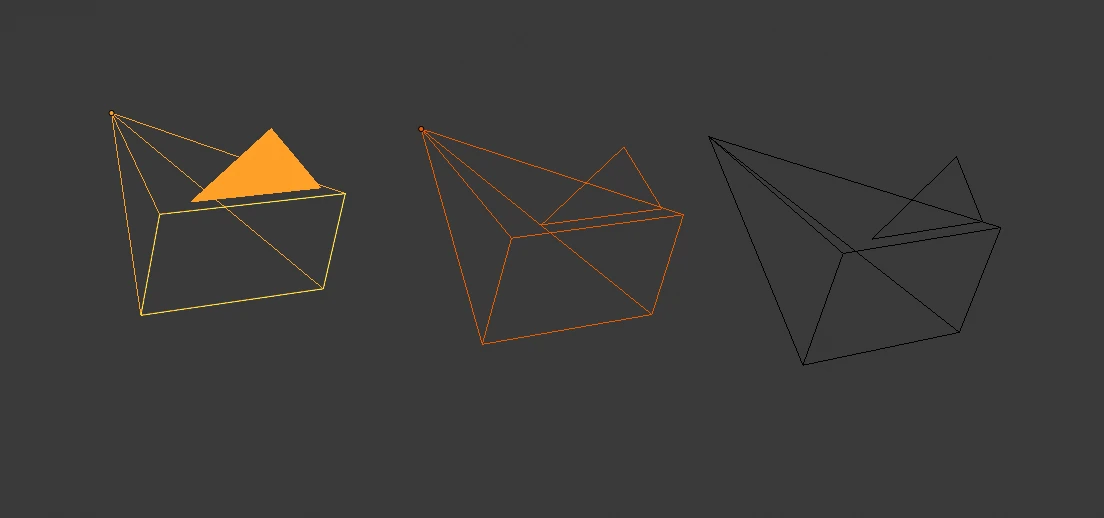
Before capturing a view, confirm which Blender camera defines the composition. The Blender Manual examples below show the camera boundary and the active-camera marker. These native controls help keep the intended view consistent when you compare image variations.
- Choose a view that clearly communicates the subject.
- Inspect the captured image before selecting the generation settings.
Explore a visual direction around the scene
Blender architectural visualization can use AI images to explore the appearance of a modeled idea.
Select the captured image in VizMaker, choose Image Editor and the rendering preset, then describe the intended look. For a furniture-centered interior, a useful brief might identify the upholstery, timber character, daylight and background mood. Keep the object and composition stable while comparing those directions.
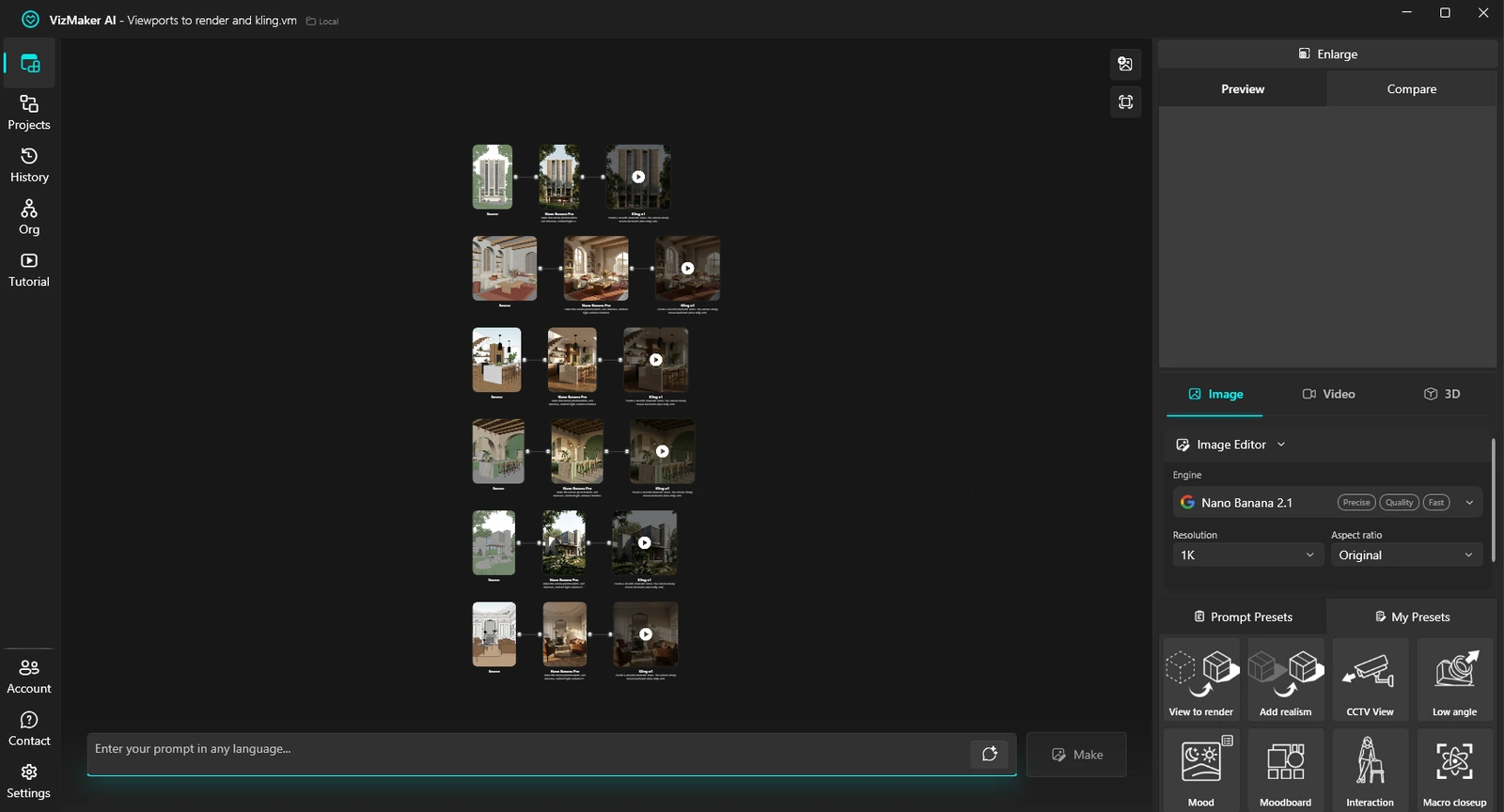
The supplied node workspace illustrates how a source view can branch into an image and a video. Use a similarly readable structure for experiments, and keep the source beside the results. If the AI image invents an interesting shape change, model that change deliberately in Blender before presenting it as resolved geometry.
- Separate appearance variations from geometry revisions.
- Keep a small set of named image directions rather than losing the preferred source.
Upscale for the image's intended use
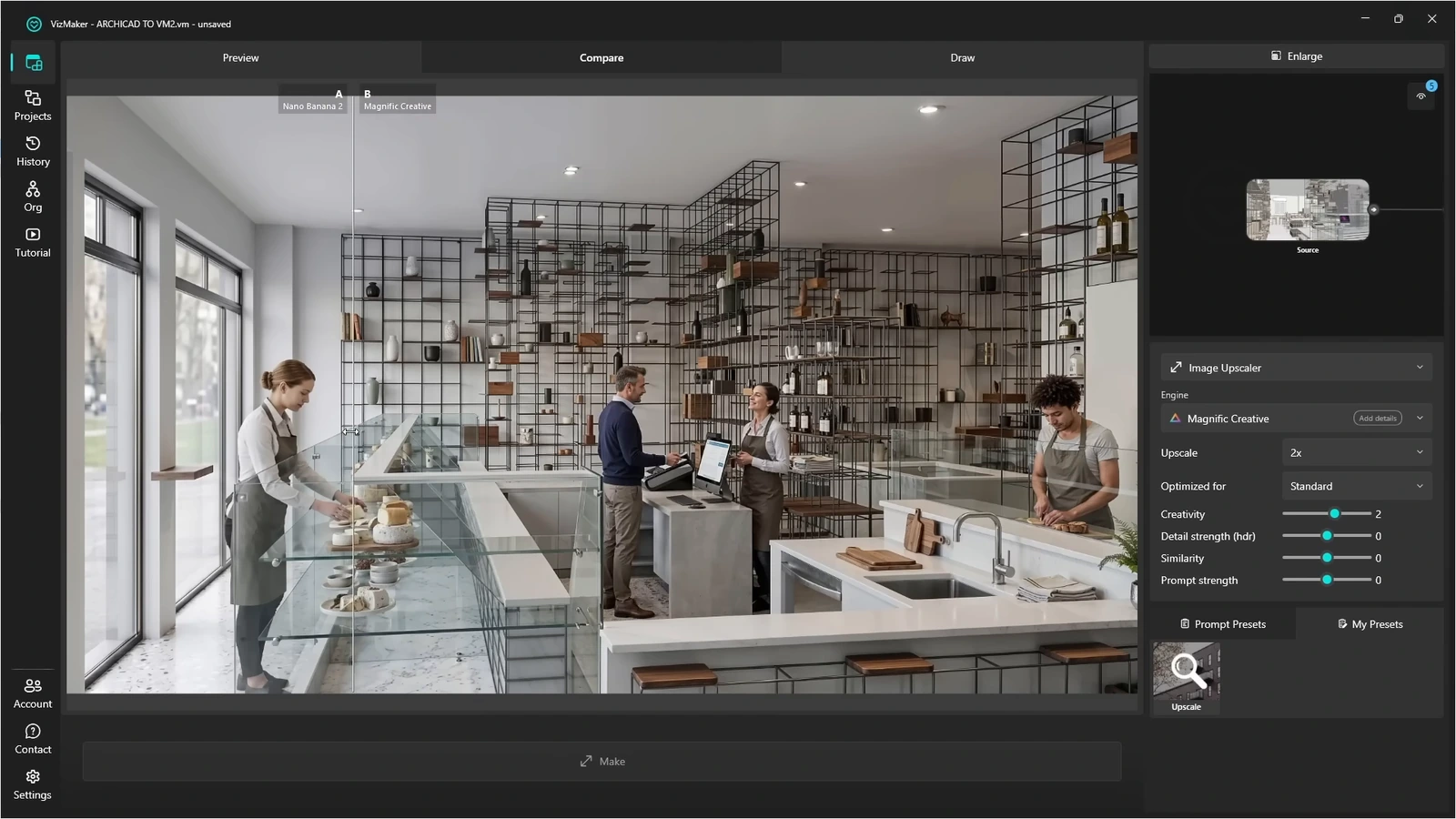
Image upscaling for artists can enhance detail after the composition is settled.
Use Image Upscaler on a selected VizMaker result and compare the processed version with the original. The linked Archicad example demonstrates this shared tool on interior and exterior images. Choose settings according to whether the image needs restrained sharpening or a more creative enhancement.
For furniture and product-oriented work, inspect the outline, seams, grain direction and small supports. A richer texture is not helpful if it changes the design of the object. Review at the intended display size and retain the version that best represents the visual brief.
- Check the subject silhouette as well as surface detail.
- Keep the original available for comparison and later revisions.
Develop a short presentation clip
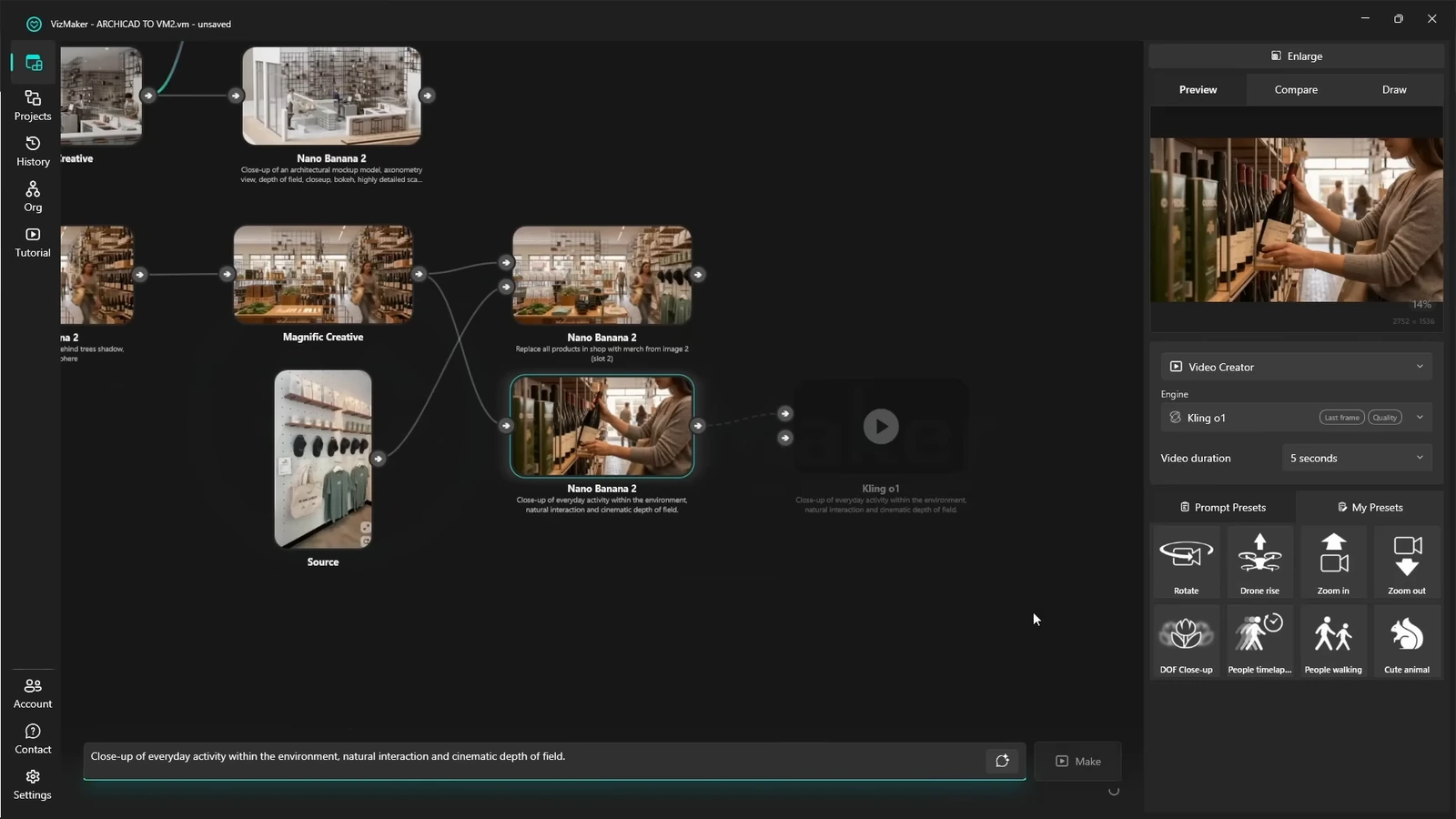
An image-to-video workflow turns a chosen still into a separate motion deliverable.
Select the image in Video Creator, choose an available engine and specify a simple movement or scene activity. A restrained close-up can focus attention on a furnishing detail, while a wider interior shot can establish atmosphere. Supported two-image modes can guide a transition between planned endpoints.
Inspect the whole clip for unstable edges and changes to the object. The source material does not show the viewport plugin exporting a Blender animation timeline into Video Creator. Keep a scene-based animation when exact object movement, camera motion or continuity through the scene is required.
- Start with a reviewed still and one clear motion brief.
- Check intermediate frames before selecting the clip.
Inspect generated furniture assets before scene use
AI furniture assets can give an artist a starting object to evaluate and develop.
The ebook describes generating a furniture model from an isolated image reference. Prepare a clear object view, generate the model, then rotate it in the preview. The guide also shows a view without textures and model statistics, which help separate the mesh from its surface appearance.
Export through an available format, import using the target application's supported workflow, and check scale, orientation and materials. Inspect thin parts and hidden surfaces before relying on the asset. Treat any required topology cleanup or further modeling as part of the asset preparation process.
- Compare the untextured model with the source silhouette.
- Check dimensions and materials after import into the scene.
Build a clear Blender visualization workflow
Keep modeling, image exploration, enhancement and asset preparation connected but independently reviewable. A clear handoff between those steps gives an artist useful AI options without losing the source of a design decision.
- Use Blender to define the scene and VizMaker to explore image directions.
- Review generated motion as a separate deliverable from scene animation.
- Inspect geometry, scale and materials before reusing a generated asset.
Questions and answers
Does VizMaker replace the need for a Blender scene renderer?
It provides an image-based AI route for visual exploration and presentation. Keep a scene renderer when the output must follow exact geometry, material settings or animation data. The appropriate tool depends on the deliverable.
Can a furniture reference become a 3D model in VizMaker?
The ebook describes generating a 3D asset from an isolated furniture image with 3D Model Creator. Inspect the geometry, hidden surfaces and scale before using the exported model in a scene.
Does the Blender plugin transfer material node graphs?
The sources establish view capture into VizMaker. They do not document material-node transfer through that capture command.
Start with a prepared design view, explore a focused AI visual direction, and review the result alongside your source project.
Download VizMakerSource: This ArchiCAD AI Plugin changes everything · VizAcademy UK ·
Source: VizMaker Guide Ebook · VizMaker · PDF, 76 pages
Source: VizMaker plugin installation panel · VizMaker
Source: VizMaker source-view, rendering and animation workspace · VizMaker
Source: Blender 4.5 Manual — Camera View example (CC BY-SA 4.0) · Blender Documentation Team
Source: Blender 4.5 Manual — Active camera example (CC BY-SA 4.0) · Blender Documentation Team