
The 3ds Max AI rendering plugin connects a prepared viewport to VizMaker, where an architectural artist can develop render alternatives, refine detail, animate a selected image and generate separate 3D assets from references. Use the plugin to carry a visual starting point into the AI workflow while keeping scene geometry, cameras and final technical decisions in 3ds Max.
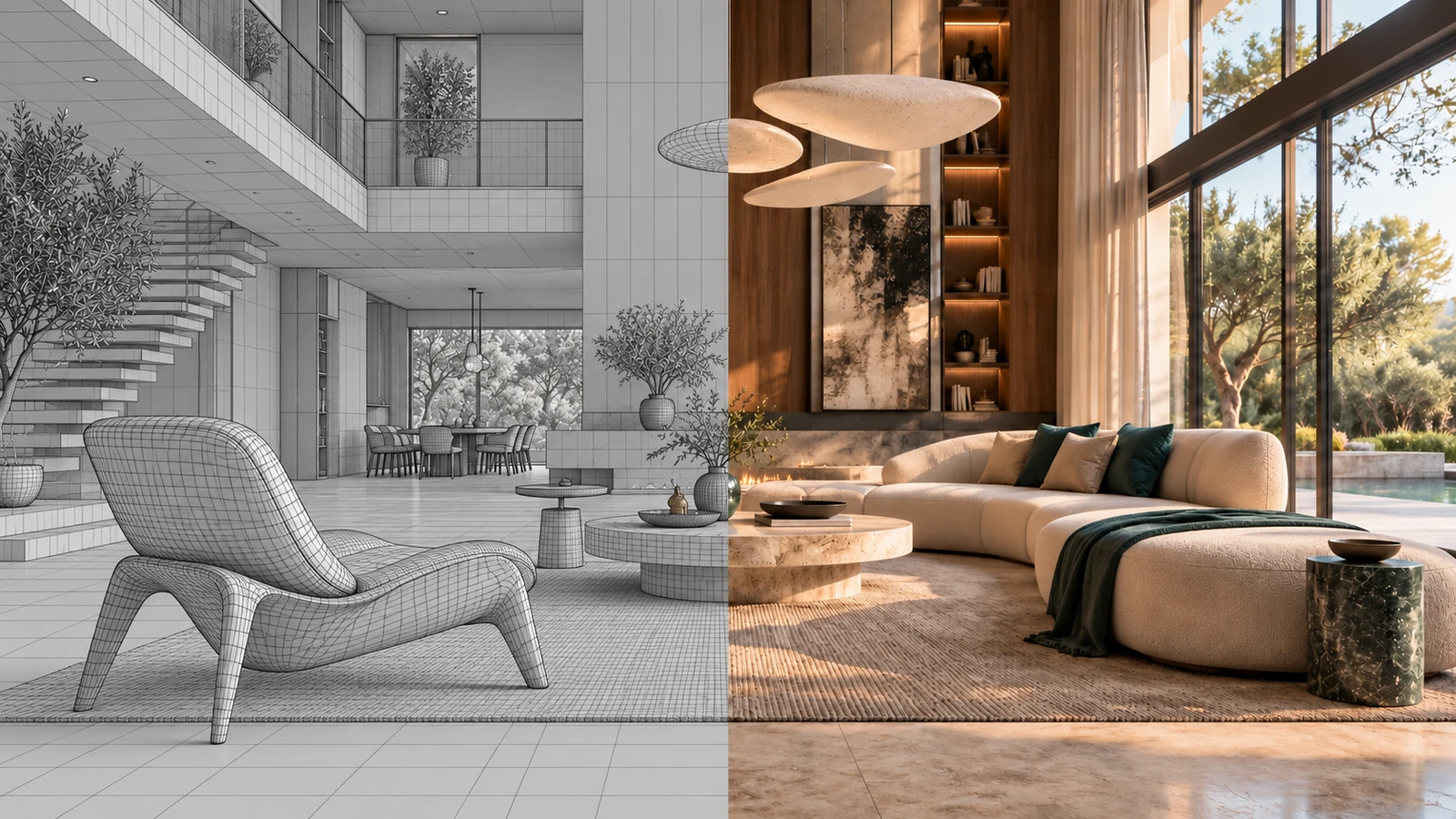
AI-generated editorial cover. Workflow screenshots below are taken from the credited sources.
Keep the scene editable while exploring presentation options
An architectural visualization scene often contains far more information than a client needs for the next decision. The question may be the mood of a lobby, the appearance of a facade or whether a furniture direction suits the space. VizMaker gives the artist an image-based route for exploring those questions from a familiar 3ds Max view.
This guide focuses on the integration and its place in an ArchViz production process. The host controls come from the VizMaker Guide Ebook and supplied screenshots. The linked Archicad recording illustrates shared VizMaker image and video tools; it does not establish that every plugin has identical functions.
Install the integration for the 3ds Max version you use
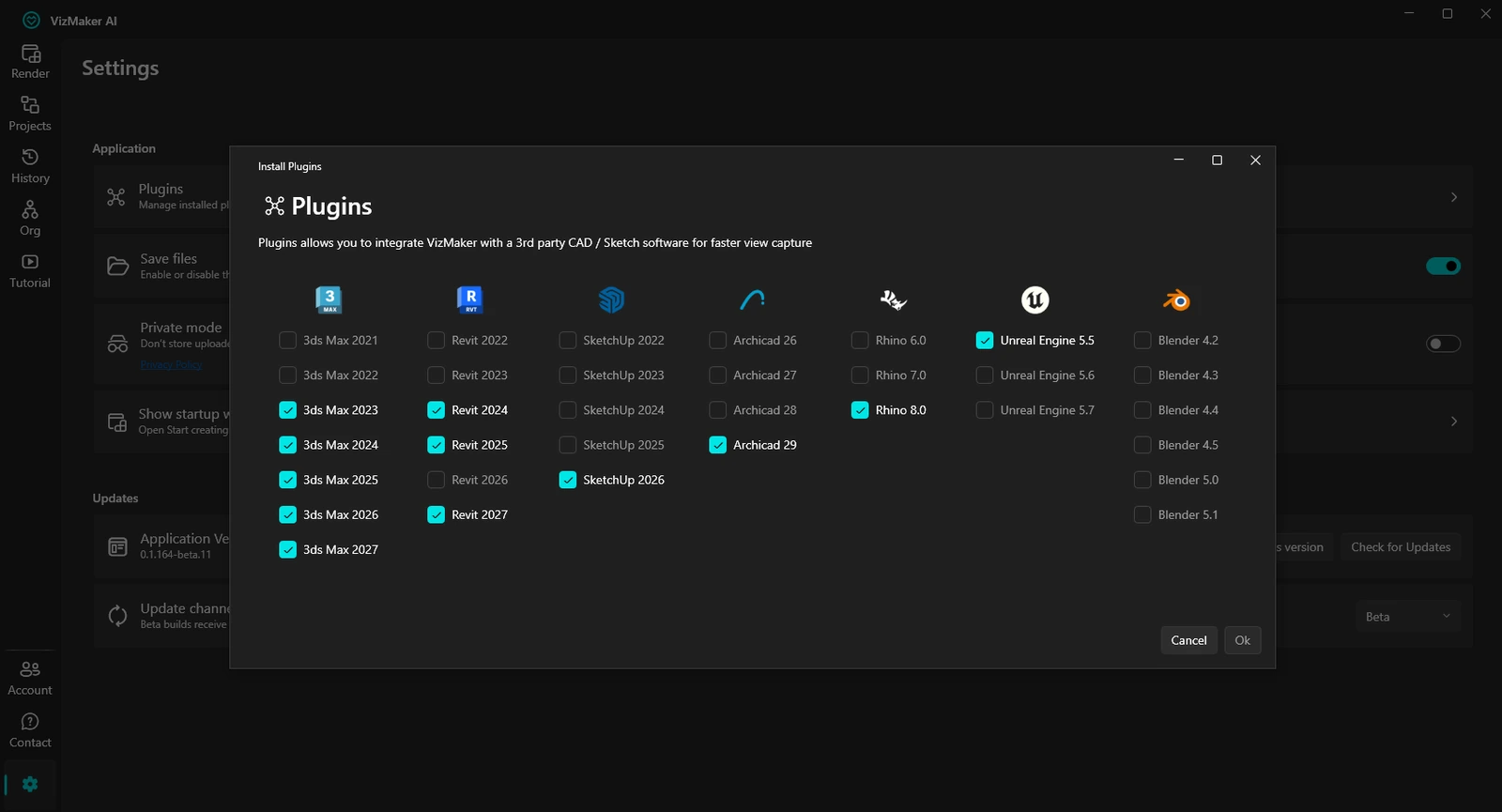
Start in VizMaker Settings, where the plugin manager lists the installed design applications.
Open Settings, choose Plugins, select the relevant 3ds Max version and confirm installation. The supplied installer screenshot shows several Max versions, alongside the other supported design applications. Treat that screenshot as evidence of the shown setup, not a permanent compatibility matrix.
If the host application was open during installation, restart it before looking for the plugin controls. Verify a simple viewport transfer before building a larger presentation workflow. This establishes that the integration is available in the Max installation you actually use.
- Select the matching host version in the plugin manager.
- Confirm a simple transfer before setting up multiple views.
Choose a capture method for the 3ds Max scene
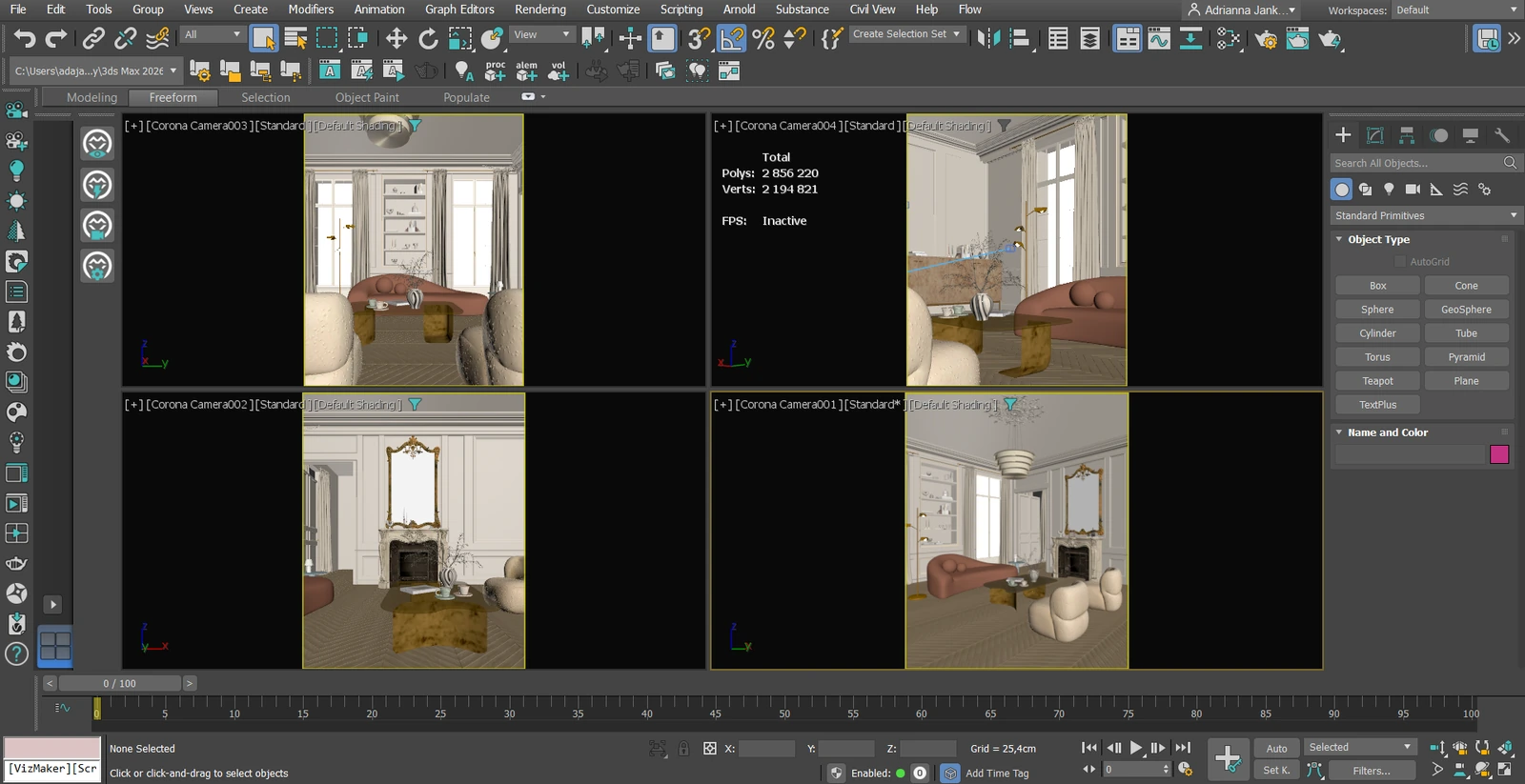
The documented toolbar offers separate controls for view capture, immediate generation and multiple views.
The ebook lists Send Viewport to VizMaker, Instant Render with VizMaker, Batch Render with VizMaker and Render Settings. Use a simple viewport transfer when you want to inspect the source image and refine the brief inside VizMaker. Immediate or batch generation is useful when the intended output is already clear.
For an interior set, organize camera views around distinct questions: overall layout, seating, a material detail and the entrance. Batch capture can give those views a common starting workflow, but review each generated result independently. The plugin captures views; the evidence does not describe transferring the complete 3ds Max scene with its geometry and shading network.
- Prepare and name the useful views in 3ds Max.
- Choose capture, immediate generation or batch processing deliberately.
- Keep the source scene and captured images available for comparison.
Develop a render direction before committing to it
AI architectural rendering turns the captured view into a visual proposal that can be compared with the model.
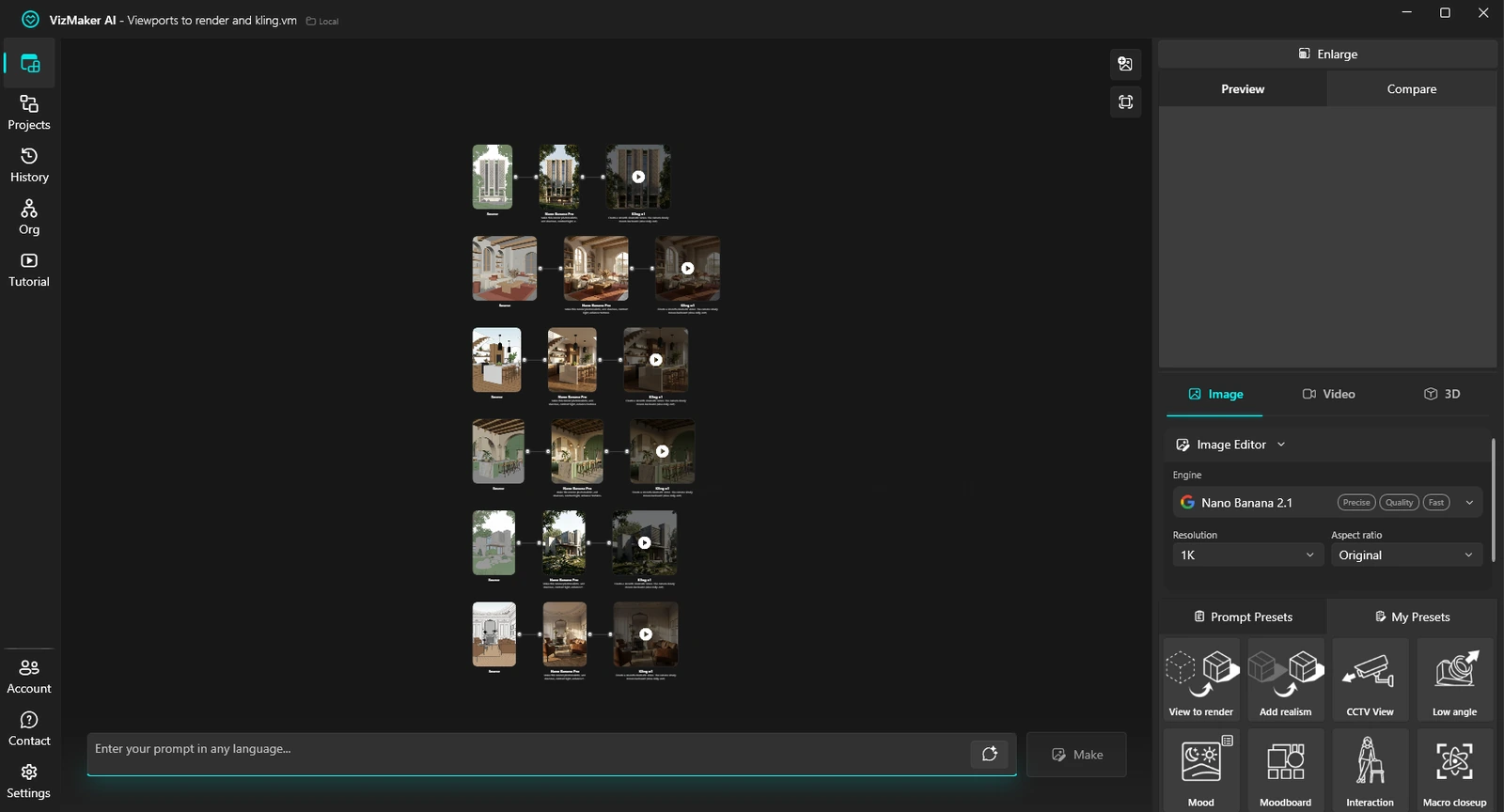
Select the transferred image in VizMaker, use Image Editor and the View to Render preset, then choose an image engine and output settings. Describe the atmosphere and material character you want to explore. A brief for a calm reception interior should explain its daylight, principal finishes and focal point rather than ask for an unspecified better render.
Generate alternatives and compare the design-critical parts of each image. Check glazing divisions, joinery, ceiling lines and the position of furniture. This makes AI rendering useful for look development without allowing an attractive change to be mistaken for an approved model revision.
- Use a brief tied to one presentation purpose.
- Compare the output with the viewport before adding further edits.
Upscale the image you intend to deliver
Architectural image upscaling belongs after the composition and material direction are selected.
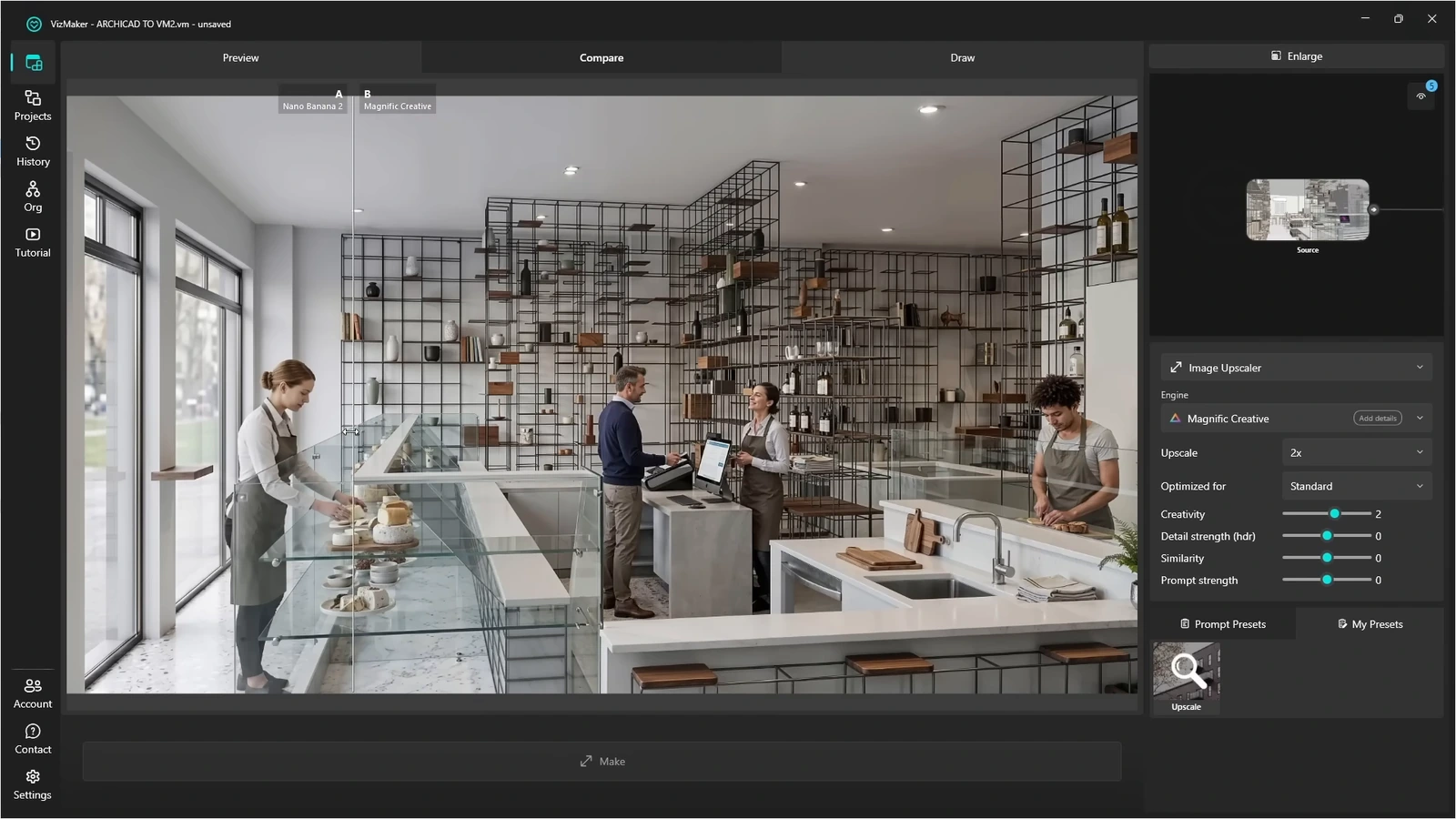
The reference recording uses Magnific Creative and compares the enhanced image with its input. In your 3ds Max presentation workflow, select the approved VizMaker result, open Image Upscaler, choose the available settings and generate an enhanced version. Use Compare A and Compare B to review the difference.
Inspect surfaces that matter to the design: upholstery, timber grain, stone joints and edges around bespoke furniture. Enhancement may add detail as well as sharpness. Keep the version that explains the specified finish, even if a more creative option looks busier. Upscaling an image does not increase the geometric detail of the original Max scene.
- Review at the size used for the final presentation.
- Check material identity as well as apparent sharpness.
Create a short interior or exterior animation
AI interior animation can turn a reviewed image into a focused presentation clip.
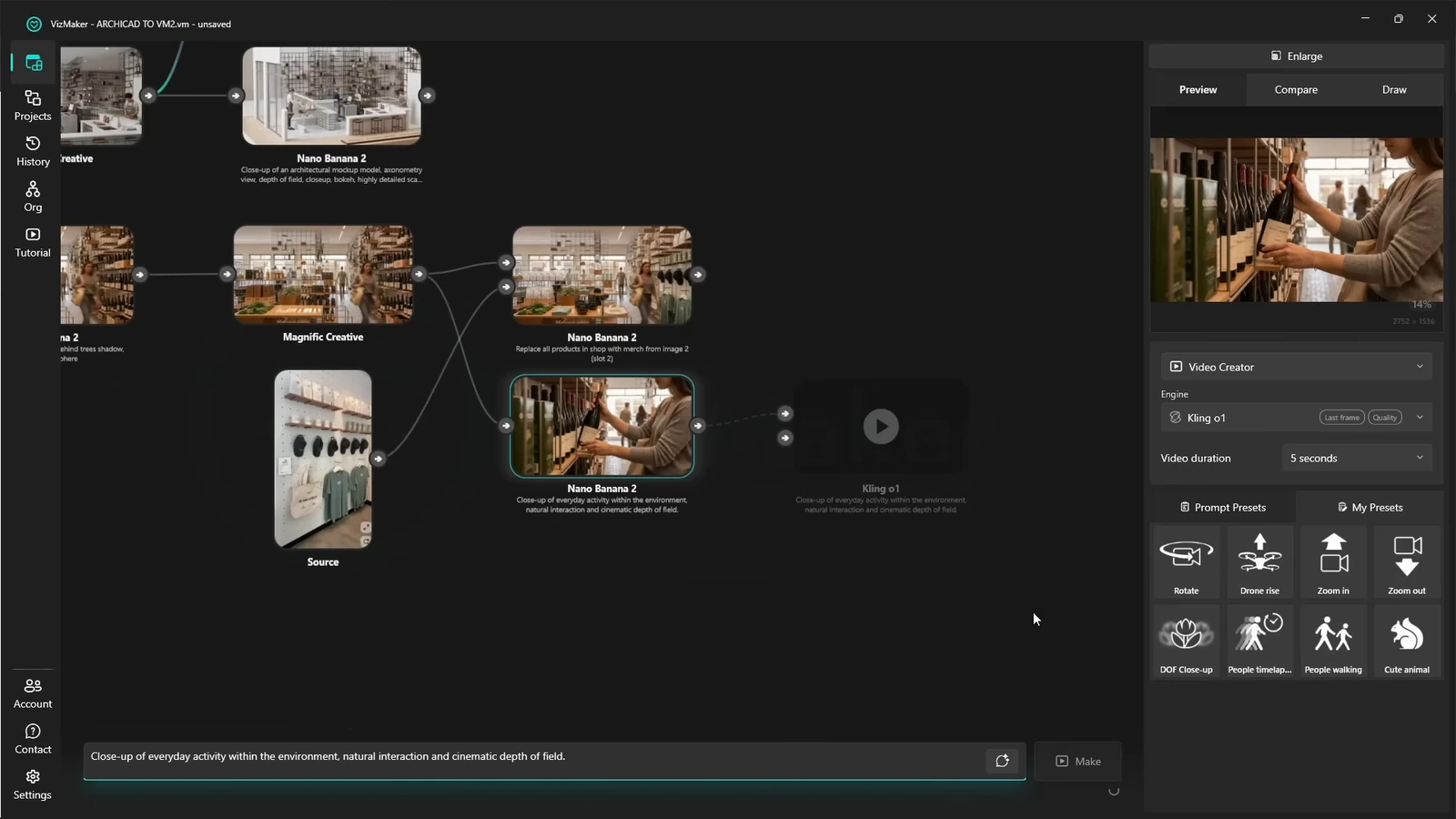
Choose the image in Video Creator, select an available video engine and describe the movement or activity. The Archicad demonstration includes backward movement, a two-frame transition, a rising exterior view and interior activity. These illustrate the shared tool, not native 3ds Max camera animation export.
For a lobby presentation, a restrained movement toward the seating area may communicate more than a sweeping reveal. Inspect the entire clip for shifting furniture, unstable edges or altered materials. Keep a scene-based animation workflow when the deliverable requires an exact camera path through modeled geometry.
- Give each clip one architectural purpose.
- Review the intermediate frames before assembling the presentation.
Generate furniture assets as a separate branch
3D Model Creator produces geometry from a visual reference, separate from image rendering.
The ebook describes generating a furniture asset from a clear visual reference with 3D Model Creator. Prepare an isolated object image, generate the model, and inspect it from several angles. The guide also describes multiple-image input with Meshy AI.
Export through an available format and inspect the imported model in 3ds Max. Check scale, orientation, silhouette, mesh density and texture assignments before placing it in the scene. A generated furniture model can support visualization, but a reference image does not establish manufacturing dimensions or a clean production topology.
- Keep the reference beside the generated model.
- Set scale from known dimensions and inspect the mesh before reuse.
Build a clear 3ds Max visualization workflow
Start with a prepared Max view and keep the branch from source image to selected output readable. The integration is most useful when each AI step answers a clear presentation question and the artist retains control over scene decisions.
- Use view capture to start AI look development from an existing scene.
- Treat upscaling, generated motion and 3D assets as distinct deliverables.
- Keep the source model authoritative for dimensions and approved design changes.
Questions and answers
Is VizMaker a replacement for a 3ds Max rendering engine?
VizMaker provides an image-based AI rendering workflow connected by a viewport plugin. A scene renderer remains useful when the result must follow exact geometry, lighting settings and camera animation. Choose the workflow according to what the deliverable needs to prove.
Can the 3ds Max plugin process several views?
The ebook documents Batch Render with VizMaker for selecting multiple views and either sending them to VizMaker or generating images. Review the available controls in the installed plugin.
Does the plugin send an animated Max camera into Video Creator?
The cited material shows viewport capture and image-to-video generation. It does not establish native camera-track transfer through these toolbar commands.
Start with a prepared design view, explore a focused AI visual direction, and review the result alongside your source project.
Download VizMakerSource: This ArchiCAD AI Plugin changes everything · VizAcademy UK ·
Source: VizMaker Guide Ebook · VizMaker · PDF, 76 pages
Source: VizMaker plugin installation panel · VizMaker
Source: VizMaker source-view, rendering and animation workspace · VizMaker