
A Revit presentation workflow can start with several viewport images and develop into a coordinated set of stills, lighting options and a short animation. Send the views to VizMaker, create initial renders, refine selected branches, then upscale the images you want to keep. A separate furniture photograph can also become a 3D asset through 3D Model Creator.
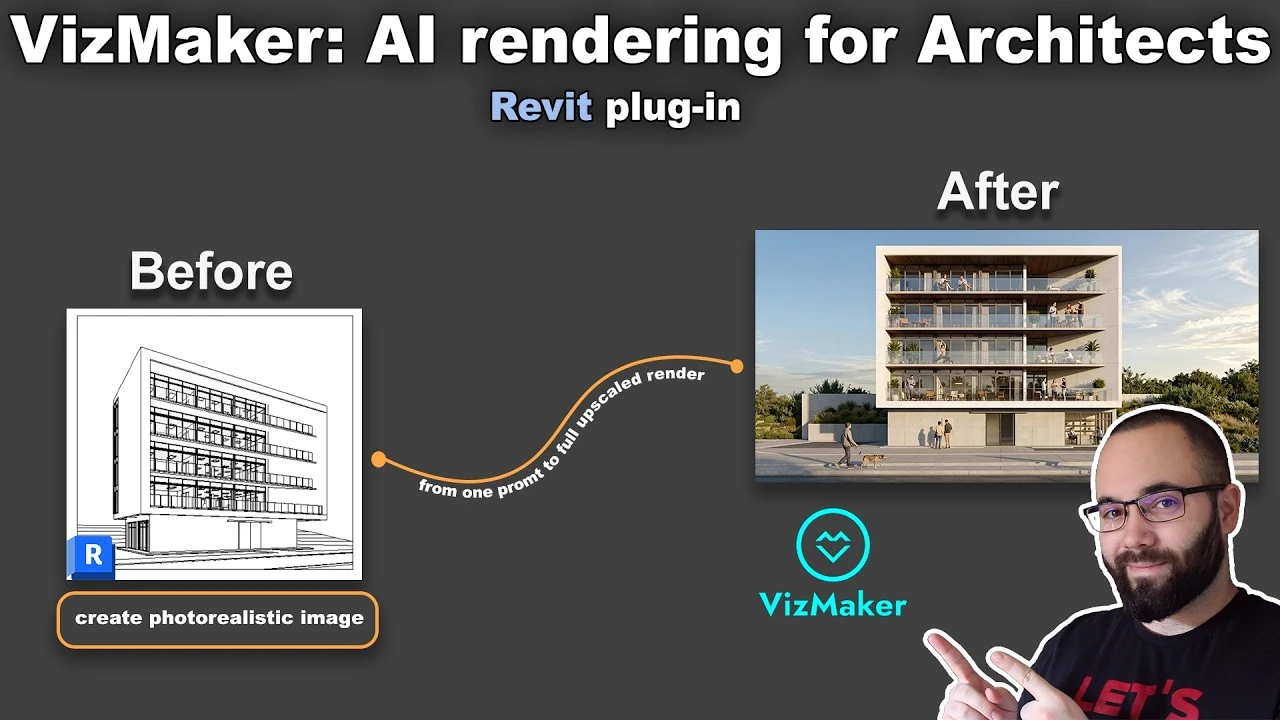
Build a useful presentation set from the model you already have
An architectural presentation often needs more than one polished exterior. An interior view explains the workspace, a massing image communicates the concept, and a short clip can introduce activity around the building. Keeping these outputs connected to their source views makes them easier to review.
This guide follows the Revit-to-VizMaker process demonstrated by Balkan Architect in a recording published on 26 May 2026. The creator identifies the video as sponsored. Its exterior, office interior and conceptual massing examples provide a practical starting point for organizing a presentation; the controls described here reflect that recorded version.
1. Bring exterior, interior and massing views onto one canvas
Choose views that answer different presentation questions before generating alternatives.
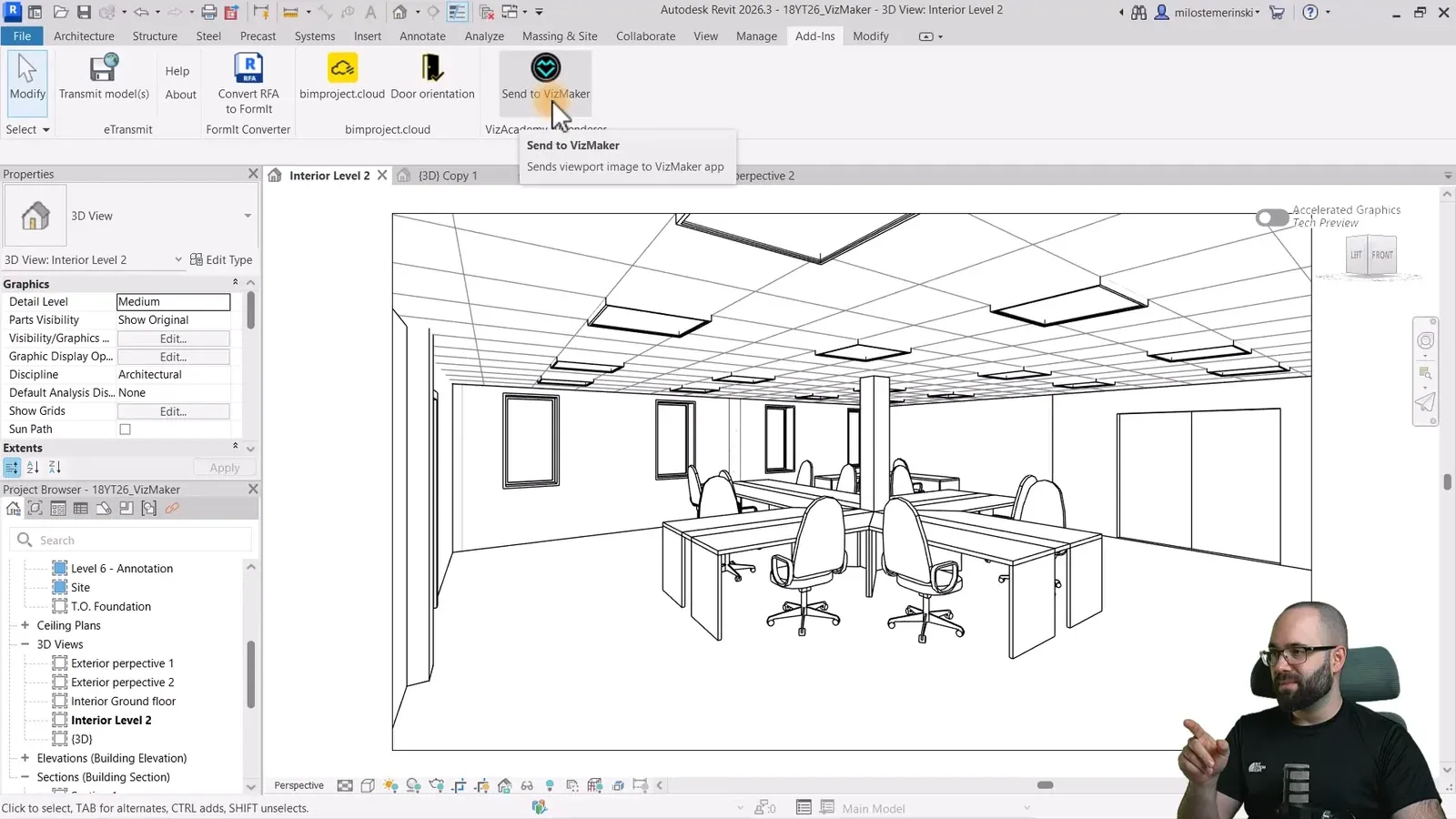
In VizMaker Settings, open Plugins and select the installed Revit version; the demonstration uses Revit 2026. In Revit, open Add-Ins and use Send to VizMaker with the intended view active. The command captures the viewport image without a separate screenshot-and-import step.
Repeat the handoff for the views you need. The example collects two exterior perspectives, an office interior and a conceptual massing view from another project on the same node canvas. For your own presentation, give each view a clear purpose: arrival, overall form, interior use or urban context.
Each transferred image becomes a source for subsequent operations. This is an image-based handoff, not a transfer of editable BIM elements or their properties. Keep the Revit model available as the reference when reviewing generated architecture.
2. Establish a first render for each view
Generate a baseline set before deciding which images deserve further work.
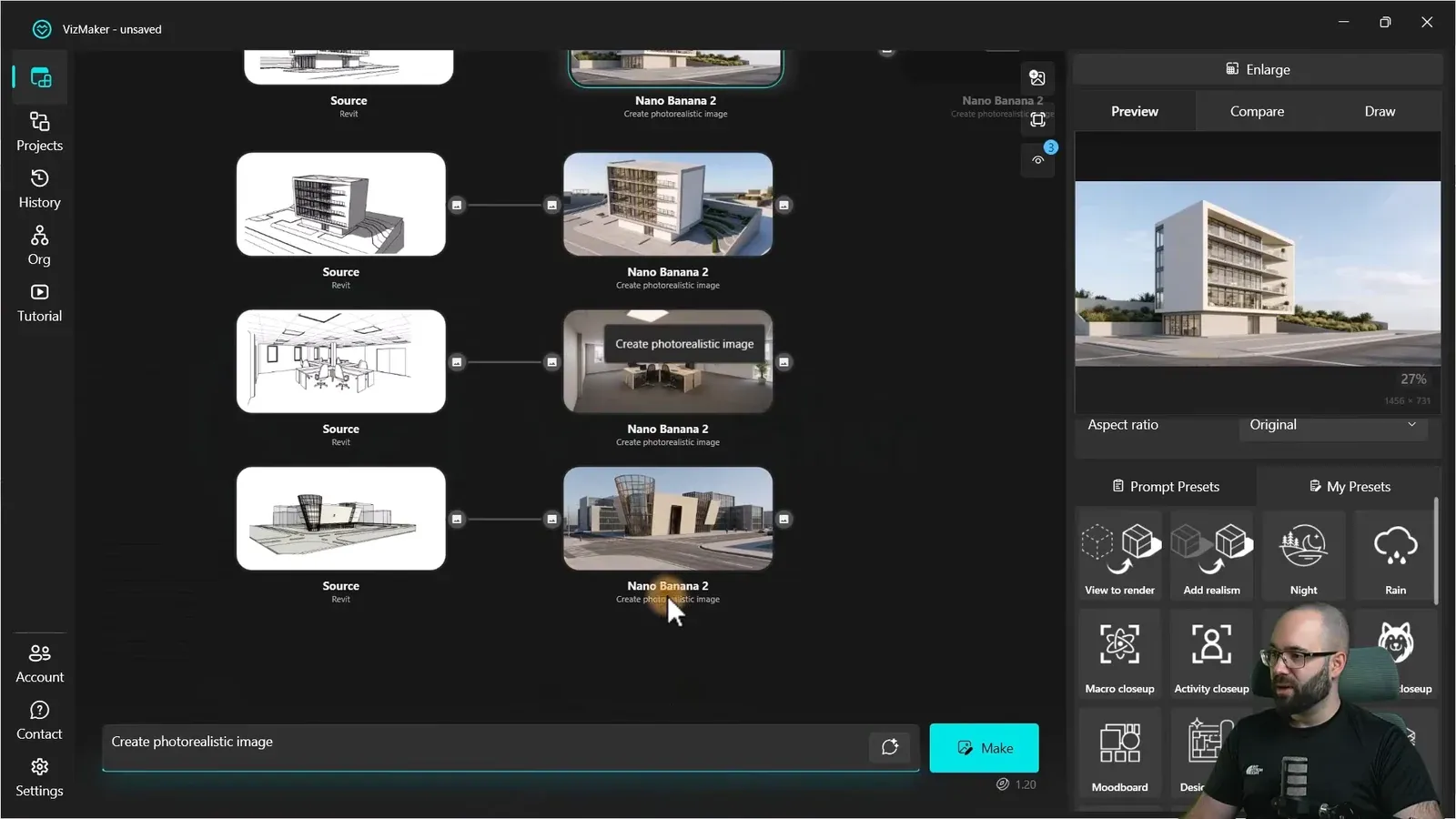
Select a source node, choose Image Editor and pick the image engine. The recorded setup uses Nano Banana 2, keeps the Original aspect ratio and starts at a lower resolution before finishing selected results later.
Apply the View to render preset and choose Make. Repeat for the other source nodes so the exterior, interior and massing studies each have an initial image. The canvas keeps the source-to-result relationships visible while the requests are processed.
Review the group as a set. The massing example shows transparent context volumes interpreted as completed neighboring buildings. That can help communicate atmosphere, but the resulting context is generated interpretation. Check the building silhouette, openings, materials and surroundings against the intended design before developing a branch.
3. Add activity and remove distracting objects
Use scene edits to support the architectural story, then review what else changed.
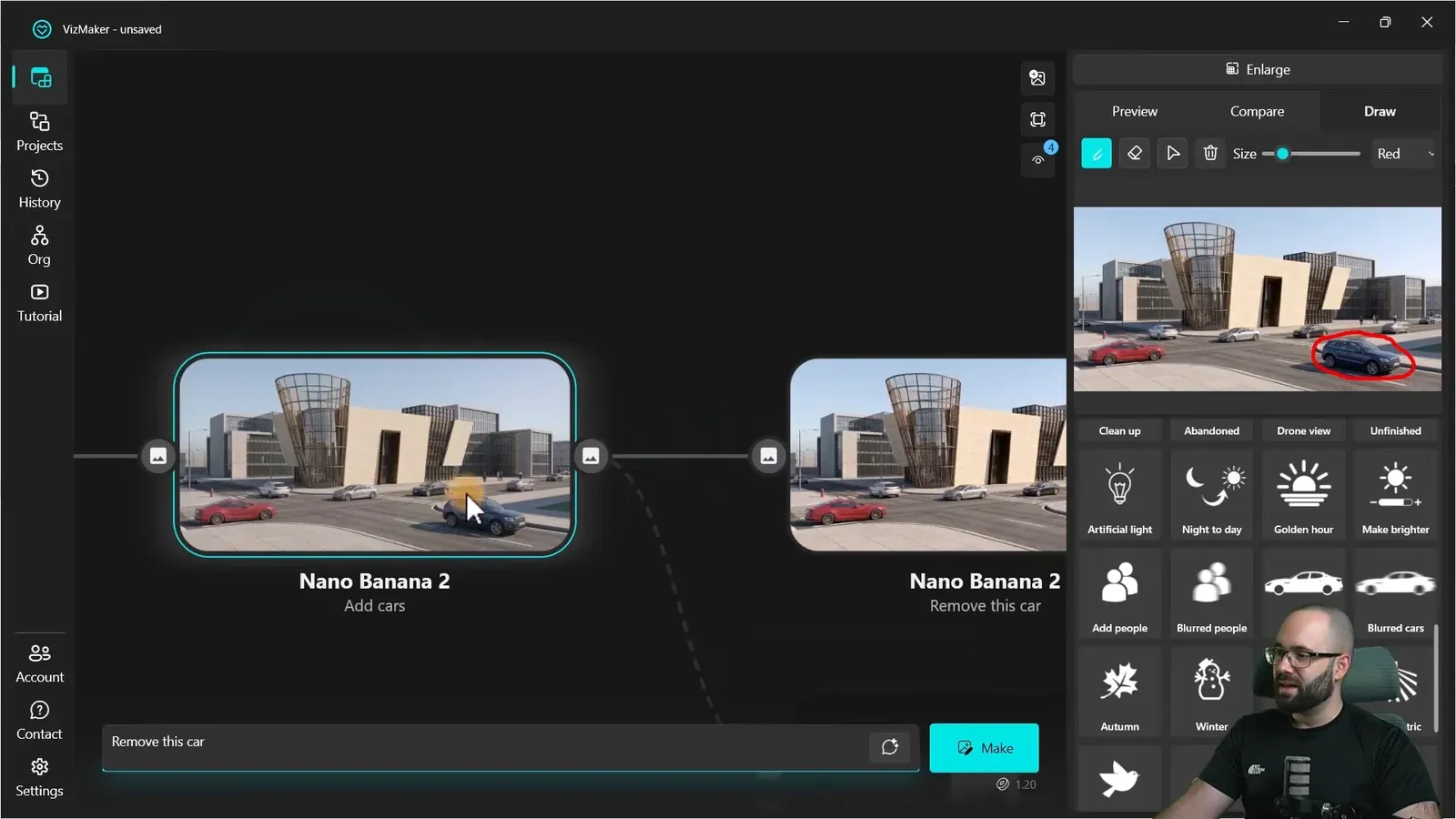
Select a rendered image and apply Add people or Add cars. These presets can help communicate occupation and scale around a building. Choose the result that supports the view rather than assuming every added figure or vehicle improves the composition.
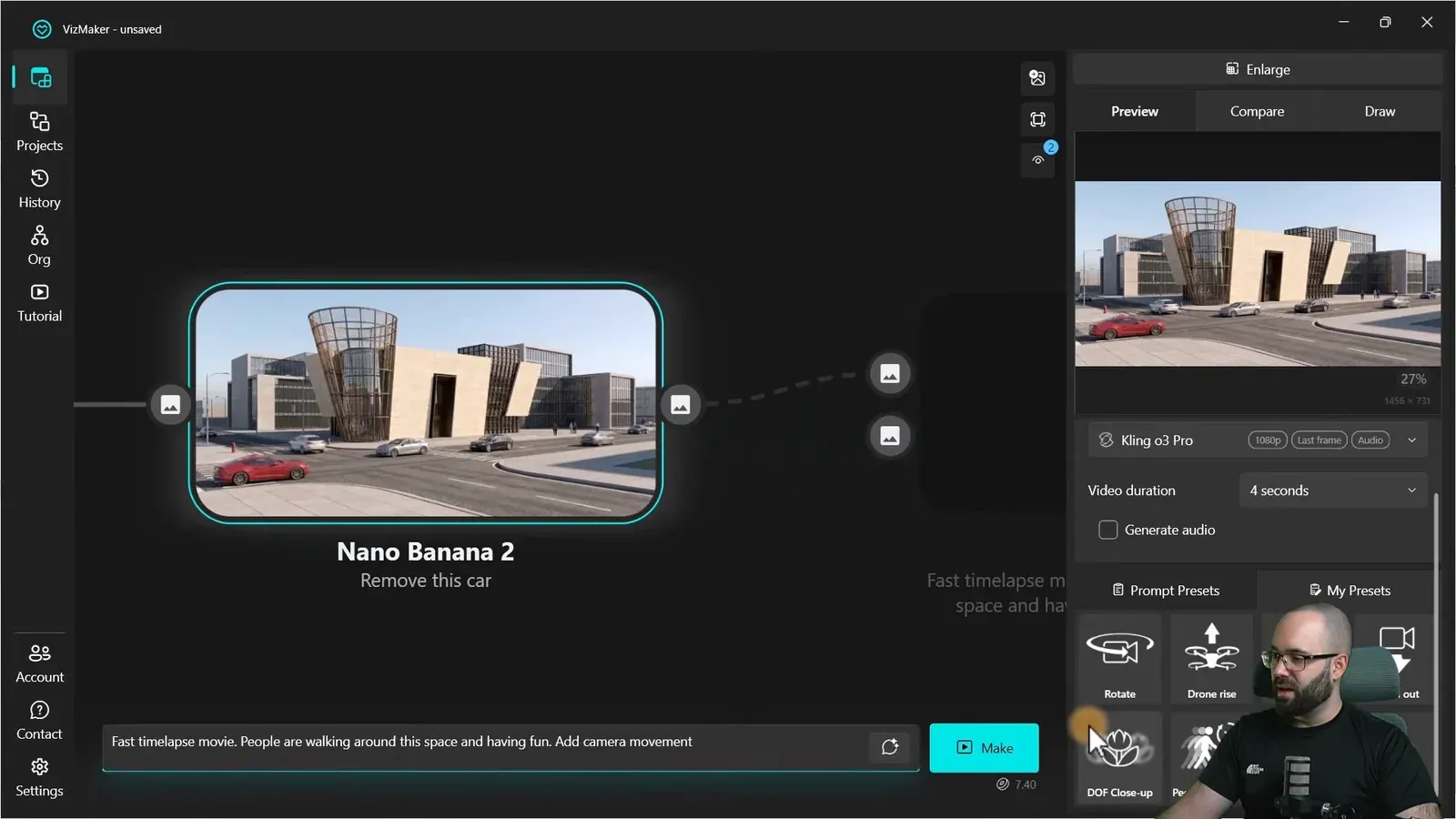
For a specific correction, open Draw, mark the unwanted object and give a direct instruction. The demonstration circles a foreground car and requests its removal. The edited result appears as another node, leaving the preceding version available for comparison.
Review broad realism edits especially carefully. In the office-building example, Add realism changes the perspective and introduces a shop. A more photographic appearance can therefore include changes to the design. Keep the appropriate earlier branch if those additions are unsuitable.
4. Branch a night study from the version you prefer
Lighting exploration can begin from an earlier result, not only the latest edit.
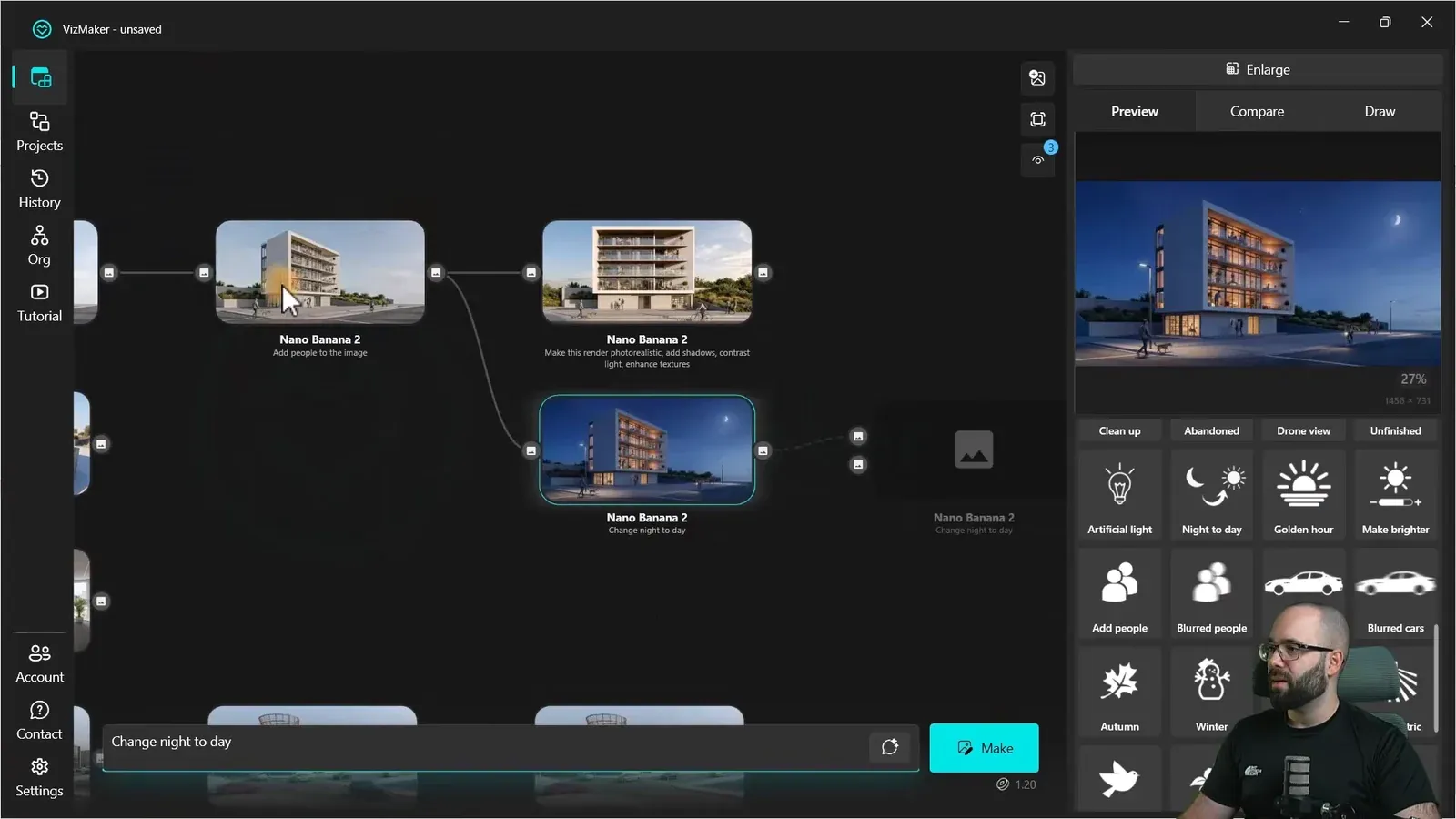
Follow the node connections back to the image whose composition and architecture you want to retain. Select that node as the input for a lighting variation. In the example, the night image branches from the people-added version while the stronger realism edit remains on a separate branch.
Describe the intended nighttime appearance clearly, including the role of illuminated windows and exterior lighting. The source shows a night result even though its preset label describes the reverse direction, so use your intended outcome to guide the instruction and check the resulting image.
Compare the day and night architectural visuals together. Look for changes in openings, facade rhythm and camera position as well as the lighting. Retaining the daytime branch gives the presentation a clear reference and makes an unsuccessful variation easy to discard.
5. Turn an approved exterior into a short animation
Use motion to show activity around a chosen view.
Select the exterior still you want to animate and switch to Video Creator. The recorded example uses Kling o3 Pro with a four-second duration and starts from a people time-lapse preset.
Treat the preset as an editable starting point. The presenter adds instructions about people walking around the space and cars moving. Keep the motion brief aligned with the purpose of the image, such as showing an active arrival area or introducing the building in a project presentation.
Play the generated architectural animation and review the full clip. Check moving vehicles and people, facade edges and any camera movement. The output is a generated video from a still image; it is not a navigable Revit scene or a verified camera path through the BIM model.
6. Compare the upscaled image before exporting
Finish the selected stills and check the detail at the size you will present.
Return to a preferred image node and switch to Image Upscaler. The demonstration uses Pro Upscaler and produces a higher-resolution version as a connected result.
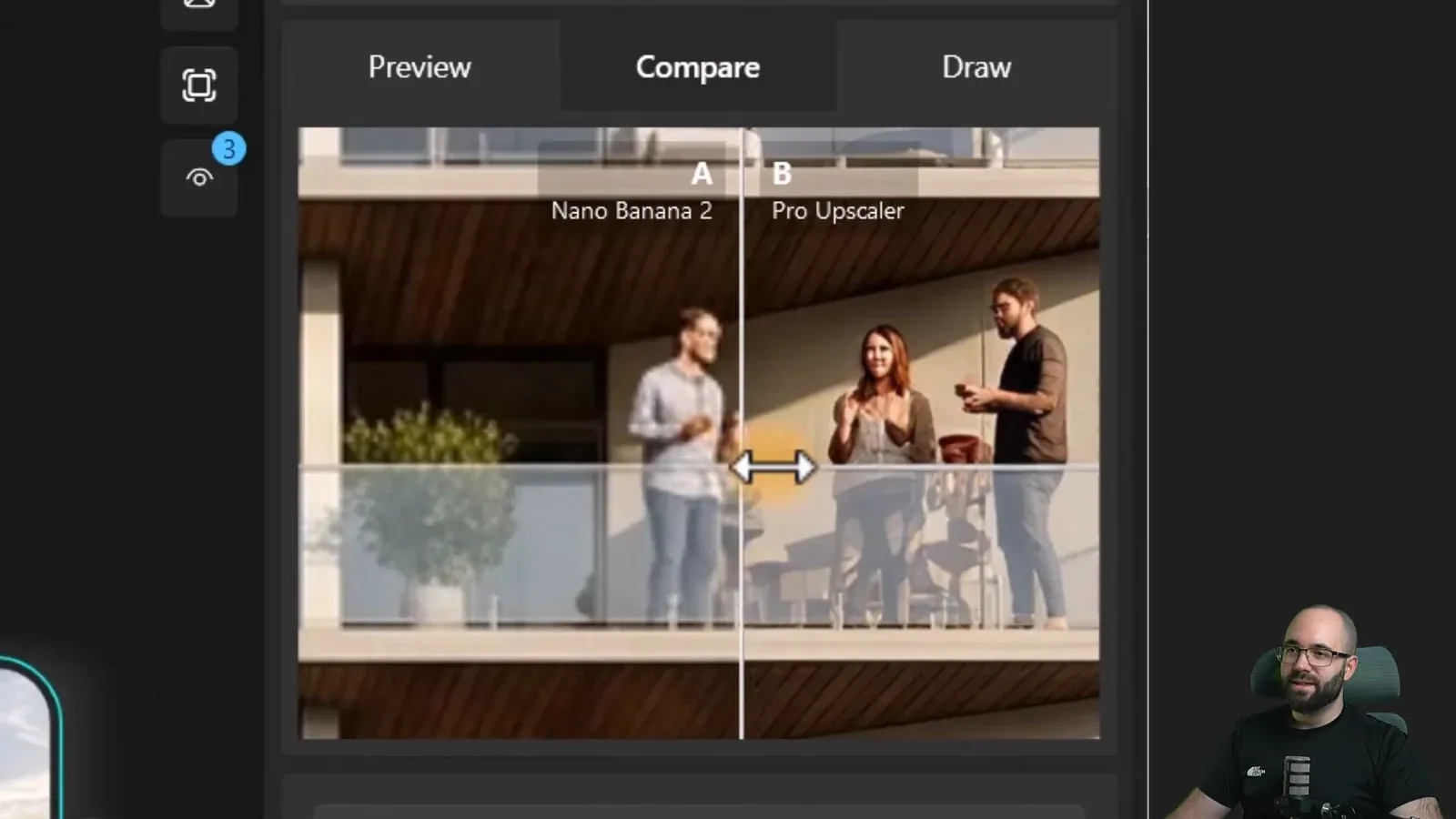
Right-click the original and assign Compare A, then assign the upscaled image to Compare B. Inspect areas where detail matters: people on balconies, planting, glazing and small facade features. The example makes the difference in people and vegetation particularly visible.
Assess whether the added detail remains credible for the project rather than judging sharpness alone. Once satisfied, right-click the chosen node and use Save selected media. Keep a copy of the earlier image so you can select the most suitable version for a screen presentation or another delivery format.
7. Create a separate furniture model from a photograph
Image-to-3D generation adds an asset workflow alongside the architectural images.
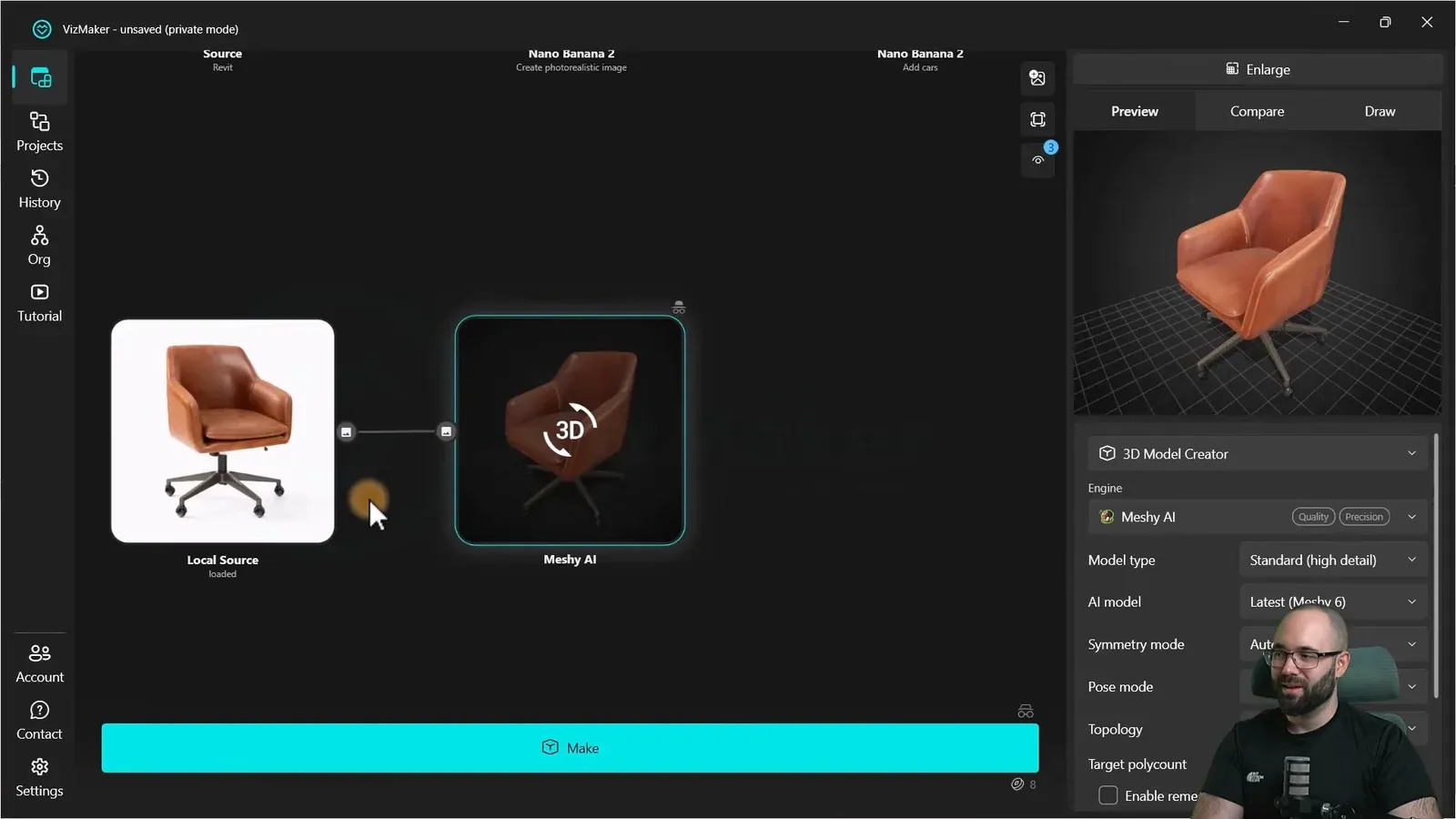
Load a clear furniture photograph as a new source and switch to 3D Model Creator. In the example, an office chair image is processed with Meshy AI to produce a textured model that can be inspected in the 3D preview.
Rotate the preview to assess the silhouette, seat, arms and base. A single photograph leaves hidden surfaces to be inferred, so treat the generated asset as something to inspect and prepare for its intended scene. Check scale and geometry in your destination software before relying on it in a design.
Save the generated model using the available export control; the recorded export dialog includes GLB. This step creates an actual 3D asset, separate from the still renders and video. The tutorial does not demonstrate converting it into a parametric Revit family or importing it back into the BIM project.
Choose a small set of outputs that explains the project
The value of this workflow is the ability to keep sources and alternatives together while moving between rendering, editing, motion and asset creation. Start with views that serve the presentation, develop the strongest branches, and check each output against the design before exporting it.
- Collect complementary Revit views and retain each source beside its generated alternatives.
- Branch lighting and scene edits from the image that best preserves the intended architecture.
- Review animation and upscaling before delivery, and inspect generated furniture geometry as a separate asset.
Questions and answers
Can I work with several Revit views in one VizMaker project?
Yes. The demonstration sends multiple exterior, interior and massing views onto one canvas. Each source has its own connected rendering branch, which helps keep the different presentation views organized.
Do I have to use the most recent render for a night variation?
No. Select the earlier node you prefer and start a new branch from it. This lets you explore a lighting option while retaining later edits as separate alternatives.
Is the generated chair already a Revit family?
The example produces a textured 3D model with Meshy AI and shows a GLB export option. It does not show a Revit family workflow. Geometry preparation, scaling and any Revit-specific conversion are separate steps.
What does Private mode change in the demonstrated workflow?
The Settings description says uploaded media, generated media and prompts are not stored in cloud history, and files are saved and accessible locally instead. This describes storage behavior; the recording does not establish that generation runs offline.
Follow the complete Revit demonstration, from collecting views and editing scene activity to animation, upscaling and the Meshy AI furniture example.
Watch the full tutorialSource: AI Rendering for Architects | Revit + VizMaker · Balkan Architect ·