
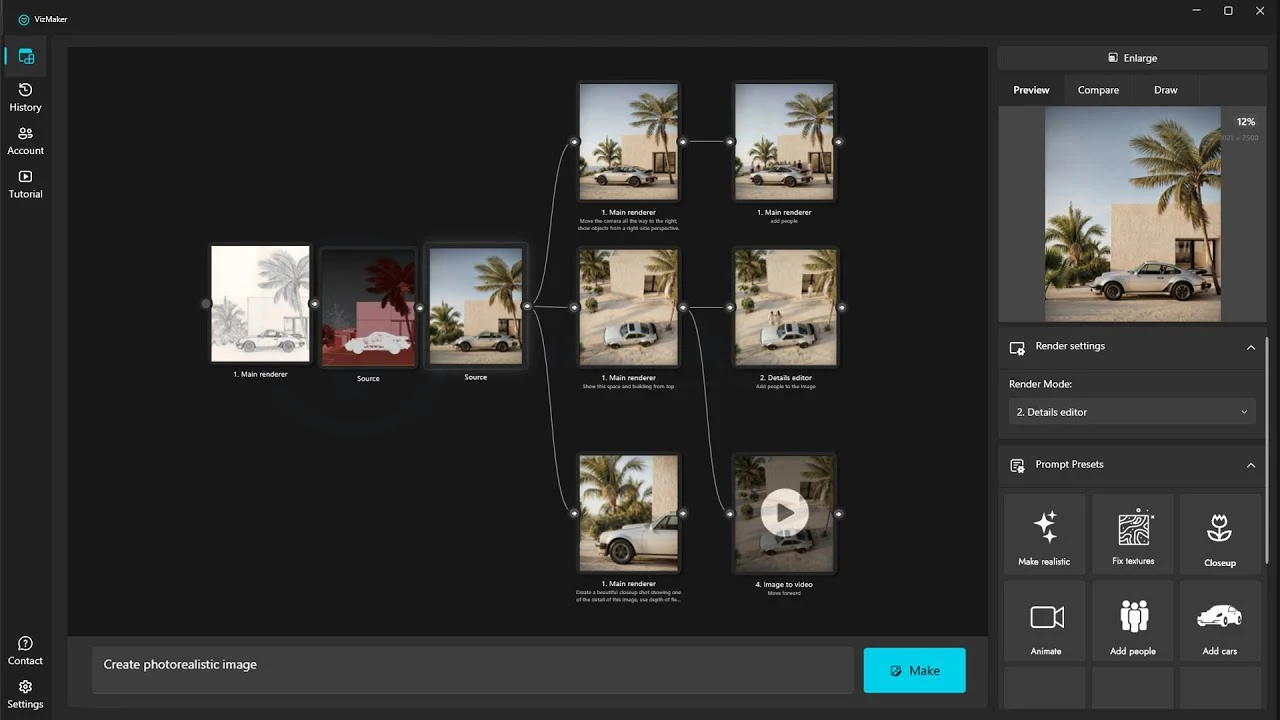
An AI visualization workflow becomes easier to manage when the source image, design alternatives and final outputs remain connected. In VizMaker, start from a viewport, render or sketch, generate alternative branches, refine a selected image, and then upscale it or develop an animation. The node workspace lets you compare decisions and return to an earlier result while keeping several presentation directions visible.
Turn a collection of generated images into a design process
An architect may need a clear exterior view, an interior designer may want a brighter room, and a product artist may need a convincing object presentation. In each case, a promising first image is only the beginning. Useful work also involves revisions, comparisons and a final format suited to the presentation.
A branching workflow makes those decisions visible. One source can lead to several render treatments; a selected treatment can lead to a lighting edit, a close-up and a video. Keeping those relationships together helps you develop alternatives without losing the image that made an earlier option useful.
Start with one source and compare render directions
Use the same visual starting point to understand what each generation changes.
Bring a prepared view into VizMaker through the supported design-application integration, or load an existing image. The walkthrough uses architectural views, an interior viewport and a simple car sketch. Choose a source that clearly expresses the intended composition; for an interior viewport, establish the visible materials before generating a realistic interpretation.
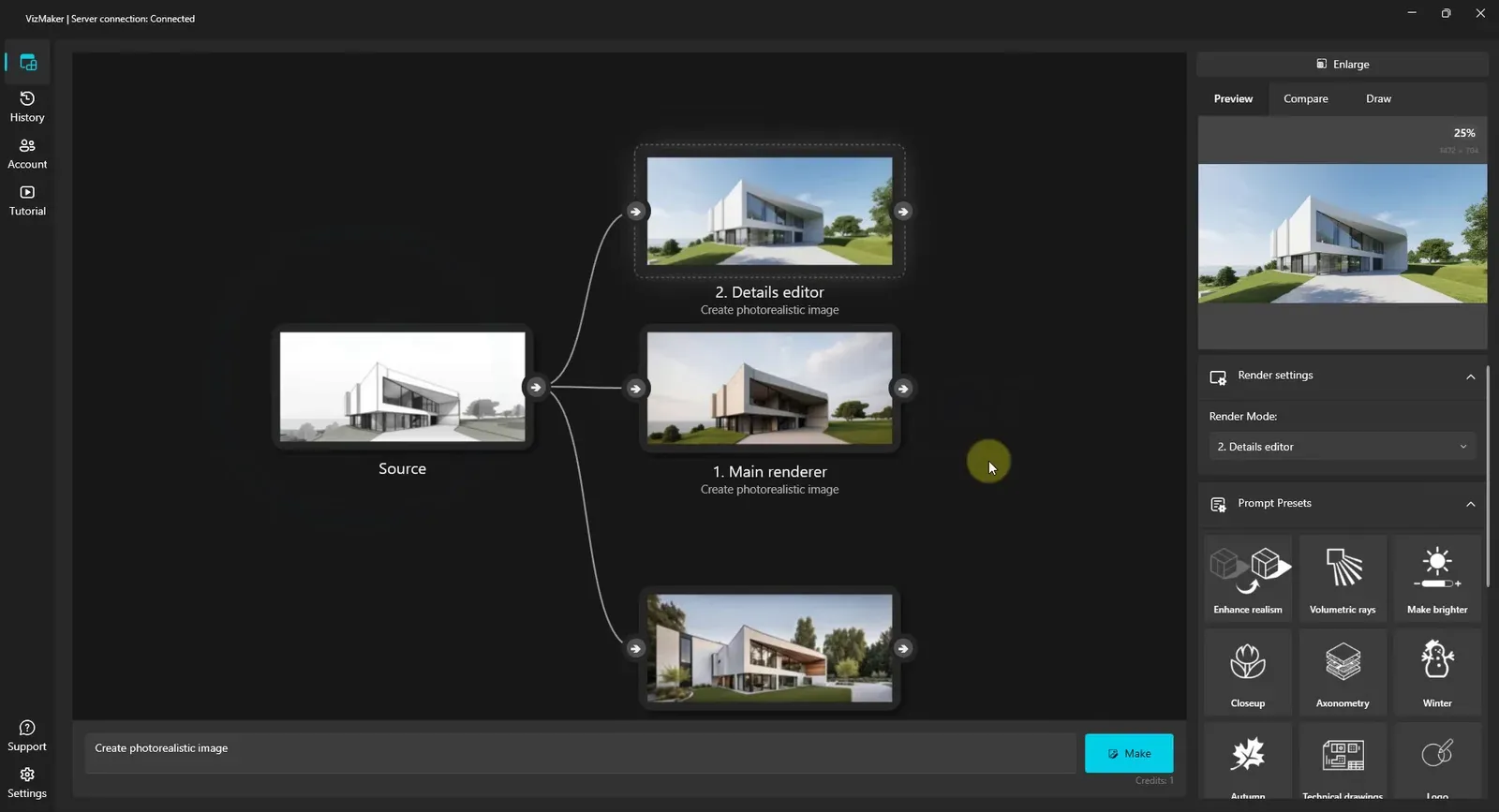
Select the source node, choose a rendering mode and provide a concise brief. Generate an alternative from that same source to compare another treatment. The demonstrated workspace places results on separate connected branches, so the original remains a common reference.
Judge the results at a useful viewing size. Open the enlarged preview or zoom in to inspect the facade, furniture and material edges. A more dramatic image is only useful if it also explains the design you want to present.
- Keep the source view consistent while comparing treatments.
- Inspect important design features before choosing a branch to refine.
Develop lighting and atmosphere on separate branches
Refine the selected image with a clear purpose for each variation.
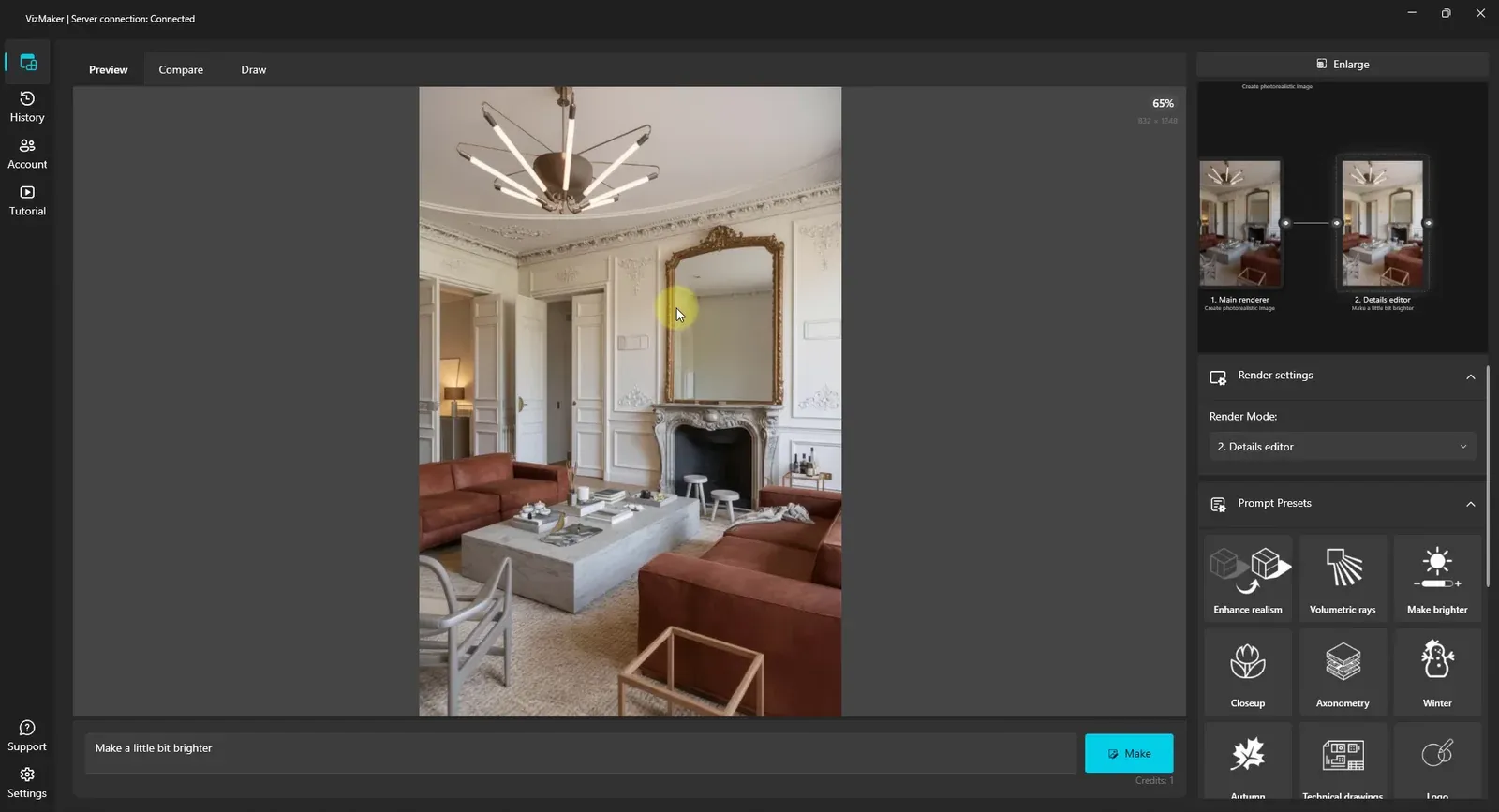
Use the AI image editing controls to address a specific presentation problem. The Details editor examples include making a room brighter, adding people or flowers, and changing a daytime view to a night scene. Each operation develops a result from the selected image.
For a client review, give each alternative a distinct role: a brighter version may clarify materials, a populated version may communicate scale, and a night version may explore atmosphere. Keep the useful parent image available so that later choices can be compared against it.
Check more than the requested addition. A lighting adjustment can also change the perceived finish of a wall or the readability of a window. Choose the version that best supports the design decision rather than accepting every generated variation.
- Choose the parent image deliberately before making another edit.
- Compare the revised atmosphere with the original design intent.
Guide local changes with marks and reference images
Combine a written instruction with a visible location or an object reference.
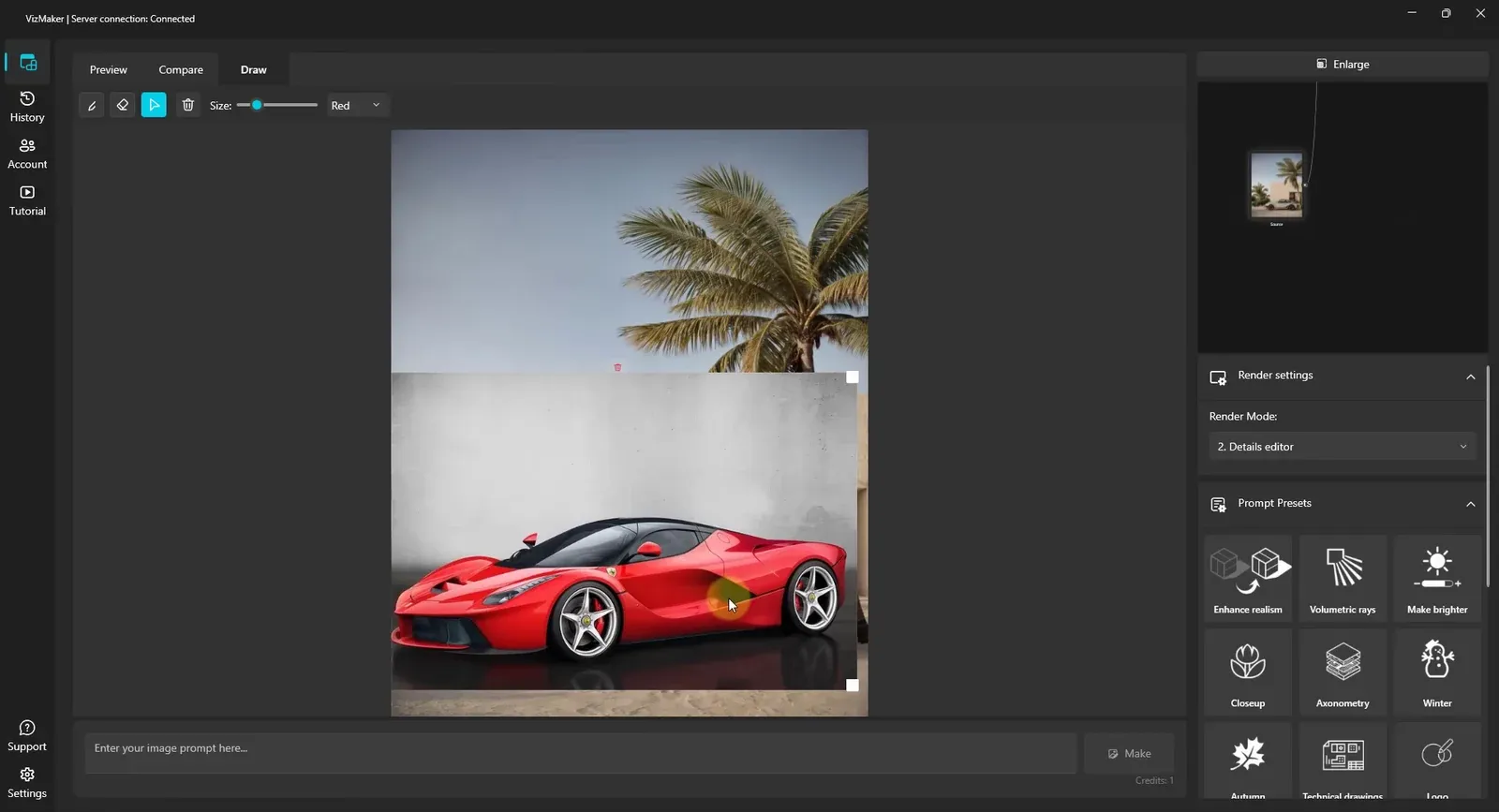
When a prompt leaves the target ambiguous, use reference-based image editing. In Draw, an arrow can identify the person or object to remove. Different colors can distinguish separate operations, such as adding an element in one area and removing an object marked elsewhere. Describe what each mark means in the prompt.
You can also paste a reference image into the drawing area, position it, and describe the replacement. The demonstrated example places a car reference over the existing composition before generating the swap. For a design task, the same editing principle is useful when a visual reference communicates an object more clearly than a long description.
After generation, inspect the surrounding context as well as the replacement. Look at contact with the floor or ground, scale and the relationship to nearby objects. The pasted reference guides the edit; the finished result still needs a visual review.
- Use distinct colors when a prompt refers to several marked areas.
- Position the reference where its relationship to the scene is clear.
Upscale the selected image and inspect its details
Use resolution enhancement after choosing the composition and direction you want to deliver.
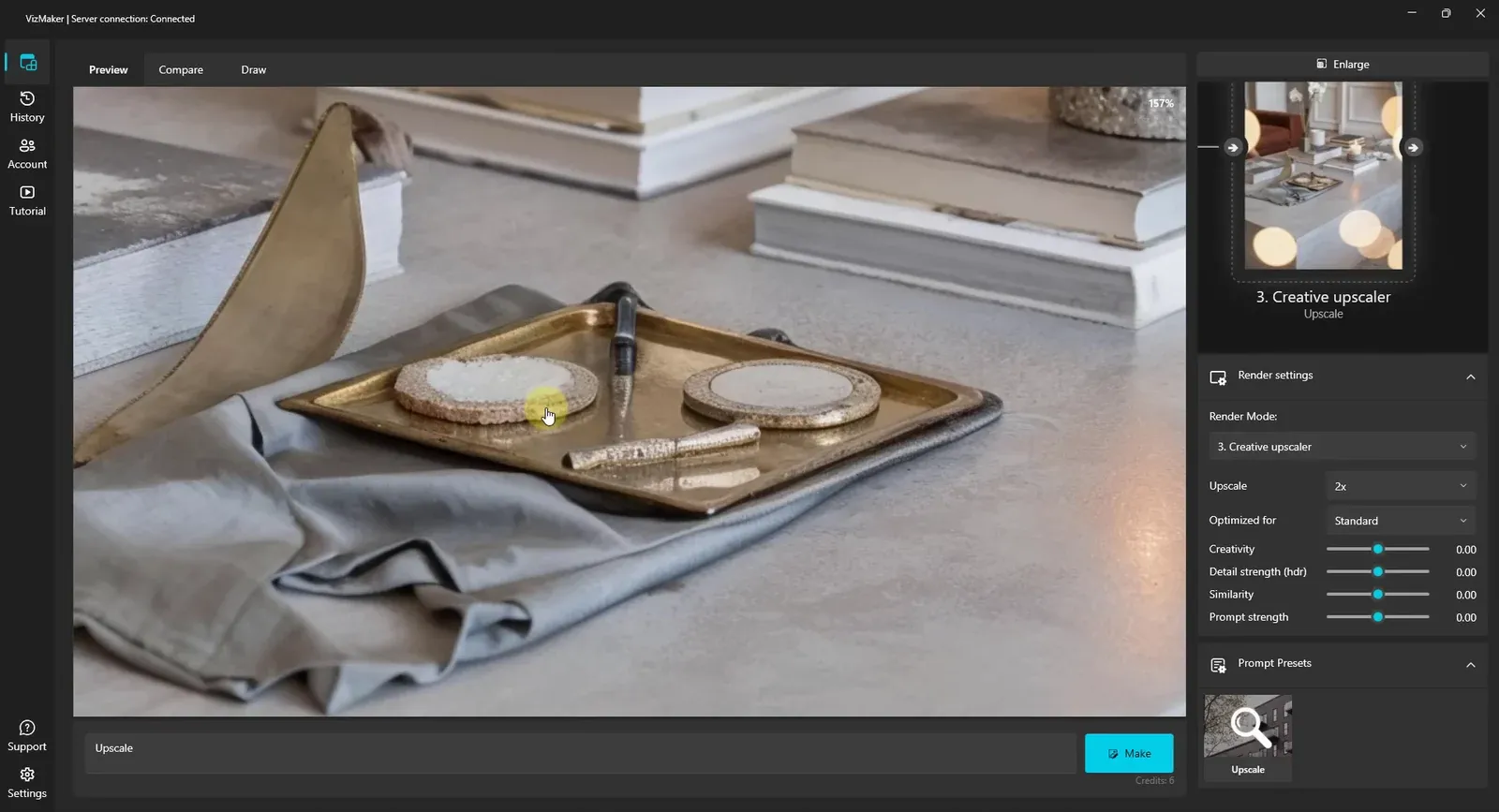
Apply image upscaling to a selected render or a useful close-up. The walkthrough chooses a two-times enlargement in Creative upscaler and exposes controls for creativity, detail strength, similarity and prompt strength. Treat these as controls to review for the image at hand, rather than as universal settings for every project.
Compare the processed image with its source. VizMaker can place images in comparison slots A and B, making it easier to inspect a change directly. The close-up example concentrates attention on furniture, a tabletop and small decorative objects, where added detail is easy to assess.
For an architectural presentation, inspect repeated edges, material patterns and fine furniture details. Prefer enhancement that strengthens the chosen visual direction. Keep the original available if newly generated detail changes a feature you intended to preserve.
- Resolve composition and major edits before preparing the final enlargement.
- Inspect important details at an enlarged view, not only as node thumbnails.
Turn selected views into a directed animation
Use one image for a simple movement or two endpoints for a more specific transition.
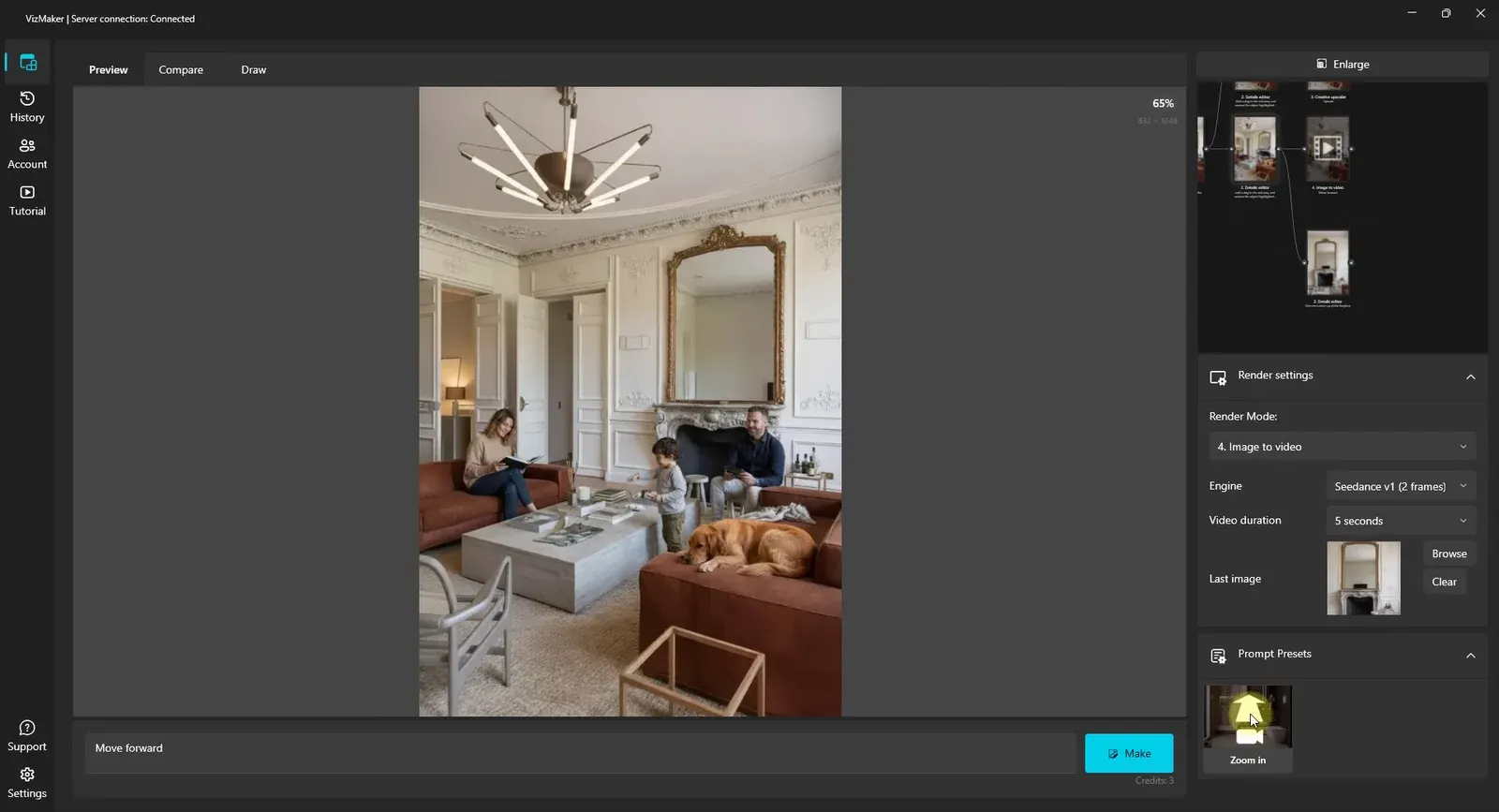
For architectural animation, select the image you want to animate and open Image to video. A single-image example uses a camera-movement instruction. Another example first creates a closer view of the fireplace, then uses that image as the final frame for a transition from the wider room.
To build that transition, save the intended final view, return to the starting image and select a video mode that supports a last-image input. Load the endpoint, describe the movement and generate the clip. The two images communicate both the starting composition and the intended destination.
Review the complete clip before using it in a presentation. Check whether the movement remains coherent and whether room details stay recognizable between the endpoints. These are generated image-to-video transitions; a desired final frame helps direct the shot but does not by itself define an exact camera route through a 3D model.
- Choose compatible starting and ending views of the subject.
- Review the transition between endpoints as carefully as the first and last images.
Keep the node workspace readable as options grow
Organize the branches so that useful decisions remain easy to find.
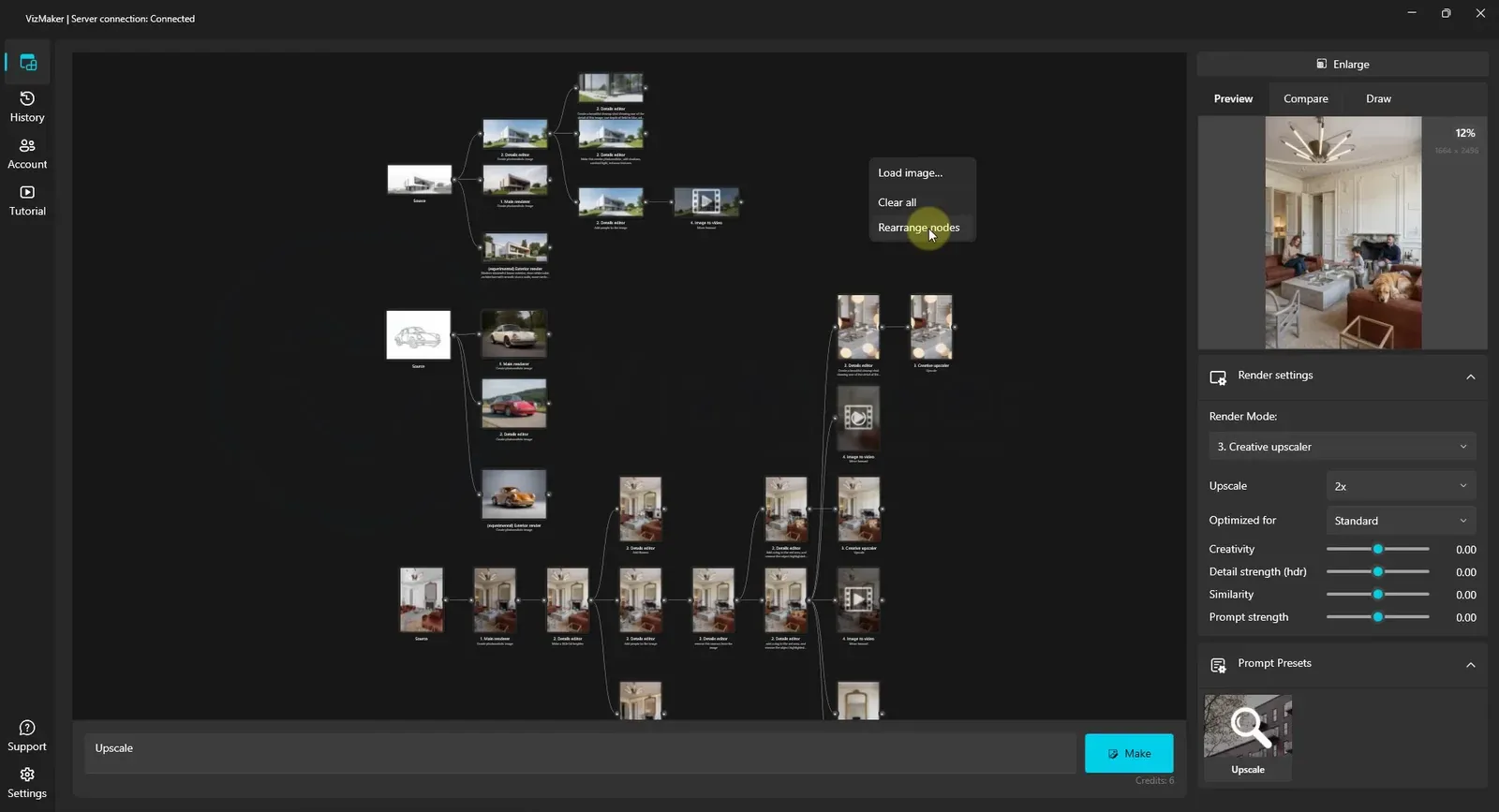
A longer session can contain exterior options, interior edits, product images, upscaled details and videos at the same time. Use node-based visualization to keep their relationships visible. The Rearrange nodes command organizes the graph according to its connections, making the main chains and smaller branches easier to read.
The demonstrated workflow can also be revisited through History and its Use action. That is useful when returning to an earlier direction instead of reconstructing its sequence manually. Check that the relevant work is present in your history before relying on that route; the recording does not establish recovery under every storage or privacy configuration.
Finish with a small set of clearly chosen outputs: a principal view, any supporting detail, and a clip if motion helps explain the proposal. The value of the workspace is that you can see where those choices came from and return to a useful branch when the brief changes.
- Rearrange the graph when connected alternatives become difficult to follow.
- Keep the useful source and intermediate results available for the next revision.
Build the presentation around clear decisions
Use the source image as the anchor, branches as alternatives, and comparison as the way to choose between them. Refine the strongest direction, prepare its detail for the intended viewing size, and add motion when it contributes to the presentation. A readable workflow makes the next revision easier because the useful steps remain visible.
- Compare alternatives from a stable source before adding more edits.
- Use marks and references when a written prompt needs a visible target.
- Treat upscaling and animation as deliberate output stages, with a final visual review.
Questions and answers
Can this workflow start from a sketch instead of a finished render?
Yes. The walkthrough uses a car sketch as well as architectural views and an interior viewport. Select the source image and generate a visual interpretation, then inspect whether it preserves the features that matter to your brief.
How can I compare two versions of an image?
Assign the images to comparison slots A and B in VizMaker. Use the comparison view to assess lighting, edits or enhanced detail while keeping both versions available in the workflow.
Do I need two images to create an animation?
The demonstrated workflow supports both a single-image camera movement and a transition with a last-image input. Use two compatible endpoints when you want to specify the destination view more clearly, and select a video mode that supports that input.
Follow the connected workflow from source images and render alternatives to visual edits, upscaling, animation and workspace organization.
Watch the original walkthroughSource: VizMaker - Powerful AI Tool for Designers · VizAcademy UK ·